Keep Two Copies: Transfer Files to a New PC in Australia
Use OneDrive if you already sync your files to the cloud. It's the simplest way to move everyday documents and photos across. If you're shifting a large offline collection, or you want a full restore rather than a folder-by-folder copy, an external drive or Windows Backup will serve you better. Apps almost always need reinstalling either way, and cloning is a specialist job best left for identical hardware. Whichever method you choose, back up and verify it before you touch the old machine.
Key takeaways
- Cloud storage like OneDrive is suitable for small to moderate data, but may fill quickly with large media libraries, requiring a subscription upgrade.
- External drives offer fast, offline transfers for large datasets, especially when internet upload speeds are limited, but necessitate careful verification of file integrity.
- Windows Backup can carry over files and settings during initial setup but requires the same Microsoft account and does not guarantee app licenses or drivers will transfer properly.
- For very large data volumes, physical transfer via external drives or direct network connections is faster and more reliable than cloud-based options.
- Verification of transferred data through file opening, folder comparison, and app testing is essential before wiping or abandoning the old PC, with professional help recommended in complex cases.
Table of Contents
- How do I prepare my old PC to transfer files to a new PC?
- Can I use OneDrive to transfer files to a new PC?
- What's the best way to move files with an external drive?
- What does Windows Backup actually move to a new PC?
- Should I use a network transfer or cable to move files?
- Is cloning a hard drive a good option for a new PC?
- How do I know my file transfer to the new PC actually worked?
- When should you call in a professional for a PC transfer?
- Can I use a USB stick or SD card to transfer files?
- Can Windows' built-in tools handle the transfer for me?
- What should I consider when moving very large amounts of data?
- How do I move files from Windows to a Mac (or the other way)?
- Why did my file transfer fail or freeze partway through?
- Primary sources and further reading
- What we think actually matters when you move to a new PC
- Get your new PC set up properly, without the guesswork
- Sources
- FAQ
How do I prepare my old PC to transfer files to a new PC?
Before you move a single file, take stock of what's actually on the old machine. Most people think they know, and most people are wrong. Photos hide in phone-sync folders, tax records sit in a random Downloads subfolder from three years ago, and browser bookmarks quietly disappear if nobody thinks to check them.
Work through this list before you start:
- Desktop - check for shortcuts, work-in-progress documents, and screenshots that never made it to a proper folder.
- Documents, Pictures, Music and Videos - the obvious ones, but confirm subfolders and any redirected library locations.
- Downloads - often ignored, frequently full of invoices, installers, and one important PDF you forgot about.
- Browser profiles - saved passwords, bookmarks, and extensions. Sign into your browser's sync account or export bookmarks manually.
- Email archives - if you use a local email client rather than webmail, its data file lives outside the obvious folders.
- Application-specific folders and saved games - these live in AppData, in Documents subfolders, or inside the app's own install directory.
While you're at it, write down software licence keys, note which accounts need re-authenticating (your Microsoft account is the big one), and check whether your browser has stored passwords you'll need elsewhere.
Then make a backup immediately, either to the cloud or an external drive, and turn on multi-factor authentication on any cloud account before you rely on it for a transfer. Once you know roughly how much data you're carrying, whether it's 20 GB of documents or 2 TB of video, you can pick a method that actually suits the load rather than guessing.
Pro Tip: Do a rough storage count before you commit to a method. Right-click your main folders, check "Properties," and add up the total. It takes two minutes and saves you from a OneDrive sync that stalls halfway through a 400 GB video library.
Can I use OneDrive to transfer files to a new PC?
Yes, and for most home users it's the easiest route available. OneDrive already ships with Windows, so there's no new software to install, and once your files are synced they follow you to any device signed into the same Microsoft account.
The process itself is simple:
- Move or copy your key folders (Documents, Desktop, Pictures) into the OneDrive folder on the old PC, if they aren't already redirected there.
- Watch the sync icon in the taskbar. A spinning circle means it's still working; a green tick means everything has uploaded.
- Confirm the same files appear in the OneDrive web interface before you assume the job is done. This step matters more than people think.
- On the new PC, sign in with the identical Microsoft account, open File Explorer, and turn on PC folder backup so Desktop and Documents keep syncing automatically going forward.
Here's the number that trips people up: Microsoft gives you 5 GB of storage free, rising to 1 TB with a Microsoft 365 subscription. If you've got a decade of family photos or a games library sitting on your old drive, that free tier will fill up fast, and the sync will simply stop uploading once you hit the ceiling.
Cloud sync feels reassuring because it's automatic, but automatic isn't the same as verified. Microsoft's own guidance is clear that you should confirm sync has actually finished via the web view before you rely on it as your only copy.
OneDrive earns its keep when you want ongoing access across multiple devices and a backup that keeps running quietly in the background. It's the wrong tool when you're moving a huge media library on a slow home connection. In that case, an upload that should take an evening can stretch into a week.
What's the best way to move files with an external drive?
An external drive is still the gold standard when your internet connection can't keep up with your data, or when you want a genuine offline copy sitting in a drawer as insurance. Speed and capacity depend heavily on the drive itself. A USB 3.0 or USB-C external SSD will move a few hundred gigabytes in minutes, while an older USB 2.0 hard drive can take hours for the same job.
Here's the workflow that actually works:
- Plug the drive into the old PC and confirm Windows recognises it in File Explorer.
- Copy, don't move, your key folders: Documents, Desktop, Downloads, Favorites, Music, Pictures and Videos. Microsoft explicitly recommends copying rather than moving, so the originals stay put until you're certain the copy worked.
- Once the transfer finishes, safely eject the drive using the "Eject" option in File Explorer rather than just yanking it out.
- Connect the drive to the new PC, paste the folders into their matching locations, and check folder counts match what you had on the old machine.
- Open a handful of representative files, a recent document, a photo from last year, a saved spreadsheet, to confirm they actually opened correctly and aren't corrupted.
Repeat the process for anything sitting outside the standard folders, application data, saved games, and anything you flagged during your earlier inventory.
Pro Tip: Once you've verified everything on the new PC, disconnect the external drive and store it somewhere safe rather than leaving it plugged in. Cyber, which limits the damage if either machine ever picks up malware.
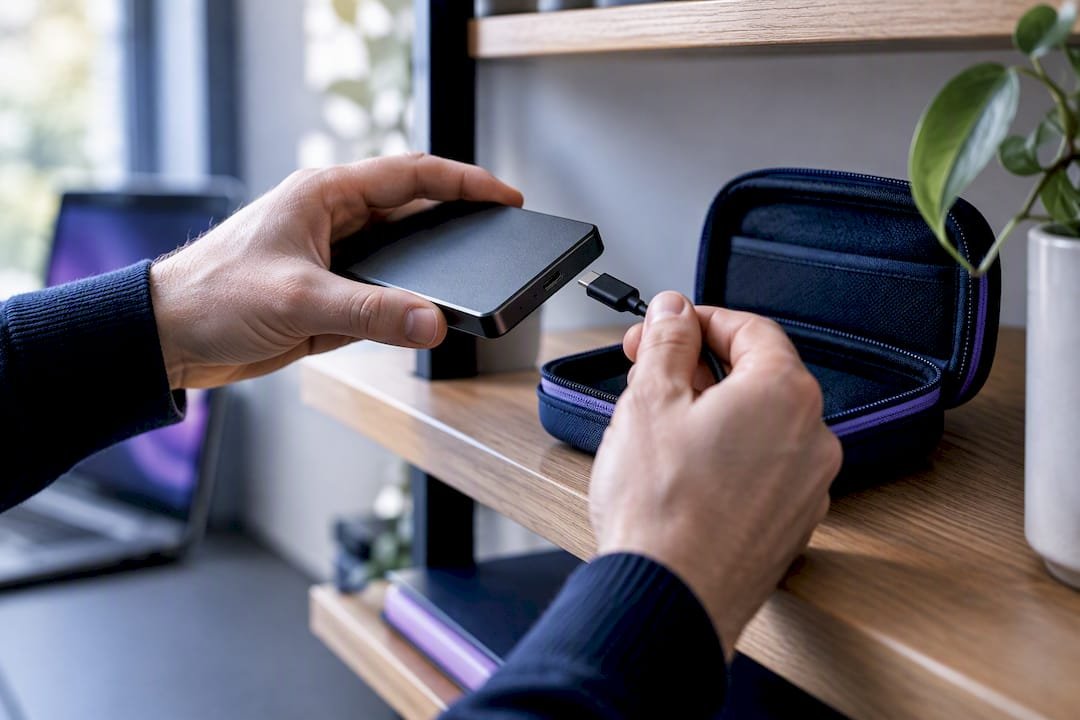
External drives are the better call when you're on limited or slow internet, working with very large files like video projects, or you simply want a physical archive independent of any cloud account.
What does Windows Backup actually move to a new PC?
Windows Backup is the closest thing to a "set it and forget it" option, but it comes with fine print worth knowing before you rely on it. It runs during the initial setup of a new Windows 11 PC, and it can carry across files, many of your settings, and eligible apps in one pass.
The catch is the account requirement. You must sign in during that first-run setup screen using the exact same Microsoft account you used to create the backup on the old PC. Microsoft's documentation is specific about this restore window and the supported Windows versions it works with, so this isn't something you can do halfway through, or weeks later, without extra steps.
What it typically brings across:
- Files stored in your standard user folders
- Most Windows settings, wallpaper, and some app preferences
- Apps that are eligible for automatic restore, mainly ones tied to the Microsoft Store
What it won't reliably bring:
- Desktop apps installed from outside the Microsoft Store
- Software licence activations, which usually need reactivating manually
- Drivers for specialist hardware, particularly printers, scanners, or older peripherals
Restoring is straightforward in principle: on the old PC, open Windows Backup and confirm your files and settings are included, then on the new PC, at the very first setup screen, sign in with the same account and choose to restore from that backup.
If your new PC has already finished its initial setup and you missed that window, don't panic. You can still access your backed-up files through OneDrive directly, since Windows Backup stores much of its data there anyway, and reinstall apps manually from their original sources.
Should I use a network transfer or cable to move files?
When both PCs sit on the same network, or you'd rather skip the cloud entirely, a direct network or cable transfer can be considerably faster than uploading and downloading through the internet.
Your main options:
- A shared folder over your local network (SMB), which lets one PC see and copy files directly from the other.
- A direct Ethernet connection between the two machines, useful when you don't have reliable Wi-Fi or want a private link.
- A dedicated USB transfer cable designed specifically for PC-to-PC file movement.
Network transfer earns its place when you're moving a large volume of data and both machines are on a gigabit connection, since a wired local transfer can outrun even a decent home broadband upload. It's also handy if you're setting up several new machines at once in a small office and don't want to repeat the same cloud upload multiple times.
The security note matters here more than people expect. Only enable file sharing on networks you trust, your own home or office Wi-Fi, never a public or shared network. Once the transfer is finished, turn sharing back off on both machines rather than leaving folders exposed indefinitely.
Pro Tip: After a network transfer, open File Explorer on the new PC and compare folder sizes against the old machine using the Properties panel. A mismatch of even a few files usually means the transfer was interrupted partway through.
Is cloning a hard drive a good option for a new PC?
Cloning copies your old drive one-for-one, operating system, apps, settings and all, onto the new machine's drive. In theory, it sounds like the ultimate shortcut. In practice, it's a specialist tool, not a default choice, especially when your new PC has different hardware from the old one.
The risks are real:
- Driver mismatches can leave the new PC unstable or with components that won't work properly.
- Windows activation can break when it detects a completely different hardware profile.
- Every bit of clutter, old bloatware and forgotten background processes, comes along for the ride.
CHOICE points out that restoring a clone to a different computer is genuinely harder than it sounds, and it tends to reproduce the exact digital mess you were hoping to leave behind. A clean install followed by selectively restoring your files is usually the safer, tidier path.
Cloning genuinely makes sense in one scenario: you're upgrading a drive inside the same machine, not moving to new hardware. If you attempt it anyway, always image the old drive first and keep that image untouched until you've confirmed the new setup boots and runs properly.
How do I know my file transfer to the new PC actually worked?
Don't wipe the old PC the moment files appear to have landed on the new one. Verification is the step everyone wants to skip, and it's the one that saves you when something's quietly gone wrong.
- Open a sample of files across different folders, documents, photos, spreadsheets, and confirm they open without errors.
- Compare folder counts and rough file totals between old and new PC using File Explorer's Properties panel.
- Sign into every account you rely on: email, browser sync, cloud storage, and confirm your data is there.
- Test key apps and any peripherals (printers, scanners, webcams) to make sure they still function.
- Reinstall desktop apps that didn't transfer automatically, and reactivate licences using the keys you noted earlier.
Only once you're satisfied should you think about erasing the old PC. Cyber.gov.au warns that ordinary disposal or a simple delete can leave data recoverable, so use a proper Windows reset with the "remove everything and clean the drive" option, a dedicated disk-wiping tool, or a professional data destruction service if the drive held sensitive business or financial records.
Pro Tip: Keep at least two copies of your data, one in the cloud and one on an external drive, until you're completely confident the new PC has everything. Only then does it make sense to wipe or recycle the old machine.
When should you call in a professional for a PC transfer?
Not every migration is a simple folder copy. Corrupted backups, ageing drives that click ominously when you plug them in, or app data buried inside a proprietary format can turn a one-hour job into a weekend of frustration.
PC Scientist handles the situations that go beyond a straightforward drag-and-drop, including onsite file transfers, restoring from Windows Backup when something's gone sideways, data recovery from failing drives, secure wiping of the old machine, and sorting out reinstalled apps and licence reactivation once everything's settled on the new PC.
A few scenarios where professional help genuinely pays off:
- A backup that won't restore, or throws errors partway through.
- NAS or RAID setups where the file structure isn't a simple folder copy.
- Recovering data after a ransomware or malware incident.
- Complex application data spread across multiple locations that a standard file mover would miss.
A typical visit starts with an inventory of what needs to move, a verified copy onto the new machine, confirmation that everything opens and runs, and secure erasure of the old device once you're happy. Before you start, our new PC setup checklist is worth a read either way.
Can I use a USB stick or SD card to transfer files?
USB flash drives and SD cards are the underrated middle ground between cloud sync and a full external drive. They're not built for bulk transfers, but for smaller jobs, they're genuinely the fastest option because there's no upload, no sync wait, and no account sign-in required.
A 64 GB or 128 GB USB flash drive handles a folder of documents, a batch of photos, or a handful of work files without fuss. SD cards make sense specifically if you're already pulling photos or video off a camera, since you can copy directly from the card to the new PC without an intermediate step. Just be aware that cheaper flash drives and SD cards are genuinely slower than a proper external SSD, so a large transfer that would take ten minutes on a fast drive might take an hour on a budget stick.
The same rules apply as with any physical media: copy rather than move your files off the old PC first, and don't format or reuse the drive until you've confirmed everything landed correctly on the new machine. It's also worth checking the drive's file system. Older FAT32-formatted USB sticks cap individual files at 4 GB, which catches people out when they try to copy a large video file and get a cryptic error with no obvious explanation.
For a handful of files or a single folder, a USB stick beats setting up cloud sync or hunting down an external drive. For anything larger than a few gigabytes, step up to a proper external SSD instead.
Can Windows' built-in tools handle the transfer for me?
Windows has a couple of quietly useful built-in features that don't get nearly enough attention outside of dedicated transfer methods.
Nearby Sharing works over Wi-Fi or Bluetooth between two Windows PCs sitting close together, no cables, no cloud account, no network configuration. Open the Share option on a file, select Nearby Sharing, and as long as both PCs have it switched on in Settings, the file appears on the other machine within seconds. It's ideal for moving a handful of documents or photos quickly, but it's not designed for bulk migrations. Big folders will bog it down.
File History, meanwhile, is Windows' built-in backup tool rather than a transfer tool in the traditional sense. It continuously backs up your libraries, desktop, and contacts to an external drive or network location. If you've had File History running on your old PC, you can point the new PC at that same backup drive and restore your file history directly, which effectively doubles as a migration path if you already had it switched on. The catch is that File History needs to have been enabled beforehand. It won't help you if you're only thinking about backups the day you unbox the new PC.
Neither tool replaces OneDrive or an external drive copy for a full migration, but both are worth knowing about for smaller, faster jobs where setting up a bigger transfer method feels like overkill.
What should I consider when moving very large amounts of data?
Large transfers, think video libraries, RAW photo collections, or years of accumulated work files, behave differently to a folder of documents, and the method that works fine for 10 GB can fall over completely at 2 TB.
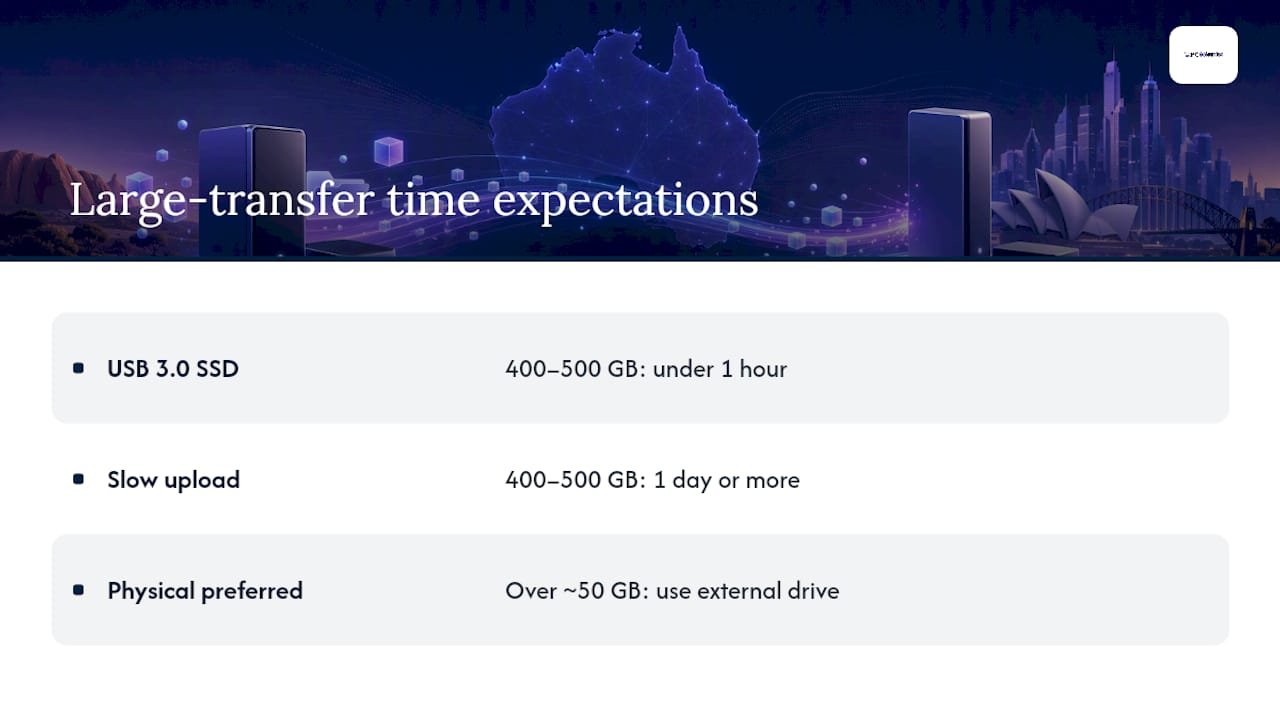
Upload speed is usually the bottleneck, not download speed. Most Australian home internet connections have far slower upload than download speeds, so pushing hundreds of gigabytes into OneDrive can take days rather than hours, even before you factor in the free tier's 5 GB storage cap. For anything over roughly 50 GB, a physical external drive will almost always be faster and more reliable than cloud upload on a typical home connection.
Timeline expectations matter here. A USB 3.0 external SSD can move around 400 to 500 GB in under an hour, while the same volume over a slow upload connection could take a full day or more. Budget your time accordingly, and never start a multi-hundred-gigabyte cloud upload the night before you need the new PC ready.
Break very large transfers into batches by folder rather than attempting one enormous copy operation. If something interrupts a 1.5 TB transfer three hours in, you want to know which folders finished, not start again from zero. Verifying folder by folder as you go, rather than all at once at the end, catches problems early rather than after everything's supposedly done.
How do I move files from Windows to a Mac (or the other way)?
Switching operating systems adds a layer most guides skip entirely, and it's worth handling deliberately rather than assuming everything ports across cleanly.
Cloud sync is genuinely the smoothest cross-platform option, since OneDrive, and equivalents like iCloud or Google Drive, work identically whether you're on Windows or macOS. Sign into the same account on both, and your files sync regardless of operating system. An external drive works too, but format matters: a drive formatted as NTFS (Windows' default) is read-only on a Mac unless you install additional software, while exFAT works natively on both systems and is the safer choice if you're moving between platforms.
What won't transfer cleanly is anything platform-specific. Windows software doesn't run on macOS and vice versa, so you'll need to find Mac-native equivalents for any desktop apps rather than expecting Windows Backup or a simple file copy to bring your programs across. Browser bookmarks and saved passwords usually move fine if you're using the same browser (Chrome or Firefox) signed into the same account on both platforms. Photos and documents transfer without issue; proprietary file formats tied to Windows-only software sometimes need converting before a Mac application will open them.
If you're making this switch, budget extra time for finding and setting up replacement software, since that's the part a straightforward file copy can't solve for you.
Why did my file transfer fail or freeze partway through?
A few problems come up again and again, and most have a straightforward fix once you know what's causing them.
The transfer stalls or the sync icon spins forever. This is often a connectivity issue rather than a corrupted file. Check your Wi-Fi signal, and if you're using OneDrive, confirm you haven't hit your storage limit, since sync silently stops once you're out of space rather than throwing an obvious error.
Files show as copied but won't open on the new PC. This usually points to an interrupted copy. Delete the copied version and redo that specific folder rather than trusting a partial file.
"Access denied" or permission errors during a network transfer. Almost always a sharing settings issue. Confirm the shared folder on the source PC has sharing enabled for the specific user account you're signed into on the destination machine.
An external drive isn't recognised on the new PC. Try a different USB port first; a surprising number of "dead drive" panics are actually a faulty port or cable. If the drive genuinely isn't showing up, check Disk Management in Windows to see whether it's detected but not assigned a letter.
Apps you expected to transfer are simply missing. This is normal, not a fault. Most desktop apps need manual reinstallation regardless of which transfer method you use, so keep your licence keys handy from the prep stage.
Primary sources and further reading
For the official steps and extra detail behind the methods covered here, these are worth bookmarking:
- Sync your computer's files and folders with OneDrive - Microsoft's own OneDrive setup and storage tier documentation.
- Transfer your data with Windows Backup - official requirements and limits for the Windows Backup restore process.
- How to back up your files and devices - Cyber.gov.au guidance on backup approaches and secure practices.
- How to upgrade an old notebook - CHOICE's explanation of cloning risks versus a clean install.
What we think actually matters when you move to a new PC
Most advice on this topic treats file transfer as a technical checklist, and misses the part that actually causes grief: people trust one copy of their data when they should trust two. The two-copy rule isn't caution for its own sake. It's the difference between a stalled sync being a minor inconvenience and it being the reason your family photos are gone for good.
The conventional wisdom also oversells cloning as a shortcut. It's rarely the right call for a new PC with different hardware, and CHOICE's own research backs a clean install with selective file restore over it. We'd add one more thing most guides skip: reactivating software licences and reconfiguring email accounts eats more time than the actual file copy. Plan for that, not just the transfer itself.
If you're time-poor, handling a NAS setup, or recovering from a scare, that's exactly where professional hands make the difference, not because the file copy is hard, but because verification and secure erasure are easy to rush.
- PC Scientist
Get your new PC set up properly, without the guesswork
If everything above sounds sensible but you'd rather not spend a Saturday babysitting a file transfer, that's exactly the gap PC Scientist fills. We offer clear upfront pricing, practical step-by-step guidance, and no fix, no fee repairs, so you know what you're getting before we start, and you're never stuck deciding which service you need before you even call.

Our Computer Support Scientist team handles the whole migration onsite: inventorying what's on your old PC, running a verified transfer using whichever method actually suits your data, and confirming everything works, files, apps, email, before we consider the job done. If your old drive is struggling or a backup won't restore properly, our Data Recovery Scientist service picks up from there. And once your new PC is running, we can also handle secure erasure of the old machine, so nothing sensitive ends up in landfill or a secondhand sale by accident.
If you'd rather have someone else worry about the details, get in touch through PC Scientist and we'll talk through what your setup actually needs.
Sources
- Sync your computer's files and folders with OneDrive - Microsoft Support
- Transfer your data with Windows Backup - Microsoft
- Cyber
- How to upgrade an old notebook - CHOICE
Recommended
Frequently Asked Questions
Straight answers about Keep Two Copies: Transfer Files to a New PC in Australia - without jargon or pressure. Call 0493 563 381 for advice, or get help below.
Want the quickest answer? 0493 563 381 for free advice.
Back up your files first, either to OneDrive or an external drive, then choose the method that suits your data volume. For most home users, OneDrive handles everyday files, while an external drive or Windows Backup suits larger collections or a full restore during initial setup.
For most people, OneDrive is the simplest choice because it's built into Windows and syncs automatically once you're signed in on both machines. For very large libraries or slow internet, copying files onto an external drive is usually faster and more reliable.
You can use cloud sync (OneDrive), a physical external drive, Windows Backup during new-PC setup, or a direct network or cable connection between the two machines. The right choice depends on your data volume, internet speed, and whether both PCs are on the same network. If you'd rather skip the decision entirely, PC Scientist's Computer Support Scientist service handles the whole process onsite.
Yes, files themselves transfer reliably with any of the methods above, but apps generally need reinstalling and licences need reactivating separately. Cloning is the exception that copies everything, including the operating system, but it's a specialist option that can cause driver and activation problems on different hardware.
Yes. Keeping at least one cloud copy and one external or physical copy protects you if either fails during migration, and Cyber.gov.au recommends this hybrid approach specifically to guard against malware or a failed sync wiping out your only backup.
Device setup across NSW
Still stuck transferring files to a new PC?
If setup still feels unfinished, that is okay. Get help in your area and we will take it from here.
Start here
Get device setup help
Optional Need a Sydney city or region?
Choose a side of Sydney
These are Sydney cities and regions, such as the Northern Beaches or Inner West. First tap a side of Sydney. Then open the city or region that covers you.
C Sydney City / Inner 3 areas
N Northern Sydney 6 areas
NW North-West / Central Sydney 3 areas
W Western Sydney 1 area
SW South-West Sydney 3 areas
S Southern Sydney 2 areas
Optional Find your suburb
Type a suburb from our listed coverage. This opens the matching city or region page for this topic. Listed suburb pages are general technology services, not this specialist page.
If your suburb is not listed, use the city or region list above, or call 0493 563 381.
Disclaimer
The information in this article is provided for general educational and informational purposes only. While PC Scientist strives to keep all content accurate and up to date, technology issues can vary depending on your device, software, network configuration, and individual circumstances. Always back up important data before attempting repairs or system changes. If you are unsure or the issue cannot be resolved safely, contact PC Scientist today for professional onsite or remote IT support. PC Scientist is not liable for any loss of data, damage, or other issues resulting from the use of the information provided in this article.