

Google Business Profile Setup: A Step-by-Step Guide for Australian Businesses
You can set up a Google Business Profile for free in about 20 minutes: sign in with a Google account, search for your business to see if it is already listed, add or claim it, enter your details, then verify it with the method Google offers you. The slow part is usually verification, not the form. This guide walks you through each step in order, including what to do if you work from home or travel to customers, and how to fix the usual snags.
Key takeaways
- A Business Profile is free, but only businesses with in-person contact with customers qualify. Online-only businesses and P.O. box addresses do not.
- Search for your business first. If it is already listed, claim it instead of creating a duplicate.
- Tradies, mobile services and home-based businesses can hide their address and list the areas they serve instead.
- Pick the most specific primary category, keep your name, address and phone number identical everywhere, and verify with whichever method Google offers.
- After verification, keep hours, photos, reviews and services current. That is what keeps the profile useful.
Table of Contents
- Is a Google Business Profile free, and can your business have one?
- Before you start: what to have ready
- Step 1: Check whether your business is already listed
- Step 2: Add your business
- Step 3: Choose your categories
- Step 4: Service-area or storefront? Set your address correctly
- Step 5: Add contact details and keep them consistent
- Step 6: Verify your profile
- Step 7: Complete the profile
- Can you have more than one profile?
- Common mistakes to avoid
- When the tech gets in the way, we can help
- FAQ
- Sources
Is a Google Business Profile free, and can your business have one?
Yes, it costs nothing. Google states that creating a Business Profile and listing your business is free. There are no setup fees and no monthly charge to appear on Search and Maps.
Eligibility is the part people trip over. Google's own guidelines say you need to make in-person contact with customers during your stated hours. That covers a shopfront, an office where clients visit, and a business that travels to customers, such as a plumber, cleaner or mobile IT technician. The same guidelines list what is not eligible, including online-only businesses, rental or for-sale properties, lead generation companies, and businesses that use a P.O. box or a virtual mailbox as their address.
A quick self-check before you start:
| Your situation | Likely eligible? | What to do |
|---|---|---|
| Shopfront, cafe, clinic or office customers visit | Yes | Add your street address and opening hours |
| Tradie, cleaner or mobile service that goes to customers | Yes | Hide your address, list your service area |
| Home-based business that meets or visits clients | Usually yes | Treat it as a service-area business |
| Online-only shop with no in-person contact | No | Focus on your website and other directories |
| Business using a P.O. box or virtual office address | No | You need a real, staffed location or service area |
If you sit in a grey area, read Google's eligibility page before you submit. Entering a false address to get approved is the quickest way to end up suspended later.
Before you start: what to have ready
Ten minutes of preparation saves a lot of back-and-forth. Gather:
- A Google account you control. Use one tied to the business, not a former employee's or web designer's personal account. If you are locked out of the account or have lost the password, sort that first.
- Your exact business name, as it appears on your signage, invoices and website.
- Your address and phone number. Use a number you can actually answer, because Google may call or text it for verification.
- Opening hours, including any after-hours emergency availability you genuinely offer.
- Your website address, if you have one.
- A few clear photos: your storefront or vehicle, your team at work, and your logo.
- Your service list, in plain words customers use.
You will also need access to the email address and phone number you plan to use, since verification codes go there.
Step 1: Check whether your business is already listed
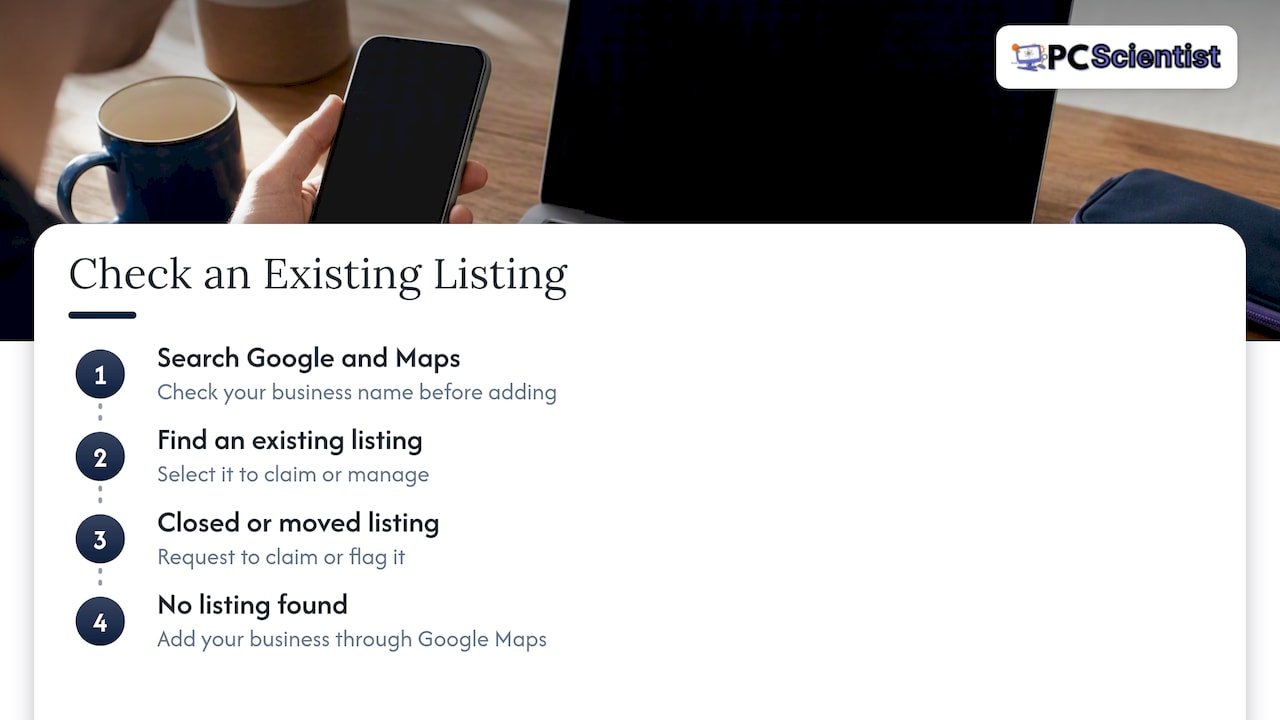
Before you add anything, search Google and Google Maps for your business name. Google sometimes creates listings from public information, and previous owners or staff may have started one years ago. ATDW, the Australian tourism data warehouse, gives the same advice: search first, and only add your business through Google Maps if it isn't listed.
If you find your listing, select it and look for the option to claim or manage the profile. If you find a listing for a business that has closed or moved, you can request to claim or flag it.
This matters because duplicates cause problems. The usual rule is one profile per business at one location. Two profiles for the same premises can confuse customers, split your reviews and put you offside with Google's guidelines.
Step 2: Add your business
If nothing exists, go to the Business Profile page, sign in and choose to add your business. Google's own instructions send you to business.google.com/add style flows, but the screens follow the same order each time:
- Enter your business name.
- Choose your primary category.
- Say whether customers can visit you at a physical location.
- Enter your address or your service areas.
- Add a phone number and website.
- Choose how to verify.
Take your time on the name. Use exactly what customers see on your sign, your invoices and your website. Stuffing extra keywords or suburb names into the business name is against the rules and can get a profile edited or suspended.
Step 3: Choose your categories
Categories tell Google what you are, and they drive which searches your profile can appear for. You pick one primary category and can add secondary ones.
Practical rules:
- Be specific. "Plumber" beats "Contractor". "Computer repair service" beats "Business service".
- Choose the primary category for your main income. If 80 per cent of your work is one thing, that is the primary.
- Add secondary categories only for things you genuinely do. Adding unrelated ones dilutes the profile.
- Pick from Google's list. You cannot invent a category. Start typing and see what Google offers.
The list is long, with some Australian agencies putting it at more than 4,000 options, so type a few different words for what you do. A bookkeeper might find "Bookkeeping service" and "Accountant" both available and need to decide which describes the main work. Categories can be changed later, so it is worth revisiting them once you see how customers find you.
Step 4: Service-area or storefront? Set your address correctly
This is the step most Australian tradies and home-based owners get wrong.
When Google asks whether customers can visit your location, the answer decides what the public sees. The Western Australian Small Business Development Corporation advises that a mobile or home-based business serving customers at their place should answer no and then add the areas served.
Google's address help also says you should only choose not to show your address if you are a service-area business. Once you hide it, the profile shows only your service area. You can switch this later by editing the profile, selecting Location and turning off the option to show your business address to customers.
A few sensible habits for service areas:
- Be realistic. List the suburbs, councils or regions you actually travel to. A Newcastle electrician who lists all of Sydney is not helping anyone.
- Use a manageable list. Name the areas you want work in, not every postcode within reach.
- Keep your home address private. If you work from home and nobody visits, hiding it is exactly what the setting is for.
If you do have a shopfront or office where customers walk in, show the address, drop the pin precisely on the map and add your opening hours.
Step 5: Add contact details and keep them consistent
Enter your phone number and website. Then check that your name, address and phone number read the same on your website, your invoices, your social pages and any other directory you are listed in. One version of "Unit 2/14" and another of "14 Smith St, Unit 2" is a small thing, but small mismatches are the most common reason a business looks untidy online. Australian agency guides treat consistent name, address and phone details across your profile, website and directories as a basic local-search habit, and it is simply good housekeeping either way.
Step 6: Verify your profile
Until you verify, your profile will not show properly to the public and you cannot manage reviews or edit freely. Google decides which verification options you see. It looks at your business type, public information, region and business hours to work out what is available, and you cannot choose a method manually.
The methods you may be offered include:
- Phone call or SMS with a code
- Email with a code or link
- A live video call, where you show your location, equipment and signage
- A postcard with a code sent to your address
- Other options Google lists on the screen
Whatever Google offers, use it. Do not request multiple methods at once, because that can slow things down.
Tips for a smooth video verification
If you are offered video, prepare the way you would for a quick site inspection. Have your signage or branded vehicle visible, your tools or equipment, and something that shows you work there, such as invoices or a work uniform. For a mobile business, show the vehicle and the gear you carry. Record yourself in one continuous take if asked, with no cuts.
If verification fails
Google's guidance is straightforward: correct the problem it identifies, try another method it offers or re-verify, and contact Google support if none of the methods work. In practice, these are the usual causes:
- The name or address does not match the evidence. Fix the details and resubmit.
- The video did not show enough. Try again with clearer shots of signage, equipment and the work location.
- The postcard never arrived. Check the address is exactly right, including unit numbers, and wait the time Google quotes before requesting a new one.
- The code went to an email or phone you can no longer access. This is where account problems bite. If you cannot get into the email inbox that receives the code, recover the account first.
Step 7: Complete the profile
Once verified, a half-finished profile is a missed chance. Fill in:
- Business hours, plus special hours for public holidays
- Services or products, with short plain descriptions
- Business description, written as if you are telling a new neighbour what you do
- Photos: exterior or vehicle, team, completed work, logo
- Attributes, such as online appointments or wheelchair access, where they apply
- Booking or enquiry link, if you take bookings online
Then set a habit: check the profile monthly. Australian agency guides commonly recommend accurate hours, good photos, replying to reviews and regular updates as the basic upkeep, and none of it takes long once the profile is set up.
Reviews: the part customers read first
Ask happy customers to leave a review while the job is fresh, ideally by sending them a link straight after you finish. Reply to every review, good and bad, in a calm and specific way. A short, polite reply to a complaint tells the next reader more about you than the complaint does.
Your profile works best when your website agrees with it. If your site is out of date or hard to use on a phone, a team that handles website and SEO support can help bring the two in line.
Can you have more than one profile?
The default is one profile per business. You only get separate profiles when you have genuinely separate physical locations, each with its own staff and customer-facing presence. Two trades under one ABN working from the same house do not qualify for a profile each, and neither does creating a second profile because the first one is stuck in verification. If you find a duplicate, do not leave it hanging. Ask Google to remove or merge it through the profile's help options.
Common mistakes to avoid
- Using a virtual office or P.O. box. It is not eligible and can lead to suspension.
- Adding keywords to the business name. Keep to your real trading name.
- Choosing a vague category. Specific beats generic.
- Listing a huge service area. Stick to where you work.
- Setting up under a personal account that someone else owns. Keep control of your own profile.
- Ignoring the profile after verification. Out-of-date hours cost you customers.
Our view: the tech behind the profile matters
We spend our days helping NSW homes and small businesses fix the things that quietly hold them back, and a stalled Google Business Profile is usually one of those things. It is rarely the form itself. More often, the verification code is going to an email account nobody can get into, the phone number on file is an old one, or the Google account was set up years ago by someone who has since left.
That is why we think of the profile as part of your wider technology, not a marketing chore. The email address, the Microsoft 365 account, the website and the phone should all point to the same business details. When they do, setup takes minutes. When they do not, you can lose weeks.
Our approach is to sort the underlying problem first, explain it in plain English, and leave you with accounts you control. You should not need to know the jargon to get your business found.
PC Scientist
When the tech gets in the way, we can help
If your verification email is going nowhere, you are locked out of the Google account, or your business email keeps failing to send and receive, we can sort it out onsite or remotely across NSW. Our Email Systems Scientist service covers email and Microsoft 365 problems, and our team can also look at your wider setup through Computer Support Scientist. We offer upfront pricing and no fix, no fee repairs, and you do not need to know the technical terms before you call.

Small teams can also see how we work on our business IT support page, or get in touch through our homepage.
Sources
- Stand out on Google with a free Business Profile (Google Australia and NZ)
- Business eligibility and ownership guidelines (Google Business Profile Help)
- Verify your business on Google (Google Business Profile Help)
- Manage your business address (Google Business Profile Help)
- Claim your Google Business Profile (ATDW)
- Why you need a Google Business Profile (WA Small Business Development Corporation)
- Google Business Profile Optimisation: The Full Guide
- Google Business Profile Setup Guide for Australian Businesses
Recommended
- Business Email Support Central Coast NSW | Microsoft 365
- Business IT Support Central Coast NSW | Small Teams
- Business IT Support Western Sydney NSW
Frequently Asked Questions
Straight answers about Google Business Profile Setup: A Step-by-Step Guide for Australian Businesses - without jargon or pressure. Call 0493 563 381 for advice, or get help below.
Want the quickest answer? 0493 563 381 for free advice.
Yes. Google says listing your business through a Business Profile is free. You only pay if you choose to run Google advertising separately, which is optional and unrelated to having a profile.
Only if you have two genuinely separate physical locations, each with its own staff and in-person customer contact. For a single business at one location, Google expects one profile. Duplicates should be removed or merged rather than kept.
Yes, if you are a service-area business that travels to customers. Answer no when asked whether customers visit you, then add the areas you serve. Google's help page explains how to turn off the address display on an existing profile.
Check that the phone number, email or postal address is exactly right, then try another method if Google offers one. If none work, contact Google Business Profile support. Make sure you can access the inbox and phone number linked to the profile.
Device setup across NSW
Still stuck setting up Google Business Profile?
If setup still feels unfinished, that is okay. Get help in your area and we will take it from here.
Start here
Get device setup help
Optional Need a Sydney city or region?
Choose a side of Sydney
These are Sydney cities and regions, such as the Northern Beaches or Inner West. First tap a side of Sydney. Then open the city or region that covers you.
C Sydney City / Inner 3 areas
N Northern Sydney 5 areas
NW North-West / Central Sydney 3 areas
W Western Sydney 1 area
SW South-West Sydney 3 areas
S Southern Sydney 2 areas
Optional Find your suburb
Type a suburb from our listed coverage. This opens the matching city or region page for this topic. Listed suburb pages are general technology services, not this specialist page.
If your suburb is not listed, use the city or region list above, or call 0493 563 381.
Disclaimer
The information in this article is provided for general educational and informational purposes only. While PC Scientist strives to keep all content accurate and up to date, technology issues can vary depending on your device, software, network configuration, and individual circumstances. Always back up important data before attempting repairs or system changes. If you are unsure or the issue cannot be resolved safely, contact PC Scientist today for professional onsite or remote IT support. PC Scientist is not liable for any loss of data, damage, or other issues resulting from the use of the information provided in this article.