Finish Scan to Email 365 Setup in Australia with OAuth2 or Relay
For most offices, Client SMTP submission with OAuth2 is the right call for scan to email 365 setups if your MFP supports modern authentication. Older devices or larger fleets should use SMTP relay through a connector instead, and Direct Send only suits internal-only mail. Check whether your MFP supports OAuth2 or whether you have a static public IP, then follow the Microsoft Learn or device vendor's OAuth2 guide. If it still won't cooperate, PC Scientist can sort it remotely or onsite.
Key takeaways
- Modern devices with OAuth2 support should use client SMTP submission on port 587 to send emails, but only if OAuth2 is supported and enabled on the mailbox.
- SMTP relay via a static IP and DNS SPF records is ideal for older hardware or large fleets that cannot handle modern authentication.
- Direct Send works only for internal recipients within your tenant and is the least reliable method due to potential spam filtering issues.
- Regularly verify that Authenticated SMTP remains enabled, SPF records are correct, and client secrets or tokens are rotated proactively to maintain long-term reliability.
- Matching the setup method to your hardware's capabilities and network configuration is crucial to avoid common failures and simplify ongoing maintenance.
Table of Contents
- Which scan to email 365 method should you choose?
- How do I set up client SMTP submission for scan to email?
- How do I configure SMTP relay for older or fleet devices?
- When should you use Direct Send instead?
- How does OAuth2 app registration work for scan to email 365?
- What do HP, Sharp, and Kyocera scan-to-email setups look like?
- Testing and troubleshooting: what to check first
- Keeping scan to email reliable over time
- PC Scientist practical notes: common pitfalls we fix on client visits
- What actually matters when you're setting this up
- Get scan-to-email sorted without the back-and-forth
- Sources
- FAQ
Which scan to email 365 method should you choose?
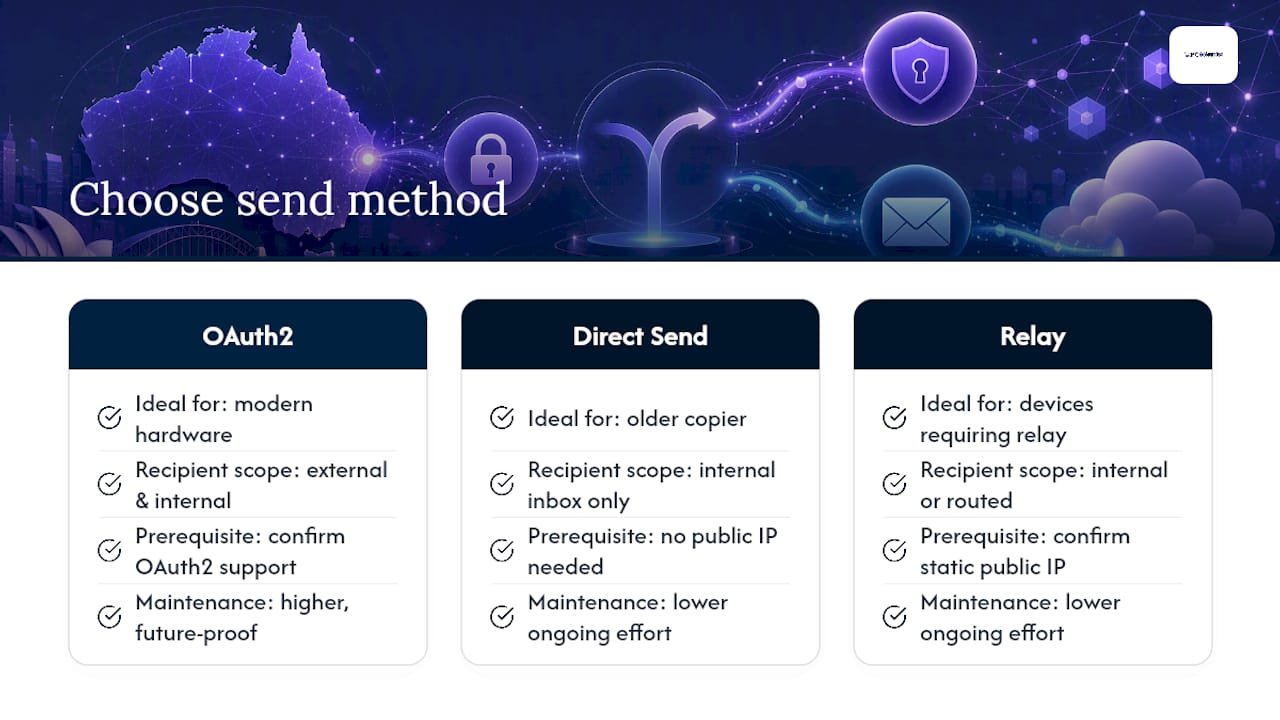
Microsoft 365 gives you three ways to get a multifunction printer sending scanned documents by email, and picking the wrong one is the single biggest reason scan-to-email setups fail on the first attempt. Each method trades off differently on device compatibility, security, and how many recipients you can actually reach.
- Client SMTP submission (OAuth2 or basic auth): Uses
smtp.office365.comon port 587. Best for modern devices sending to internal and external recipients, but needs a mailbox and, ideally, OAuth2 support on the device. - SMTP relay via connector: No mailbox login required, higher volume, works for older hardware. Needs a static public IP or a certificate, and correct SPF records.
- Direct Send: No authentication at all, uses the MX endpoint on port 25. Only reaches recipients inside your own tenant, and it's the flakiest of the three if you're on a shared or dynamic IP.
Ask yourself three questions before configuring anything: Does the device support OAuth2? Do staff need to scan to external clients or suppliers? Are you setting up one machine or fifty? A single small office with a modern MFP should default to Client SMTP submission with OAuth2. A fleet of five-year-old copiers across multiple sites is usually better served by a relay connector, provided you've got a fixed IP to anchor it to. If scans genuinely never leave the building, Direct Send is the least fuss, though it's rarely worth the fragility for a business that occasionally needs to send outside.
How do I set up client SMTP submission for scan to email?
Client SMTP submission is the method Microsoft Learn recommends first for devices capable of modern authentication, and it's the one most office scanners default to out of the box.
- In the Microsoft 365 admin centre, go to Users → Active users, select the mailbox you're using for scanning, open Mail, then Manage email apps, and switch on Authenticated SMTP.
- On the device, set the outgoing server to
smtp.office365.com, port587, with STARTTLS encryption enabled. Never use port 465 for this; it's not the supported client submission port and can fail silently. - Enter the mailbox address as the username, then either the account password or an OAuth2 token, depending on what the device supports.
- Test a scan job and confirm the From address matches the login mailbox, or that SendAs permissions are correctly assigned if it doesn't.
Use a dedicated shared mailbox for this rather than someone's personal inbox. It keeps device traffic separate from a real person's mail, sidesteps a chunk of licensing complexity, and makes SendAs permissions far easier to manage, a point Kyocera's setup guide also flags as standard practice.
Pro Tip: If scans suddenly stop working after a tenant migration or licence change, check Authenticated SMTP first. It's frequently switched off by default and is the number one cause of otherwise-correct setups failing overnight.
How do I configure SMTP relay for older or fleet devices?
SMTP relay skips per-device mailbox credentials entirely, which makes it the practical choice when you're managing several MFPs or hardware that predates modern authentication. It also handles higher volume more comfortably and lets you send from addresses that aren't tied to a real mailbox.
- In the Exchange admin centre, create a new inbound connector.
- Choose your authentication method: certificate-based (Microsoft's preferred option) or IP-based, depending on what your network allows.
- If going IP-based, confirm you have a static public IP. A dynamic IP will break the connector the moment your ISP reassigns it, so this only works with a fixed address.
- Add the required SPF entry for that IP to your domain's DNS so outgoing mail isn't flagged as spoofed.
- Send a test message from the device and confirm delivery to both internal and external addresses.
Device-side, the settings look like this:
- Smart host: your tenant's MX endpoint, formatted like
contoso-com.mail.protection.outlook.com - Port:
25 - Encryption: TLS enabled
- Authentication: none required, since the connector authenticates by certificate or IP
Static IP changes are the most common cause of relay outages, since an ISP reassigning your address silently breaks both the connector and your SPF alignment, as Microsoft's troubleshooting guidance points out. Build a habit of checking your public IP hasn't shifted whenever relay mail unexpectedly stops.
When should you use Direct Send instead?
Direct Send is the simplest method on paper, and the most limited in practice. It skips authentication entirely by sending straight to your tenant's MX endpoint, which sounds convenient until you realise what it can't do.
- Device settings: MX endpoint as the server, port
25, TLS optional rather than required. - Recipients must be inside your own Microsoft 365 tenant; anything addressed externally gets rejected outright.
- No mailbox or credentials needed on the device side, which is genuinely handy for internal-only scanning workflows like routing documents to a shared accounting inbox.
- Fragility is the trade-off: without SPF and DKIM properly aligned, Direct Send messages are more likely to get caught by public blocklists or spam filters, even for internal delivery in some configurations.
Direct Send suits a narrow use case well: a scanner that only ever needs to drop PDFs into internal mailboxes, with no requirement to reach clients or suppliers. The moment someone asks "can we scan this straight to the client," Direct Send stops being the answer, and you're back to Client SMTP submission or relay.
How does OAuth2 app registration work for scan to email 365?
Modern authentication is where Microsoft is pushing everyone, and for good reason. It's more secure than a static mailbox password sitting in a device's configuration menu, but it does add a genuine setup step that basic SMTP auth never required.
- In Microsoft Entra, register a new application for the scanning workflow.
- Add the
SMTP.SendAsAppAPI permission under Office 365 Exchange Online, and grant admin consent. - Generate a client secret for the app, and record its expiry date somewhere visible, not buried in a setup document nobody opens again.
- Link the enterprise application to Exchange Online as a service principal, then grant it SendAs rights on the scanner mailbox via PowerShell.
- On the device, initiate the token retrieval flow, which typically prompts for sign-in and, if enabled, multi-factor authentication once during setup.
The device stores the resulting token and refreshes it automatically, but the client secret behind that token has a fixed lifespan. When it expires, scanning stops working with no obvious error pointing at the real cause.
Pro Tip: Set a calendar reminder for 30 days before your client secret expires, not the expiry date itself. Rotating a secret in a hurry, after scanning has already failed for a week, is a far worse Monday than doing it ahead of schedule.
What do HP, Sharp, and Kyocera scan-to-email setups look like?
Vendor documentation varies in naming even when the underlying Microsoft 365 settings are identical, and that inconsistency trips up more admins than the actual configuration does.
- HP FutureSmart devices walk you through adding an outgoing server, selecting OAuth2 as the authentication type, then tapping Get Token on the touchscreen, which triggers a Microsoft sign-in and MFA prompt if required, as HP's own support documentation details.
- Sharp and Kyocera devices use broadly the same SMTP fields but label things differently: what HP calls STARTTLS, some Kyocera menus list as "SSL" or "TLS 1.2 required," so read the port and encryption fields carefully rather than assuming the naming lines up.
- If a device genuinely has no OAuth2 support and can't be firmware-updated to add it, don't force basic auth through workarounds. Move it to connector-based SMTP relay instead, or consider a managed relay gateway that translates legacy SMTP into modern authentication on the device's behalf.
Testing and troubleshooting: what to check first
Most scan-to-email failures trace back to one of a handful of causes, and working through them in order saves a lot of guessing.
- Run the device's built-in connection test first. It usually reports the failure point faster than manual checks.
- Use Telnet to confirm the relevant port (25 or 587) is actually reachable from the device's network segment, not just from your own laptop.
- Open the Microsoft 365 admin centre and run the Run diagnostic tool against the affected mailbox to surface configuration issues automatically.
- Check that Authenticated SMTP is enabled on the mailbox, that the From address matches the login account or has SendAs permission, and that no ISP or firewall rule is silently blocking outbound SMTP.
- If mail is rejected outright, check your SPF and DKIM records against your sending IP or connector configuration.
A common Microsoft Q&A thread on scan-to-email failures shows Authenticated SMTP being disabled is one of the most frequently reported causes, often after a tenant migration or a licence change nobody thought to double-check afterward. An error like 550 5.7.30 typically points to a client submission rate limit or an authentication mismatch rather than a network problem, so don't waste time re-checking cabling when the fix is actually in the mailbox settings.
Keeping scan to email reliable over time
Getting scan to email working once is the easy part. Keeping it working through IP changes, secret expiries, and tenant updates takes a little ongoing attention.
- Rotate client secrets before they expire, not after, and calendar both the rotation and the token refresh check.
- Use a dedicated scanner or shared mailbox so you can monitor sign-in activity and message trace logs without wading through someone's personal inbox.
- If you're on SMTP relay, recheck your SPF record whenever your public IP changes, and keep an eye on your IP's reputation status.
- Where DKIM and DMARC are already in place for your domain, make sure the scanning setup doesn't fall outside that alignment, or external recipients' spam filters may start flagging it.
Pro Tip: Put "check scan-to-email client secret expiry" on the same recurring maintenance checklist as your SSL certificate renewals. Both fail the same way: quietly, until someone notices scans have stopped landing.
PC Scientist practical notes: common pitfalls we fix on client visits
The scan-to-email calls we get most often share the same root causes. Authenticated SMTP gets switched off after a tenant migration and nobody notices until the front desk can't scan invoices. A firewall or ISP change quietly blocks port 25 or 587. A client secret expires six months after setup, and the person who configured it has since left.
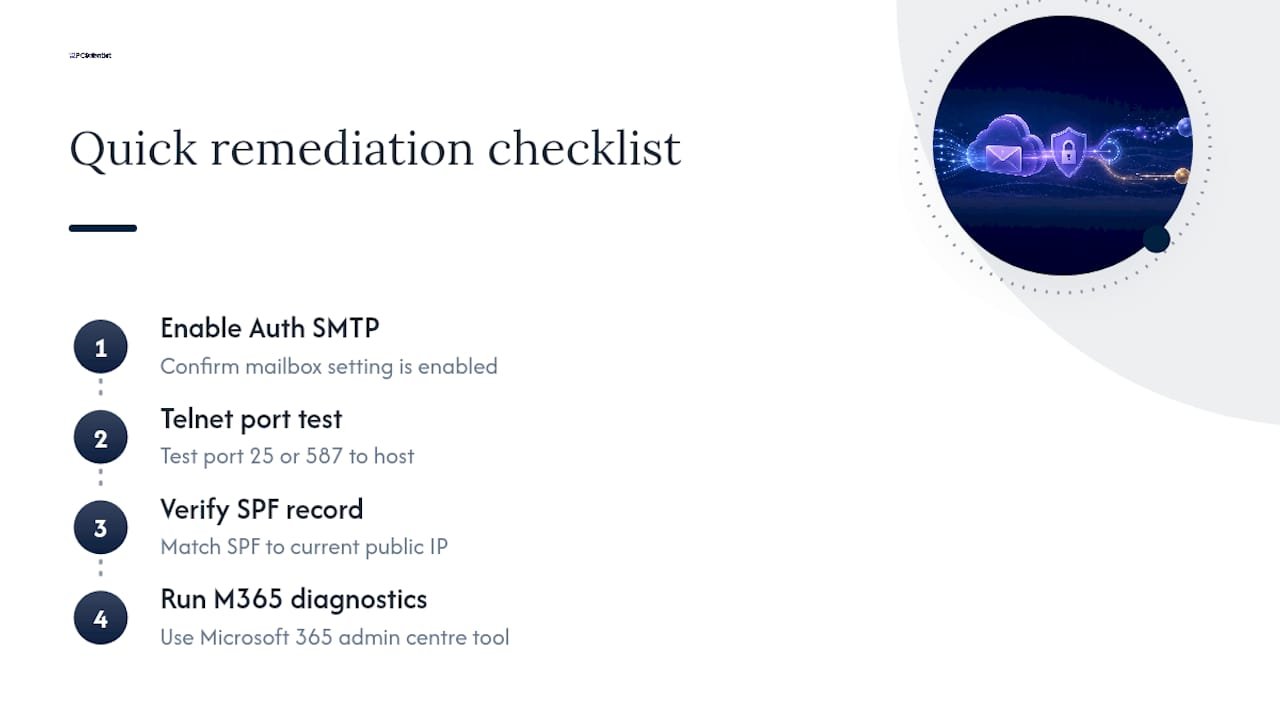
Our quick remediation pass, before we even book an onsite visit: verify Authenticated SMTP is enabled on the mailbox, run a Telnet test against the relevant port, check the SPF record against the current public IP, and run the Microsoft 365 admin centre's diagnostic tool. Nine times out of ten, that sequence finds the fault before we touch the device itself.
What actually matters when you're setting this up
The Microsoft Learn documentation is thorough, but it's written for someone who already knows which method applies to their situation, and that's where most admins get stuck. The real decision isn't technical, it's about matching the method to your hardware and your recipient list before you open a single settings menu.
Conventional advice tends to push everyone toward OAuth2 immediately, and while that's the right long-term direction, it's overkill for a five-year-old copier that only needs to email an internal accounts inbox. Direct Send or a relay connector will serve that use case better and with less ongoing maintenance than forcing OAuth2 onto hardware that barely supports it.
What we'd prioritise first, before touching any device menu, is confirming your public IP is static if you're going the relay route, and confirming OAuth2 support if you're going the modern auth route. Get that one fact right and most of the rest of the setup falls into place. Get it wrong, and you'll be troubleshooting a symptom instead of the actual cause.
- PC Scientist
Get scan-to-email sorted without the back-and-forth
If you've read this far and you'd rather someone just configure it correctly the first time, that's exactly what PC Scientist does for businesses across NSW. Our Email Systems Scientist team handles the Microsoft 365 admin side, including Authenticated SMTP, OAuth2 app registration, and connector setup, while our Device Setup Scientist crew sorts the MFP-side configuration on the device itself.

Most scan-to-email jobs start with a remote diagnosis: we check your tenant settings, confirm which method fits your hardware, and identify whether you need a static IP or a certificate for relay. From there, we handle the admin centre changes remotely and, where a fixed IP or network change is needed, send someone onsite to finish it properly. No guesswork, no switching between five different vendor support pages trying to figure out which port number is correct this week.
If your scan-to-email setup has been unreliable, or you're migrating tenants and need it done right the first time, get in touch through our Business IT Support page and we'll book a time that suits.
Sources
- How to set up a multifunction device or application to send email using Microsoft 365 or Office 365
- HP FutureSmart - Set up Scan to Email with OAuth 2.0 and a Microsoft account | HP® Support
- Set Up Scan to Email Using Microsoft 365 (Business Account)
Recommended
Frequently Asked Questions
Straight answers about Finish Scan to Email 365 Setup in Australia with OAuth2 or Relay - without jargon or pressure. Call 0493 563 381 for advice, or get help below.
Want the quickest answer? 0493 563 381 for free advice.
Configure your MFP with your Microsoft 365 mailbox's SMTP settings (smtp.office365.com, port 587, STARTTLS) or use a relay connector, then send a test scan to confirm delivery. The exact steps depend on whether your device supports OAuth2 or basic SMTP authentication.
Scan to email isn't configured in Outlook itself. Instead, you configure the mailbox settings in the Microsoft 365 admin centre (enabling Authenticated SMTP) and then enter that mailbox's details into your printer or scanner's SMTP configuration menu.
Yes, Konica Minolta devices support the same three Microsoft 365 methods as HP, Sharp, and Kyocera, either Client SMTP submission, SMTP relay, or Direct Send, depending on the device's firmware and authentication capabilities. Check your specific model's admin panel for OAuth2 support before choosing a method.
Pick your method based on device capability and recipient needs: Client SMTP submission with OAuth2 for modern devices sending externally, SMTP relay for older hardware or fleets, or Direct Send for internal-only mail. Then follow the Microsoft Learn setup guide for the specific server, port, and authentication settings that method requires.
Email help across NSW
Still stuck with scan to email?
If you have tried the steps and mail still is not coming through, that is okay. Get email help in your area and we will take it from here.
Start here
Get email help
Optional Need a Sydney city or region?
Choose a side of Sydney
These are Sydney cities and regions, such as the Northern Beaches or Inner West. First tap a side of Sydney. Then open the city or region that covers you.
C Sydney City / Inner 3 areas
N Northern Sydney 6 areas
NW North-West / Central Sydney 3 areas
W Western Sydney 1 area
SW South-West Sydney 3 areas
S Southern Sydney 2 areas
Optional Find your suburb
Type a suburb from our listed coverage. This opens the matching city or region page for this topic. Listed suburb pages are general technology services, not this specialist page.
If your suburb is not listed, use the city or region list above, or call 0493 563 381.
Disclaimer
The information in this article is provided for general educational and informational purposes only. While PC Scientist strives to keep all content accurate and up to date, technology issues can vary depending on your device, software, network configuration, and individual circumstances. Always back up important data before attempting repairs or system changes. If you are unsure or the issue cannot be resolved safely, contact PC Scientist today for professional onsite or remote IT support. PC Scientist is not liable for any loss of data, damage, or other issues resulting from the use of the information provided in this article.