

Import Gmail to Outlook: Copy Your Emails Across Safely
You can import Gmail into Outlook in two ways, and picking the right one comes first. Adding your Gmail account to Outlook lets you read and send from it, but the mail stays in Gmail. Copying (importing) your emails into an Outlook or Microsoft 365 mailbox puts a full copy in your new account, so you can retire Gmail if you want to. If you'd rather have someone sit down with you and do it properly, our Email Systems Scientist service covers email and Microsoft 365 support onsite across NSW or remotely.
Key takeaways
- Keeping Gmail? Just add it to Outlook. Nothing is copied, and the mail still lives in Gmail.
- Leaving Gmail? Export to a PST file (Outlook's own backup file format) and import it into your new account, or use a migration tool if it's a business with many mailboxes.
- Most sign-in failures come from a missing app password or IMAP being switched off in Gmail.
- Never drag and drop emails between accounts as your only copy. Copy them, check them, then clean up.
- Contacts and calendars move separately from email, so plan for them.
Table of Contents
- Add Gmail to Outlook, or copy it across?
- Before you start
- Is Gmail POP or IMAP, and does it matter?
- Method 1: Add your Gmail account to Outlook
- Method 2: Copy your Gmail into Outlook or Microsoft 365 with a PST file
- What happens to labels, contacts and calendars
- Moving a business from Gmail or Google Workspace
- Gmail not working in Outlook? Fixes in order
- Our view on moving email
- Get it done in one visit
- A simple plan for most households
- FAQ
- Sources
Add Gmail to Outlook, or copy it across?
This is the choice that trips most people up. USC's IT team explains the split clearly: you can import a copy of your old Gmail into your Microsoft 365 account so past and present mail sit in one place, or connect Gmail to Outlook so you can see it while it stays stored in Gmail.
| Your situation | Best approach | Where the mail lives afterwards |
|---|---|---|
| Keeping Gmail as your main address, just preferring the Outlook app | Add the Gmail account | Gmail |
| Moving to a new Outlook.com or Microsoft 365 address and closing Gmail | Export to PST, import into new account | The new account |
| Moving to a new address but still receiving mail at Gmail for a while | Add Gmail now, import later, set up forwarding | Both, then the new account |
| A business with several Gmail or Google Workspace mailboxes | A planned migration | Microsoft 365 |
If you're unsure, add the account first. It's reversible and takes minutes, and you can still copy the mail across afterwards.
Before you start
A few minutes of preparation prevents most of the grief.
- Check your Outlook version. The classic Outlook and the new Outlook for Windows look different and the menus differ. Classic Outlook has File > Open & Export. The new Outlook keeps accounts under View settings.
- Update Outlook. A Microsoft answer on the Australian site says a Gmail add and sync fault in classic Outlook is fixed from Current Channel version 2412 build 18324.20168 or later. Check File > Office Account > About Outlook.
- Turn on 2-step verification in Google. Microsoft's preparation guide says you need this before generating a 16-character app password, which you type as one unbroken string and ignore the spaces.
- Check you have room. A PST file is a full copy, so make sure your computer has the free space. If your Gmail is large, a second backup is sensible too. Our guide on keeping two copies when moving to a new PC shows the habit.
- Write down your passwords. You'll need your Google and Microsoft sign-ins to hand.
Is Gmail POP or IMAP, and does it matter?
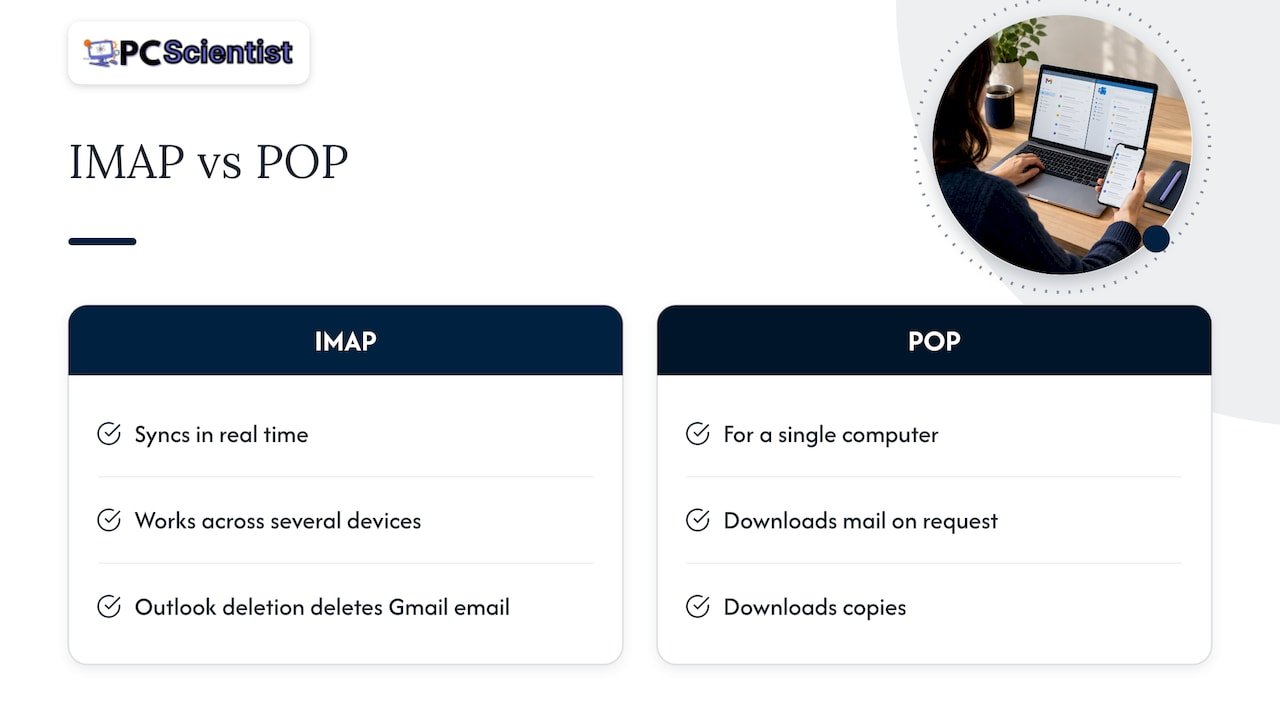
Both work with Outlook, but IMAP is what you want. Google's own help page explains that IMAP syncs in real time and works across several devices, while POP is for a single computer and downloads mail when you ask it to. In plain terms: with IMAP, deleting an email in Outlook deletes it in Gmail as well. With POP, you're pulling down copies.
That's also why one popular shortcut is risky. One 2026 migration guide points out that over IMAP, dragging a message to another account is a move, so if the copy breaks partway, the original has already left Gmail. Use copy, or the PST method below.
Method 1: Add your Gmail account to Outlook
This is the right choice if you're keeping Gmail.
In new Outlook for Windows: go to View > View settings > Accounts > Your accounts > Add account, choose Gmail and select Allow. In classic Outlook: choose File > Add Account, enter your Gmail address, select Connect, sign in on the Google window and select Allow. These are the steps in Microsoft's guide to adding a Gmail account.
Two things to watch:
- On the Google consent screen, tick every box Google offers. One guide notes that skipping the Microsoft access box produces error 0x800CCC0E, "couldn't log on to the incoming server".
- If an older version of Outlook won't take your normal password, Microsoft recommends two-factor authentication and an app password, not loosening Google's security settings.
Once added, your Gmail folders appear in Outlook. Gmail labels show up as folders, which matters later.
Method 2: Copy your Gmail into Outlook or Microsoft 365 with a PST file
This is the route when you're leaving Gmail. It follows Microsoft's own instructions and needs classic Outlook.
Step 1: Add Gmail to Outlook
Use Method 1 first and let Outlook finish syncing. A large mailbox can take hours, so leave it running. Where it goes wrong: you export while it's still downloading, and the PST misses older mail. Open a few old folders and confirm the messages are there before moving on.
Step 2: Export Gmail to a PST file
Choose File > Open & Export > Import/Export > Export to a file > Outlook Data File (.pst). Select your Gmail account and tick Include subfolders. Save the file somewhere with plenty of space. This is a copy, so nothing is removed from Gmail.
What a PST doesn't carry: UMATechnology's guide notes that a PST includes attachments but not folder properties, views, permissions, AutoArchive settings, rules or blocked-sender lists. If you've built careful Gmail filters, jot them down so you can rebuild them as Outlook rules.
Step 3: Add your new Outlook or Microsoft 365 account
Use File > Add Account and sign in with the new address. Let it connect fully.
Step 4: Import the PST into the new account
Go back to Import/Export, choose Import from another program or file, pick Outlook Data File (.pst), select your file and import it into the new account's Inbox. The exact wizard is in the Microsoft page above.
If you use the new Outlook for Windows, Microsoft's release notes say that from a 12 June 2026 update, PST import supports all item types, including calendar events, contacts and tasks, and works from Settings > Files > Import.
Step 5: Check before you clean up
Compare folder by folder: message counts, a few old attachments, your Sent folder. Only once you're happy should you think about closing or tidying Gmail. Where it goes wrong most often is deleting the Gmail side too early.
What happens to labels, contacts and calendars
Gmail uses labels where Outlook uses folders, and they don't map one to one. An email carrying three labels can end up in three places, or in one, depending on the method. Plan a quick tidy of your folder structure afterwards. UMATechnology's guide recommends reviewing labels by hand.
Some other behaviours worth knowing, from Microsoft's known issues for syncing Google accounts, which describes Outlook for Mac:
- Gmail labels appear as folders, and changes can take up to 4 hours to show.
- Drafts sync from Gmail to Outlook but not the other way.
- Rules, categories, tasks and notes aren't supported.
- Attachments over 10 MB can't be sent.
Contacts are exported from Google Contacts as a file and imported into Outlook separately. Calendars can be exported from Google Calendar as an ICS file, but that's a one-off snapshot that doesn't keep updating. If you rely on shared calendars, expect to re-share them from the new account.
Moving a business from Gmail or Google Workspace
If several staff mailboxes are involved, a PST per person gets messy. Microsoft's Google Workspace migration guide says IMAP migration needs a Microsoft 365 global admin, each Gmail owner must create an app password because Google treats Outlook as a less secure app, and the batch should run at least 72 hours before deletion. That's because mailboxes sync once a day and other systems need time to recognise the new MX record, the setting that tells the internet where your email goes. After the batch is deleted, mail sent to the old Gmail mailboxes is no longer copied across.
The practical risks are timing and forgotten extras: shared mailboxes, printers that scan to email, phones and calendars. We've written about avoiding the traps in migrating email to Microsoft 365, and about scan-to-email setup for the office printer that quietly stops working after a switch. Afterwards, it's worth reading about whether you need a Microsoft 365 backup, because moving your mail doesn't back it up.
Gmail not working in Outlook? Fixes in order
If the account won't add or stops syncing, work through these.
- Check the app password. The University of Chicago's IT knowledge base says a missing or incorrect app password is the most common reason Outlook fails to add a Gmail account.
- Switch IMAP on in Gmail and check labels. Microsoft's troubleshooting page recommends enabling IMAP, setting the labels you need to Show in IMAP, then refreshing Outlook. Syncing can take up to 15 minutes.
- Check the server settings. Incoming is imap.gmail.com on SSL port 993. Outgoing is smtp.gmail.com on SSL port 465 or TLS/STARTTLS port 587, with authentication required. The same Microsoft page lists these.
- Update Outlook to a current build, as above.
- Check the account type. The new Outlook supports Gmail, Outlook.com, Microsoft 365, Yahoo, iCloud and other IMAP or POP accounts, but not on-premises Exchange accounts, which show the error "We couldn't reach the email server".
If mail arrives in Gmail but not in Outlook, our guide to Outlook not receiving emails goes deeper, and if you can't find old messages afterwards, see Outlook search not working.
Our view on moving email
Most people we speak to aren't worried about the technical steps. They're worried about losing something: a decade of receipts, a chain of emails with the accountant, photos from family. That's a fair worry, and it's why we think a mail move should be treated like a house move, with a plan, a copy kept until everything is checked, and no rushing.
We built our approach around people who don't want to learn the jargon or decide the exact service before they call. You tell us what's wrong or what you want to end up with, and we work out the rest, onsite across NSW or remotely where that suits. Email, Microsoft 365 and device setup sit together in one place, so the new mailbox, your phone, your laptop and the printer can be sorted in one visit.
We prioritise privacy and security at every step, because an inbox holds password resets, bank notices and personal details. That's also why we like to talk about two-step verification and backups while we're there.
PC Scientist
Get it done in one visit
If you'd rather not spend an afternoon in menus, our Email Systems Scientist team handles Gmail-to-Outlook moves for homes and businesses across NSW, and our Computer Support Scientist team can set up the devices around it. Our approach is clear upfront pricing, practical step-by-step guidance and all-in-one support for several devices in a single visit. Small businesses can see more on our business email and Microsoft 365 page.

Security matters in a mail move too. If you're tightening up the new account, our Microsoft 365 security controls guide is a good next read.
A simple plan for most households
For a typical home user going from Gmail to a new Outlook address, this order works well:
- Update Outlook and prepare your Google app password.
- Add Gmail to Outlook and let it fully sync.
- Export to PST and keep that file safe.
- Add the new account and import the PST.
- Check folders, Sent items and a few old attachments.
- Export contacts and calendar separately.
- Tell people your new address, and set up forwarding in Gmail while they catch up.
- Keep Gmail open for a few weeks, then decide.
The last two steps are the ones people skip. Old accounts are tied to online shops, banks and subscriptions, and those emails keep arriving long after you've moved.
Sources
- How to: Import Gmail to Outlook, USC Information Technology Services
- Set up Office 365 email in Outlook and Import Gmail, Microsoft Support
- Migrate Google Workspace mailboxes to Microsoft 365, Microsoft Learn
- Add a Gmail account to Outlook for Windows, Microsoft Support
- Supported accounts in new Outlook for Windows, Microsoft Learn
- Migrate Gmail to Outlook: Classic, New Outlook and more, Softorbits
- Known issues syncing Google accounts to the Microsoft Cloud, Microsoft Support
- Release notes for Outlook for Windows (new), Microsoft Learn
- How to Move Gmail to Outlook: Email, Contacts and Calendar, UMATechnology
- Fix problems connecting your Google account to the Microsoft Cloud, Microsoft Support
- Prepare your Gmail or Google Workspace account, Microsoft Learn
- Connect your Gmail account to Outlook, University of Chicago IT Services
- Unable to add Gmail to Outlook classic, Microsoft Q&A
- Read Gmail messages on other email clients using POP, Gmail Help
Recommended
- Prevent Data Drift When You Migrate Email to 365 for NSW IT Teams
- Outlook Not Receiving Emails: Fix It Fast
Frequently Asked Questions
Straight answers about Import Gmail to Outlook: Copy Your Emails Across Safely - without jargon or pressure. Call 0493 563 381 for advice, or get help below.
Mail not sending Outlook Shared inboxes Phone and computer Whole NSW
Want the quickest answer? 0493 563 381 for free advice.
Yes. You can add the Gmail account so Outlook shows it, or copy the emails into a new Outlook or Microsoft 365 mailbox using a PST file. Add it if you're keeping Gmail, and copy if you're leaving it.
The usual causes are a missing app password, IMAP switched off in Gmail, wrong server settings or an out-of-date Outlook. Work through the fixes list above in order, and allow up to 15 minutes for syncing after any change.
IMAP is the better option. It syncs in real time and works across several devices, while POP downloads mail to a single computer. Most Outlook setups with Gmail use IMAP.
Labels show as folders and may need a tidy. Contacts and calendars are exported and imported separately, and a calendar file is a one-time snapshot rather than a live link.
Email help across NSW
Still stuck importing Gmail to Outlook?
If you have tried the steps and mail still is not coming through, that is okay. Get email help in your area and we will take it from here.
Start here
Get email help
Optional Need a Sydney city or region?
Choose a side of Sydney
These are Sydney cities and regions, such as the Northern Beaches or Inner West. First tap a side of Sydney. Then open the city or region that covers you.
C Sydney City / Inner 3 areas
N Northern Sydney 5 areas
NW North-West / Central Sydney 3 areas
W Western Sydney 1 area
SW South-West Sydney 3 areas
S Southern Sydney 2 areas
Optional Find your suburb
Type a suburb from our listed coverage. This opens the matching city or region page for this topic. Listed suburb pages are general technology services, not this specialist page.
If your suburb is not listed, use the city or region list above, or call 0493 563 381.
Disclaimer
The information in this article is provided for general educational and informational purposes only. While PC Scientist strives to keep all content accurate and up to date, technology issues can vary depending on your device, software, network configuration, and individual circumstances. Always back up important data before attempting repairs or system changes. If you are unsure or the issue cannot be resolved safely, contact PC Scientist today for professional onsite or remote IT support. PC Scientist is not liable for any loss of data, damage, or other issues resulting from the use of the information provided in this article.