

Exchange Online Archiving: How It Works and Setting It Up
Exchange Online archiving gives each person a second mailbox, linked to their main one, where older email is moved automatically so Outlook stays fast and the main mailbox stops filling up. It is a different tool from a retention policy, which decides what is kept or deleted, and the two are best set up together. Done properly it takes a short job. Done carelessly, it can delete years of email without warning. This guide covers both, in plain words, for homes, sole traders and small NSW teams using Microsoft 365.
Key takeaways
- An online archive (called In-Place Archive in Outlook on the web) is an extra mailbox attached to your main one. Both show up in Outlook.
- By default, Microsoft moves items older than two years into the archive once archiving is on.
- A retention policy is separate: it keeps or deletes content for set periods. Archiving is about moving and storage; retention is about keeping and deleting.
- If an archive is switched off, you have 30 days to reconnect it before its contents are permanently deleted.
- Getting the settings right the first time is a small job for us, and it saves a lot of grief later.
Table of Contents
- What an online archive actually is
- Who needs it
- How much space you get
- What happens by default
- Archiving versus retention policies
- What happens if you turn the archive off
- How to set up an online archive
- Archive, retention and backup are three different things
- Moving to Microsoft 365 with an old mailbox
- Perspective
- Getting it set up by someone who does this every day
- FAQ
- Sources
What an online archive actually is
Think of your mailbox as a desk and the archive as a filing cabinet beside it. Your current work stays on the desk. Older papers go into the cabinet, still in reach, but out of the way.
Technically, when archiving is turned on, your current mailbox becomes the primary mailbox and an additional archive mailbox is created. Both are reachable in Outlook and Outlook on the web. In the desktop app you will see it as "Online Archive" below your usual folders. In a browser it appears as "In-Place Archive".
You can drag emails between the two, search them, and recover deleted items from the archive. Both mailboxes count as one mailbox for compliance features such as content search, retention and Litigation Hold (a freeze that stops a mailbox's content being deleted, used in legal matters).
The Australian Signals Directorate's cloud blueprint describes the same thing: the archive is an additional mailbox, reached through Outlook or Outlook on the web, and administrators can set policies that automatically move mail into it. Its design guidance recommends turning on both the archive and the archive policy to keep primary mailbox sizes under control.
Who needs it
Most people who ask us about archiving have one of these problems:
- Outlook has become slow, or the mailbox keeps hitting its size limit.
- A sole trader or small office has ten years of quotes, invoices and customer emails and cannot bring themselves to delete any.
- A practice (accountants, legal, medical, real estate) has to keep email for a set period and needs a simple, consistent way to do it.
- Someone has a new computer, and the old mailbox came across slowly or incompletely.
If Outlook search is also letting you down, our guide to Outlook search not working covers the usual fixes. A tidy primary mailbox with a sensible archive often makes search behave better too.
How much space you get
Storage depends on your Microsoft 365 or Exchange Online plan. Microsoft's Australian page says archive storage starts at 50 GB for Exchange Online Plan 1 and 100 GB for Plan 2, with extra storage added automatically on some subscription plans. Microsoft's plan comparison lists Plan 1 as a 50 GB mailbox with a 50 GB archive, and Plan 2 as a 100 GB mailbox with an archive that can expand up to 1.5 TB.
For a home user or a five-person business, that is far more than you will fill. The point of the archive is rarely space. It is keeping the everyday mailbox light and quick.
The same page notes that data for Australian tenants stays onshore. Microsoft's data residency terms say that for tenants whose default geography is Australia, Exchange Online mailbox content is stored at rest only within Australia, for the length of the customer's agreement. That is useful to know if clients ask where their emails live.
What happens by default
When an archive is created or enabled, Exchange applies the Default MRM Policy. MRM stands for messaging records management, which is Microsoft's name for rules that move or delete mail by age. The default policy moves items to the archive two years after they were delivered. A background process called the Managed Folder Assistant checks mailboxes and applies the rules as messages reach the right age.
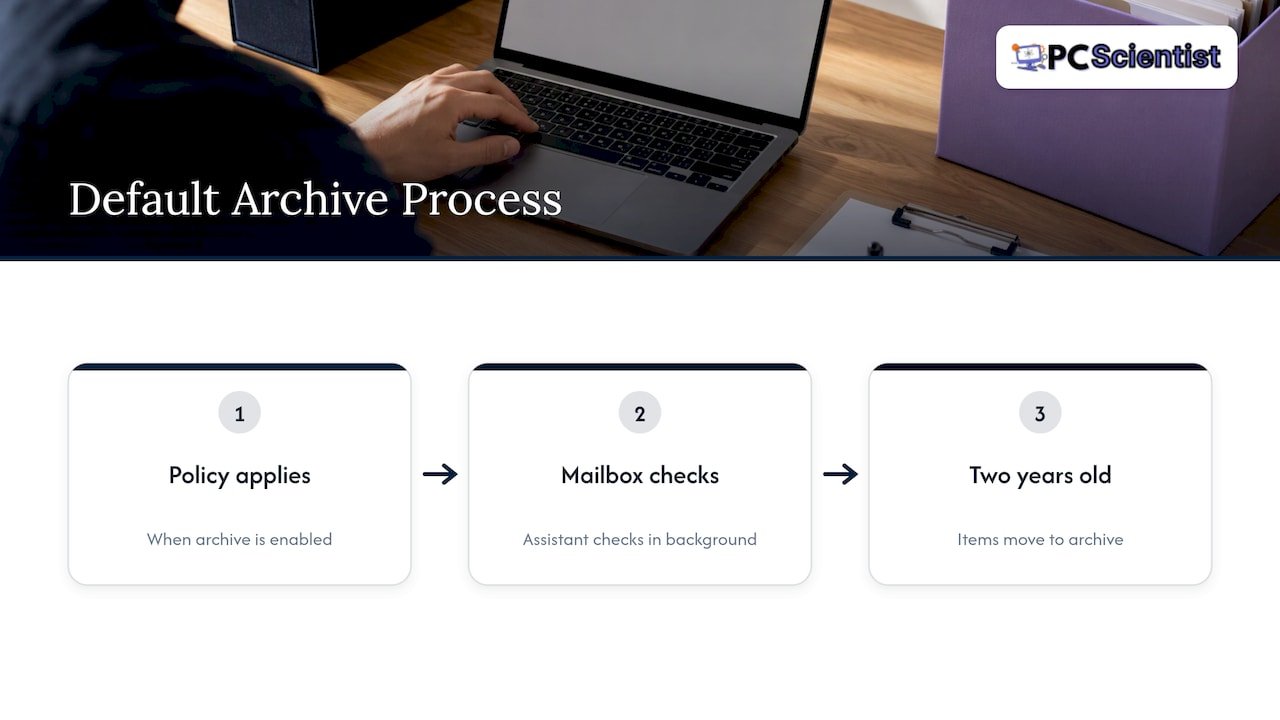
That means switching archiving on does not make your inbox instantly lighter. Mail from the last two years stays put. Only older items move, and not all at the same moment.
You can change this. The default policy can be customised with retention tags or replaced with a custom policy. A small business that wants anything over twelve months moved, for example, can do that.
A worked example
Say Sam runs a four-person electrical business. Everyone's Outlook takes a minute to open, and the shared quotes mailbox is nearly full. Sam's mailbox holds six years of email.
With archiving on and the default policy, anything older than two years moves to each person's archive. Sam still finds an old 2021 quote by searching, and can drag it back to the main mailbox if needed. Outlook opens faster because the main mailbox is now carrying about two years rather than six. If Sam later wants twelve months in the main mailbox instead, the policy is changed once and applies from then on.
Archiving versus retention policies
This is where people get tangled, and where mistakes are costly.
| Online archive (MRM) | Retention policy (Microsoft Purview) | |
|---|---|---|
| What it does | Moves older mail to a second mailbox | Keeps content, deletes it, or both |
| Main purpose | Mailbox size and tidiness | Records, legal and policy needs |
| Where mail ends up | Archive mailbox | Stays where it is; a protected copy is kept if edited or deleted |
| Who sets it up | An administrator | An administrator |
Microsoft's guidance is that Purview retention policies and labels are the way to proactively retain or delete mailbox content, while MRM continues to be used to move messages to the archive. The two work side by side.
The three retention outcomes
A retention setting does one of three things, as Microsoft's retention documentation explains:
- Retain only: keep content for a set period or forever.
- Delete only: permanently delete it after a set period.
- Retain then delete: keep it for the period, then remove it.
Two details trip people up. First, the clock runs from when the item was received or sent, not from when you created the policy. So a policy that deletes email after three years will treat a four-year-old email as already expired. Second, retention settings for Exchange only apply once a mailbox holds at least 10 MB of data.
When content is deleted under a policy, it does not vanish at once. Expired items move to a hidden Recoverable Items folder and a timer job removes them within about 14 days of the end of the period, unless a hold applies.
Retention for Australian records
If you work for a NSW public office, State Records NSW has issued guidance on managing records in Microsoft 365. It warns that personal mailboxes are automatically deleted 30 days after an account is deactivated unless retention is set. For private businesses, the same lesson applies in a milder form: decide what happens to a departing staff member's mailbox before they leave, not after. How long your business must keep emails depends on your industry and the records involved, so ask your accountant or lawyer for the period that applies to you, then we can set Microsoft 365 to match.
What happens if you turn the archive off
This is the single most important safety point in this article.
Per Microsoft, if you disable an archive mailbox, you can reconnect it to the primary mailbox within 30 days and the original contents are restored. After 30 days the contents are permanently deleted and cannot be recovered. Enabling the archive again later creates a new, empty archive.
The items in your primary mailbox are not touched when you disable an archive. But everything that was moved to the archive is at risk once the 30 days pass.
Two practical rules follow:
- Never switch an archive off to "tidy up" or to save a licence without checking what is in it first.
- If someone turns it off by accident, act inside the 30 days.
Deleted items inside the archive follow their own path. They go to the archive's Deleted Items folder, then sit in Recoverable Items for a further 14 days before permanent removal.
Microsoft also says that using journaling, transport rules or auto-forwarding to copy messages into Exchange Online Archiving is not permitted. If an old system does this, it needs to be moved to a supported approach.
How to set up an online archive
An administrator does this in the Microsoft 365 or Exchange admin centre. The steps are straightforward, and each has a point where it commonly goes wrong.
- Check your licence. Archiving is included in several Microsoft 365 plans and available as an add-on for others. Confirm the plan on each user before you start. Where it goes wrong: assuming everyone has the same licence when staff were added at different times.
- Enable the archive for each user. In the Exchange admin centre, you can enable or disable archiving for specific users. Where it goes wrong: enabling it for some staff and forgetting shared or older accounts, so the rules behave differently person to person.
- Decide the move rule. Accept the two-year default or build a custom policy with retention tags. Where it goes wrong: choosing a short period without telling staff, then people think email has gone missing.
- Add a Purview retention policy if you need one. Decide what must be kept and for how long. Where it goes wrong: setting a delete rule on old mail without checking its age first, which Microsoft's own guidance advises you to consider before applying.
- Tell your people. Show them where the archive sits in Outlook and how to drag mail back. Where it goes wrong: nobody knows the archive exists, so someone assumes mail is lost and starts a panic.
- Check a week later. Confirm the policy has run and that search finds archived mail.
Our team handles this for NSW homes and businesses. Our email and Microsoft 365 support covers setup on the Microsoft 365 side, and we can explain each setting in plain words as we go, without requiring you to know the terms or decide on the exact service before you contact us.
Archive, retention and backup are three different things
A common assumption is that an archive is a backup. They have different jobs. The archive keeps older mail organised and reachable. Retention decides how long content stays. A backup is a separate copy that you can restore from if something is lost, changed or removed. If your business depends on its email, it is worth reading our guide on whether you need a Microsoft 365 backup so you can decide with the facts in front of you.
Security matters here too. Archives and retention are only useful if the accounts behind them are protected. Our guide to Microsoft 365 security controls for audit readiness in Australia sets out the three controls we start with.
Moving to Microsoft 365 with an old mailbox
If you are moving from an older email system, the archive question comes up on day one: do you bring ten years of mail into the main mailbox or split it? Planning this before the move avoids a bloated primary mailbox and mail that arrives out of order. Our guide on how to migrate email to 365 without data drift walks through what to check.
Perspective
Most email archive trouble we hear about is not caused by the technology. It comes from someone changing a setting without knowing what it does, often years ago, and nobody remembering until a message is missing.
That is why we like to treat archiving as a small, planned job. We look at how you use email, what you need to keep, and who needs to find what. Then we set the archive, the retention rules and the licences to suit, and we explain each choice in plain language so it makes sense to you.
For homes and sole traders, that often means a lighter mailbox and a faster Outlook. For small teams and professional offices, it means everyone's email follows the same sensible rules, and a departing staff member's mail is handled before it becomes a problem.
Our approach is clear upfront pricing, practical step-by-step guidance and privacy and security kept in mind at every step. You do not need to know the technical terms or pick the exact service before you call.
PC Scientist
Getting it set up by someone who does this every day
If you would rather not work through the admin centre yourself, our Email Systems Scientist service handles email and Microsoft 365 for homes and businesses across NSW, onsite or remotely where that suits. Tell us what is going wrong, whether that is a full mailbox, a slow Outlook or a question about keeping email, and we will work out the right setup with you.

You can see everything we do on the PC Scientist website, or look at our wider business email and Microsoft 365 support if you run a team.
Sources
- Learn about archive mailboxes for Microsoft Purview, Microsoft Learn
- Enable archive mailboxes for Microsoft 365, Microsoft Learn
- Mailbox archive, ASD's Blueprint for Secure Cloud
- Microsoft Exchange Email Archiving Solutions, Microsoft Australia
- Microsoft 365 data residency product terms, MicrosoftDocs
- Use a screen reader to archive mailbox items in the Classic Exchange admin center, Microsoft Learn
- Messaging records management in Exchange Online, Microsoft Learn
- Configure Microsoft 365 retention settings, Microsoft Learn
- Learn about retention for Exchange, Microsoft Learn
- Archive features, Microsoft Learn
- Managing records in Microsoft 365, State Records NSW
Recommended
- Prevent Data Drift When You Migrate Email to 365 for NSW IT Teams
- Do You Need a Microsoft 365 Backup? An Australian Guide
- Outlook not receiving emails: fix it fast
- Outlook Search Not Working? Fixes That Actually Work
Frequently Asked Questions
Straight answers about Exchange Online Archiving: How It Works and Setting It Up - without jargon or pressure. Call 0493 563 381 for advice, or get help below.
Mail not sending Outlook Shared inboxes Phone and computer Whole NSW
Want the quickest answer? 0493 563 381 for free advice.
In everyday use, yes. Microsoft's current name is an archive mailbox, which Outlook calls Online Archive and Outlook on the web calls In-Place Archive. They all refer to the extra mailbox attached to your main one.
Until you or a policy deletes them. The archive has no expiry of its own. A retention policy or a deletion rule you have set may remove items after a set period, and deleted archive items sit in Recoverable Items for 14 days before they are removed for good.
Items in your main mailbox stay where they are. The archive's contents can be restored if you reconnect it within 30 days. After that they are permanently deleted, and enabling the archive again gives you a new, empty one.
Only if you need to control how long email is kept or when it is deleted. The archive on its own moves mail for size and tidiness. If your industry has record-keeping rules, check the period with your accountant or lawyer, and we can then set the retention to match.
The archive policy runs in the background and only moves items older than the policy age, two years by default. New archives can take time to fill, and the first move is not instant.
Email help across NSW
Still stuck with Exchange Online archiving?
If you have tried the steps and mail still is not coming through, that is okay. Get email help in your area and we will take it from here.
Start here
Get email help
Optional Need a Sydney city or region?
Choose a side of Sydney
These are Sydney cities and regions, such as the Northern Beaches or Inner West. First tap a side of Sydney. Then open the city or region that covers you.
C Sydney City / Inner 3 areas
N Northern Sydney 5 areas
NW North-West / Central Sydney 3 areas
W Western Sydney 1 area
SW South-West Sydney 3 areas
S Southern Sydney 2 areas
Optional Find your suburb
Type a suburb from our listed coverage. This opens the matching city or region page for this topic. Listed suburb pages are general technology services, not this specialist page.
If your suburb is not listed, use the city or region list above, or call 0493 563 381.
Disclaimer
The information in this article is provided for general educational and informational purposes only. While PC Scientist strives to keep all content accurate and up to date, technology issues can vary depending on your device, software, network configuration, and individual circumstances. Always back up important data before attempting repairs or system changes. If you are unsure or the issue cannot be resolved safely, contact PC Scientist today for professional onsite or remote IT support. PC Scientist is not liable for any loss of data, damage, or other issues resulting from the use of the information provided in this article.