

Moving email to Microsoft 365 without losing mail along the way
Pick your method by source, not by habit: Exchange on-premises environments do best with a staged or hybrid migration. Small businesses under roughly 150 mailboxes usually suit a straight cutover, and IMAP or Gmail sources need an IMAP or third-party migration path. Tenant-to-tenant moves need cross-tenant orchestration. Whichever path fits, your first move is the same: build a mailbox inventory and run a five to ten-user pilot before touching DNS.
Key takeaways
- For small organizations with under 150 mailboxes, a straightforward cutover migration is fastest, while larger or complex setups benefit from staged or hybrid approaches.
- Pre-migration planning must include a mailbox inventory, DNS and MX setup, and security hardening, especially to mitigate cyber threats during the process.
- Mailbox migration duration varies but should account for throttling; starting with a pilot, pre-staging mail, and final delta sync helps prevent data drift.
- Native tools are sufficient for most cases, but complex metadata or large archives may require third-party software, with vendor performance and error handling being key factors.
- Common migration failures stem from DNS cache split, throttling, corrupt items, folder mismatches, or legacy reply paths, all fixable with early detection and proper remediation.
Table of Contents
- How do I migrate email to 365? Choosing the right method
- What should be on your pre-migration checklist?
- How long does it take to migrate a mailbox to Office 365?
- Do you need third-party migration software?
- What causes email migrations to fail?
- How PC Scientist handles email migrations
- What we actually watch for on real migration projects
- Get help moving to Microsoft 365 without the guesswork
- Sources
- FAQ
How do I migrate email to 365? Choosing the right method
The method you pick decides how much data survives the move and how much downtime your business absorbs. Microsoft's own migration documentation lays out five broad approaches, and each one trades speed against fidelity in a different way.
- Cutover migration: Moves all mailboxes at once, works well for smaller organisations, and brings across mail, calendar, and contacts in a single pass.
- Staged migration: Moves mailboxes in batches over days or weeks, suited to larger Exchange environments that need to control the pace of change.
- Hybrid migration: Keeps some mailboxes on-premises while others sit in Microsoft 365, ideal for businesses that need long-term coexistence rather than a one-off cutover.
- IMAP migration: Pulls mail from Gmail, on-premises IMAP servers, or other IMAP-compliant systems, but it will not bring across calendars, contacts, tasks, or folder permissions.
- Cross-tenant migration: Moves content between two Microsoft 365 tenants, common after a merger, acquisition, or divestment, and requires identity mapping before any content transfer starts.
Microsoft's mailbox migration guidance confirms these are the standard patterns and spells out where each one runs into limits, particularly around IMAP's inability to carry calendar and contact data.
Run a quick mental checklist before committing: if speed matters most and your mailboxes are small, cutover wins. If fidelity and coexistence matter more than speed, hybrid or staged is the safer bet. If you're crossing from a non-Exchange system, be aware that IMAP will leave gaps you'll need to patch manually or with third-party tools.
What should be on your pre-migration checklist?
Most migration headaches trace back to skipped homework, not bad execution on the day. Before you schedule anything, work through this sequence.
- Inventory every mailbox - record size, litigation holds, retention policies, shared mailboxes, and any delegated or resource accounts. A mailbox sitting on a legal hold behaves differently during migration and can silently fail if you don't flag it early.
- Confirm tenant and licensing readiness - check that your Microsoft 365 tenant has enough licences allocated and that Entra ID (formerly Azure AD Connect) is configured correctly if you're syncing identities from an on-premises directory.
- Plan DNS and MX timing - verify your domain in Microsoft 365 well ahead of cutover day, and drop your MX record's TTL to a low value (300 seconds is common) at least 24 to 48 hours before the switch so the change propagates fast when you flip it.
- Harden admin security - enforce MFA on every administrative account, revalidate service account credentials, and check firewall rules or connectors that might block migration traffic.
The migration window is a genuine security risk period, not just an operational one. Guidance echoing the Australian Cyber Security Centre's advice is blunt about this: attackers specifically target the chaos of tenant changes to attempt account takeover or Business Email Compromise, because admin attention is split and unusual activity is easier to miss.
Pro Tip: Reduce your MX TTL a full 48 hours before cutover, not the night before. DNS caching further up the chain doesn't always respect your new TTL immediately, and you don't want to discover that on migration day.
How long does it take to migrate a mailbox to Office 365?
Duration depends on mailbox size, item count, and how hard Microsoft throttles your connection, but the sequence below is what keeps a migration from turning into a scramble.
- Run the pilot first. Choose five to ten representative users, including at least one executive mailbox and one large mailbox (over 10GB), so you catch issues that only show up at scale before they hit everyone.
- Pre-stage historic mail. Start moving older mail days or even weeks before cutover, throttled so it doesn't choke your network or trip Microsoft's rate limits.
- Run a final delta sync. Once pre-staging is done, freeze non-essential mailbox housekeeping (no bulk folder reorganising, no mass rule changes) and run a final incremental pass to catch anything that arrived since the last sync.
- Cut over MX records. Flip your MX record to point at Microsoft 365 at a planned, low-traffic time, ideally outside business hours.
- Verify in four directions: internal to internal, internal to external, external to internal, and external to external. If all four pass, mail flow is genuinely working, not just partially working.
- Test Outlook profiles and autodiscover on at least one fresh machine that's never connected to the old system, to confirm the migration is clean from a client's point of view.
- Keep the old system live for 30 to 60 days as a fallback, rather than decommissioning immediately.
Microsoft's migration best-practice guidance recommends planning around throttling rather than fighting it: assume you'll get roughly half your theoretical ideal throughput, and watch error rates rather than raw volume to catch rate-limiting early. That single adjustment in expectations saves a lot of panicked troubleshooting on migration weekend.
The staging and delta-sync approach matters more than it sounds. Field practitioners consistently point to what they call "data drift" as the real threat during migration, mail arriving mid-move that a single-pass copy simply misses, which is exactly why the freeze-then-final-sync sequence exists.
Do you need third-party migration software?
Native Microsoft tools cover most straightforward moves, but certain scenarios genuinely call for third-party migration software or a specialist partner.
- Cross-tenant moves with complex metadata - folder permissions, categories, and custom properties often need dedicated tooling to survive the jump.
- Large archive migrations - PST files, legacy on-premises archives, and public folders frequently exceed what native tools handle cleanly.
- Mixed-source environments - if you're consolidating Gmail, IMAP, and Exchange sources into one tenant simultaneously, a third-party platform can manage the orchestration better than running several native jobs in parallel.
If you do go down this path, ask any vendor or partner directly about their throttling strategy, their delta or differential sync capability, their reporting detail, and their bad-item tolerance settings, since these determine whether a slow connection or a handful of corrupt items derails the whole batch. Microsoft's migration orchestrator is the native option for cross-tenant content moves and is worth checking against licensing requirements before you shop externally.
Pro Tip: Ask any migration vendor to quote an estimated throughput figure in gigabytes per hour based on your actual mailbox sizes, not a generic average. That number is what turns "a few days" into a real, plannable date.
What causes email migrations to fail?
Most migration failures fall into a short, predictable list, and most have quick fixes if you catch them early.
- DNS split-brain: Old MX records still cached somewhere on the internet route mail to the wrong server. Fix by confirming your TTL was actually lowered ahead of time.
- Throttling: Migration jobs slow to a crawl under Microsoft's rate limits. Reduce concurrent thread counts and monitor error rates, not total volume.
- Corrupt or oversized items: A handful of bad items stall entire batches. Set a sensible bad-item tolerance rather than a zero-tolerance setting.
- UID or folder mapping mismatches: Migrated folders appear duplicated or nested incorrectly, usually needing a manual remap pass.
- LegacyExchangeDN bounce-backs: Replies to old emails bounce with an IMCEAEX error. Add the old LegacyExchangeDN as an X500 proxy address on the new mailbox to preserve reply paths.
Once mail flow is stable, fix the client side: rebuild affected Outlook profiles rather than patching an old one, and test autodiscover on a machine that's never touched the previous system.
How PC Scientist handles email migrations
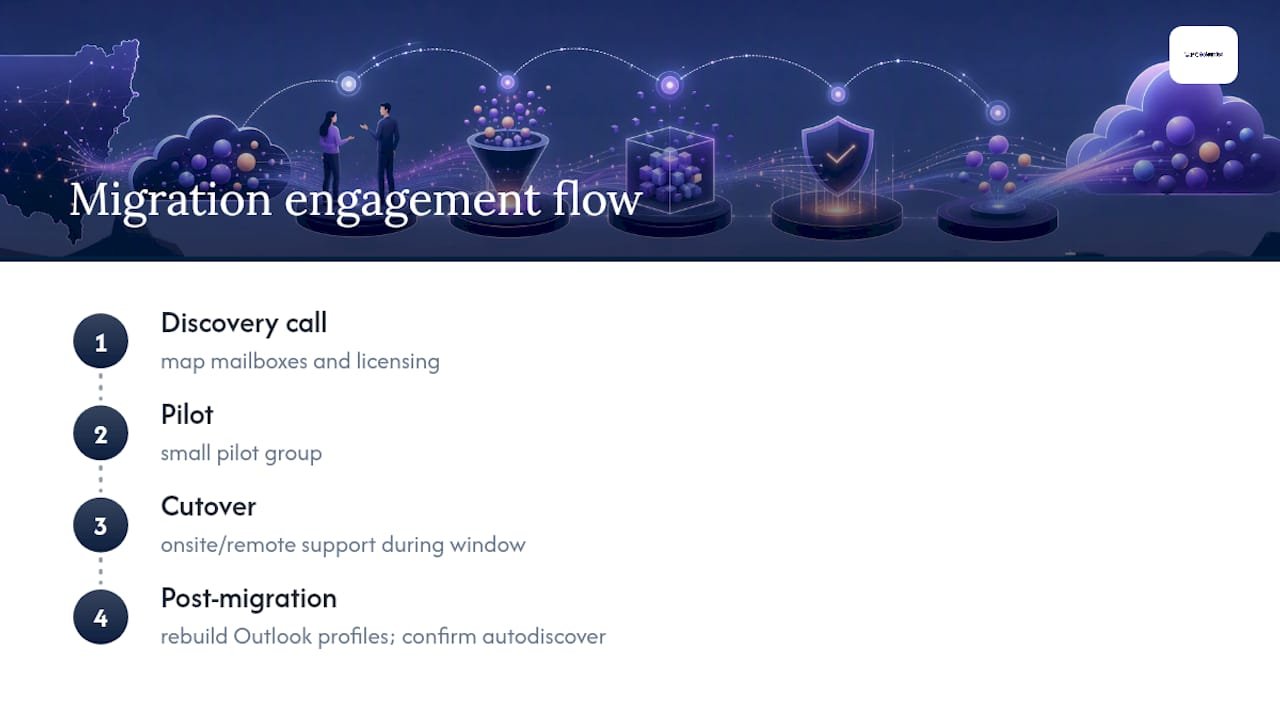
PC Scientist's Email Systems Scientist division and broader business IT team run migrations the same way this playbook describes: inventory first, pilot second, cutover third. A typical engagement starts with a discovery call to map mailboxes and licensing, moves into a small pilot group, then onsite or remote support through the actual cutover window. Post-migration, we handle the client-side cleanup, rebuilding Outlook profiles and confirming autodiscover, so your team isn't fielding a flood of "my email's broken" tickets the Monday after. Full detail on scope sits on our Microsoft 365 and business email page.
What we actually watch for on real migration projects
The biggest risk isn't downtime, it's data drift: mail arriving mid-migration that a single-pass copy quietly misses. That's why staged pre-loading and a final delta sync matter more than raw migration speed. On the user side, testing autodiscover before cutover day, not after, is what stops a ticket surge on the Monday morning. Freeze rules in the final sync window and clear communication cadence do the rest.
- PC Scientist
Get help moving to Microsoft 365 without the guesswork
We are the practical alternative to going it alone on a migration or handing it to a distant call centre that's never seen your network. We run migrations onsite and remotely across NSW, managing the pilot, the cutover window, and the post-migration cleanup so your team keeps working while it happens in the background.

A typical first call covers your mailbox count, source system, and any compliance holds, then we scope a pilot and a cutover date that suits your business hours, not ours. If you're planning a move and want a second set of eyes on the plan before you touch DNS, get in touch through our Business IT Support page to book an assessment.
Sources
- Mailbox migration - Microsoft Learn
- Email security tips from the Australian Cyber Security Centre - Bitwarden blog
Recommended
- Business Email & Microsoft 365 NSW
- Email Systems Scientist | Mail & Sync Help NSW
- Outlook not receiving emails: what is usually going on
Frequently Asked Questions
Straight answers about Prevent Data Drift When You Migrate Email to 365 for NSW IT Teams - without jargon or pressure. Call 0493 563 381 for advice, or get help below.
Want the quickest answer? 0493 563 381 for free advice.
Start with a mailbox inventory, choose a method based on your source system (cutover, staged, hybrid, IMAP, or cross-tenant), then run a small pilot before migrating everyone else. Microsoft's mailbox migration documentation covers the technical steps for each method in detail.
Yes, once your subscription lapses and the grace period ends, Microsoft deletes the associated mailbox data, so export or archive anything you need before cancelling.
It depends on mailbox size and Microsoft's throttling limits, but expect roughly half your theoretical ideal throughput, and plan pre-staging over days rather than trying to move everything in one pass.
Outlook is the standalone email client that can connect to almost any mail server, while Outlook as part of Microsoft 365 is the same client bundled with a subscription that includes cloud mailbox hosting, updates, and other Microsoft 365 apps.
Email help across NSW
Need a hand migrating email to Microsoft 365?
If you have tried the steps and mail still is not coming through, that is okay. Get email help in your area and we will take it from here.
Start here
Get email help
Optional Need a Sydney city or region?
Choose a side of Sydney
These are Sydney cities and regions, such as the Northern Beaches or Inner West. First tap a side of Sydney. Then open the city or region that covers you.
C Sydney City / Inner 3 areas
N Northern Sydney 6 areas
NW North-West / Central Sydney 3 areas
W Western Sydney 1 area
SW South-West Sydney 3 areas
S Southern Sydney 2 areas
Optional Find your suburb
Type a suburb from our listed coverage. This opens the matching city or region page for this topic. Listed suburb pages are general technology services, not this specialist page.
If your suburb is not listed, use the city or region list above, or call 0493 563 381.
Disclaimer
The information in this article is provided for general educational and informational purposes only. While PC Scientist strives to keep all content accurate and up to date, technology issues can vary depending on your device, software, network configuration, and individual circumstances. Always back up important data before attempting repairs or system changes. If you are unsure or the issue cannot be resolved safely, contact PC Scientist today for professional onsite or remote IT support. PC Scientist is not liable for any loss of data, damage, or other issues resulting from the use of the information provided in this article.
