

VLANs for Small Business: A Plain-English Guide

A VLAN splits one physical network into separate virtual ones, so your point-of-sale, staff laptops, guest Wi-Fi and cameras stop sharing the same space. For most small businesses it is one of the cheapest ways to limit the damage when one device is compromised, and it often needs no new cabling. You do need the right equipment (a managed switch and a router or firewall that understands VLANs) and a sensible plan for who can talk to what.
This guide explains how a VLAN works in everyday terms, which networks to separate first, what the gear involves, and where a VLAN is not enough.
TL;DR
- A VLAN divides one network into separate zones, for example staff, guests, cameras and payments, without separate cabling for each.
- The biggest win for most small businesses is keeping guests, smart devices and cameras away from the computers that hold client and financial data.
- A guest Wi-Fi network on a standard router is the simplest starting point. Full VLANs need a managed switch and a router or firewall that supports them.
- VLANs only help if the rules between them are set properly and reviewed. A VLAN with no rules is just a label.
- If you are not sure what you need, a network assessment is a sensible first step before you buy anything.
Table of Contents
- What a VLAN actually is
- Why a flat network is risky
- Which networks to separate first
- Do you need a VLAN, or is guest Wi-Fi enough?
- What you need to set up VLANs
- How to plan it in six steps
- Where VLANs fall short
- Common mistakes we see
- Using an outside IT provider safely
- Our view: start with the problem, not the technology
- Getting help in NSW
- FAQ
- Sources
What a VLAN actually is
A VLAN (virtual local area network) is a way of grouping devices into their own private network using settings rather than separate cables and switches. Two devices plugged into the same switch can sit in different VLANs and be unable to see each other unless you allow it.
Think of an office with one set of walls but several locked rooms inside. The building is one network. The VLANs are the rooms. The router or firewall acts as the door, and you decide who gets a key.
The Australian Signals Directorate (ASD) describes this in its networking guidelines: VLANs can be used for segmentation and segregation when the networks belong to the same security domain, so that if something goes wrong the impact is contained.
Why a flat network is risky
Most small business networks start out "flat". Everything connects to the same router: the office PCs, the printer, the visitor's phone, the smart TV in the waiting room, the security cameras and the EFTPOS terminal. It works, and nobody thinks about it until something goes wrong.
The problem is that every device on a flat network can try to reach every other device. If a cheap camera with old firmware is compromised, it sits right next to your accounting files.
The ASD says network segmentation is a critical strategy for stopping an intruder from moving sideways through a network. Splitting a network into smaller zones limits how far a breach can travel.
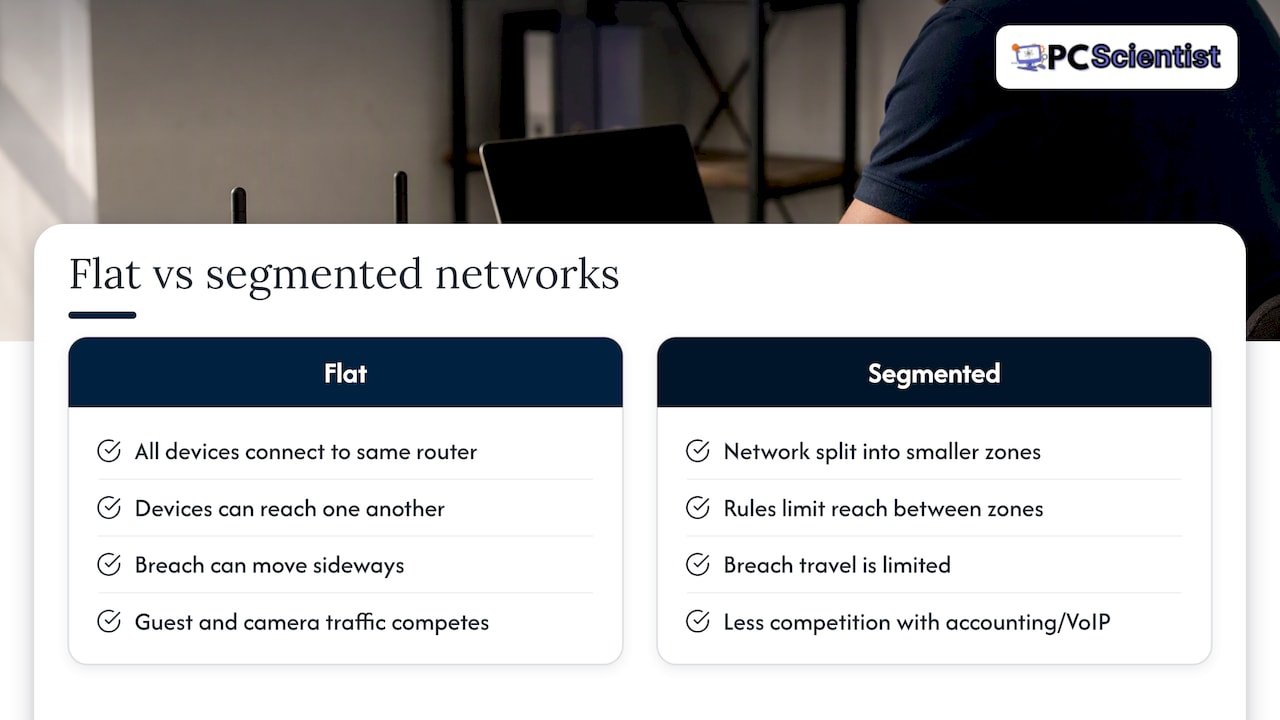
There is a second benefit that owners notice sooner: performance. A guest streaming video or a camera uploading footage no longer competes on the same segment as your cloud accounting software or VoIP phones. Fewer devices shouting on the same network means less noise.
Which networks to separate first
You do not need ten VLANs. Most small offices, clinics, shops and trade businesses are well served by three to five. Here is a sensible starting layout.
| Network (VLAN) | What goes on it | Who or what it can reach |
|---|---|---|
| Staff / business | Work laptops, desktops, file server or NAS, business printer | The internet, printers, and the file storage it needs |
| Guests | Visitor phones and laptops | The internet only |
| Smart devices (IoT) | Smart TVs, sensors, smart speakers, thermostats | The internet only, or one specific service |
| Cameras | CCTV cameras and the recorder | The recorder, plus controlled access for the people who view footage |
| Payments (optional) | EFTPS/POS terminals, tills | Payment provider only |
| Management | Router, switch and access point admin pages | Only from one or two trusted devices |
Each row exists for the same reason: devices that do not need to talk to each other should not be able to. Security guidance from the ASD frames this as a least-privilege approach: if two networks do not need to communicate for business operations, block it by design.
Guests
This is the easiest and most valuable split. Visitors, customers and contractors expect Wi-Fi, but their devices are not yours, and you have no idea how well they are patched. Put them on their own network that reaches the internet and nothing else.
If you only do one thing after reading this, do this. We cover the practical steps in our guide to guest Wi-Fi network setup.
Smart devices and cameras
Smart TVs, door sensors, printers and IP cameras tend to get patched rarely, if ever. The Australian Government's cyber security site warns that small office and home office routers are prime targets for botnet operations, and notes that it takes only one compromised internet-connected device to affect a whole network. Putting these devices in their own zone is the practical response.
If you are planning to add sensors, displays or other connected equipment to a workplace, it is worth thinking about the network before the fit-out. This overview of smart office technology covers how connected devices fit into a modern workplace, and each one you add is another device that belongs in the right zone.
Cameras deserve a zone of their own. Footage is sensitive, and cameras are a common weak point. If you are installing or upgrading CCTV, plan the network at the same time. Our business and venue CCTV service covers that side.
Payments
If you take card payments through a terminal connected to your network, isolating it from staff laptops and guest devices is good practice. Check the requirements from your payment provider or bank first, since some set their own rules for how terminals connect.
Do you need a VLAN, or is guest Wi-Fi enough?
Honest answer: sometimes guest Wi-Fi is enough.
The ASD's advice for homes and small offices is that turning on guest Wi-Fi on your router is the most accessible way to get basic separation. It creates a second network name and password, and untrusted devices cannot easily reach your main network. One catch noted in the same guidance: if a guest needs to use a device like a smart TV, they must be on the same network as that device.
For a home office or a one-person business, that may be all you need. In effect, a guest network is a ready-made VLAN built into the router.
Step up to proper VLANs when:
- You have more than a handful of staff and more than one kind of device (computers, cameras, payment terminals, smart equipment).
- You hold sensitive client data, such as legal, medical, accounting or real estate records.
- You run a venue, motel or short-stay property where guests and staff both need Wi-Fi, and you also have CCTV and back-office systems. Our hotel, motel, Airbnb and strata tech page explains how we approach this.
- You have had a scare, such as a scam email, odd network behaviour or a compromised device, and want to limit the blast radius next time.
- Your internet is unreliable and you suspect too many devices are competing.
What you need to set up VLANs
The good news is that the equipment is not exotic. The less good news is that the cheapest home router will not do it.
- A router or firewall that supports VLANs. This is where the rules between zones are enforced. Many small business routers and firewalls handle this.
- A managed switch. An unmanaged switch just passes traffic along and cannot tag it by VLAN. A managed switch lets you assign each port to a VLAN.
- Wi-Fi access points that can broadcast more than one network. Each network name (SSID) is mapped to a VLAN, so staff Wi-Fi and guest Wi-Fi share the same access points but stay separate.
- Decent cabling. Access points and cameras need to be wired back to the switch for a stable result.
For technical readers: VLAN tagging on Ethernet uses the IEEE 802.1Q standard. Frames travelling between switches on a "trunk" port carry a tag showing which VLAN they belong to, while ports connected to ordinary devices are "access" ports that strip the tag off.
If your internet comes through the NBN, how the modem and router are arranged also matters. Our guide on modem router combo or separate explains the trade-offs, and it is worth sorting before adding VLANs.
How to plan it in six steps
- List every device. Walk the premises, including the back room. Computers, printers, phones, cameras, TVs, tablets, alarm panels, EFTPOS.
- Group by trust. Which devices handle money or client data? Which are only there for convenience? Which belong to visitors?
- Decide what must talk to what. Your staff need the printer. Your recorder needs the cameras. Your guests need nothing but the internet. Write it down.
- Choose and number the VLANs. Keep it simple and label everything. Future you, or whoever supports the network, will be grateful.
- Set the rules between VLANs. Default to blocking, then allow only what you listed in step 3.
- Test and document. Connect a guest phone and confirm it cannot see the office printer. Plug a camera into its port and confirm it reaches the recorder. Save the configuration and keep a copy of the layout.
Where VLANs fall short
A VLAN is a useful tool, not a force field. Three limits are worth knowing.
A VLAN without rules protects nothing. Creating the zones is the easy part. If the router lets every VLAN talk to every other one, you have the same flat network with extra labels. The rules between them are where the security lives.
VLANs are not isolation for highly sensitive systems. The ASD cautions that VLANs suit traffic within the same security domain, and that relying on them alone for high-security boundaries can be a weakness without careful, vendor-specific controls. For a small business, this means a VLAN is a strong everyday measure, but it does not replace good passwords, multi-factor authentication, patching, backups and staff awareness.
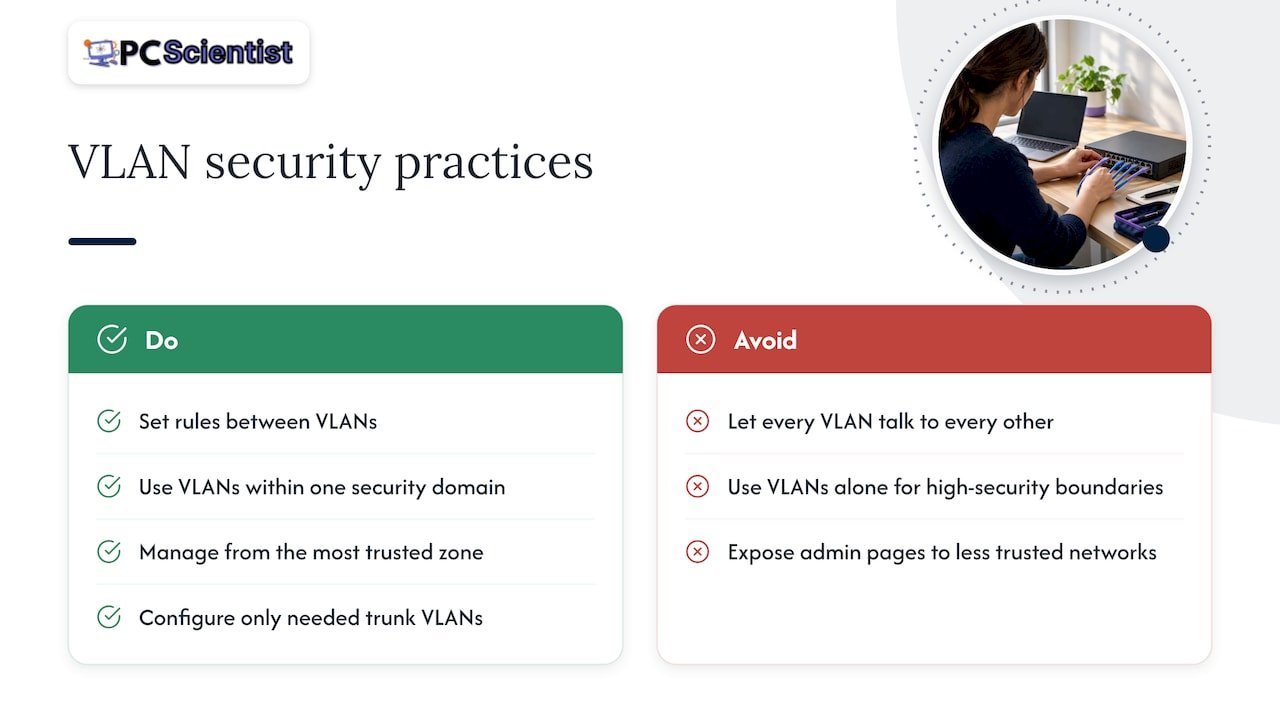
They need looking after. Management of the network should come from the most trusted zone. If the switch or router admin page is reachable from a less trusted network, you hand an attacker a bridge. Likewise, ASD advice for critical infrastructure suggests explicitly configuring only the VLANs needed on each trunk rather than letting VLAN settings propagate automatically. That advice is written for higher-risk environments, but the habit of setting things deliberately and reviewing them applies to a small office too.
Common mistakes we see
- Buying gear first. Equipment bought before a plan often turns out to lack a feature you need.
- Everything on the default network. The router's default network ends up holding staff, guests and cameras because nobody got around to moving them.
- No separate management access. Anyone on the Wi-Fi can open the router login page.
- Weak or unchanged admin passwords. Segmentation does not help if the router still uses the factory login.
- Forgetting the printer. Staff can no longer print, the VLAN gets blamed, and someone opens everything back up. Plan printer access from the start.
- No documentation. Six months later nobody remembers which port is which.
Using an outside IT provider safely
If you bring in a managed IT provider, VLANs are part of how to do that sensibly. Australian Government guidance on engaging managed service providers says their access should be treated as untrusted and kept in its own trust zone, ideally through a controlled "jump host" rather than broad access to the whole internal network. A good provider will not mind you asking how their access is limited and logged.
Our view: start with the problem, not the technology
We get asked about VLANs by people who have read that they "should" have one. Sometimes they should. Often what they actually have is a Wi-Fi network that drops out, a camera that keeps going offline, or a visitor who has the same password as the staff.
Our approach is to look at the way your business really runs before suggesting anything. Where do your staff work? What do customers connect to? Which devices would hurt most if they were compromised? Then we build the simplest layout that answers those questions. For a home office that may be a properly configured guest network. For a clinic or a small firm it is usually a handful of VLANs with clear rules, a managed switch, access points placed where people actually work, and a written record of how it fits together.
We would rather tell you a simple setup is enough than sell you complexity you will not use. And because we can cover networks, cybersecurity and CCTV in one visit, the zones, cameras and Wi-Fi are planned together rather than patched together later.
- PC Scientist
Getting help in NSW
If you would like a second pair of eyes on your network, our Network Scientist service covers business network design, Wi-Fi and installation across New South Wales, onsite with remote help where it suits. You can also read about our business network and Wi-Fi assessment, which is a practical starting point if your internet is unreliable or you are not sure what is on your network. On the Central Coast, see our page on staff and guest Wi-Fi for businesses. If a scare has prompted this, our business cybersecurity service picks up from there.
You do not need to know the technical terms before you get in touch. Tell us what is going wrong and we will work out the rest.
Sources
- Guidelines for networking, Cyber.gov.au
- Implementing network segmentation and segregation, Cyber.gov.au
- Secure your Wi-Fi and router, Cyber.gov.au
- Cyber.gov.au, Australian Government cyber security
- CI Fortify: Advice for isolating vital systems, Cyber.gov.au
- How to manage your security when engaging a managed service provider, Cyber.gov.au
Recommended
- Decide in 4 Questions: Mesh WiFi or Access Points
- Guest Wi-Fi network setup: secure and simple
- Access Point Placement for Homes & Small Offices: 15-20% Overlap Rule
- Fix Cyber Security in a Week: 3 ACSC Steps for Small Businesses
Frequently Asked Questions
Straight answers about VLANs for Small Business: A Plain-English Guide - without jargon or pressure. Call 0493 563 381 for advice, or get help below.
Want the quickest answer? 0493 563 381 for free advice.
A managed switch or router tags traffic with a VLAN number, and devices only see traffic from their own VLAN. To cross between VLANs, traffic must pass through a router or firewall, where you set the rules. If the rules say no, the traffic stops there.
Technically yes, but it is rarely a good idea. The usual practice is one subnet per VLAN, which keeps the layout easy to understand and to apply rules to. Mixing them makes troubleshooting and security rules messier.
VLAN tagging uses IEEE 802.1Q. The 802.3 family describes Ethernet itself. In practice you will see "802.1Q trunk" in the settings of a managed switch.
Start with a business-grade router or firewall, a managed switch and wired access points, then group your devices by trust level. Put guests and smart devices on their own networks, secure the admin logins, and document the result. If you are starting from a home-style setup, a short assessment will tell you what to keep and what to replace.
Network help across NSW
Still stuck planning VLANs for the office?
If the steps above did not get the network behaving, that is okay. Get help in your area and we will take it from here.
Start here
Get network help
Optional Need a Sydney city or region?
Choose a side of Sydney
These are Sydney cities and regions, such as the Northern Beaches or Inner West. First tap a side of Sydney. Then open the city or region that covers you.
C Sydney City / Inner 3 areas
N Northern Sydney 4 areas
NW North-West / Central Sydney 3 areas
W Western Sydney 1 area
SW South-West Sydney 3 areas
S Southern Sydney 2 areas
Optional Find your suburb
Type a suburb from our listed coverage. This opens the matching city or region page for this topic. Listed suburb pages are general technology services, not this specialist page.
If your suburb is not listed, use the city or region list above, or call 0493 563 381.
Disclaimer
The information in this article is provided for general educational and informational purposes only. While PC Scientist strives to keep all content accurate and up to date, technology issues can vary depending on your device, software, network configuration, and individual circumstances. Always back up important data before attempting repairs or system changes. If you are unsure or the issue cannot be resolved safely, contact PC Scientist today for professional onsite or remote IT support. PC Scientist is not liable for any loss of data, damage, or other issues resulting from the use of the information provided in this article.
