
Fix a Smart TV That Won't Connect to Wi-Fi in Under Five Minutes
Restart your modem, router, and TV in that exact order first. It clears the stale connection that causes most dropouts. If that doesn't work within a minute or two, plug the TV straight into the router with an Ethernet cable, or connect it to a mobile hotspot, to work out whether the problem is your TV or your home network. Everything else below explains why, and what to do if that doesn't solve it.
Key takeaways
- Connecting your TV to a mobile hotspot or Ethernet cable can quickly determine if the issue stems from your home Wi-Fi network or the TV hardware itself.
- Router settings such as WPA3-only security, MAC filtering, or mesh network handovers frequently prevent older TVs from maintaining a stable Wi-Fi connection.
- Running the TV's built-in network diagnostic, setting a manual IP, or changing DNS servers can resolve persistent app loading or connectivity issues caused by configuration errors.
- Weak Wi-Fi signals due to distance, walls, or the TV's lower radio strength often make connection problems seem worse than they are, especially if your phone connects fine nearby.
- If all troubleshooting fails, professional assessment can identify hardware faults like a damaged Wi-Fi module or complex network configuration problems requiring expert reconfiguration.
Table of Contents
- Quick fixes you can try in under five minutes
- A stepwise routine to isolate the problem
- Router and Wi-Fi settings that commonly stop TVs connecting
- Advanced fixes: DNS, manual IP, firmware and factory reset
- How to tell whether the TV's wireless hardware has failed
- When a pro is the right call
- Practical perspective: easy habits that prevent repeat outages
- Book PC Scientist for hands-on Wi-Fi and TV network help
- Sources
- FAQ
Quick fixes you can try in under five minutes
Before you touch any settings, run through these. They fix the majority of smart TV Wi-Fi issues without needing to understand a single technical term.
- Power cycle in order: switch off the TV, then the router, then the modem. Wait 30 seconds, then bring the modem back first, the router second, and the TV last, giving each device time to fully reconnect before the next one starts.
- Forget the network and re-enter the password on the TV. Watch for mixed-up characters like a capital "O" versus a zero. Passwords are case-sensitive, and a single typo is one of the most common reasons a smart TV won't connect to Wi-Fi.
- Plug in an Ethernet cable if you have one nearby. It bypasses wireless entirely and gets you online in seconds while you sort the rest out.
- Move the router closer to the TV, or temporarily switch off other bandwidth-heavy devices, like a laptop mid-download or a second TV streaming in another room.
A stepwise routine to isolate the problem
If the quick fixes didn't work, this sequence tells you whether the fault sits with your TV, your home network, or your internet provider.
- Check other devices first. If your phone, laptop, or tablet can't get online either, the issue is your router or your internet service, not the TV. If everything else connects fine, the problem is isolated to the TV itself.
- Run a mobile hotspot test. Turn on your phone's hotspot, and try connecting the TV to it. If the TV connects to your hotspot without trouble, its wireless hardware is fine and the fault lies with your home router or ISP support.
- Try Ethernet next. If the TV goes online over a wired connection but still won't connect wirelessly, that points squarely at a Wi-Fi signal or router configuration problem rather than a faulty TV.
- Run the TV's built-in network diagnostic. Most brands call this "Network Status" or "Network Test," and it will usually flag a specific error, like a wrong password, a weak signal, or an IP conflict. Samsung's own support guidance walks through reading these results and resetting the network from the TV's settings menu.
- Forget the saved network and reconnect from scratch. This clears any corrupted saved credentials that a simple password re-entry sometimes misses.
- Power cycle again, this time timing it properly. Bring the modem online first and give it a full minute before switching on the router, because the router needs a clean connection to the modem to hand out a proper IP address to your TV.
Pro Tip: Smart TVs generally have weaker Wi-Fi radios than your phone, so distance and walls affect them more. If your phone connects fine three rooms from the router but your TV struggles from the next room over, that's not a fault, that's just physics.
Router and Wi-Fi settings that commonly stop TVs connecting
Plenty of "why won't my smart TV connect" cases trace back to router settings that were never designed with older TV hardware in mind.
- 2.4GHz versus 5GHz: 5GHz is faster but has shorter range and struggles through walls. Older or budget TVs sometimes can't see 5GHz networks at all, so if your TV isn't showing your Wi-Fi network, try connecting to the 2.4GHz band specifically.
- WPA3-only security: some newer routers default to WPA3-only encryption, and older TVs often can't authenticate against it. Switching to mixed WPA2/WPA3 mode in your router settings usually solves this instantly.
- MAC filtering and guest network isolation: if your router restricts which devices can join, or your TV landed on an isolated guest network, it may show as connected but never reach the internet.
- Mesh Wi-Fi handovers: mesh systems can repeatedly bounce a TV between nodes, causing drops. Try connecting the TV directly to the main router node to see if the problem disappears.
Advanced fixes: DNS, manual IP, firmware and factory reset
If your TV connects to Wi-Fi but apps still won't load, "connected but no internet" almost always points to a DNS or IP problem rather than the wireless connection itself.
- Change the DNS settings on the TV to a public option like Google's 8.8.8.8 or Cloudflare's 1.1.1.1, which bypasses ISP DNS servers that occasionally fail.
- Set a manual IP address inside your router's DHCP range (check your router's admin page for that range) if the TV keeps getting a duplicate or invalid IP.
- Update the TV's firmware, either through its network settings menu or via a USB download from the manufacturer's site, since outdated software is a known cause of stubborn Wi-Fi bugs.
- Factory reset as a last resort. This wipes saved apps, logins, and network settings, so back up anything important first, but it resolves deeper configuration corruption that a simple reset can't touch.
Most home routers hand out DHCP leases automatically, so if your TV's manual IP conflicts with another device on the network, that alone can cause repeated disconnects even when the Wi-Fi signal itself is strong.
How to tell whether the TV's wireless hardware has failed
Sometimes the problem isn't your network at all, it's the TV.
- No networks visible at all, even though your phone sitting right next to the TV sees several, is a strong sign the internal Wi-Fi module has failed.
- Hotspot and Ethernet both fail on the same TV, which usually rules out the network and points to a hardware fault or a corrupted network stack inside the TV itself.
- A history of power surges or physical knocks to the TV raises the likelihood of internal damage to the wireless components.
- If hardware failure looks likely, your realistic options are a supported USB Wi-Fi adapter (only on models that allow it) or a proper repair assessment.
When a pro is the right call
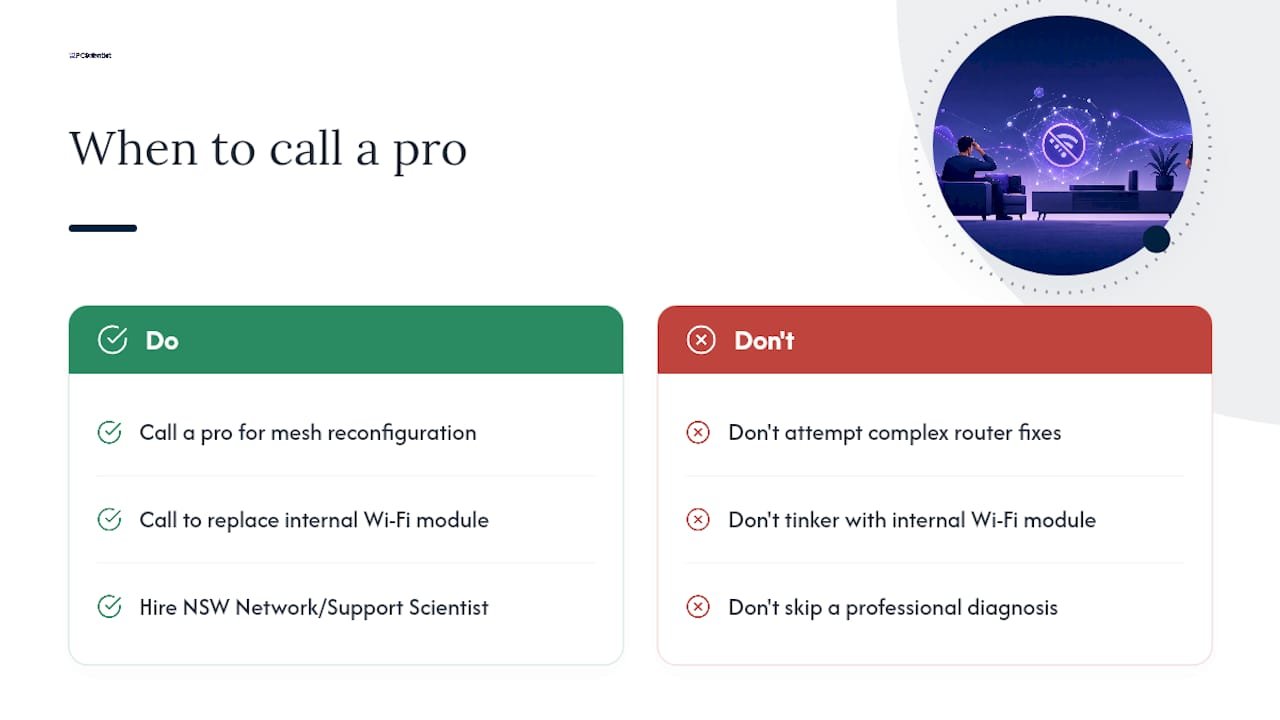
Some situations go beyond a home fix: reconfiguring a mesh network, replacing a failed internal Wi-Fi module, or untangling a business-grade router with MAC filtering and VLANs. Network Scientist and Computer Support Scientist cover exactly this across NSW, onsite or remote. A visit typically means a proper diagnosis and a clear explanation of what's actually broken before anything's touched.
Practical perspective: easy habits that prevent repeat outages
Set your TV's clock to "Auto." It sounds trivial, but incorrect date and time can cause secure Wi-Fi connection failures on some TVs. on some models. Beyond that, a monthly reboot, keeping firmware current, and running a cable to your streaming box instead of relying on Wi-Fi will quietly save you from most future headaches.
- PC Scientist
Book PC Scientist for hands-on Wi-Fi and TV network help
PC Scientist offers onsite and remote Wi-Fi and TV network support across NSW, with clear upfront pricing.

If you've worked through the steps above and your TV still won't hold a connection, or you're dealing with a mesh network that keeps handing your TV between nodes, that's exactly the kind of job worth booking rather than fighting alone. It's also the right call if you'd rather someone else diagnose a possible hardware fault than buy a repair or a new TV on a guess. Head to Network Scientist to book a visit, and we'll sort out whether it's your router, your TV, or something in between, with no technical jargon required on your end.
Sources
Manufacturer support pages give the most accurate model-specific steps. Check Samsung's connection guide, Sony's network diagnosis page, or TCL's Wi-Fi troubleshooting FAQ if your brand differs from the general steps here.
- TCL support: My TV won't connect to Wi-Fi (AU support)
- Samsung Australia: Connect your Samsung TV to the Internet
- SpeedTestHQ: Smart TV Wi-Fi not connecting - fixes
- ConnectingToWifi: TV not connecting to Wi-Fi - complete troubleshooting
Recommended
- Home Wi-Fi setup: get online in under 30 minutes
- Printer won't connect to Wi-Fi: quick fixes that work
- Wi-Fi keeps dropping? Here's what actually fixes it
- Guest Wi-Fi network setup: secure and simple
Frequently Asked Questions
Straight answers about Fix a Smart TV That Won't Connect to Wi-Fi in Under Five Minutes - without jargon or pressure. Call 0493 563 381 for advice, or get help below.
Want the quickest answer? 0493 563 381 for free advice.
It's usually one of three things: a mistyped or outdated saved password, a weak signal because the TV's Wi-Fi adapter is weaker than your phone's, or a router setting like WPA3-only security that the TV can't handle. Work through the quick fixes and the stepwise routine above to narrow it down.
This points to the TV rather than your network. Run the mobile hotspot test: if the TV connects fine to your phone's hotspot, the issue is likely a router setting or saved network conflict, not the TV's hardware.
Your phone almost certainly has a stronger, more modern Wi-Fi radio than your TV, so it copes better with distance, walls, and interference. Try switching the TV to the 2.4GHz band or moving the router closer before assuming anything's broken.
Run the TV's built-in network diagnostic to get a specific error code, try Ethernet to rule out wireless entirely, and check for router settings like MAC filtering or guest network isolation. If none of that helps, book an assessment with Network Scientist to check for a hardware fault.
Wi-Fi help across NSW
Still stuck with a smart TV that won't connect to Wi-Fi?
If the steps above did not get Wi-Fi behaving, that is okay. Get help in your area and we will take it from here.
Start here
Get Wi-Fi help
Optional Need a Sydney city or region?
Choose a side of Sydney
These are Sydney cities and regions, such as the Northern Beaches or Inner West. First tap a side of Sydney. Then open the city or region that covers you.
C Sydney City / Inner 3 areas
N Northern Sydney 6 areas
NW North-West / Central Sydney 3 areas
W Western Sydney 1 area
SW South-West Sydney 3 areas
S Southern Sydney 2 areas
Optional Find your suburb
Type a suburb from our listed coverage. This opens the matching city or region page for this topic. Listed suburb pages are general technology services, not this specialist page.
If your suburb is not listed, use the city or region list above, or call 0493 563 381.
Disclaimer
The information in this article is provided for general educational and informational purposes only. While PC Scientist strives to keep all content accurate and up to date, technology issues can vary depending on your device, software, network configuration, and individual circumstances. Always back up important data before attempting repairs or system changes. If you are unsure or the issue cannot be resolved safely, contact PC Scientist today for professional onsite or remote IT support. PC Scientist is not liable for any loss of data, damage, or other issues resulting from the use of the information provided in this article.