

Smart TV Wi-Fi dropping out? Checks worth trying

If your smart TV keeps losing Wi-Fi while your phone and laptop stay online, the cause is almost always one of four things: a router that needs a proper restart, a band the TV handles badly, a weak or interfered signal where the TV sits, or an ageing router that can't keep every device happy. You can test each in an evening, in the right order, without buying anything.
This guide walks you through that order, explains what each result means, and tell you when it's time to stop guessing and get someone to look at the network.
Key takeaways
- Do a proper power cycle first: nbn connection box, then router, then TV, with a pause between each. It fixes more drops than anything else.
- If the TV drops but other devices don't, try the 2.4GHz band, forget and rejoin the network, and check the router's security setting.
- Plug the TV in with an Ethernet cable for a day. If the drops stop, the TV is fine and the Wi-Fi path is the problem.
- Move the router out of cupboards and away from microwaves, and look at whether the TV is simply too far or too many walls away.
- If none of that holds, the router may be too old, or the room needs a better Wi-Fi layout. That's a job for a site visit, not another gadget.
Table of Contents
- First, work out what kind of drop you have
- Step 1: A proper power cycle
- Step 2: Rule out your internet plan
- Step 3: Fix the TV's own network settings
- Step 4: The cable test that settles the argument
- Step 5: Look at where the router and TV actually are
- Step 6: Hunt for interference
- Step 7: Is your router the real weak link?
- Step 8: A streaming device as a practical workaround
- What we see in homes across NSW
- When it's time to call someone
- A quick checklist to keep
- FAQ
- Sources
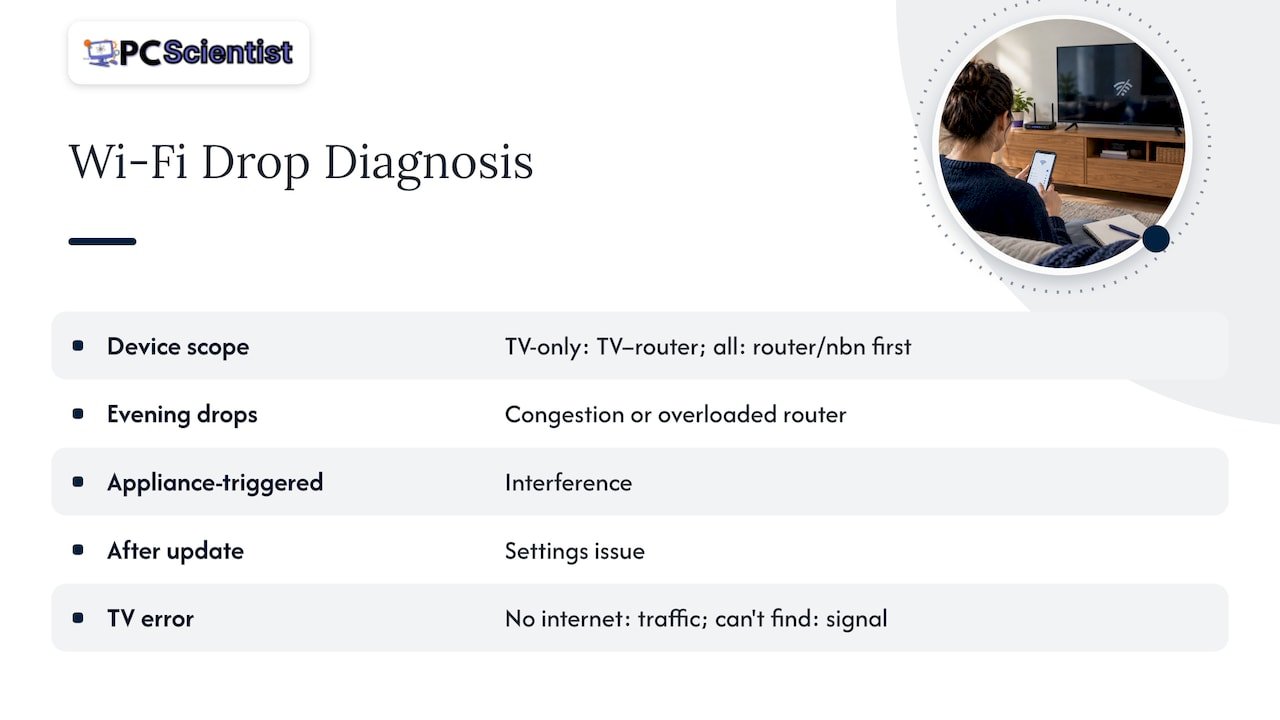
First, work out what kind of drop you have
Two minutes of observation saves an hour of fiddling. Watch what happens when the TV drops and ask three questions.
Is it only the TV? Check your phone while the TV is showing "not connected". If the phone is fine, the problem is between the TV and the router, not your internet plan. If everything drops together, look at the router and the nbn connection first.
When does it happen? Drops that cluster in the evening point to congestion or an overloaded router. Drops that follow a pattern, like every time the kettle or microwave goes on, point to interference. Drops that started right after a TV software update point to settings. If the evenings are your problem across all devices, our guide on NBN dropouts at night covers the checks to run.
What does the TV actually say? "Connected to Wi-Fi, no internet" means the TV found the router but the router isn't passing traffic. "Can't find network" or a repeating disconnect means the signal itself is the issue. Note the exact wording, because it tells you which half of this guide to start with.
Step 1: A proper power cycle
It sounds too simple, but the order and the waiting matter. nbn's own guidance says a full power cycle forces the connection box to refresh its settings and can fix basic problems, provided you switch things on in the right sequence.
Here's the routine:
- Turn off the nbn connection box (if you have one), the router and the TV at the wall.
- Wait at least 30 seconds. Longer is fine. CHOICE's advice is that some equipment needs a few minutes to settle fully, so a quick flick off and on isn't a true restart.
- Turn the nbn connection box on first and wait until its lights are stable.
- Turn the router on and wait for its lights to settle.
- Turn the TV on last.
If you have a fibre-to-the-premises connection with a box on the wall, or a different setup, the same logic applies: the thing closest to the street starts first. If you aren't sure which box is which, we've written about the wrong nbn device problem, because plenty of homes are running the wrong piece of kit as their "router".
If the TV then stays connected for days, you're done. If it drops again within hours, carry on.
Step 2: Rule out your internet plan
People often blame the TV for a fault that sits upstream. CHOICE suggests running a speed test right next to the router and comparing it with the speed your plan promises. If the result is far below the plan even at the router, the fault is with the connection, not the TV, and that's a conversation for your internet provider.
If the speed next to the router is healthy, the line is probably fine and your attention belongs on the path between router and TV. We have a step-by-step version of this wired test in fixing slow home internet.
Step 3: Fix the TV's own network settings
This is where most "only the TV drops" cases get solved. Menu names differ between Samsung, LG, Sony, Hisense, TCL and others, but the options are similar. Look under Settings, then General or Network.
Forget the network and rejoin
A saved network profile can go stale, especially after a router change or a TV update. Choose your network, select forget or remove, then search again and enter the password fresh. Check you're typing the password exactly, including capitals.
Try the 2.4GHz band
Your router probably broadcasts two bands. 2.4GHz travels further and handles walls better. 5GHz is faster over short distances but fades quickly through brick and floors. Many TVs switch badly between the two when your router uses one combined network name. Choosing a specific band on the TV often steadies it. As CHOICE notes, you can also split the bands on the router so each has its own name, then point the TV at one.
A rule of thumb for a TV in a living room:
| Situation | Band to try first |
|---|---|
| TV in the same room as the router, or one wall away | 5GHz |
| TV two or more walls away, or upstairs | 2.4GHz |
| Older TV (more than five or six years) | 2.4GHz |
| Heavy streaming in 4K, strong signal | 5GHz |
That table is a starting point from how the bands behave, not a guarantee. Test one for a day, then switch if it's still dropping.
Check the router's security mode
LG's support guidance for constant Wi-Fi disconnects suggests disabling 5GHz band steering and using WPA2-AES encryption rather than older TKIP or WEP methods, which can become unstable after a software update. It's an LG page written for Canada, but the router side of it applies to any brand of TV in Australia. Changing router settings is easy to get wrong, so if you aren't comfortable logging in to your router, leave this one to someone who is.
Update the TV, then reset network settings
If the TV can stay online long enough, install any pending software update. If problems began right after an update, a network reset on the TV (not a full factory reset, which wipes your apps and logins) is worth a go.
Try a different DNS if apps complain
When the Wi-Fi bars are fine but streaming apps show connection errors, Samsung and Google support both point to manually setting DNS on the TV. Entering 8.8.8.8 (Google Public DNS) in the TV's IP settings can clear those errors. It won't fix a genuinely weak signal, so use it only when the TV says it's connected.
Step 4: The cable test that settles the argument
This is the single most useful diagnostic. Run an Ethernet cable from the router to the TV (or a spare LAN port on a switch) and use the TV on the cable for a day or two.
- Stays connected on cable: the TV hardware is fine. The wireless path is the problem, which means signal, interference, band or router.
- Still drops on cable: look at the TV's software, the router's ports, or the cable itself. Try a different cable and port before blaming the TV.
A long cable across the lounge room isn't a pretty answer, but as a test it's gold. And if the TV works perfectly on cable, you've also found a permanent fix: a cable run along the wall or through a conduit, or a wired access point near the TV. Plenty of homes and renovations are better planned with data points where the TV will sit.
Step 5: Look at where the router and TV actually are
Wi-Fi is a radio signal, and it gets absorbed and blocked by ordinary things. nbn's home optimisation advice is to keep the router in an open, central, elevated spot. Routers hidden in a cupboard, behind the TV or on the floor lose a lot of range.
Check these around your router and TV:
- Metal and water. Filing cabinets, fridges, fish tanks, and pipes in walls all soak up signal.
- Distance and walls. A TV upstairs at the far end of the house, with a brick or double-brick wall and a floor in between, is asking a lot of one router. This is a common Sydney problem in older brick homes and multi-level townhouses.
- The back of the TV itself. Wall-mounted TVs sit tight against plasterboard, sometimes with a metal bracket or a soundbar close by. Moving the router is easier than moving the TV, but if the TV is the problem, even a small change in router position can help.
If the problem is a whole area of the house, not just the TV, see our guide to fixing Wi-Fi dead zones before you buy any extender.
Step 6: Hunt for interference
The 2.4GHz band is crowded. CHOICE lists microwaves, baby monitors and cordless phones among the usual culprits, and nbn's quick guide says to keep the router away from them. In a unit block, add your neighbours' routers, which compete for the same channels.
A simple test: note the times the TV drops. Do they match when the microwave runs, when a baby monitor is on, or when a particular appliance cycles on? Turn that appliance off and watch the TV.
The ACMA points out that appliances age and can start leaking interference, and that owners are responsible for their own equipment. So an old fridge, a dodgy power adapter or ageing LED lighting can start causing dropouts that never occurred before. Switching suspect items off one at a time is the way to find them.
If you stay on 2.4GHz and the interference is bad, moving the TV to 5GHz (if it's close enough to the router) can sidestep it completely.
Step 7: Is your router the real weak link?
If the TV worked fine for years and began dropping as you added phones, tablets, cameras, smart speakers and a second TV, the router may be overloaded. nbn suggests checking that your router supports Wi-Fi 6 or newer, and older routers often struggle with a crowd of devices. Smart TVs are often the first thing to fall off, because they're sitting there quietly while a laptop on a video call gets the attention.
Signs your router is the bottleneck:
- Everything gets slower or flaky at the same time.
- The router is the one your provider gave you years ago and it has never been replaced.
- Restarting helps for a few days, then the problem comes back.
- Several devices drop, not only the TV.
Before you buy a new one, find out what you actually need. A bigger, more expensive router doesn't fix a poor position or a house with thick walls. Our Wi-Fi 6 vs 6E checklist helps you decide what's worth paying for, and our wider guide to Wi-Fi that keeps dropping covers the same ground for laptops and phones.
Step 8: A streaming device as a practical workaround
If the TV's built-in Wi-Fi chip is simply poor (it happens, particularly with budget and older sets), a separate streaming stick or box has its own radio and often behaves better. It's a cheap way to keep the TV useful without touching your network. Google's own help pages on weak connections for its streaming devices are worth a read if you go that way, as they cover distance and signal checks for that kind of device too.
This is a workaround, though, not a diagnosis. If the stick drops as well, the network is the cause, and you'll have saved yourself the price of a stick by running the cable test first.
What we see in homes across NSW
We visit homes and small businesses across Sydney, the Central Coast, Newcastle, Wollongong and the Southern Highlands, and smart TV complaints usually turn out to be network complaints in disguise. The TV is just the device you notice, because it fails in front of the whole family.
Our honest view:
- Don't start by replacing the TV. A TV that works on a cable is a healthy TV. Replacing it with a new one on the same weak signal will give you the same drops.
- Don't start by buying an extender. A cheap extender repeating a weak signal gives you a weak signal in more places. Fix the position and the settings, then measure.
- Do the free checks in order. Power cycle, band, cable test, position. You'll solve most cases, and if you don't, you'll know exactly what to tell the person you call.
- Think about the layout, not just the router. A long house, a second storey or a granny flat usually needs access points placed where the Wi-Fi is used, ideally connected by cable. That's design work, not gadget shopping.
- Keep smart devices on a sensible setup. TVs, cameras, speakers and printers all compete for the same network. If the printer is also misbehaving, our guide to printers that won't connect to Wi-Fi shows the same patterns.
We work in plain language and we'd rather you understood what was wrong than just paid for it to go away.
- PC Scientist
When it's time to call someone
Call for help if:
- The TV still drops after the power cycle, band change and a day on cable.
- Several devices drop in the same parts of the house.
- You don't feel comfortable changing router settings.
- You're building or renovating and want TV, Wi-Fi and cameras planned properly.
- You'd rather not spend another weekend on it.
If the fault is in your wiring or the nbn connection itself, your internet provider is the right first call. If it's inside your home, that's our territory.
What a visit looks like
Our Network Scientist service covers Wi-Fi and network installation and fixes for homes and businesses across NSW. We come to you, test the signal where the TV actually sits, check the router and the connection box, and explain what we find in plain English. For everyday tech problems on other devices too, Computer Support Scientist lets us sort several devices in one visit.
Prices vary with the job, so we'd rather talk through your set-up first. Get in touch via pcscientist.com and tell us what the TV is doing. You don't need to know the technical terms or pick the exact service, we'll work out what's needed. On the Northern Beaches, you can go straight to our Wi-Fi and network help page.
If the real issue turns out to be the nbn box, our guide on checking the nbn box first goes deeper, and if the TV simply won't join at all, see fixing a smart TV that won't connect.
A quick checklist to keep
- Power cycle in order: nbn box, router, TV.
- Speed test beside the router.
- Forget the network on the TV and rejoin.
- Try 2.4GHz, then 5GHz, one for a full day each.
- Check the router's security mode and band steering, or have someone do it.
- Run the TV on an Ethernet cable for a day.
- Improve router position and remove interference sources.
- Consider router age and a proper layout if the problem is house-wide.
Sources
- nbn: fixed wireless troubleshooting guide
- CHOICE: common Wi-Fi problems and how to fix them
- CHOICE: how to fix your internet problems
- LG: losing Wi-Fi connection
- nbn: tips to optimise your home internet set-up
- nbn: internet set-up for home 101
- ACMA: devices, interference and infrastructure
- Google: troubleshoot Chromecast and Google TV Streamer connection
Recommended
- Smart TV WiFi Issues in Australia? Check the NBN Box First
- Fix a Smart TV That Won't Connect to Wi-Fi in Under Five Minutes
- Wi-Fi keeps dropping? Here's what actually fixes it
- Fix slow home internet in Australia: 5 minute wired test first
Frequently Asked Questions
Straight answers about Smart TV Wi-Fi Dropping Out? Fixes That Work in Australia - without jargon or pressure. Call 0493 563 381 for advice, or get help below.
Want the quickest answer? 0493 563 381 for free advice.
Usually because the TV's Wi-Fi chip is weaker than your phone's, or it handles the 2.4GHz and 5GHz bands badly. Your phone sits in your hand, while the TV is often far from the router and behind walls. Try a specific band, rejoin the network and run the cable test to confirm.
No. If it stays connected on Ethernet, the TV hardware is working and the problem is in the wireless path: signal strength, interference, band or an overloaded router. Fix those and you can keep using Wi-Fi, or leave the cable in place.
Only as a last step. A factory reset wipes your apps, logins and settings, and it rarely fixes a signal problem. Try forgetting the network, a network reset, a software update and the cable test first.
Sometimes, but not reliably. An extender repeats whatever signal it receives, so one placed where the signal is already poor won't help. Better options are moving the router, using a cable, or adding a wired access point near the TV.
Run a speed test next to the router and compare it with your plan, as CHOICE recommends. If the speed is poor even there, or every device drops together, start with your provider. If it's fine there but poor at the TV, the problem is inside your home.
Wi-Fi help across NSW
Need a hand with Smart TV Wi-Fi dropping out?
If the steps above did not get Wi-Fi behaving, that is okay. Get help in your area and we will take it from here.
Start here
Get Wi-Fi help
Optional Need a Sydney city or region?
Choose a side of Sydney
These are Sydney cities and regions, such as the Northern Beaches or Inner West. First tap a side of Sydney. Then open the city or region that covers you.
C Sydney City / Inner 3 areas
N Northern Sydney 6 areas
NW North-West / Central Sydney 3 areas
W Western Sydney 1 area
SW South-West Sydney 3 areas
S Southern Sydney 2 areas
Optional Find your suburb
Type a suburb from our listed coverage. This opens the matching city or region page for this topic. Listed suburb pages are general technology services, not this specialist page.
If your suburb is not listed, use the city or region list above, or call 0493 563 381.
Disclaimer
The information in this article is provided for general educational and informational purposes only. While PC Scientist strives to keep all content accurate and up to date, technology issues can vary depending on your device, software, network configuration, and individual circumstances. Always back up important data before attempting repairs or system changes. If you are unsure or the issue cannot be resolved safely, contact PC Scientist today for professional onsite or remote IT support. PC Scientist is not liable for any loss of data, damage, or other issues resulting from the use of the information provided in this article.
