

Hacked email: what to do in the first hour, then report it to ACSC

If you can still sign in, change your password and turn on multi-factor authentication right now, then keep reading. If you cannot sign in, go straight to your provider's official account recovery page (never a link from an email) and start the process immediately. Providers can take a few days to complete their checks, so stay patient and don't hammer the login screen.
Key takeaways
- Changing your password and enabling multi-factor authentication immediately reduces the risk if you still have access to your account.
- Checking recovery phone numbers, backup emails, mail filters, forwarding rules, and connected apps prevents attackers from regaining entry after you regain access.
- Using a clean device and running a full malware scan before changing passwords helps prevent credentials from being captured again.
- Reporting the hack through official recovery tools and avoiding suspicious links ensures proper account recovery without further risks.
- Contacting professional support is crucial when malware reappears, ransomware is suspected, or a business account at the admin level is compromised.
Table of Contents
- Recover hacked email: your first 30 to 60 minutes matter most
- What to do if you can still sign in to your account
- How do I recover a hacked email account I can't access?
- Post-recovery security checks you shouldn't skip
- Should I use a different device to recover my account?
- Who should I tell after an email account is hacked?
- How do I report a hacked email account in Australia?
- When is it time to call in professional help?
- Why timing matters more than people expect
- Get hands-on help recovering and locking down your email
- Sources
- FAQ
Recover hacked email: your first 30 to 60 minutes matter most
The first hour after you notice something is wrong is the one that decides how much damage gets done. Attackers who get into an email account often move fast, adding backdoors or spraying scam messages to your contacts before you've even worked out what happened. This is the order that limits the damage.
- Try to sign in normally. If it works, change your password immediately.
- If you can't get in, go straight to the provider's official recovery page rather than searching for a workaround.
- Force a sign out of every active session, either through your password change or the "sign out of all devices" setting.
- Turn on multi-factor authentication (MFA) before you do anything else in the account.
- Do all of this from a device you trust is clean, not the one that got you hacked in the first place.
- Ignore any "verify your account" or password reset email that lands in your inbox during this window. Attackers send these too.
Pro Tip: Write your new password down on paper before you type it anywhere, then move it into a password manager once you're through the immediate crisis. Trying to remember a new, strong passphrase while you're stressed is how people end up reusing an old, weak one.
What to do if you can still sign in to your account
Being able to log in is the best position to be in, because it means you can shut the attacker out yourself instead of waiting on a recovery form. The goal here is simple: remove every way they got in, and every way they could get back in.
Start with a long, unique passphrase rather than a short complex one. Something like four random words strung together is harder to crack than "P@ssw0rd1!" and easier for you to remember. Store it in a password manager rather than a browser autofill, which malware can read.
- Sign out of all other sessions using your provider's device or activity settings.
- Check the recovery phone number and backup email on file and delete anything you don't recognise.
- Look through mail filters, forwarding rules, and auto-replies for anything the attacker set up to copy your mail elsewhere.
- Review connected apps and revoke access for anything you don't actively use.
Attackers who gain access often quietly add their own recovery details within minutes, precisely so they can walk back in after you've changed your password. Checking these settings isn't optional housekeeping, it's the step most people skip and the reason accounts get hacked twice.
Pro Tip: Do this audit even if nothing looks obviously wrong. A forwarding rule that silently sends copies of your mail to another address can sit unnoticed for months.

How do I recover a hacked email account I can't access?
Losing sign in access is frightening, but it's also the moment people make avoidable mistakes, usually by clicking a "recover your account" link in an unsolicited email instead of using the provider's own page. That link is very often the second hack, not the fix for the first.
- Go directly to your provider's official recovery tool. For Gmail, follow Google's account recovery steps; for Outlook or a Microsoft account, use Microsoft's dedicated recovery process.
- Have proof of ownership ready: roughly when you created the account, subject lines from recent emails you remember sending or receiving, devices you've used to log in, and any billing or subscription details tied to the account.
- Answer every recovery question as accurately as you can, even the ones that feel like guesswork. Partial accuracy across several questions carries more weight than one perfect answer.
- Submit once, then wait. Repeated failed attempts can flag your own recovery request as suspicious.
The Australian Cyber Security Centre confirms these official workflows are the right channel, and that providers may run extra checks that take several days to clear. That wait is frustrating, but it's the system working, not a sign you've done something wrong.
Post-recovery security checks you shouldn't skip
Getting back in is only half the job. An account that's recovered but not audited is an account that gets hacked again, often within weeks, because whatever let the attacker in the first time is usually still sitting there. Treat this like a proper security incident review, not a formality.
- Go through every third-party app with access to your account and remove anything you don't recognise or no longer use.
- If you used that same email and password combination anywhere else, change those passwords too. Password reuse is exactly how one hack becomes five.
- Re-check your recovery phone number and backup email, then add an authenticator app or a hardware security key rather than relying on SMS alone.
- Rotate passwords on high-value accounts linked to that email, particularly banking, cloud storage, and anything holding payment details.
Treating recovery as a security incident rather than a login problem changes how thoroughly you check things, and that thoroughness is what actually keeps the account safe long-term.
Pro Tip: Set a calendar reminder for 30 days out to double-check your recovery settings again. Some attackers wait a few weeks before testing whether their old backdoor still works.
Should I use a different device to recover my account?
Yes, and this is one of the most overlooked steps in the whole process. If malware on your computer captured your credentials once, typing your brand new password into that same infected machine can hand it straight back over.
- Use a device you know is clean, a friend's phone, a work laptop, or a machine you've freshly reset, to change your password and submit recovery requests.
- Run a full antivirus and anti-malware scan on the affected device and install all pending updates before you go anywhere near sensitive accounts on it again.
- If you suspect ransomware or a rootkit, a persistent infection that survives normal scans, disconnect the device from your network and get professional help before reconnecting it to anything.
Who should I tell after an email account is hacked?
Your contacts are the next people at risk, because a hacked email address is a trusted messenger for scams. Attackers exploit exactly that trust, so a short warning message goes a long way.
- Let colleagues, friends, and suppliers know your account was compromised and to ignore any urgent-sounding requests, especially anything about gift cards, invoices, or money transfers.
- Check your Sent, Draft, and Bin folders for messages you didn't write. This tells you who was targeted and what was said, so your warning can be specific.
- The ACSC recommends checking these folders as a standard step in assessing what actually happened during a compromise.
- If financial details were exposed anywhere in your mail history, keep an eye on your bank accounts and consider a credit check.
How do I report a hacked email account in Australia?
Reporting isn't just paperwork, it helps track scam patterns and can get a spoofed address or malicious domain investigated. It's worth doing even if you feel like the damage is already done.
- Report the incident through ReportCyber and Scamwatch, including notes on what happened and copies of any suspicious messages.
- If your address is being used to spoof or scam others, submit an abuse report directly to the provider so they can act on the impersonation.
- Contact police if there's been financial loss, identity theft, or any threat made against you, and keep your logs and evidence rather than deleting them.
When is it time to call in professional help?
Some jobs genuinely need a specialist, and there's no shame in reaching that point. Malware that keeps reappearing after a scan, suspected ransomware, or a Microsoft 365 business mailbox that's been compromised at the admin level are all situations where DIY recovery can drag on for days without resolving the underlying problem.
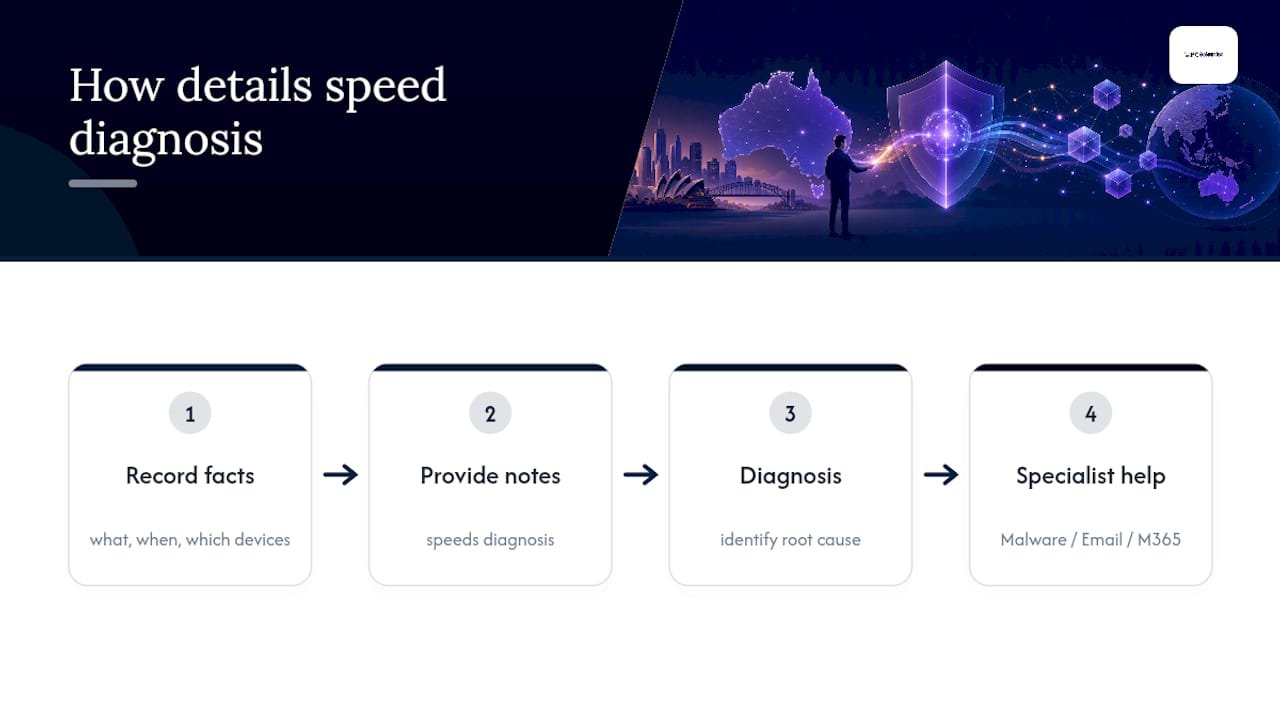
Specialist services are available for device and network malware removal, email system troubleshooting, and both onsite and remote support for Microsoft 365 and mail sync issues. Before you book, jot down what happened, when you noticed it, and which devices were involved. That detail speeds up diagnosis considerably.
Why timing matters more than people expect
Most compromises we see trace back to three things: a phishing click, a reused password, or malware sitting quietly on a device for longer than anyone realised. None of that is embarrassing, it's just how these things happen. What actually determines the outcome is how fast you act once you notice, not how tech savvy you are. Remote support handles most straightforward recoveries within a day. Onsite help earns its keep when malware, hardware, or a genuinely stubborn Microsoft 365 sync issue is involved.
- PC Scientist
Get hands-on help recovering and locking down your email
We are the practical alternative to spending a weekend googling error messages, we come to you (or jump on remotely) and fix the actual problem, not just the symptom. If phishing, malware, or a messy Microsoft 365 setup caused the compromise, our team handles the technical cleanup while you focus on everything else the hack disrupted.

We provide onsite and remote IT support across various regions of New South Wales. For business accounts, our Business Email & Microsoft 365 support covers mailbox recovery, mail flow issues, and admin-level troubleshooting that goes well beyond what a standard recovery form can fix. If malware is involved, our cybersecurity service deals with removal and hardening so the same hole doesn't reopen.
Booking support typically involves contacting the service provider, describing the situation and affected devices, and receiving recommendations for remote or onsite support based on complexity. Start with our business IT support page to see what's involved and book a time that works.
Sources
- Cyber
- Secure a hacked or compromised Google Account | Google Support
- How to recover a hacked or compromised Microsoft account | Microsoft Support
- Report a scam | Scamwatch
Recommended
- Cybersecurity Scientist | Safer Devices NSW
- Phishing email examples: spot the fake before you click
- Business Cybersecurity NSW | After a Scare
- Outlook not receiving emails: what is usually going on
Frequently Asked Questions
Straight answers about First 60 Minutes: Recover Hacked Email in Australia and Report to ACSC - without jargon or pressure. Call 0493 563 381 for advice, or get help below.
Want the quickest answer? 0493 563 381 for free advice.
Yes. Most hacked accounts can be recovered using the provider's official recovery tools, though it may take a few days if the provider needs to run extra security checks.
If you can still sign in, change your password immediately and enable MFA. If you can't, use your provider's official recovery page (Google or Microsoft, depending on your account) and provide proof of ownership rather than relying on emailed reset links.
An attacker can read your messages, reset passwords on any linked accounts, impersonate you to scam your contacts, and quietly add their own recovery details to keep access even after you change your password.
Start with your provider's recovery page, then report the incident through ReportCyber or Scamwatch. If malware, ransomware, or a business Microsoft 365 account is involved, PC Scientist can help with the technical cleanup.
Cybersecurity across NSW
Want help recovering a hacked email?
If the device still does not feel safe, that is okay. Get help in your area and we will take it from here.
Start here
Get cybersecurity help
Optional Need a Sydney city or region?
Choose a side of Sydney
These are Sydney cities and regions, such as the Northern Beaches or Inner West. First tap a side of Sydney. Then open the city or region that covers you.
C Sydney City / Inner 3 areas
N Northern Sydney 6 areas
NW North-West / Central Sydney 3 areas
W Western Sydney 1 area
SW South-West Sydney 3 areas
S Southern Sydney 2 areas
Optional Find your suburb
Type a suburb from our listed coverage. This opens the matching city or region page for this topic. Listed suburb pages are general technology services, not this specialist page.
If your suburb is not listed, use the city or region list above, or call 0493 563 381.
Disclaimer
The information in this article is provided for general educational and informational purposes only. While PC Scientist strives to keep all content accurate and up to date, technology issues can vary depending on your device, software, network configuration, and individual circumstances. Always back up important data before attempting repairs or system changes. If you are unsure or the issue cannot be resolved safely, contact PC Scientist today for professional onsite or remote IT support. PC Scientist is not liable for any loss of data, damage, or other issues resulting from the use of the information provided in this article.
