Fix Dead Zones Fast: Test One Powerline Pair Before Buying Mesh in Australia
Mesh Wi-Fi is the better choice for most homes because it creates one seamless network that follows you from room to room. Powerline adapters earn their place when a thick brick wall, a converted garage or an old wiring layout blocks wireless signal outright, or when a single room needs a dependable wired connection. The quick comparison below breaks down exactly where each option wins.
Key takeaways
- Powerline adapters are suitable for a single room with thick walls or interference issues but often struggle in older wiring, split circuits, or near heavy appliances.
- Mesh Wi-Fi offers seamless coverage and device roaming but requires careful node placement and wired backhaul for optimal performance, especially in congested Wi-Fi environments.
- Both technologies' speeds significantly depend on real-world wiring, interference, and device placement, often falling short of manufacturer claims in typical home conditions.
- Testing sockets directly and avoiding power strips or surge protectors improves powerline reliability, while central, elevated placement of mesh nodes enhances overall coverage.
- Professional site assessments can identify wiring and interference issues that typical trial-and-error setup cannot reliably resolve.
Table of Contents
- Quick comparison: coverage, speed, reliability and cost
- Powerline adapters: strengths, realistic limits and wiring caveats
- Mesh Wi-Fi: what it does well and what to watch out for
- Which one suits your home: a quick decision checklist
- Getting the best real-world performance from either setup
- How a professional site assessment shortcuts the guesswork
- Buy less, test more: a realistic take on home Wi-Fi
- PC Scientist: site assessments and installation that take the guesswork out
- Where these figures and guidance come from
- Sources
- FAQ
Quick comparison: coverage, speed, reliability and cost
Mesh Wi-Fi and powerline adapters solve the same problem in completely different ways, and the differences show up the moment you start using them day to day.
Mesh systems create a single wireless network with multiple nodes, so your phone or laptop hands off between them automatically as you move through the house. Powerline adapters do the opposite: they turn your electrical wiring into a data cable, giving you a wired Ethernet point in a room that would otherwise struggle for signal. One is built for roaming, the other for a fixed, reliable link.
Manufacturer speed claims rarely survive contact with a real house. ACMA's modem testing found considerable variation between devices, with 5GHz models generally handling walls and distance better than 2.4GHz equivalents. Powerline speeds depend just as heavily on your home's wiring age and layout, and both technologies can fall well short of their box numbers once real walls and real circuits get involved.
- Coverage and roaming: mesh gives you one network with automatic handover; powerline gives you a fixed point in a single room.
- Reliability: mesh struggles with wireless congestion and poor node placement; powerline struggles with electrical noise and split circuits.
- Setup: powerline is largely plug and pair; mesh needs a bit more thought around node placement and occasional firmware updates.
- Cost and expansion: powerline kits are cheap to start but limited in scope; mesh systems cost more upfront but scale cleanly as your home's needs grow.
Powerline adapters: strengths, realistic limits and wiring caveats
Powerline adapters send data over your existing electrical wiring using a technology sometimes called Ethernet over power. You plug one unit near your router, run an Ethernet cable into it, then plug a second unit into a socket in the room that needs coverage. Some models include a passthrough socket so you don't lose a power point.
They're a genuinely good fit for a single remote room, a thick masonry wall that kills Wi-Fi outright, or a device like a smart TV, games console or NAS that wants a stable wired connection rather than a wireless one. WhistleOut's explainer on powerline adapters notes they're best suited to these structural workarounds rather than as a whole-home solution, since mesh has largely taken over that job for most households.
- Speeds vary a lot between homes because electrical noise, appliance interference and separate circuits can all weaken or break the connection.
- Plug adapters directly into wall sockets, never into power boards or surge protectors, which distort the signal.
- Avoid powerline in older homes with split wiring, in flats sharing wiring with neighbours, or near heavy appliances like fridges and washing machines.
Pro Tip: Before buying a multi-adapter kit, test a single pair on the sockets you actually plan to use. If the link is slow or drops out, the wiring is the problem, not the brand.
Mesh Wi-Fi: what it does well and what to watch out for
Mesh systems use two or more nodes that talk to each other and present themselves as one network, rather than the separate networks you'd get from an old-style extender. That's what makes roaming between rooms feel invisible instead of clunky.
The backhaul, meaning how the nodes talk to each other, matters more than most buyers realise. A wireless backhaul shares the same radio band as your devices and can quietly eat into your speeds, while a wired backhaul between nodes keeps that traffic separate and generally performs better, as DJC Engineering's breakdown of mesh backhaul options explains. Thick walls, concrete floors and long distances all still apply to mesh the same way they apply to any Wi-Fi signal.
- Mesh tends to underperform when nodes are placed too far apart, left on a single congested band, or squeezed near metal filing cabinets and large appliances.
- ACMA's home internet guidance points to 5GHz devices often outperforming 2.4GHz through walls and at distance, which is why node placement and band choice matter more than the label on the box.
- Newer Wi-Fi 6 and Wi-Fi 7 mesh systems offer a reasonable upgrade path if your current setup is starting to feel congested with more connected devices.
Which one suits your home: a quick decision checklist
Matching the technology to your actual layout saves you from buying gear that never solves the problem.
- If whole-home roaming and lots of connected devices matter most, mesh is the sensible default.
- If you need a dependable wired link in one room, or wireless signal is physically blocked by structure, powerline is worth a targeted try.
- A home office needing a low-latency wired connection for video calls often does best with either powerline or a mesh system running wired backhaul.
- A multistorey family home with phones, laptops, smart TVs and consoles competing for bandwidth usually calls for mesh.
- A garden studio separated from the house by a brick wall is a classic case where powerline succeeds and Wi-Fi alone does not.
- Before committing to either, test sockets on the same circuit, skip power boards entirely, and watch for interference from heavy appliances. If you're still unsure, a professional site survey settles it quickly.
Getting the best real-world performance from either setup
Small placement decisions make a bigger difference than most people expect, and they cost nothing to try first.
Start with the router itself. ACMA's guidance on home internet recommends a central, elevated position clear of thick walls and electronic clutter, and nbn's own advice on home Wi-Fi echoes that your in-home setup and device capability shape the speeds you actually experience.
- For powerline, use wall sockets directly, test a pair on the circuit you plan to use, and look at passthrough models if power points are limited.
- For mesh, place nodes roughly halfway between the router and the dead zone, use wired backhaul where you can run a cable, and keep nodes clear of large metal objects and appliances.
- Test speeds near the router, then again at the problem location, both wired and wireless, and write down the numbers before deciding what to buy next.
Pro Tip: Run your tests at the time of day you'd normally use the connection, since neighbouring Wi-Fi congestion and household appliance use both shift throughout the day.
If black spots persist after all that, or the wiring turns out more complicated than expected, it's a sign the fix needs a trained eye rather than another gadget.
How a professional site assessment shortcuts the guesswork
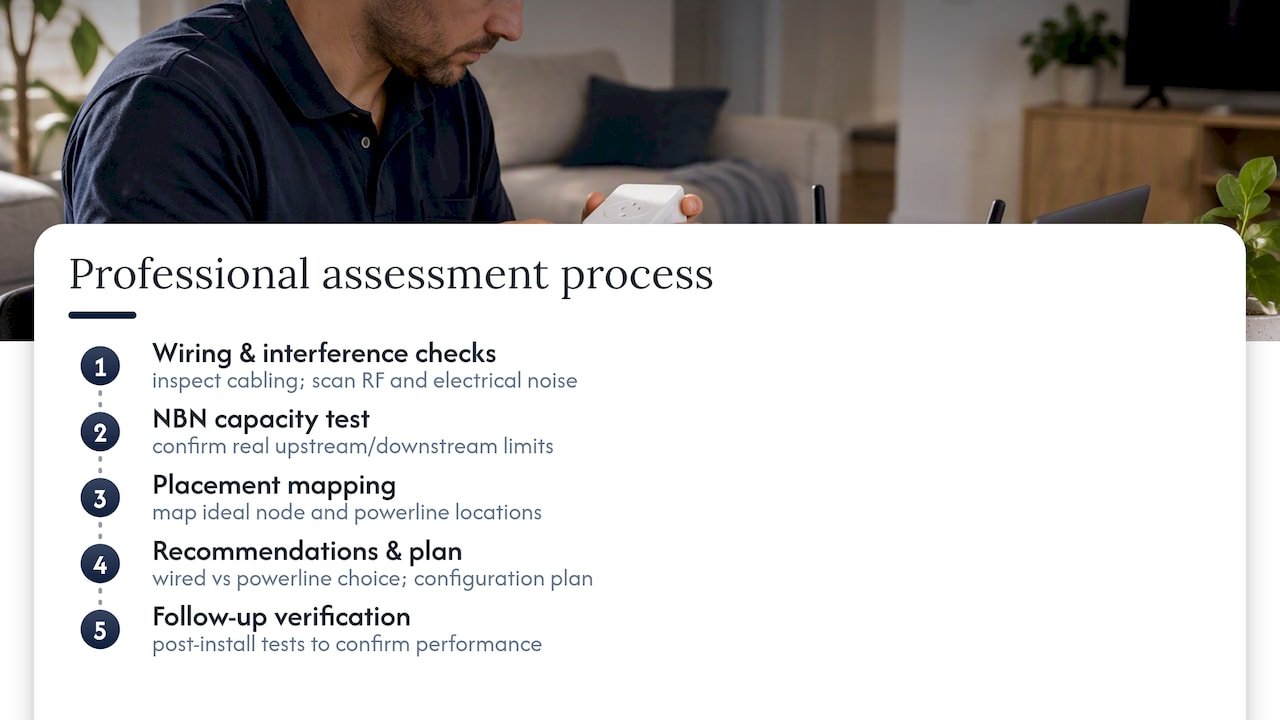
A proper site assessment answers the questions trial and error can't. Network Scientist assessments check your home's wiring condition, scan for interference sources, confirm what your NBN connection can actually support, and map out where nodes or adapters should go before any money is spent on hardware.
The outcome is a clear set of recommendations rather than a guess: whether wired backhaul is worth running, which rooms need a node versus a powerline point, and a configuration plan with follow-up testing to confirm it actually worked. For homes with more demanding setups, the same groundwork sits behind our business network and Wi-Fi assessments, which apply the identical wiring and interference checks at a larger scale.
Buy less, test more: a realistic take on home Wi-Fi
Manufacturer speed ratings describe a lab, not your house. Brick walls, old wiring and appliance interference matter more to your actual experience than any number on the box, and no amount of marketing changes that.
The smarter approach is to buy one node or one adapter pair, test it in place, and only expand once you've confirmed it solves the problem. If your connection is genuinely business-critical, get a professional opinion before you've spent money on gear that was never going to fix a wiring issue.
- PC Scientist
PC Scientist: site assessments and installation that take the guesswork out
Choosing between mesh and powerline is a lot easier once someone has actually looked at your wiring and your walls, not just your Wi-Fi settings. That's the gap Network Scientist fills: a site visit that identifies what's actually blocking your signal, followed by clear, upfront pricing on whatever fix makes sense, whether that's a mesh installation, a powerline setup, or a wired backhaul run. Repair work is offered with a clear pricing approach, and you don't need to know the technical terms before you call.

A typical engagement includes:
- An onsite check of your wiring, circuits and existing network hardware.
- An interference scan to identify what's actually causing your dead zones.
- A node or adapter placement plan tailored to your layout.
- Configuration and a follow-up test to confirm the fix worked.
If you'd rather skip the trial and error altogether, book a Network Scientist assessment or get in touch through our main site to arrange a visit.
Where these figures and guidance come from
The technical claims in this guide are drawn from regulator and consumer-testing sources rather than vendor marketing.
- ACMA's home internet guidance covers router placement and common interference sources.
- ACMA's modem performance testing report documents real variation between Wi-Fi bands and devices.
- WhistleOut's powerline adapter guide explains where powerline fits and where mesh has taken over.
- Choice's router and mesh buying guide defines mesh and powerline in plain terms, including the same-circuit requirement for powerline.
- nbn's Wi-Fi performance guidance links access technology to in-home Wi-Fi behaviour.
Sources
- Powerline adapters: What you need to know about Ethernet over power | WhistleOut
- Improving your home internet | ACMA
- ACMA modem performance testing_outcomes report
- How to find the best router, wireless router, wi-fi mesh or wireless extender | Choice
Recommended
- Home Wi-Fi setup: get online in under 30 minutes
- Wi-Fi keeps dropping? Here's what actually fixes it
- Most FTTN to FTTP upgrades cost nothing. Here's why yours might not
Frequently Asked Questions
Straight answers about Fix Dead Zones Fast: Test One Powerline Pair Before Buying Mesh in Australia - without jargon or pressure. Call 0493 563 381 for advice, or get help below.
Want the quickest answer? 0493 563 381 for free advice.
Powerline adapters depend on your home's electrical wiring, so speeds can drop or the connection can fail if the two adapters sit on different circuits or near appliances that generate electrical noise. Choice notes that both adapters generally need to be on the same household wiring circuit to work reliably.
Mesh systems cost more upfront than a single router or powerline kit, and performance can suffer if nodes are placed too far apart or rely on a wireless backhaul that competes with your own devices for bandwidth. Thick walls and building materials still limit range the same way they do with any Wi-Fi signal.
Powerline adapters typically deliver a more consistent connection than a basic Wi-Fi extender because they don't rely on rebroadcasting a weakened wireless signal. WhistleOut points out that powerline can beat a cheap extender when the home's wiring is favourable, though mesh has replaced both for most everyday use cases.
Yes, some speed loss is normal and expected, since electrical wiring wasn't designed to carry network data and factors like wiring age, distance and interference all reduce throughput. Lab testing of powerline passthrough kits has shown useful but noticeably slower speeds compared with modern Wi-Fi mesh setups in the same conditions.
Wi-Fi help across NSW
Still stuck choosing powerline or mesh Wi-Fi?
If the steps above did not get Wi-Fi behaving, that is okay. Get help in your area and we will take it from here.
Start here
Get Wi-Fi help
Optional Need a Sydney city or region?
Choose a side of Sydney
These are Sydney cities and regions, such as the Northern Beaches or Inner West. First tap a side of Sydney. Then open the city or region that covers you.
C Sydney City / Inner 3 areas
N Northern Sydney 6 areas
NW North-West / Central Sydney 3 areas
W Western Sydney 1 area
SW South-West Sydney 3 areas
S Southern Sydney 2 areas
Optional Find your suburb
Type a suburb from our listed coverage. This opens the matching city or region page for this topic. Listed suburb pages are general technology services, not this specialist page.
If your suburb is not listed, use the city or region list above, or call 0493 563 381.
Disclaimer
The information in this article is provided for general educational and informational purposes only. While PC Scientist strives to keep all content accurate and up to date, technology issues can vary depending on your device, software, network configuration, and individual circumstances. Always back up important data before attempting repairs or system changes. If you are unsure or the issue cannot be resolved safely, contact PC Scientist today for professional onsite or remote IT support. PC Scientist is not liable for any loss of data, damage, or other issues resulting from the use of the information provided in this article.