Modem Router Combo or Separate: NBN Rules for Australian Gamers
For most home gamers and anyone who wants proper control over their Wi-Fi, buying a separate modem and router is the better call. For basic browsing, streaming and rented setups, a modem router combo is usually fine. ACMA testing and CHOICE reviews both point the same way, though your connection type (especially FTTN or FTTB) changes what you can and can't swap out. The shortlist below sorts this by household type.
Key takeaways
- Separate routers are recommended for households with many devices or requiring advanced features like QoS and MU-MIMO, especially for gaming and streaming.
- On FTTN or FTTB connections, compatibility of the modem with VDSL2 technology is critical, and most users should keep their provider's approved modem.
- Combo units are suitable for basic use or rental situations unless Wi-Fi coverage or performance issues justify upgrading to a separate router.
- Bridging a combo device to bypass double NAT can improve stability for gaming; hardware upgrades should consider connection type and compatibility.
- Professional setup is advisable for complex issues such as persistent double NAT, VDSL registration problems, or structured cabling in larger homes.
Table of Contents
- Which setup suits your household right now
- What a modem and a router actually each do
- Why gamers usually need a separate router
- How your NBN connection type changes the answer
- Does buying beat renting the ISP box?
- Fixing problems without buying anything first
- Moving from a combo to separate modem and router
- When it's worth calling in a professional
- Getting professional help with your setup
- Where these recommendations come from
- Sources
- FAQ
Which setup suits your household right now
Rather than reading through every technical argument, most people just want to know what applies to them. Here's a quick way to match your situation to the right hardware, based on how you actually use your connection.
- Basic internet users (email, browsing, occasional streaming): a combo is fine. The reason is simple: your usage doesn't stress Wi-Fi radios or NAT tables, so the convenience of one box outweighs any performance gap. Action: keep what your provider gave you.
- Renters using ISP-supplied hardware: stick with the combo unless Wi-Fi coverage is a genuine problem. Reason: you may not want to invest in gear you can't take with you or that needs reconfiguring at every new address. Action: add a plug-in Wi-Fi extender only if a specific room is weak.
- Typical family households with multiple phones, laptops, smart TVs and a few smart home devices: a separate router usually earns its keep here. Reason: more devices means more demand on MU-MIMO handling and channel management, which cheaper combo radios handle poorly. Action: keep the ISP modem, add your own router.
- Gamers and streamers: go separate, full stop, unless your ISP's box supports proper QoS and bridge mode. Reason: latency consistency and traffic prioritisation matter more to you than to anyone else on this list. Action: buy a router with SQM or advanced QoS support.
- Large homes needing whole-property coverage: separate router paired with a mesh system, not a combo. Reason: single-box Wi-Fi radios, even good ones, struggle to cover multiple floors or thick walls. Action: keep or bridge the modem, build out mesh nodes.
- FTTN or FTTB users on VDSL2: check compatibility before buying anything. Reason: modem make and model genuinely affects performance on these connection types, according to ACMA. Action: confirm your modem is on your provider's approved list before you commit to a separate setup.
What a modem and a router actually each do
The confusion between these two devices starts because a combo unit hides the fact that they're doing completely different jobs.
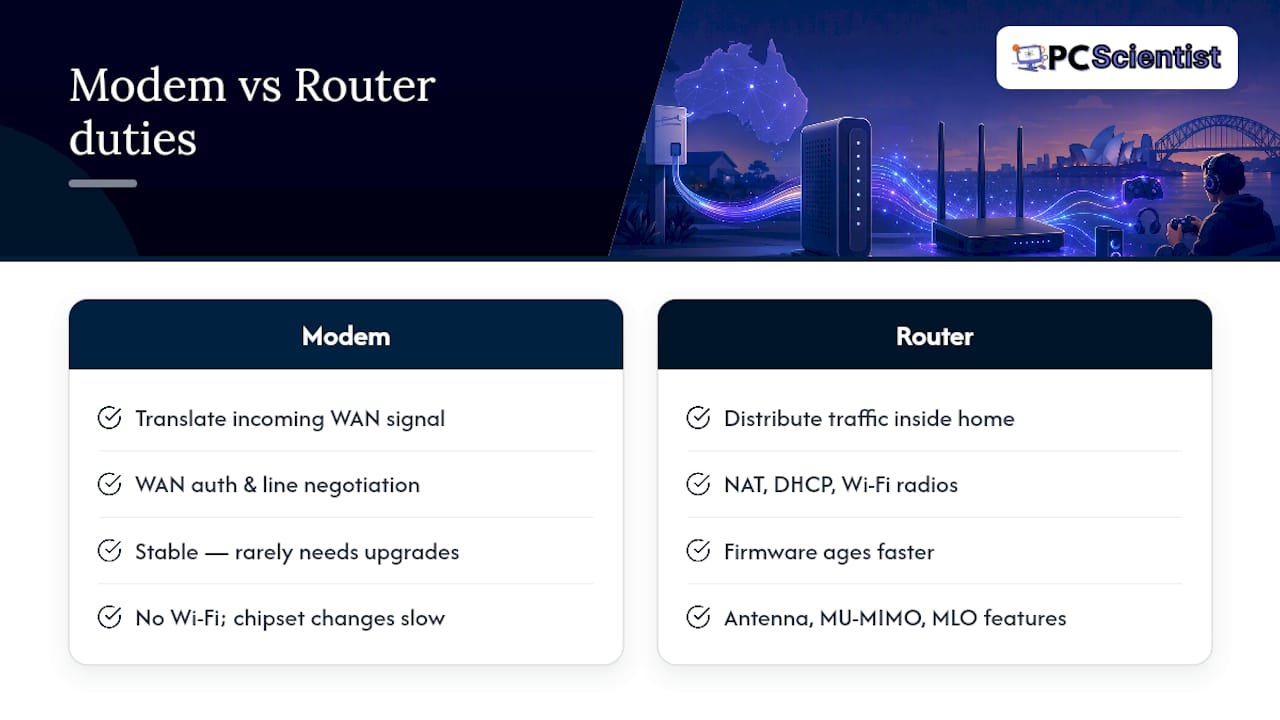
The modem's only task is to translate the signal coming into your home, whether that's VDSL2 over copper for FTTN and FTTB, or GPON for FTTP, into a data stream your home network can use. It handles the WAN side: authentication protocols like PPPoE, line negotiation, and talking to your provider's network. This is unglamorous, stable work. Modem chipsets rarely need frequent upgrades because the underlying technology (VDSL2, GPON) doesn't change often once it's deployed.
The router is the part doing all the interesting work for your day-to-day experience. It manages Network Address Translation (NAT), hands out local IP addresses through DHCP, and broadcasts your Wi-Fi signal across whichever bands it supports; typically 2.4GHz, 5GHz, and increasingly 6GHz on newer hardware. Antenna design, MU-MIMO (which lets a router talk to multiple devices at once instead of queuing them), and newer features like MLO (Multi-Link Operation, which lets compatible devices use several bands simultaneously for better throughput and reliability) all live in the router, not the modem.
This is exactly why ACMA's testing found something worth paying attention to: DSL link performance across 43 tested devices was broadly similar, but Wi-Fi capability varied significantly between units. In plain terms, the part that gets your data into the house works about the same everywhere. The part that spreads it around your home is where combo units cut corners.
Wi-Fi radios and firmware age faster than modem hardware, too. A router bought two years ago might already lack features a newer chipset handles better, while your modem could easily still be doing its job perfectly well five years from now. Buying separately lets you upgrade the part that actually goes stale.
There's also the matter of bridge mode, where you configure your combo unit to stop doing router duties and just pass the connection through to a separate router. Done properly, this avoids double NAT (where both the combo and your added router try to manage network addressing at once), which can quietly break things like port forwarding, some VPN connections and certain multiplayer game features.
Why gamers usually need a separate router
Gaming exposes weaknesses in cheap routers faster than almost any other use case, because latency spikes and packet loss are obvious the moment they happen mid-match.
Smart Queue Management (SQM) and advanced Quality of Service (QoS) settings let a router prioritise gaming traffic over, say, a housemate's video call or a background software update. Basic combo units either lack these controls entirely or bury them in firmware that's rarely updated. Robust wired switching matters too: if you're on a wired connection (recommended for competitive play), a router with proper gigabit ports and low internal latency avoids the bottlenecks that Wi-Fi-only combo boxes introduce.
Double NAT is the quiet gaming killer. When your ISP's combo unit and an added router both perform NAT, some games struggle with matchmaking, voice chat drops out, and open ports for hosting stop working properly.
Pro Tip: Check for double NAT by looking up your router's WAN IP in its settings. If it starts with 192.168 or 10, you're likely sitting behind two NAT layers and should either bridge the combo or remove one device from the chain.
A simple home test can confirm whether the problem is your connection or your setup:
- Run a wired ping test to a common gaming server region and note packet loss and jitter, not just average latency.
- Repeat the same test over Wi-Fi from where you actually play to isolate wireless-specific issues.
- Check upload and download consistency over several attempts rather than trusting a single speed test result.
- If double NAT shows up, try bridge mode on the combo before assuming you need new hardware entirely.
Bridge mode paired with a decent router is often enough. A full modem and router swap only becomes necessary when your ISP's hardware doesn't support bridging at all, which is more common on some FTTN and FTTB gateways than on FTTP or HFC connections.
How your NBN connection type changes the answer
Your connection type isn't a minor detail here, it's often the deciding factor in whether you can even use a separate setup.
On FTTN or FTTB, your service runs over VDSL2, and ACMA guidance is clear that modem make and model can meaningfully affect this connection type. Not every third-party modem handles VDSL2 line negotiation well, so if you're on this connection type, check your provider's approved modem list before buying anything.
FTTP, HFC and Fixed Wireless connections are generally more forgiving. These connection types typically use a Network Termination Device (NTD) provided by nbn, and nbn's own equipment documentation shows that a separate router can usually connect directly to the UNI-D port on that NTD, without needing your provider's modem at all.
The practical rule of thumb: if you're on FTTN or FTTB, keep the ISP-supplied modem unless you've confirmed compatibility, and add your own router behind it or via bridge mode. If you're on FTTP, HFC or Fixed Wireless, you generally have more freedom to buy your own gateway or router outright, since the NTD does the heavy lifting your modem would otherwise handle. If you're planning an FTTN to FTTP upgrade, it's worth waiting until that's done before investing in separate hardware, since your options genuinely improve afterwards.

Does buying beat renting the ISP box?
This comes down to simple arithmetic once you know your numbers, but the non-financial side matters just as much.
To work out total cost of ownership, multiply any rental fee your provider charges by the number of months you expect to stay on that plan, then compare that to the upfront cost of buying your own modem, router or mesh system. If a rental fee runs for two to five years and you're likely to upgrade your own hardware once in that window anyway, buying often works out ahead, especially since a good router can outlast several provider plan changes.
There are costs beyond the dollar figure, though. ISP-supplied hardware usually gets provider-managed firmware updates without you doing anything, which is convenient but means you're stuck with whatever features your provider decides to support. Owned hardware puts update responsibility on you, but you get to choose devices with better warranty terms, and resale value if you upgrade later. WhistleOut's review of the Telstra Smart Modem 4 is a good example: it's solid value for Telstra customers specifically, but its 5GHz coverage and feature set are limited compared with dedicated routers, and some features are locked to that provider's network.
Buying clearly wins if you're a gamer, have a larger household, or plan to stay on your current connection for years. Renting or keeping ISP hardware stays pragmatic if you move often, you're on a short-term plan, or your usage genuinely doesn't need more than what the combo offers.
Fixing problems without buying anything first
Before spending money on new hardware, a short diagnostic process usually tells you whether the problem is your modem, your router, or just placement.
- Run a wired speed test straight into the modem or gateway to establish your actual line speed, separate from anything Wi-Fi related.
- Test with a single device connected at a time to rule out congestion from other gadgets on the network.
- Move a laptop progressively further from the router to check whether coverage, not speed, is the real issue.
- If results are inconsistent only over Wi-Fi, the router or its placement is the likely culprit, not your connection.
If your combo box supports it, enabling bridge mode lets you keep the modem for its WAN duties while a separate router takes over everything else, avoiding double NAT. DMZ mode, which opens one device up fully to incoming connections, can help with tricky game hosting but should be used cautiously since it also removes a layer of protection from that device.
Add a mesh system when the issue is coverage across a larger home. Swap just the router when the issue is speed, device handling or gaming performance in a normally sized home. Call in professional help when you've tried the above and you're still stuck, particularly if VDSL2 registration or structured cabling is involved. Our guide on fixing Wi-Fi that keeps dropping covers more of these steps in detail, and our home Wi-Fi setup guide is worth a look if you're starting from scratch.
Moving from a combo to separate modem and router
Migrating doesn't need to mean downtime, provided you check a few things first and follow the sequence in order.
Before you start, confirm your connection type, check that your chosen modem is compatible (especially important on FTTN or FTTB), back up your current settings including Wi-Fi name and password, and download the latest firmware for both devices while you still have internet access.
- Power down all equipment before making any cabling changes.
- Connect and power on the new modem first, and register it with your provider if required.
- Confirm the modem gets an internet connection on its own before adding the router.
- Connect the router to the modem, ideally with the modem in bridge mode to avoid double NAT.
- Test internet access, Wi-Fi and any devices that rely on port forwarding.
- Reconfigure port forwards, VOIP settings and any custom DNS entries you had previously.
Pro Tip: Keep your old combo unit switched off but connected until you've confirmed everything works. It's the fastest fallback if something doesn't come up properly.
Common pitfalls include forgetting that a phone line running through VOIP needs the modem configured correctly first, entering PPPoE details incorrectly, and leaving both devices doing NAT by accident.
When it's worth calling in a professional
Most of what's covered here is genuinely doable yourself with an hour or two and a bit of patience. Where it stops being worth your time is VDSL2 modem registration disputes, persistent double NAT you can't resolve, or structured cabling for a larger home. We see these cases often enough at PC Scientist to know they usually take longer to fix solo than expected, and an onsite visit resolves them properly the first time.
**
Getting professional help with your setup
If you'd rather have someone sort this out properly the first time, that's exactly what our Network Scientist division handles, from diagnosing double NAT and VDSL2 registration issues to full modem and router migrations done right.

Here's what that looks like in practice:
- A proper network assessment that identifies whether your issue is the modem, the router, placement or your connection type.
- Onsite setup and configuration for your new modem, router or mesh system, including port forwarding and bridge mode where needed.
- Ongoing troubleshooting support if something changes after your provider updates firmware or your plan.
We charge a site assessment fee from $120 one-off for callouts, which covers the diagnosis and gives you a clear picture before any further work happens. If you've worked through the checklist above and you're still stuck, or you'd simply rather not spend a weekend on VDSL2 registration and cabling, it's worth having a professional get it right in one visit. You can book an assessment or ask us a question through our Network Scientist page.
Where these recommendations come from
The guidance in this article draws on independent testing and official documentation rather than marketing claims, so you can check the detail yourself if you want to dig further.
- ACMA's home internet guidance covers practical steps for improving Wi-Fi and explains how connection type affects modem choice.
- ACMA's 2019 Enex modem performance report tested 43 devices and found DSL performance broadly similar while Wi-Fi capability varied significantly.
- CHOICE's guide to modems and routers for the nbn explains how connection type should drive your hardware decision.
- nbn's lead-in and equipment design standards detail how routers and modems connect depending on premises setup.
Sources
- Modems and routers for the nbn: everything explained - CHOICE
- Improving your home internet - ACMA
- Modem performance testing outcomes - ACMA (Enex report)
- Residential preparation and installation - nbn®
Recommended
- Best Custom PC Builds for Sydney Gamers in 2025 | Essential Specs & Buying Guide
- Custom PC vs Prebuilt in NSW: What's Better for Gaming, Work or School?
- Most FTTN to FTTP upgrades cost nothing. Here's why yours might not
Frequently Asked Questions
Straight answers about Modem Router Combo or Separate: NBN Rules for Australian Gamers - without jargon or pressure. Call 0493 563 381 for advice, or get help below.
Want the quickest answer? 0493 563 381 for free advice.
Yes, most combo units support a mode (often called bridge mode) that turns off their router functions and passes the connection straight to a separate router. This avoids double NAT and is a common way to add better Wi-Fi without replacing your modem.
It depends on your connection type. If your provider requires a specific modem for authentication, such as on FTTN or FTTB connections, you need a modem (or a combo) as well as a router; on FTTP, HFC or Fixed Wireless, an nbn-supplied NTD often means a standalone router is enough on its own, according to nbn's equipment documentation.
There's no single best option for every household, since the right choice depends heavily on your connection type and how many devices you're running. CHOICE's testing recommends matching your device to your nbn connection type first, then weighing Wi-Fi performance against convenience from there.
In most cases, yes. ACMA testing found Wi-Fi performance varies significantly between modem-router combos, which is exactly the part a dedicated router is built to do better, particularly in larger homes or with more connected devices.
Wi-Fi help across NSW
Still stuck choosing a modem-router combo or separate gear?
If the steps above did not get Wi-Fi behaving, that is okay. Get help in your area and we will take it from here.
Start here
Get Wi-Fi help
Optional Need a Sydney city or region?
Choose a side of Sydney
These are Sydney cities and regions, such as the Northern Beaches or Inner West. First tap a side of Sydney. Then open the city or region that covers you.
C Sydney City / Inner 3 areas
N Northern Sydney 6 areas
NW North-West / Central Sydney 3 areas
W Western Sydney 1 area
SW South-West Sydney 3 areas
S Southern Sydney 2 areas
Optional Find your suburb
Type a suburb from our listed coverage. This opens the matching city or region page for this topic. Listed suburb pages are general technology services, not this specialist page.
If your suburb is not listed, use the city or region list above, or call 0493 563 381.
Disclaimer
The information in this article is provided for general educational and informational purposes only. While PC Scientist strives to keep all content accurate and up to date, technology issues can vary depending on your device, software, network configuration, and individual circumstances. Always back up important data before attempting repairs or system changes. If you are unsure or the issue cannot be resolved safely, contact PC Scientist today for professional onsite or remote IT support. PC Scientist is not liable for any loss of data, damage, or other issues resulting from the use of the information provided in this article.