3 Microsoft 365 Security Controls to Be Audit Ready in Australia
Every Microsoft 365 tenant needs three controls in place immediately: multifactor authentication with phishing-resistant methods where possible, Conditional Access covering all admins and high-risk sign-ins, and Defender preset policies switched on for email and collaboration. Licence tier (Entra P1/P2, Defender or Exchange add-ons, Intune) shapes exactly how you implement each one. Once those are live, the next phase is endpoint hardening, ongoing monitoring, and building an audit trail you can hand to a regulator or insurer without a scramble.
Key takeaways
- Enforce tenant-wide MFA using phishing-resistant methods and block legacy authentication protocols immediately to prevent common breach tactics.
- Implement Conditional Access policies for all admin roles and high-risk sign-ins, starting with pilot testing to avoid disruptive lockouts.
- Activate Defender preset email and collaboration policies, including Safe Links and Safe Attachments, to automatically block malicious content.
- Deploy attack surface reduction rules, keep Office applications patched, and disable risky features like DDE to minimize endpoint vulnerabilities.
- Regularly review Secure Score, log activity with Purview Audit, and restrict privileged access with just-in-time roles and MFA to ensure accountability and compliance.
Table of Contents
- 30/90-day priorities and who owns them
- Identity and authentication: MFA, phishing-resistant methods and Conditional Access
- Protecting email and collaboration: Defender, preset policies and DLP
- Endpoint hardening and Office application settings
- Monitoring, Secure Score and Microsoft Purview auditing
- Privileged access management and admin separation
- Governance, policy ownership and licensing checklist
- Preparing for audits and responding to notifiable breaches
- PC Scientist perspective: recurring misconfigurations and fixes
- What actually matters in Microsoft 365 security
- How PC Scientist can help with Microsoft 365 security
- Primary sources and further reading
- Sources
- FAQ
30/90-day priorities and who owns them
Getting from exposed to defensible does not need a twelve-month project plan. It needs a sequence, and someone accountable for each step.
In the first 30 days: enforce MFA tenant-wide, block legacy authentication, and review every admin account for stale access or missing MFA. In the following 60 days: roll out Conditional Access policies, turn on Defender preset security policies, and enrol devices into Microsoft Intune for baseline compliance.
- Identity lead: owns MFA enforcement and Conditional Access, verified through Microsoft Secure Score movement.
- Messaging or security admin: owns Defender preset policy rollout, verified by checking policy assignment in the Microsoft 365 Defender portal.
- Endpoint admin: owns Intune enrolment, verified by device compliance reports.
- IT manager: confirms audit logging is active and reviews progress weekly against Secure Score.
Identity and authentication: MFA, phishing-resistant methods and Conditional Access
Identity is the front door, and most breaches still start with a compromised password. MFA is the foundational control here, and Microsoft's own Essential Eight mapping treats it as core rather than optional, with phishing-resistant methods such as FIDO2 security keys or certificate-based authentication recommended once you're aiming for higher maturity levels.
Security defaults give every tenant baseline MFA, but they're blunt. Conditional Access, available with Entra ID P1 or P2, lets you apply rules that fit how your organisation actually works.
- Block legacy authentication protocols outright, since they cannot support modern MFA.
- Require MFA for every admin role, no exceptions.
- Require MFA for sign-ins flagged as high-risk by Entra ID Protection.
- Require compliant or Intune-enrolled devices for access to sensitive applications.
Entra P1 covers Conditional Access itself; P2 adds risk-based policies and Identity Protection. Security defaults are free and better than nothing, but they don't let you tune policies to role or risk.
Pro Tip: Pilot Conditional Access on a small admin group first. A policy that locks out your only Global Administrator on a Friday afternoon is a bad way to end the week.
Protecting email and collaboration: Defender, preset policies and DLP
Email remains the most common entry point for phishing and malware, and Microsoft 365 gives you a lot of protection out of the box, provided you don't quietly disable it. When your mail exchanger records point to Microsoft 365, secure by default automatically blocks high-confidence phishing. Route mail through a third-party gateway first, and that protection no longer applies unless you rebuild equivalent controls yourself.
- Assign Standard or Strict preset security policies in Defender for Office 365, based on your organisation's risk profile.
- Turn on Safe Links and Safe Attachments so malicious content is checked at the point of click, not just at delivery.
- Apply sensitivity labels and DLP policies across Exchange, SharePoint and Teams wherever regulated or client data moves.
- Review Teams retention settings, since chat and channel messages sit in hidden mailbox folders that eDiscovery tools can search but everyday users can't see.
Endpoint hardening and Office application settings
Identity and email controls matter less if a compromised laptop can still run malicious macros or unpatched code. Cyber lists attack surface reduction, Office hardening, and current patch levels as high-priority actions for any Microsoft 365 deployment.
- Deploy Attack Surface Reduction (ASR) rules and make Defender Antivirus the primary engine on Windows endpoints.
- Disable DDE and unnecessary embedding in Office, and keep Protected View switched on for files from the internet.
- Block genuinely risky file types at the mail gateway and on endpoints.
- Set a defined patch cadence and enforce it through Intune rather than relying on individual users to update.
Test these changes on a pilot group before a tenant-wide rollout. Disabling a feature globally without testing is how a security fix turns into a helpdesk queue.
Monitoring, Secure Score and Microsoft Purview auditing
You can't defend what you can't see, and you can't prove compliance without records. Microsoft Purview Audit is enabled by default at Standard level, logging a wide range of user and admin activity. Audit Premium extends retention well beyond the Standard tier and adds intelligent insights useful for investigating a suspected breach.
Purview Audit (Premium) extends log retention up to one year by default, and up to ten years with an add-on licence, compared with the shorter default window under Audit Standard, according to Microsoft's audit documentation. That difference matters if an investigation surfaces months after the event.
- Use Secure Score to prioritise remediation work and track improvement over time.
- Export Secure Score history and remediation evidence for internal reporting.
- Forward critical logs to a SIEM where your compliance obligations demand longer or centralised retention.
- Plan retention settings before an audit window opens, not during it.
Privileged access management and admin separation
Every Global Administrator account is a target, and most tenants have more of them than they need. Cyber.gov.au's guidance on restricting administrative privileges recommends just-in-time access over standing privilege.
- Use Privileged Identity Management (PIM) to make admin roles eligible rather than permanent, with approval and time limits on activation.
- Require MFA at the point of activation for every privileged role.
- Restrict privileged accounts from general internet browsing and email where feasible.
- Consider privileged access workstations (PAWs) as separate, locked-down devices for admin tasks.
Pro Tip: Keep one tightly controlled Privileged Role Administrator for approvals, and put everyone else on PIM Eligible assignments with recorded justification.
Governance, policy ownership and licensing checklist
Controls only hold up if someone owns them and licensing supports them. Business Premium covers many core protections; E5 and Entra P1/P2 unlock Conditional Access, Identity Protection and PIM; Audit Premium requires its own add-on or higher E5-tier licensing.
- Map each control (MFA, Conditional Access, DLP, Audit Premium) to the licence tier it needs before you promise it to leadership.
- Assign a named owner for identity, email security, endpoints and audit logging, each with a review cadence.
- Document configuration baselines so drift is visible at the next review, not discovered during an incident.
Preparing for audits and responding to notifiable breaches
Auditors and regulators want the same thing: proof that controls exist and were followed. Build the evidence trail before you need it.
- Confirm identity controls: MFA coverage, Conditional Access policies, and least-privilege on admin roles.
- Export logs and retention settings from Purview Audit, along with DLP policy matches and PIM activation history.
- If a breach occurs, follow the OAIC's four-step process: contain, assess, notify, and review.
- Notify affected individuals and the OAIC promptly if the breach is likely to cause serious harm.
- Package Secure Score reports, Conditional Access policy versions and audit exports into a single evidence file ready for review.
PC Scientist perspective: recurring misconfigurations and fixes
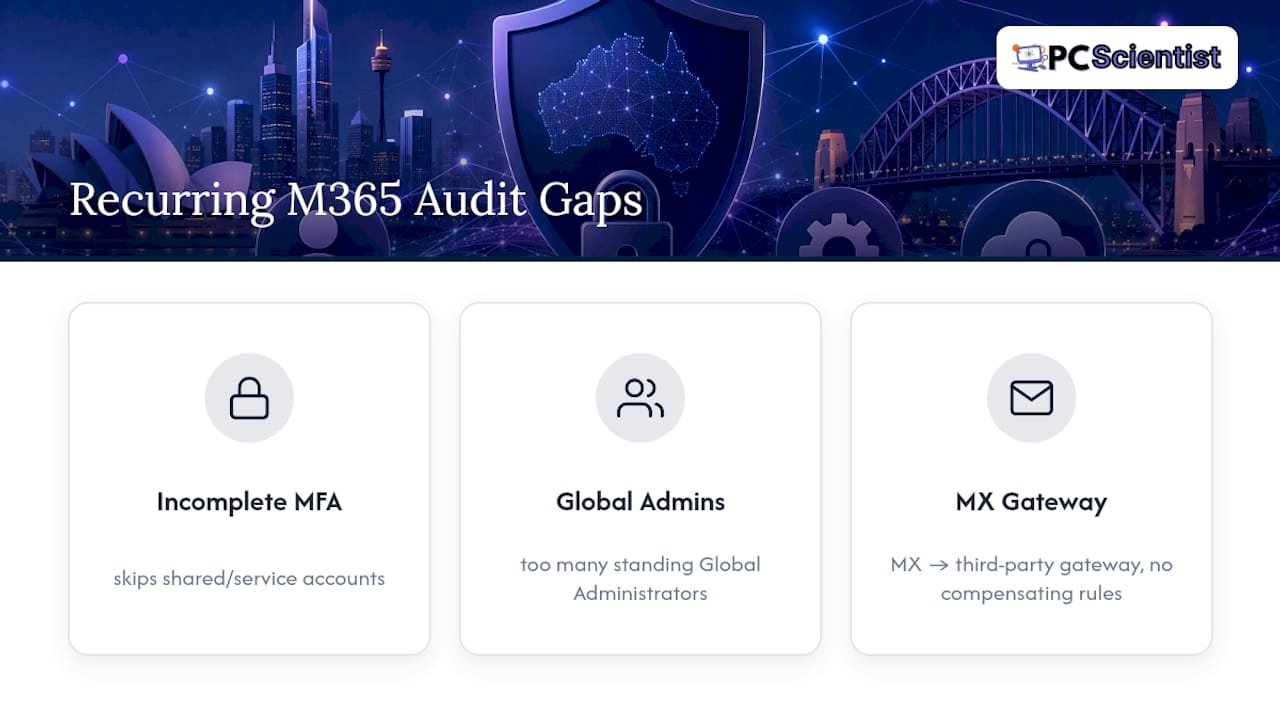
Across client tenants, the same three gaps turn up repeatedly: partial MFA rollout that skips shared or service accounts, too many standing Global Administrators, and mail exchanger records pointed at a third-party gateway with no compensating rules behind it. Most of these are configuration fixes, not new purchases. When the gap involves change management across a whole organisation, that's when a managed Cybersecurity Scientist engagement earns its keep.
What actually matters in Microsoft 365 security
The industry loves talking about "layered security" as though every layer deserves equal attention. It doesn't. MFA and Conditional Access do more heavy lifting than everything else in this guide combined, and tenants that get those two things right rarely end up in serious trouble even when other settings are imperfect.
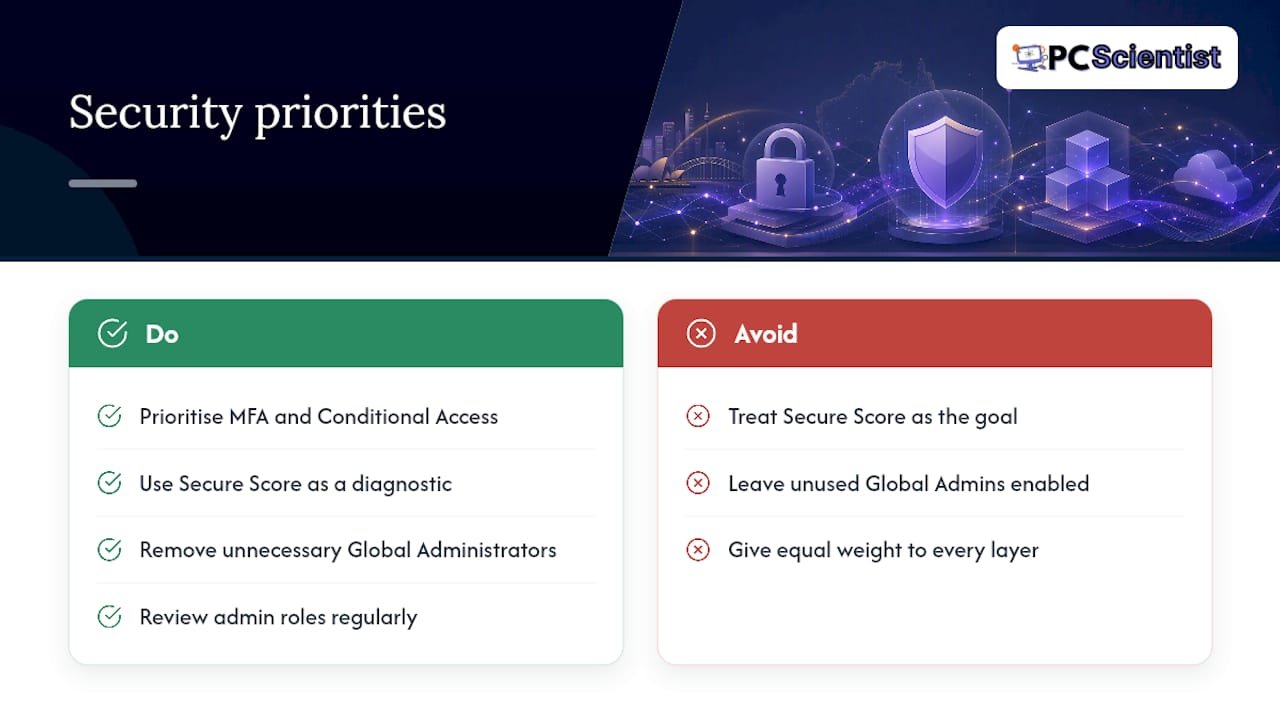
Where conventional advice falls short is treating Secure Score as a target rather than a diagnostic. A high score with the wrong priorities checked off gives false comfort. I'd rather see a tenant with a modest score and rock-solid Conditional Access than a high score built on low-impact wins.
If you do one thing after reading this, fix admin account hygiene. Every unnecessary Global Administrator is a door you forgot was unlocked, and closing it costs nothing but a bit of role review. Everything else on this list matters, but that one has the best ratio of effort to risk reduction.
- PC Scientist
How PC Scientist can help with Microsoft 365 security
Working through this guide on your own tenant takes time most IT teams don't have spare, especially alongside day-to-day support tickets. Tenant assessments can check controls such as identity, email protection, endpoint hardening and audit readiness, then provide a remediation plan in plain language rather than a jargon-heavy report.

Services may include tenant hardening, Conditional Access setup, incident response support, mail configuration, Defender preset policies, DLP setup, ongoing governance, policy review, and configuration-drift checks. Deliverables can include a tenant assessment, a prioritised remediation plan, documented policy handover, and an audit-ready evidence pack. If your Microsoft 365 tenant needs a proper review before your next audit or insurance renewal, get in touch through Cybersecurity Scientist to request an assessment.
Primary sources and further reading
- Cyber: endpoint and Office hardening.
- OAIC NDB quick reference guide: breach response steps.
- Microsoft Purview Audit documentation: logging and retention.
- For managed migration or Microsoft 365 transformation support, specialist Microsoft partners such as LANCAST or managed providers like NEXTmsp are worth reviewing.
Sources
- Essential Eight multifactor authentication - Essential Eight | Microsoft Learn
- Cyber
- Learn about auditing solutions in Microsoft Purview | Microsoft Learn
- Quick reference guide for responding to data breaches | OAIC
Recommended
Frequently Asked Questions
Straight answers about 3 Microsoft 365 Security Controls to Be Audit Ready in Australia - without jargon or pressure. Call 0493 563 381 for advice, or get help below.
Want the quickest answer? 0493 563 381 for free advice.
Enforce MFA tenant-wide, ideally with phishing-resistant methods, and apply Conditional Access to block legacy authentication and cover all admin roles. Layer on Defender preset policies for email, endpoint hardening through Intune, and regular Secure Score review to catch drift.
Microsoft 365 includes Defender Antivirus on Windows endpoints, and Cyber.gov.au's hardening guidance recommends making it your primary engine rather than adding a separate product. What you still need is proper configuration, including ASR rules and a defined patch cadence.
Defender for Office 365 is built into Microsoft 365 and applies protections automatically when your mail exchanger records point to Microsoft, a behaviour Microsoft calls secure by default. Routing mail through a third-party gateway instead can bypass those built-in protections unless you rebuild equivalent controls yourself.
Strong security depends on active configuration: MFA, Conditional Access and Defender preset policies don't fully protect a tenant left on default settings. Higher-maturity features like Identity Protection, PIM and Audit Premium also require specific Entra or E5 licensing, so the security ceiling depends partly on which plan you're on.
Cybersecurity across NSW
Still stuck on Microsoft 365 security?
If the device still does not feel safe, that is okay. Get help in your area and we will take it from here.
Start here
Get cybersecurity help
Optional Need a Sydney city or region?
Choose a side of Sydney
These are Sydney cities and regions, such as the Northern Beaches or Inner West. First tap a side of Sydney. Then open the city or region that covers you.
C Sydney City / Inner 3 areas
N Northern Sydney 6 areas
NW North-West / Central Sydney 3 areas
W Western Sydney 1 area
SW South-West Sydney 3 areas
S Southern Sydney 2 areas
Optional Find your suburb
Type a suburb from our listed coverage. This opens the matching city or region page for this topic. Listed suburb pages are general technology services, not this specialist page.
If your suburb is not listed, use the city or region list above, or call 0493 563 381.
Disclaimer
The information in this article is provided for general educational and informational purposes only. While PC Scientist strives to keep all content accurate and up to date, technology issues can vary depending on your device, software, network configuration, and individual circumstances. Always back up important data before attempting repairs or system changes. If you are unsure or the issue cannot be resolved safely, contact PC Scientist today for professional onsite or remote IT support. PC Scientist is not liable for any loss of data, damage, or other issues resulting from the use of the information provided in this article.