

MFA Fatigue Attack: What It Is and What to Do in Australia
An MFA fatigue attack is when someone who already has your password keeps triggering sign-in approval prompts on your phone until you tap "Approve", just to make them stop. If your phone is buzzing with login requests you didn't start, don't approve any of them. Change your password straight away, because the attacker most likely already has it. If you've already tapped "Approve", we can help you lock the account down and check what was touched.
Key takeaways
- An MFA fatigue attack (also called push bombing, MFA bombing or MFA spam) floods you with genuine approval prompts after your password has been stolen.
- Never approve a sign-in you didn't start yourself, however many prompts arrive or however convincing a "call from IT" sounds.
- Change the password as soon as unexpected prompts appear. The prompts mean the first lock has probably been picked.
- Number matching, where you type a number from the login screen into your app, makes this attack far harder to pull off.
- If you approved a prompt, act quickly: secure the account, remove unknown devices and get help checking for damage.
Table of Contents
What an MFA fatigue attack actually is
Multi-factor authentication (MFA) means a password alone isn't enough to get into an account. You also approve the login on your phone, with a code or a tap. It works well, and it's still worth having on every account that offers it.
The weak spot is the "tap to approve" version. In an MFA fatigue attack, the attacker already has a valid username and password but lacks the second step, so they keep trying to sign in. Each attempt sends a real prompt to your phone. They're hoping irritation or distraction makes you approve one.
You may see this described in different ways: MFA bombing, push bombing, MFA spam, prompt bombing. They all describe the same tactic: repeated requests meant to wear you down or confuse you. The security framework MITRE ATT&CK lists it as technique T1621, which tells you it's a recognised criminal method and not just a case of someone being careless.
One detail matters: the attack can also arrive as SMS messages and phone calls, not only app notifications.
How it plays out, step by step
- Your password is stolen. Usually through a phishing email, a password reused from another site, or a data breach. The attack normally starts after credentials are compromised.
- The attacker tries to sign in. Your account does what it should and sends you a real prompt.
- The prompts keep coming. The Western Australian Cyber Security Unit notes that attackers can generate hundreds of push prompts in a short period, hoping you accept by accident, through confusion, or to stop the noise.
- A "helpful" message arrives. A text, call or email pretends to be IT support and says approving one request will fix the problem. A fake IT-support contact can persuade people that approving once will stop the alerts.
- You approve, and they're in. They may then change the MFA device to their own and approve future logins without your knowledge.
The 2022 Uber breach is the example most often cited. An attacker with a contractor's credentials repeatedly triggered prompts and posed as IT support until one was approved. If it can happen to a large company, it can happen to a tired person at 11pm.
Why smart people approve the prompt
It isn't about being careless. Think about a normal evening: your phone buzzes, again and again, at the hour you're least alert. Someone then rings and sounds like they're helping. Approving feels like the quickest way to make it all stop.
That's exactly what the attacker is counting on. Honest explanations help here, because being embarrassed is what stops people from reporting it quickly. If you've approved one, you're in good company, and what matters now is how fast you act.
Warning signs
- Several approval requests in a short time.
- A prompt for a login you didn't start, especially from a place or device you don't recognise.
- A call, text or email from "IT support" or "the bank" asking you to approve one request.
Several unexpected approval requests and prompts for logins you didn't start are warning signs. They don't prove someone has got into your account, but they should be taken seriously. The WA Cyber Security Unit's view is that a denied prompt deserves investigation, because the password may already have been accepted.
What to do right now
If prompts are arriving and you haven't approved anything
- Deny every one. Never approve a login attempt you didn't start yourself.
- Change your password. Prompts from an unknown source usually mean your password has been stolen. Use a new, unique password, not a small variation of the old one.
- Change it anywhere else you used it. Reused passwords are one way criminals get in.
- Don't act on any call or message about it. Real IT teams don't ask you to approve a sign-in to "clear" alerts. Hang up and contact the organisation using a number you already trust.
If you already approved one
- Change the password from a device you trust.
- Check the account's security settings for sign-in devices or authenticator methods you don't recognise, and remove them.
- Sign out of all sessions where the service offers it.
- Look for forwarding rules, new devices and changes to recovery details.
- For work accounts, tell whoever manages your IT immediately.
- If the account is already locked or taken over, our guide to recovering hacked email and reporting to the ACSC walks through the first hour.
If money, banking or business data could be involved, contact your bank and report the incident to the Australian Cyber Security Centre through ReportCyber.
How to make it hard for this to work on you
Turn on number matching
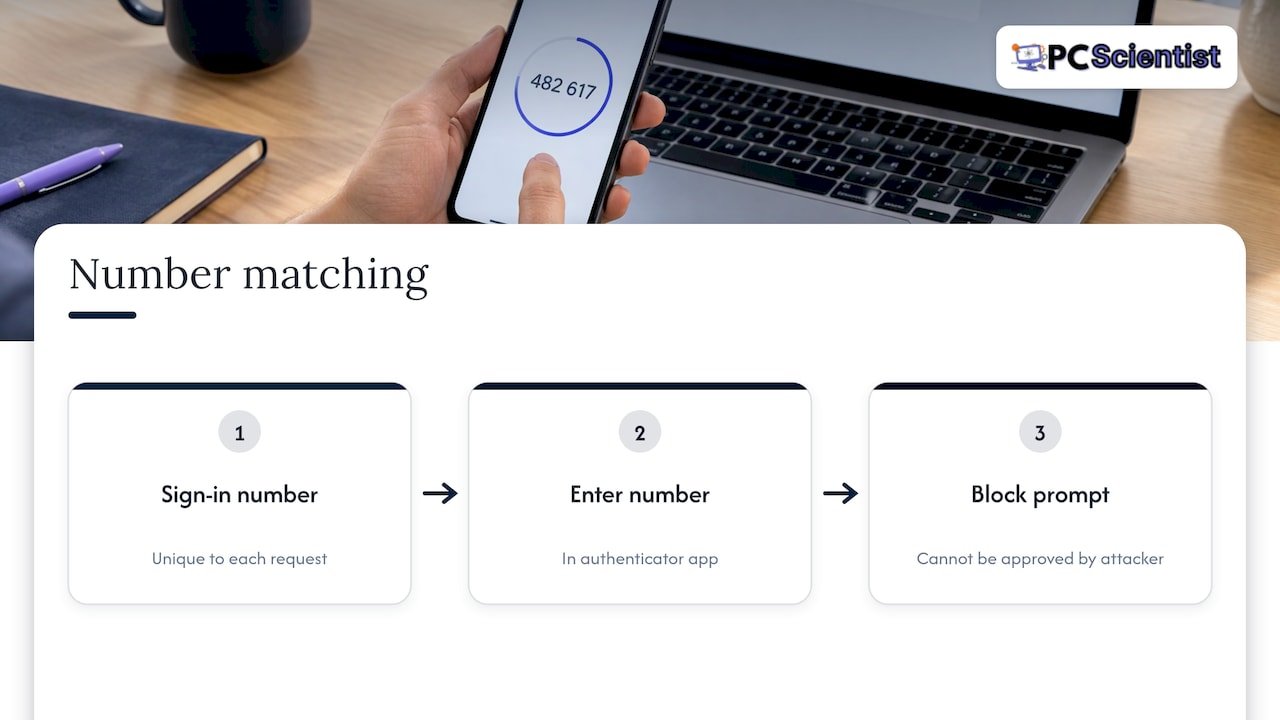
With number matching, the login screen shows a number and you type it into your authenticator app. Each request has its own number, so it can't be approved from the notification alone. A random flood of prompts is then useless to the attacker, because they can't tell you the number.
Know what your accounts use
Some accounts use a plain "Approve" tap, others use codes or number matching. Our guide to authenticator apps and backups in Australia explains the options in plain English and how to avoid being locked out if you lose your phone.
Fix the password side
The attack only starts with a stolen password. A unique password for each account, kept in a password manager, takes away the starting point. Learning to spot phishing emails before you click closes the other common door.
Agree a household rule
For families and for parents looking after older relatives, one simple rule does most of the work: we only approve a sign-in we started ourselves. Say it out loud, put it on the fridge, and tell older relatives that nobody legitimate will ever phone and ask them to approve a prompt. Training people to recognise and report unknown or bulk requests is part of the WA Cyber Security Unit's advice.
For small businesses
If you run a team without a full-time IT person, check that staff accounts, especially email and Microsoft 365, use number matching, and agree who staff tell when prompts go wrong. Our Microsoft 365 security guide covers the controls worth setting up first.
Which prompts are safe to approve?
| Situation | What to do |
|---|---|
| You just typed your password and a prompt arrives | Approve it, if number matching or the app matches what you're doing |
| A prompt arrives while you're not signing in | Deny it, then change your password |
| Many prompts arrive in a row | Deny them all, change your password, tell your IT contact |
| Someone rings or messages asking you to approve | Don't approve. Hang up and call back on a trusted number |
| You approved by mistake | Change the password, remove unknown devices, get help |
Where we come in
Most people who contact us about this aren't worried about the technology. They're worried they've made a mistake, and they'd like someone calm to check. You don't need to know the technical terms or work out which service you need before you call. Tell us what happened and we'll sort out the rest.
Our Cybersecurity Scientist service helps homes and businesses across NSW strengthen their security, onsite or remotely where that suits. If it's a business account, our business cybersecurity help is built for the period after a scare.

If you'd like a second pair of eyes on your accounts, get in touch with PC Scientist and tell us what you've seen.
Our view
We think MFA is one of the best things you can switch on, and the answer to this attack isn't to drop it. The answer is to set it up well.
The people who get caught are rarely careless. They're tired, interrupted, or being talked to by someone who sounds confident. A setup that depends on a person holding firm at the worst moment is a fragile setup. That's why we push number matching, unique passwords and a simple household or office rule over lectures about vigilance.
We also like to keep the response simple. Deny, change the password, check the account. When someone calls us after approving a prompt, we focus on getting them calm and getting the account secure, without jargon and without blame. We aim to give clear, step-by-step guidance and to prioritise privacy and security at every step.
PC Scientist
Sources
- Spotting false MFA requests, University of Queensland
- Number Matching in Multifactor Authentication, WA Cyber Security Unit
- Multi-Factor Authentication Request Generation, MITRE ATT&CK T1621
- Scam Advice: Prompt Bombing (MFA Fatigue), GSMA
- What Is an MFA Fatigue Attack?, Proofpoint
- 47 fake login notifications until you tap allow, SafeBrowz
Recommended
- Authenticator Apps and Backups: Two Factor Authentication in Australia
- First 60 Minutes: Recover Hacked Email in Australia and Report to ACSC
Frequently Asked Questions
Straight answers about MFA Fatigue Attack: What It Is and What to Do in Australia - without jargon or pressure. Call 0493 563 381 for advice, or get help below.
Want the quickest answer? 0493 563 381 for free advice.
Yes. MFA fatigue, MFA bombing, push bombing, MFA spam and prompt bombing are names for the same tactic: repeated sign-in prompts sent to wear you down until you approve one.
Not necessarily, but it's a strong hint that your password has been stolen. Unexpected prompts are a warning sign, not proof. Deny them and change your password straight away.
Change your password from a trusted device, remove any sign-in devices you don't recognise, and sign out other sessions. Then check the account for changes. If you'd like help, we can go through it with you.
Because a fake IT-support call is part of the attack. The caller says approving once will fix things. Never approve. Hang up and contact the organisation yourself using a number you already trust.
Cybersecurity across NSW
Still stuck after unexpected login prompts?
If the device still does not feel safe, that is okay. Get help in your area and we will take it from here.
Start here
Get cybersecurity help
Optional Need a Sydney city or region?
Choose a side of Sydney
These are Sydney cities and regions, such as the Northern Beaches or Inner West. First tap a side of Sydney. Then open the city or region that covers you.
C Sydney City / Inner 3 areas
N Northern Sydney 5 areas
NW North-West / Central Sydney 3 areas
W Western Sydney 1 area
SW South-West Sydney 3 areas
S Southern Sydney 2 areas
Optional Find your suburb
Type a suburb from our listed coverage. This opens the matching city or region page for this topic. Listed suburb pages are general technology services, not this specialist page.
If your suburb is not listed, use the city or region list above, or call 0493 563 381.
Disclaimer
The information in this article is provided for general educational and informational purposes only. While PC Scientist strives to keep all content accurate and up to date, technology issues can vary depending on your device, software, network configuration, and individual circumstances. Always back up important data before attempting repairs or system changes. If you are unsure or the issue cannot be resolved safely, contact PC Scientist today for professional onsite or remote IT support. PC Scientist is not liable for any loss of data, damage, or other issues resulting from the use of the information provided in this article.