

Home Wi-Fi setup: the checks before you are online
You can plug the nbn connection box into the wall, connect the router's WAN port with an Ethernet cable, power both on in order, then log in and change the admin and Wi-Fi passwords. That sequence gets most households online within half an hour, and the security steps that follow take another ten minutes.
While you wait for the lights to stabilise, run through these checks:
- Watch the modem's LEDs settle to solid (not flashing) before touching the router.
- Confirm your service is activated on your provider's app or activation page.
- Reconnect phones and laptops to the new network name once it's broadcasting.
If any of that sounds like more fiddling than you've got patience for, Network Scientist can have someone out to sort it properly.
Pro Tip: Do the password changes before you connect a single device. It's far easier to set things up right the first time than to hunt down ten devices later and reconnect them all to a renamed network.
Key Takeaways
A reliable home wifi setup depends on correct placement, WPA3 or WPA2 security with changed default credentials, and matching the fix (mesh, wired AP, or extender) to the actual size and layout of the home.
| Point | Details |
|---|---|
| Follow the power sequence | Modem or nbn box on first, wait for stable lights, then power on the router. |
| Change every default | Update the admin login and Wi-Fi passphrase before connecting any devices. |
| Use WPA3, fall back to WPA2 | Choose WPA3 if supported; disable WPS and remote management either way. |
| Match the fix to the home | Mesh with wired backhaul suits multi-storey or brick homes; extenders suit small, simple layouts. |
| Book a pro for tricky layouts | PC Scientist's Network Scientist team handles site surveys, node placement and cabling across NSW. |
Table of Contents
- What you need before you start your home network setup
- How do you set up home wifi step by step?
- Quick security checklist: settings to change right now
- How do you improve wifi coverage and fix dead zones?
- When should you call a technician instead of DIY?
- What the standard advice on home wifi setup gets wrong
- Get a properly assessed home or office network, done once
- Sources
- FAQ
What you need before you start your home network setup
A basic home wifi setup needs less gear than people expect, but missing one item can stall you halfway through. Before you start, gather:
- Your nbn connection box (if you're on the nbn) or your ISP's modem.
- A router, or a combined modem/router unit if your provider supplied one.
- An Ethernet cable, ideally Cat5e or Cat6, to link the connection box to the router's WAN port.
- A free power point near where the router will actually sit, not just near the phone line.
- Your ISP username and password, plus any activation code sent by email or text.
- Your provider's app installed, if they use one to confirm activation.
Check your router's age while you're at it. Older routers may run on older Wi-Fi standards that can struggle with many devices online at once. Wi-Fi 6 and 6E routers handle that load far better and are worth the upgrade if you're constantly dropping connections. A straightforward single-router setup usually takes under an hour start to finish; a mesh install across a larger or multi-storey home is closer to half a day once you factor in placement testing and cabling.
How do you set up home wifi step by step?
Follow this order and you'll avoid the two most common setup failures: connecting devices before the network is secured, and powering things on in the wrong sequence.
- Connect the hardware. Run the Ethernet cable from the nbn connection box (or your ISP's incoming line) into the router's WAN or Internet port, not one of the regular LAN ports.
- Power on in sequence. Switch on the modem or connection box first and wait for the lights to go stable, then power on the router. The nbn fact sheet recommends this order specifically to avoid handshake errors between devices.
- Log in to the router. Use the app or type the router's IP address into a browser, then change the default admin username and password immediately.
- Update firmware if prompted. Most routers check automatically on first login. Let it finish before changing anything else.
- Create your network name and passphrase. Pick an SSID that doesn't identify your address or surname, and set a passphrase of at least twelve characters, recommended to mix letters, numbers and symbols. Choose WPA3 if it's offered, WPA2 if it isn't.
- Turn on the guest network. This gives visitors internet access without touching your main devices.
- Connect your devices and run a speed test. Compare the result against your plan's advertised speed. A wired-to-router speed test within roughly 10 to 15 percent of your plan speed means the connection itself is fine and any remaining issue is a Wi-Fi coverage problem, not an ISP one.
If a step fails, the most common culprit is the cable sitting in a LAN port instead of the WAN port. Second most common: forgetting to wait for the modem's lights to settle before powering the router on.
Quick security checklist: settings to change right now
A brand-new router out of the box is not a secure router. The default admin login and generic passphrase printed on the label are public enough that anyone within range who knows the model can look them up. Run through this list before you consider setup finished:
- Change the default admin username and password. Manufacturers reuse the same defaults across thousands of units, and ACSC guidance treats this as the single highest-value fix available to a home network.
- Set a Wi-Fi passphrase of 12 to 14 characters or more, mixing letters, numbers and symbols, because short passwords fall to automated guessing tools in minutes.
- Enable WPA3 if your router and devices support it. Fall back to WPA2 only if WPA3 isn't available, since older WEP or open networks offer no real protection.
- Disable WPS and remote management. WPS's simplified pairing process is a known weak point, and remote management leaves the router's admin panel reachable from outside your home.
- Turn off UPnP unless something specific needs it, such as certain smart home hubs or older gaming consoles.
- Switch on the guest network and put smart plugs, cameras and other IoT gear on it, keeping them off the same network as your laptop and banking apps.
- Keep firmware updated, either through auto-update or a monthly manual check, since Vic flags outdated firmware as one of the most common entry points for attackers.
Pro Tip: Write your new admin and Wi-Fi passwords down somewhere other than your phone's notes app. If you ever lose access to your phone, you don't want your router locked to it too.
How do you improve wifi coverage and fix dead zones?
Router placement solves more coverage problems than any setting ever will. Put it centrally in the home, at least a metre off the floor, and away from microwaves, fish tanks, and thick brick or metal surfaces that block signal. A router jammed in a media cabinet under the TV is fighting itself before it's even started.
On the 2.4GHz band, stick to channels 1, 6 or 11, since they don't overlap with neighbouring channels the way others do. In apartment blocks or dense streets, a free Wi-Fi analyser app will show you which channel your neighbours are already crowding, so you can pick the quiet one.
| Coverage problem | Best fix |
|---|---|
| Weak signal in one or two rooms | Reposition the router centrally, or add a single mesh satellite node |
| Whole house patchy, multi-storey | Mesh system with wired Ethernet backhaul between nodes |
| Signal fine but drops under load | Check for channel congestion, switch to a quieter 2.4GHz channel |
| Old brick or double-brick walls | Wired access points at choke points rather than wireless extenders |
If you're troubleshooting a live problem rather than planning ahead, work through it in this order: is it one device or every device? Restart the modem first, wait a minute, then restart the router. Plug a laptop directly into the router with Ethernet. A wired connection running at full speed means your issue is Wi-Fi, not your internet plan, which points you back to placement or channel congestion rather than your provider.
Mesh systems and dedicated access points genuinely outperform extenders in larger or trickier homes, mainly because extenders create a separate network name and can cause devices to cling to a weak signal instead of switching to a stronger node nearby.
When should you call a technician instead of on your own?
Some setups are worth handing over. If you've got dead zones across multiple floors, need cabling run through walls, or you're setting up a home office or small business network diagram with strict uptime needs, on your own starts costing more time than it saves.
A professional visit typically includes a site survey, signal mapping across your property, placement of mesh nodes or access points, wired backhaul cabling where it helps, and getting every device connected and tested before the technician leaves.
Most Wi-Fi complaints aren't a faulty router. They're a network design problem, and a single box rarely covers a sprawling or double-brick home properly. A tailored node map, chosen after actually walking the property, fixes what settings alone can't.
We run this exact work through its Network Scientist division, with onsite visits across NSW and remote support where a physical visit isn't needed. Booking one starts with a quick call to talk through what's going wrong.
What the standard advice on home wifi setup gets wrong
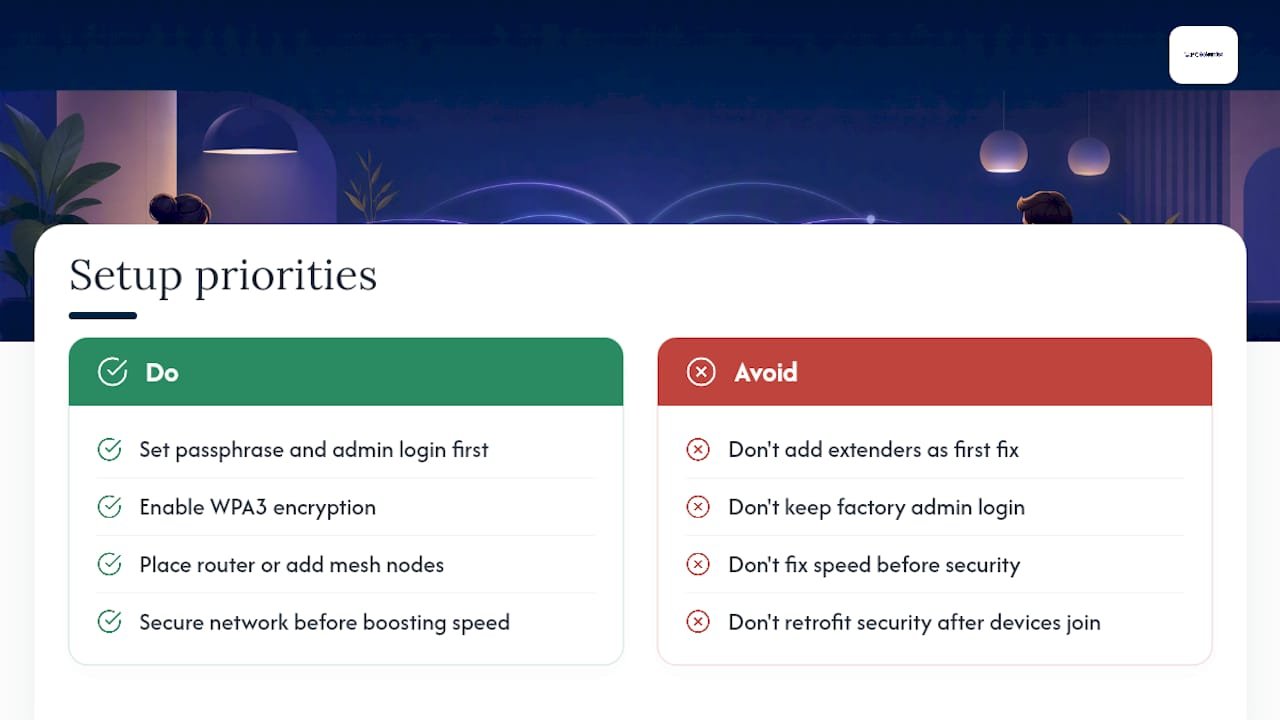
Most guides treat security and coverage as separate problems, tackled in whatever order the reader stumbles into them. That's backwards. Get the passphrase and admin login sorted in the first ten minutes, before a single device joins the network, because retrofitting security onto a network your whole household is already using is where good intentions quietly die.
The other gap is over-trust in extenders. They're marketed as the easy fix for a weak signal, but they solve the symptom, not the layout problem underneath it. A router struggling to reach the back bedroom usually needs a rethink of placement or a proper mesh node, not another box plugged into a power point halfway down the hall.
What should the reader actually prioritise first? Passwords and WPA3, always, before speed or coverage. A blazing fast network with the factory-default admin login is a bigger risk than a slightly patchy one that's properly secured. Speed is fixable in an afternoon. A compromised router sitting quietly on your network can go unnoticed for months.
Get a properly assessed home or office network, done once
If you've worked through the steps above and you're still fighting dead zones, dropped calls, or a network that just feels unreliable, PC Scientist is the practical alternative to guessing your way through another round of settings changes. We come to you, map the property's actual signal behaviour, and fit the solution, mesh, wired access points, or a simple router swap, to how your home or office is actually built, not a generic template.

This suits anyone setting up a full home office network setup, families dealing with a multi-storey dead zone, or small businesses needing a proper small office network setup with guest access and separated devices. Our Network Scientist team handles the onsite work across NSW, with remote support available for anything that doesn't need a physical visit. If you'd rather start with everyday computer troubleshooting alongside the network work, Computer Support Scientist covers that too.
Book a site assessment through PC Scientist and get a network mapped to your actual home, not a one-size-fits-all setup guide.
Sources
Recommended
- Business Network & Wi-Fi Assessment NSW | PC Scientist
- Hotel, Motel, Airbnb & Strata Tech | PC Scientist
Frequently Asked Questions
Straight answers about Home wifi setup: get online in under 30 minutes - without jargon or pressure. Call 0493 563 381 for advice, or get help below.
Want the quickest answer? 0493 563 381 for free advice.
For most homes, a single Wi-Fi 6 router placed centrally and elevated works well. Larger or multi-storey homes generally do better with a mesh system using wired backhaul between nodes.
Connect the modem or nbn connection box to the router's WAN port, power the modem on first and wait for stable lights, then power on the router, log in, and change the admin and Wi-Fi passwords before connecting devices.
A single well-placed router covers most standard homes without extra hardware. Only add a mesh node or access point if you've confirmed a genuine dead zone after testing placement and channel selection first.
You need an active internet connection (an nbn connection box or ISP modem), a router, and an Ethernet cable to link the two together during setup.
If you've got dead zones across multiple floors, need cabling run through walls, or you're setting up a business network, a technician visit from a service like Network Scientist usually resolves it faster and more reliably than repeated DIY attempts.
Wi-Fi help across NSW
Need a hand with home Wi-Fi setup?
If the steps above did not get Wi-Fi behaving, that is okay. Get help in your area and we will take it from here.
Start here
Get Wi-Fi help
Optional Need a Sydney city or region?
Choose a side of Sydney
These are Sydney cities and regions, such as the Northern Beaches or Inner West. First tap a side of Sydney. Then open the city or region that covers you.
C Sydney City / Inner 3 areas
N Northern Sydney 6 areas
NW North-West / Central Sydney 3 areas
W Western Sydney 1 area
SW South-West Sydney 3 areas
S Southern Sydney 2 areas
Optional Find your suburb
Type a suburb from our listed coverage. This opens the matching city or region page for this topic. Listed suburb pages are general technology services, not this specialist page.
If your suburb is not listed, use the city or region list above, or call 0493 563 381.
Disclaimer
The information in this article is provided for general educational and informational purposes only. While PC Scientist strives to keep all content accurate and up to date, technology issues can vary depending on your device, software, network configuration, and individual circumstances. Always back up important data before attempting repairs or system changes. If you are unsure or the issue cannot be resolved safely, contact PC Scientist today for professional onsite or remote IT support. PC Scientist is not liable for any loss of data, damage, or other issues resulting from the use of the information provided in this article.
