

Wi-Fi dead zones: five checks before you buy more gear
You can reboot the router, then lift it onto a shelf in an open, central spot and test again. If that fails, a mesh system is usually the least-fuss fix for whole-house dead zones, while an extender or powerline pair can patch a single spot, and wired Ethernet suits critical devices. Run a wired speed test at the router first, so you know whether the fault is your Wi-Fi or your internet service.
Key takeaways
- Compare router wired speeds with room by room wireless tests at different times to distinguish service faults from weak coverage and congestion.
- Place the router centrally, about one metre above ground and away from metal, brick, and appliances; use 5 GHz nearby and 2.4 GHz through walls.
- An extender is the cheapest fix for one small dead spot, while mesh suits larger homes with several floors; powerline results depend on house wiring.
- Use Ethernet for gaming, work computers, and other devices sensitive to delay, and contact your ISP if wired speed at the modem falls below your plan.
- Check the device in a weak room before replacing the router; aging laptops can have wireless limits, and routers over five years old may lack newer standards.
Table of Contents
- How can you confirm and map your Wi-Fi dead zones?
- Where should you put your router to reduce dead zones?
- What causes dead zones inside your home?
- Which fix suits your home: extender, mesh, powerline or wired Ethernet?
- What steps should you follow, from easiest to most advanced?
- When should you upgrade, call your ISP or book a technician?
- How do Wi-Fi standards affect coverage and dead zones?
- How do you keep your network secure when extending Wi-Fi?
- Our view on diagnosing dead zones
- How we can fix your dead zones for you
- FAQ
- Sources
How can you confirm and map your Wi-Fi dead zones?
Before you spend a cent, prove where the problem is. A few minutes of testing tells you whether you need new hardware at all, and CHOICE and NBN Co both stress testing several rooms before buying anything, rather than assuming your plan speed is the culprit.
Here is a simple routine:
- Plug a laptop into the router with an Ethernet cable and run a speed test. This wired result is your reference point for what your service can deliver.
- Run the same test on Wi-Fi while standing next to the router, then compare the two numbers.
- Walk through the house with a phone or laptop, testing in every room you use, and note the signal bars and speed in each.
- Repeat the walk in the evening and again during the day, because congestion often shows up only at busy times.
- Write your results down so you can compare them after each change.
A few extras make the picture clearer:
- Free Wi-Fi analyser apps can show a rough heatmap or let you log readings room by room.
- Test both the 2.4 GHz and 5 GHz networks if your router offers both.
- Keep a simple note on your phone: room, band, speed, time of day.
If the wired test is already slower than your plan, the issue sits with your internet service rather than your coverage. Our guide to a 5 minute wired test walks through that check in more detail.
Where should you put your router to reduce dead zones?
Placement fixes more dead zones than most people expect, and it costs nothing. NBN Co advises placing your modem or router centrally and about one metre off the ground, with a clear line of sight to the rooms you use most.
Try these changes before anything else:
- Move the router out of cupboards, entertainment units and the corner where the cable happens to enter. Open, central areas work best.
- Keep it away from brick walls, metal panels and large appliances such as fridges and microwaves, and from fish tanks or hot water systems.
- Use 5 GHz when you are in the same room or close by, because it gives faster speeds and less congestion. Switch to 2.4 GHz when you need to reach through walls, since 5 GHz has a shorter range and is blocked more easily.
- If you suspect crowding on 2.4 GHz, try channel 1, 6 or 11 in the router settings.
- Update the router's firmware and restart it. Simple restarts and moving the router out of cupboards are often enough on their own.
Pro Tip: Change one thing at a time and re-run your walk test after each change, so you know exactly what helped.
What causes dead zones inside your home?
Once you know where the weak spots are, the next question is why. Most dead zones come from a mix of building materials and everyday electronics.
- Walls and floors: Concrete and brick cut the signal far more than plaster or timber. Metal and mirrors reflect it, which is why a router behind a mirrored wardrobe door performs so poorly.
- Household electronics: Microwaves, cordless phones and baby monitors all operate on 2.4 GHz and can cause direct interference. ACMA lists these among the common sources of interference and suggests switching suspect devices off, or changing channel, as a quick test.
- Router age: Gear older than about five years may lack modern Wi-Fi generations, which can limit speed and range on newer plans.
- Neighbours: In units and dense streets, nearby networks compete for the same channels. If your results are worse at certain times of day, congestion is the likely cause.
A quick way to test for interference is to unplug the suspect device, repeat the walk test in that room, and see whether the numbers improve.
Which fix suits your home: extender, mesh, powerline or wired Ethernet?
Each option solves a different problem, so the right choice depends on your home and how you use it. CHOICE explains that extenders suit a single small black spot, while mesh networks suit larger, multi-storey homes with plenty of users.
- Extender: The cheapest way to patch one small dead spot. The catch is that many create a second network name, so your devices may not switch over on their own and you end up reconnecting by hand.
- Mesh: Several nodes share one network name, and your devices roam between them without fuss. CHOICE's mesh buying guide notes this is simpler day to day than repeaters that create separate networks. It is the usual pick for whole-home coverage, and CHOICE also reviews wireless mesh systems if you want to compare models.
- Powerline adapters: Handy when running a cable is hard. Older ABC testing of extenders and powerline kits found they can perform well, though results depend on the quality of your house wiring.
- Wired Ethernet: The most reliable choice for gaming, work computers and anything sensitive to delay. NBN Co recommends wiring for performance-critical devices, and professional cabling gives the best long-term result.
On cost, extenders sit at the low end, mesh runs from mid-range to premium depending on how many nodes you need, and wiring varies with labour and materials. If you are weighing two options, our guides on mesh Wi-Fi versus extenders and testing a powerline pair before buying mesh go deeper.
What steps should you follow, from easiest to most advanced?
Work down this list in order and stop as soon as the problem is gone.
- Restart the router and modem, then test again.
- Move the router to a central, raised spot and clear obvious obstructions.
- Switch between 2.4 GHz and 5 GHz and test in the problem room.
- Run a wired speed test at the router, then try the stubborn device on Ethernet.
- Switch off suspect appliances for a few minutes and retest.
- Trial an extender or a powerline pair in the problem area and repeat your walk test.
- If several rooms still struggle, install a mesh kit or book a professional to run cabling and place access points.
- After every change, re-run your speed and latency checks and write down the difference.
Pro Tip: Keep your first set of results. A before-and-after comparison is the only honest way to tell whether a purchase was worth it.
When should you upgrade, call your ISP or book a technician?
Some problems are beyond a clever placement trick, and it helps to know when to stop.
- Upgrade the router if it is older than about five years or lacks modern standards such as Wi-Fi 5 or Wi-Fi 6. NBN Co notes a newer modem or gateway can improve speed, range, reliability and security.
- Call your ISP if the wired speed test at the modem is slower than your plan, or the NBN equipment looks faulty.
- Book a technician for structured cabling, a complex mesh design, or when several dead zones persist after your own fixes.
- Invest in cabling or a professional design if you work from home or notice delays on calls and games.
How do Wi-Fi standards affect coverage and dead zones?
Wi-Fi standards are the "generations" of wireless technology built into your router and devices. The older 802.11n (Wi-Fi 4) works on 2.4 GHz and 5 GHz. 802.11ac (Wi-Fi 5) focuses on 5 GHz and delivers faster speeds. 802.11ax (Wi-Fi 6) is the newest of the three and handles many connected devices more smoothly.
Here is the part that surprises people: a newer standard does not automatically mean a bigger footprint. Range depends largely on the frequency band, and 5 GHz travels a shorter distance than 2.4 GHz. What newer standards improve is how well the network copes when many phones, laptops, TVs and smart devices all compete at once. In a busy home, that can make the edges of your coverage feel noticeably steadier.
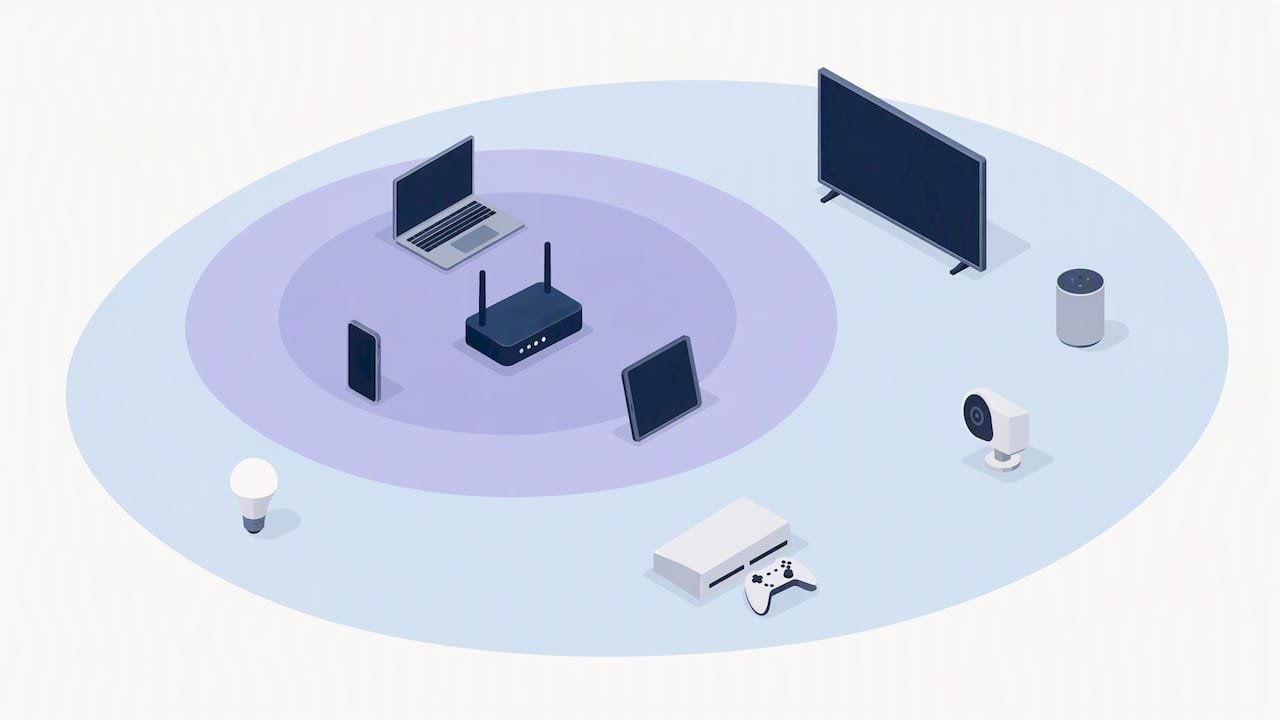
Both ends of the connection matter. A Wi-Fi 6 router will still talk to an older laptop using the older standard, so a single ageing device can look like a dead zone problem when it is really a device limit. Check the age of the device in the weak room before you blame the router. If your router is more than about five years old, a modern replacement is often worth considering before you add extenders around it.
How do you keep your network secure when extending Wi-Fi?
Every extender, mesh node or powerline adapter you add becomes another door into your network, so it pays to lock each one properly.
- Change the default admin password on every device as soon as you plug it in.
- Use WPA2 or WPA3 encryption and a strong, unique Wi-Fi password. Avoid open networks, even for convenience.
- Keep firmware up to date on the router and on every node or extender. Many devices fix security flaws through updates, and extenders are the ones people forget.
- Turn on a guest network for visitors and smart home gadgets, so they stay separate from your laptops and files.
- Switch off WPS if you do not use it, and remove old devices you no longer own from the router's list.
- Buy from brands that still release updates for the model you choose, since a device that no longer receives updates quietly becomes a weak point.
If you would like a second pair of eyes on your home setup, our Cybersecurity Scientist service covers exactly this sort of check.
Our view on diagnosing dead zones
We always test first. Dead zones can turn out to be placement, channel or interference problems that cost nothing to fix, and we would rather you keep your money than buy a gadget that does not solve the real cause. When a wired test and a proper walk-through point to cabling or careful node placement, we explain the findings plainly and give you a clear quote before any work starts. If your own testing leaves you stuck, a good outside read on how professionals approach managed setups is this article on managed network services.
- PC Scientist
How we can fix your dead zones for you
If you would rather have it sorted properly, our Network Scientist service takes the guesswork out. We test your coverage and fix what placement and settings can fix.

- Onsite assessment
- Wi-Fi and network installation
- Setup tailored to your home
Book a site visit or request a quote and we will help improve your home Wi-Fi coverage.
Sources
- Fact sheet: Optimising your home internet set-up
- Tips to optimise your apartment or town house internet set-up | nbn
- How to fix Wi-Fi black spots around your home
- Best Wireless Mesh Networks | CHOICE Reviews
Recommended
- Test First: Mesh WiFi vs Extender for Your Home's Dead Zones
- Fix Dead Zones Fast: Test One Powerline Pair Before Buying Mesh in Australia
- Wi-Fi keeps dropping? Here's what actually fixes it
- Decide in 4 Questions: Mesh WiFi or Access Points
Frequently Asked Questions
Straight answers about Fix Wi-Fi Dead Zones: 5 Checks Before Buying Gear - without jargon or pressure. Call 0493 563 381 for advice, or get help below.
Want the quickest answer? 0493 563 381 for free advice.
Start by restarting your router and moving it to a central, raised spot away from walls and appliances. If rooms are still weak, add a mesh system, an extender or a powerline pair depending on how large the problem is. Test before and after each change.
Free Wi-Fi analyser apps for phones and laptops can map signal strength room by room, and many show a simple heatmap. Even without an app, noting signal bars and a speed test in each room gives you a reliable picture.
Walk through each room with a phone or laptop and run a speed test, noting the signal and result. Repeat at different times of day, and compare against a wired test at the router to separate coverage problems from internet service problems.
For most larger or multi-storey homes, yes, because a mesh system gives one seamless network without manual switching. An extender is a cheaper choice for a single small dead spot.
Wi-Fi help across NSW
Need a hand with Wi-Fi dead zones?
If the steps above did not get Wi-Fi behaving, that is okay. Get help in your area and we will take it from here.
Start here
Get Wi-Fi help
Optional Need a Sydney city or region?
Choose a side of Sydney
These are Sydney cities and regions, such as the Northern Beaches or Inner West. First tap a side of Sydney. Then open the city or region that covers you.
C Sydney City / Inner 3 areas
N Northern Sydney 6 areas
NW North-West / Central Sydney 3 areas
W Western Sydney 1 area
SW South-West Sydney 3 areas
S Southern Sydney 2 areas
Optional Find your suburb
Type a suburb from our listed coverage. This opens the matching city or region page for this topic. Listed suburb pages are general technology services, not this specialist page.
If your suburb is not listed, use the city or region list above, or call 0493 563 381.
Disclaimer
The information in this article is provided for general educational and informational purposes only. While PC Scientist strives to keep all content accurate and up to date, technology issues can vary depending on your device, software, network configuration, and individual circumstances. Always back up important data before attempting repairs or system changes. If you are unsure or the issue cannot be resolved safely, contact PC Scientist today for professional onsite or remote IT support. PC Scientist is not liable for any loss of data, damage, or other issues resulting from the use of the information provided in this article.
