

Dual WAN Failover in Australia: NBN Backup on Routers and pfSense
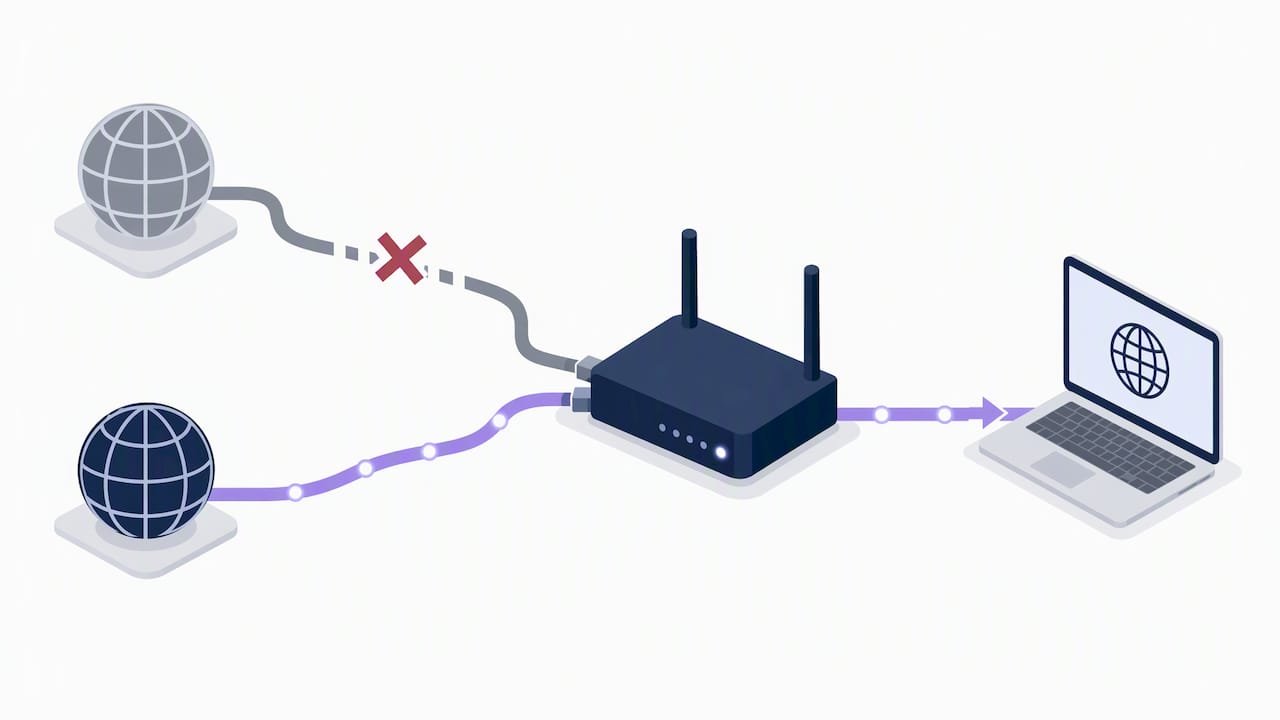
Yes, you can set up automatic dual WAN failover with a router or firewall that supports Multi-WAN, and for most homes and small businesses that means a consumer dual-WAN router or a compact pfSense or OPNsense box; to optimize failover times and installation, see our detailed guidance on a Dual WAN setup. The setup takes an hour or two once you have both connections active. If you would rather skip the configuration work, our Network Scientist service installs and tests it for you, onsite or remotely.
Key takeaways
- Choose failover for calls, VPNs, and point of sale continuity; load balancing suits independent, latency tolerant traffic but cannot speed up one download.
- Use two separate active connections and Multi WAN hardware, then monitor 8.8.8.8 every 15 seconds with a 3 second timeout and three failed checks.
- Route VoIP or VPN traffic through the WAN those services require, and add a short failback delay if brief primary link outages cause repeated switching.
- Simulate a primary link outage during a quiet period, then check traffic routing, router logs, open VPN sessions, and whether VoIP calls survive the switch.
Table of Contents
- Failover vs load balancing: choose the right mode for your network
- What you need first: hardware, ISP details and prechecks
- Step-by-step failover setup for any router or firewall
- Worked examples: where these settings live in consumer routers and pfSense
- Testing and maintenance: verifying failover actually works
- DIY versus professional install: what we see most often
- Our take: the setup matters less than the testing
- How we can help with setup, testing and handover
- FAQ
- Sources
Failover vs load balancing: choose the right mode for your network
These two modes solve different problems, and mixing them up causes most of the frustration we see. Failover keeps one connection active as the primary link and switches to the secondary only when the primary drops, which means your sessions, including VoIP calls and VPN tunnels, stay on one path and rarely get interrupted mid-stream. Load balancing spreads new connections across both links at once to use the combined bandwidth, but because each session typically sticks to one WAN, a single large download does not get faster and a dropped link still kills whatever was running on it.
For home networks and small businesses, failover is usually the safer default because it protects continuity for things like video calls and point-of-sale systems rather than chasing extra throughput. Load balancing makes more sense when you have genuinely parallel, latency-tolerant traffic, such as several independent staff members browsing at once.
- Failover: one active link, automatic switch on outage, best for session stability.
- Load balancing: both links active, traffic split per session, best for raw throughput across many users.
- Neither mode is link aggregation: you cannot combine two connections into one faster pipe for a single download or call.
What you need first: hardware, ISP details and prechecks
Before you open any configuration screen, gather the physical and account details that the setup depends on.
- Confirm you have two genuinely separate active connections, ideally from different ISPs or different infrastructure (NBN plus a 4G or 5G backup is a common combination), and note any PPPoE username, password or static IP details each provider has given you.
- Choose a router or firewall with proper Multi-WAN support, such as an ASUS or TP-Link dual-WAN model, or a small pfSense or OPNsense appliance, and update the firmware before you touch any WAN settings.
- Decide on your monitoring target (a reliable public address like 8.8.8.8 is the common choice) and agree on the trigger values, such as how many failed checks should count as an outage, before you switch failover on.
Step-by-step failover setup for any router or firewall
The exact labels differ between brands, but every Multi-WAN interface asks for the same handful of decisions.
- Log into the router or firewall admin page and find the Dual WAN or Multi-WAN section, then select Failover mode rather than Load Balance.
- Assign your primary WAN (your fastest or most reliable connection) and your secondary WAN (the backup link).
- Set the link health monitor: a practical starting point is pinging
8.8.8.8every 15 seconds, with a 3 second timeout, and a switch triggered only after 3 consecutive failures, as recommended in SmallNetBuilder's dual-WAN guide to avoid false alarms. - Decide whether to enable failback, which automatically returns traffic to the primary WAN once it recovers. Leaving failback on keeps you on your preferred connection by default, but if your primary is prone to brief flaps, a short delay before failback avoids flipping back and forth.
- Set up policy routing for traffic that needs a specific WAN regardless of mode, such as VoIP handsets or a site-to-site VPN tunnel that only one ISP's firewall allows through.
- Save and apply the changes, and before you walk away, confirm you still have a local console connection or a documented way back in if remote administration becomes unreachable mid-change.
Pro Tip: Write down your original WAN settings before changing anything, so you can roll back in seconds if something does not behave as expected.
Worked examples: where these settings live in consumer routers and pfSense
Once you know the generic steps, finding them in a specific interface is mostly a matter of translation.
- On ASUS routers, the feature sits under Dual WAN with an Auto Network Detection option that pings a gateway or DNS server, lets you choose primary and secondary ports (including repurposing a LAN port as WAN), and includes a failback toggle, as described in ASUS's Dual WAN documentation.
- On TP-Link routers, the same idea lives under Advanced, then Network, then Internet, then Multi-WAN, where you choose Failover or Load Balance and pick a secondary link type such as Ethernet, USB modem or USB tethering; TP-Link's support guide also recommends updating firmware first.
- On pfSense or OPNsense, you add a second WAN interface, configure a gateway monitor IP for each link, then build gateway groups (tiers) that control failover order or load-balancing weight, and attach those groups to the firewall rules that should use them, following the pattern in this pfSense multi-WAN walkthrough.
- Watch for common gotchas: asymmetric routing can confuse some firewalls, SIP-based VoIP calls can drop mid-session during a switch, dynamic DNS services may need reconfiguring after a WAN change, and overly sensitive triggers cause flapping between links instead of a clean switch.
Testing and maintenance: verifying failover actually works
A failover setup that has never been tested is a guess, not a safety net. Simulate a primary WAN outage (unplug the cable or disable the interface) during a quiet period, then confirm the secondary picks up, check whether VoIP calls and any open VPN sessions survive, and run a traceroute plus a quick speed test to confirm traffic is actually leaving through the expected link.
- Review router logs after the test to confirm the switch happened at the expected trigger count, not earlier or later.
- Set up an external uptime check so you find out about an outage before a customer or family member does.
- Keep firmware and security patches current on both the router and any modem it connects to.
ACMA's investigation into a major 2023 outage highlighted gaps in operator resilience and outage communication, which is a reminder that your own backup plan matters even when the fault sits upstream with your provider, as detailed in the ACMA's Optus outage investigation report. If you see persistent flapping, VPN routes that will not settle, or your business genuinely cannot tolerate even brief gaps, that is the point to bring in a professional rather than keep tuning values yourself.
DIY versus professional install: what we see most often
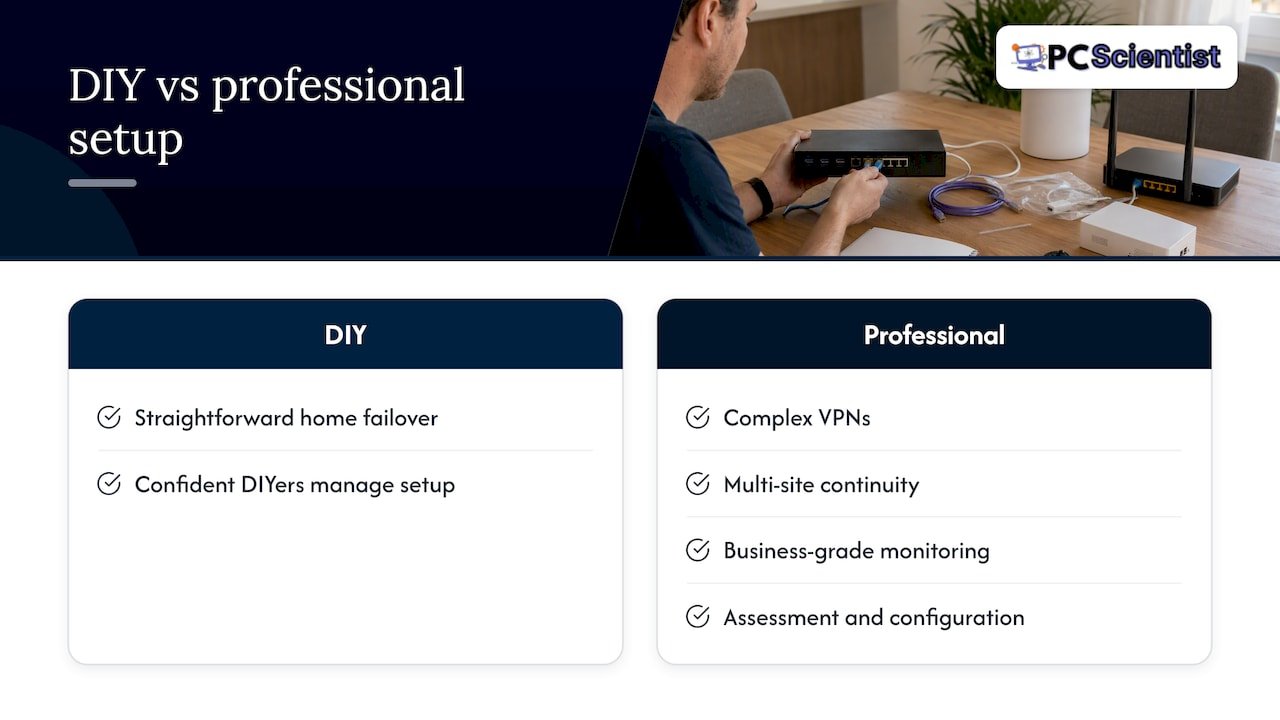
Confident DIYers manage a straightforward home failover setup, but complex VPNs, multi-site continuity and business-grade monitoring usually benefit from a proper network assessment and professional configuration. Keep a written copy of your settings and who to call once it is live.
Our take: the setup matters less than the testing
Most guides spend their energy on which router to buy and barely mention that the real failure point is untested configuration. A dual-WAN setup that has never seen a simulated outage is not a safety net, it is a hope, and we would rather see someone run a five-minute unplug test on a budget router than leave an expensive firewall on its factory defaults.
The conventional advice also oversells load balancing. For most households and small offices, the honest answer is that failover alone solves the problem that actually hurts, which is an outage during a client call or a school assignment deadline, not a slightly faster Tuesday afternoon download. Readers chasing combined bandwidth often end up with flaky session handling and blame the hardware, when the mode was simply the wrong choice from the start.
If there is one thing to prioritise, it is picking sensible, boring trigger values and then actually testing them, rather than hunting for the most feature-dense router on the shelf.
- PC Scientist
How we can help with setup, testing and handover
If you would rather have this done properly the first time, our Network Scientist service covers the whole job: onsite or remote configuration of your primary and secondary WAN, health check tuning, policy routing for VoIP or VPN traffic, full testing of the failover switch, and written documentation so you are never left guessing what was set up.

- Onsite visits across a range of New South Wales service areas, with remote configuration available where appropriate.
- Clear pricing information provided before any work begins, to avoid surprises on the invoice.
- Privacy and security treated as a priority at every step of the install.
Book a Network Scientist visit or reach out through Computer Support Scientist if you are not sure which service fits, and we will work out the right next step together.
Sources
- Set Up Multi-WAN Backup on Your TP-Link Router | Failover & Load Balance Guide
- Wireless Router Dual WAN introduction and setup - Failover and Load Balance | ASUS
- How To Set Up Your Dual-WAN Router - SmallNetBuilder
- How to configure dual WAN load balance and failover on pfSense
- ACMA investigation report - Optus outage (redacted)
Recommended
- Stop Buying the Wrong NBN Device in Australia: Most Homes Need a Router
- Modem Router Combo or Separate: NBN Rules for Australian Gamers
- 6 Step Router Setup for Parental Controls: Quick Wins for Busy Parents
Frequently Asked Questions
Straight answers about Dual WAN Failover in Australia: NBN Backup on Routers and pfSense - without jargon or pressure. Call 0493 563 381 for advice, or get help below.
Want the quickest answer? 0493 563 381 for free advice.
Failover keeps one internet connection active and switches to a backup only when the primary drops, which protects calls and sessions from interruption. Load balancing uses both connections simultaneously for new sessions to increase overall throughput, but it does not combine them into one faster connection and existing sessions on a failed link still drop.
You need two separate active internet connections and a router or firewall with genuine Multi-WAN support, such as a dual-WAN model from ASUS or TP-Link, or a pfSense or OPNsense box. A 4G or 5G USB modem is a common low-cost backup link if a second fixed connection is not available.
Flapping usually comes from overly sensitive health checks, so widen the interval and require several consecutive failed checks before triggering a switch, as recommended in SmallNetBuilder's setup guide. A short delay before failback also prevents the router from reverting the moment the primary link briefly reconnects.
Failover mode protects ongoing sessions better than load balancing because traffic stays on one link until it genuinely fails, but a call in progress at the exact moment of a switch can still drop. Policy routing that keeps VoIP traffic on a preferred, stable WAN reduces this risk further.
Many consumer routers, including several ASUS and TP-Link models, include a Dual WAN or Multi-WAN feature in their web interface that supports failover with no extra hardware beyond a second internet connection. If your current router lacks this feature, a network assessment can confirm whether an upgrade or a small firewall appliance suits your setup better.
Network help across NSW
Want help setting up dual WAN failover?
If the steps above did not get the network behaving, that is okay. Get help in your area and we will take it from here.
Start here
Get network help
Optional Need a Sydney city or region?
Choose a side of Sydney
These are Sydney cities and regions, such as the Northern Beaches or Inner West. First tap a side of Sydney. Then open the city or region that covers you.
C Sydney City / Inner 3 areas
N Northern Sydney 6 areas
NW North-West / Central Sydney 3 areas
W Western Sydney 1 area
SW South-West Sydney 3 areas
S Southern Sydney 2 areas
Optional Find your suburb
Type a suburb from our listed coverage. This opens the matching city or region page for this topic. Listed suburb pages are general technology services, not this specialist page.
If your suburb is not listed, use the city or region list above, or call 0493 563 381.
Disclaimer
The information in this article is provided for general educational and informational purposes only. While PC Scientist strives to keep all content accurate and up to date, technology issues can vary depending on your device, software, network configuration, and individual circumstances. Always back up important data before attempting repairs or system changes. If you are unsure or the issue cannot be resolved safely, contact PC Scientist today for professional onsite or remote IT support. PC Scientist is not liable for any loss of data, damage, or other issues resulting from the use of the information provided in this article.
