

Double NAT Fix: How to Find It and Sort It at Home
Double NAT happens when two devices in your home, usually the modem-router your internet provider supplied and a second router you added, both try to manage your network at once. The fix is almost always the same: make one of them stop being a router, either by putting the provider's box into bridge mode or by switching your second router to access point mode. If your provider's own network is the cause, the fix is a request to them, not a setting on your gear. Below you'll find how to confirm which situation you're in, the steps for each fix, and when you can safely ignore the warning.
Key takeaways
- Double NAT means two routers are each translating your addresses. It's common when a new Wi-Fi router is plugged into the box your provider gave you.
- Most people never notice it. It tends to show up as a strict or double NAT warning on an Xbox, dropping online games, failing VPNs, remote access that won't connect, or port forwarding that does nothing.
- To check, look at the WAN (internet) address on your second router. If it starts with 10., 192.168. or 172.16 to 172.31, there's another router in front of it.
- Fix it by using bridge mode on the first box, or access point mode on the second. If the address starts with 100.64 to 100.127, your provider's network is doing the translating, and you ask them about it.
- Change one thing at a time, and write down the old settings first so you can undo it.
Table of Contents
- What double NAT actually is, in plain words
- Does it matter? When you can leave it alone
- Step 1: Confirm you actually have double NAT
- Step 2: Choose the fix that suits your setup
- Step 3: Fix it with bridge mode
- Step 4: Fix it with access point mode
- Step 5: Xbox and console owners, check the result
- When your provider is the cause
- Working from home? Check remote access and VPNs
- A quick checklist before you call anyone
- Let us handle it
- Our view on double NAT
- Frequently asked questions
- Sources
What double NAT actually is, in plain words
NAT stands for Network Address Translation. It's the job your router does when it lets all your devices share one public internet address: it keeps track of which phone, laptop or console asked for what, and sends the replies to the right place.
Double NAT is when a router is connected to an ISP gateway or another router and each one performs NAT, which splits your home into two private networks. Think of it as two receptionists in a row, each with their own list, and neither knowing what the other is doing.
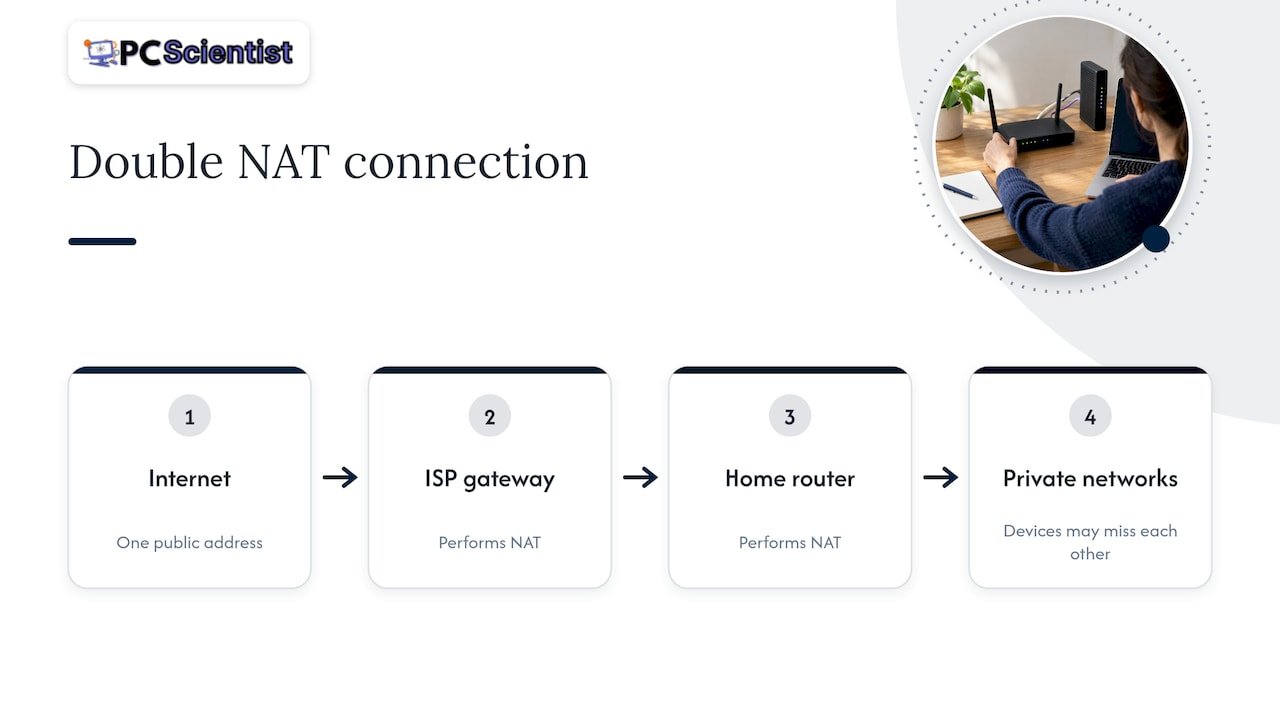
That's why devices on different sides can struggle to find each other. A computer on one network and a printer on the other may not see one another, because they sit on different private subnets.
How most Australian homes end up with it
The usual story: your Wi-Fi is patchy, so you buy a better router or a mesh system, plug it into the modem-router your provider supplied, and everything works. Well, almost. You now have two devices both acting as routers.
It also happens in these situations:
- A second router was added in a granny flat, home office or garage, and cabled back to the main one.
- A mesh kit was installed in router mode behind the provider's box.
- A business-grade router or firewall was fitted behind a modem-router combo.
- A rental or apartment building supplies its own router, and you've plugged yours into it.
If you want to understand why modem-router combos cause so much of this, our guide on whether to keep a modem-router combo or go separate explains how NBN connections differ from the old ADSL days. And if you're unsure which box your connection actually needs, this guide to buying the right NBN device will save you buying the wrong one.
Does it matter? When you can leave it alone
Honestly, often it doesn't. Google's own support page says that for most people, double NAT has no noticeable effect on network performance, though it can cause issues with online gaming, port forwarding and UPnP (the feature that lets games and apps open the ports they need automatically).
If all you do is browse, stream, video call and email, and nothing is misbehaving, you can leave it. Don't chase a warning light for its own sake.
It's worth fixing when you notice any of these:
- Your Xbox or PlayStation reports a strict, moderate or double NAT type, and you can't join friends' lobbies or voice chat drops out.
- A VPN fails to connect or remote desktop won't reach your work computer.
- Port forwarding for a camera, game server or home device does nothing, no matter how carefully you set it up.
- Online games lag or disconnect, or VoIP phone calls break up.
- A printer, NAS drive or smart device can't be found from another room, because it's on the other router's network.
Step 1: Confirm you actually have double NAT
Skip the guessing. It takes about five minutes.
- Log in to the router you set up yourself (the second one). Your manual or the sticker on the router gives the address, often 192.168.0.1 or 192.168.1.1.
- Find the status page. It might be called Internet, WAN or Status.
- Read the IP address shown for the internet (WAN) connection.
- Compare it to your real public address by searching "what is my IP" on any device connected to the network.
If the WAN address is different from your public address and sits in a private range, 10.x.x.x, 172.16.x.x to 172.31.x.x, or 192.168.x.x, you're behind another router. If it matches your public address, you don't have double NAT at your end.
A traceroute (a tool that lists each stop your data makes) can also show private addresses at the start of the path, but that on its own isn't conclusive, so trust the WAN address check instead.
The 100.64 exception
If your WAN address starts with 100.64 up to 100.127, that's a different problem. It points to carrier-grade NAT (CGNAT) inside your provider's network, not a second router in your home. Nothing you change on your own router will fix it. We cover what to do further down.
Step 2: Choose the fix that suits your setup
There are two sensible ways to get down to one router. Which one is easier depends on what your provider's box will let you do.
| Option | What it does | Best when | Watch out for |
|---|---|---|---|
| Bridge mode on the provider's modem-router | Turns off its routing and NAT so your own router handles everything | Your router is the one you want in charge (better Wi-Fi, mesh, parental controls) | Not every provider box has it; Wi-Fi from the old box may switch off |
| Access point mode on your second router | Turns your router into a Wi-Fi extender with no routing of its own | The provider's box can't do bridge mode, or you just want better Wi-Fi coverage | You lose the second router's advanced features, such as its own firewall or parental controls |
| Remove the provider's router entirely | Your router connects straight to the NBN connection box | Your connection type allows it | Some connections need specific settings or a compatible device |
Google's guidance is to remove the ISP-provided router or enable bridge mode on it so only one device does the routing. The most effective fix for double NAT in a home is putting the upstream box into bridge mode, which switches off its routing and NAT so the downstream router handles all traffic.
Step 3: Fix it with bridge mode
Use this when you want your own router, such as a mesh system, to be the boss.
- Write down the current settings. Take a photo of the provider box's settings pages, including any login details for your internet connection. Going back is easy when you have them.
- Log in to the provider's modem-router. The address and password are usually on its label.
- Find bridge mode. It might be called bridge, modem mode or IP passthrough, usually under WAN, Internet or Advanced settings.
- Turn it on and save. The box will restart.
- Connect your own router to the box. Use a cable from a LAN port on the provider's box to the WAN or Internet port on your router.
- Restart both devices, provider box first. Wait a few minutes for the lights to settle.
- Recheck the WAN address on your router. It should now be your public address, not a private one.
Where it goes wrong: some provider boxes hide bridge mode or don't offer it. Some connection types need login details (a username and password) entered on your router once the provider's box stops handling them. And if the provider's box also runs your home phone line, bridging it can switch off the phone port. If any of that sounds likely, stop and get help before you lose your internet or phone for the evening.
Step 4: Fix it with access point mode
This is the simplest route when bridge mode isn't available. Instead of turning off the first router, you turn off the routing on the second.
- Log in to your second router and find the operating mode setting, often under Advanced or Wireless.
- Choose access point (AP) mode, and save. The router will restart, and its address may change.
- Plug a cable from a LAN port on the provider's box into a LAN port on your second router. Not the WAN port.
- Reconnect to the Wi-Fi and test.
Your devices now take their addresses from one router, so that printer in the study and the laptop in the lounge are back on the same network. The trade-off is that the second router no longer runs its own firewall or controls, so anything like device schedules or filtering has to be set up on the first router. If you rely on those, for example router-based parental controls, bridge mode is the better path.
Mesh systems
Most mesh kits have a setting that decides whether the main unit acts as a router or an access point. If you've already got a router from your provider, you'll want the mesh in access point or bridge mode, or you'll want to bridge the provider's box. Pick one, not both.
Step 5: Xbox and console owners, check the result
After changing the setup, restart your console and run its network test again. Game consoles can report moderate, strict or double NAT, so the message on screen is your quickest check that the change worked.
If it still shows double NAT, the usual suspects are:
- A third device in the chain, such as a powerline adapter or old router still acting as a router.
- Bridge mode was saved but the router wasn't restarted.
- The console is still connected to the old Wi-Fi network from the provider's box.
- UPnP is switched off on the router that's now in charge. Turn it on, since consoles use it to open the ports they need.
If you're working from home or streaming Xbox games to another screen, it's worth knowing that double NAT and CGNAT can complicate Xbox Remote Play, but neither automatically rules it out. Test before you assume a change is needed.
When your provider is the cause
If your router's WAN address begins with 100.64 to 100.127, your provider is sharing public addresses between customers. That's why settings on your side change nothing.
Some providers allow you to opt out. For example, Aussie Broadband typically enables CGNAT by default on broadband services, and customers can ask to opt out at no extra cost. Other providers have their own rules, so contact yours and ask for a public IP address. Say plainly that you need port forwarding or better online gaming, and ask what it involves.
Working from home? Check remote access and VPNs
Double NAT can quietly break the tools remote workers rely on. A VPN that connects at a café but not at home, a work desktop you can't reach, or a home security camera app that won't load are all classic signs. After you've done the fix above, test each one in turn. If you're weighing which VPN suits your work, these VPN options for remote workers are a good place to compare. For what a typical home worker needs and what they can skip, see our VPN guide for remote work.
If your internet is business-critical, it's also worth thinking about a backup connection so one failure doesn't stop work. Our guide to dual WAN failover and NBN backup covers how that fits with a single, clean routing setup.
A quick checklist before you call anyone
- Do you have two devices with Wi-Fi and a router label in the same home?
- Is the WAN address on your second router private (10., 172.16 to 172.31, 192.168)?
- Does the WAN address start with 100.64 to 100.127? If so, it's your provider's network.
- Does your provider box offer bridge mode, and did you note the original settings?
- After the change, do the Xbox, VPN and printer all work?
- Has the Wi-Fi name and password stayed the same so your devices reconnect on their own?
Let us handle it
If you'd rather not log in to two routers and hope for the best, that's what our Network Scientist service is for. We provide Wi-Fi and network installation across NSW, onsite or remotely where that suits, and our approach is upfront pricing and practical, step-by-step guidance, so you don't need to know the technical terms. You don't have to work out whether it's bridge mode, access point mode or your provider's doing before you get in touch: describe what's happening, such as the Xbox warning or the VPN that won't connect, and we'll work out the rest.

Because we support multiple devices in a single visit, we can also check the printer, smart TV and consoles while we're there, so you're not left with one thing fixed and another still dropping out. You can reach us through the PC Scientist site.
Our view on double NAT
Most double NAT problems begin with a good intention: someone wanted better Wi-Fi, bought a better router and plugged it in. Nothing was done wrong. The network just wasn't told who's in charge.
We think the right answer is one device in charge of the network, set up properly the first time, with the provider's box doing only what it needs to. That keeps gaming, VPNs, cameras and printers behaving, and it keeps the whole home easy to manage later.
We build our work around the idea that you shouldn't need to know the jargon to get this right. Tell us what's not working, and we'll look after the rest, with the price clear before we start.
PC Scientist
Sources
- What is double NAT and why is it bad? (NETGEAR Support)
- Fix double NAT when two routers run at the same time (Google Nest Help)
- Double NAT Explained: How to Detect and Fix It
- How to Port Forward (Aussie Broadband Help Centre)
- NAT and CGNAT in Xbox Remote Play: check your network
Recommended
- Ethernet Port Not Working? How to Find the Fault and Fix It
- Stop Buying the Wrong NBN Device in Australia: Most Homes Need a Router
- Modem Router Combo or Separate: NBN Rules for Australian Gamers
- Fix slow home internet in Australia: 5 minute wired test first
Frequently Asked Questions
Straight answers about Double NAT Fix: How to Find It and Sort It at Home - without jargon or pressure. Call 0493 563 381 for advice, or get help below.
Want the quickest answer? 0493 563 381 for free advice.
It can be. Google notes it can cause issues with online gaming, port forwarding and UPnP, though many people won't notice it. On an Xbox it usually shows up as a strict or double NAT type, trouble joining lobbies or voice chat dropping out. Moving to a single router normally clears it.
Not usually. Browsing and streaming are generally unaffected by double NAT, so the benefit is that things needing inbound connections, such as games, VPNs and remote access, start working reliably. If your speeds are poor, the cause is more likely Wi-Fi coverage or the connection itself.
Check the WAN address on your router. If it's private, there's another device upstream, such as a modem-router combo or a mesh unit still in router mode. If it starts with 100.64 to 100.127, your provider's network is applying CGNAT, and you'll need to ask them about it.
No. If browsing, streaming, calls and games all work and nothing needs remote access or port forwarding, you can leave it. Fix it when you see the symptoms, or when you're adding gear and want a clean setup from the start.
Wi-Fi help across NSW
Still stuck with double NAT?
If the steps above did not get Wi-Fi behaving, that is okay. Get help in your area and we will take it from here.
Start here
Get Wi-Fi help
Optional Need a Sydney city or region?
Choose a side of Sydney
These are Sydney cities and regions, such as the Northern Beaches or Inner West. First tap a side of Sydney. Then open the city or region that covers you.
C Sydney City / Inner 3 areas
N Northern Sydney 5 areas
NW North-West / Central Sydney 3 areas
W Western Sydney 1 area
SW South-West Sydney 3 areas
S Southern Sydney 2 areas
Optional Find your suburb
Type a suburb from our listed coverage. This opens the matching city or region page for this topic. Listed suburb pages are general technology services, not this specialist page.
If your suburb is not listed, use the city or region list above, or call 0493 563 381.
Disclaimer
The information in this article is provided for general educational and informational purposes only. While PC Scientist strives to keep all content accurate and up to date, technology issues can vary depending on your device, software, network configuration, and individual circumstances. Always back up important data before attempting repairs or system changes. If you are unsure or the issue cannot be resolved safely, contact PC Scientist today for professional onsite or remote IT support. PC Scientist is not liable for any loss of data, damage, or other issues resulting from the use of the information provided in this article.