

Bridge Mode Setup: Put Your NBN Modem-Router in Bridge Mode
Bridge mode turns your provider's modem-router into a plain modem, so a separate router or mesh system takes over Wi-Fi, addresses and traffic. You log in to the modem-router, switch the connection type to bridge, plug your own router into the modem's LAN port, then restart both devices in order. It takes about 20 minutes when the settings are right. The steps below show where it goes wrong, so you don't end up with no internet on a Sunday night.
If you would rather have it done properly the first time, our Network Scientist service covers Wi-Fi and network setup for NSW homes and businesses, onsite or remotely.
Key takeaways
- Bridge mode switches off the routing and Wi-Fi on your modem-router so your own router is the only one running the network. This avoids "double NAT".
- It suits FTTN and FTTB connections, where the modem-router is the only box you have. Most FTTP homes already have a separate NBN connection box and don't need it.
- Check three things first: whether the modem-router is locked to a provider, whether it supports VDSL2, and whether you rely on its phone port.
- The usual NBN settings are VDSL2, dynamic IP (DHCP or IPoE) and no VLAN ID. Your provider's page has the exact values.
- If the internet drops afterwards, plug a computer straight into the NBN wall connection to find out which side the fault is on.
Table of Contents
- What bridge mode actually does
- Why people use bridge mode
- Bridge mode, access point mode and repeater mode
- Check these before you change anything
- Bridge mode setup, step by step
- If the internet stops working after bridging
- When you should not use bridge mode
- Let us take this off your hands
- Our view on bridge mode
- FAQ
- Sources
What bridge mode actually does
A typical modem-router does several jobs in one box: it talks to the NBN line, hands out addresses to your devices (DHCP), manages traffic between your home and the internet (NAT), and broadcasts Wi-Fi. Bridge mode stops most of that. eero's support page describes bridge mode as turning off network services such as DHCP and NAT, while one device stays wired into the network to do the real work.
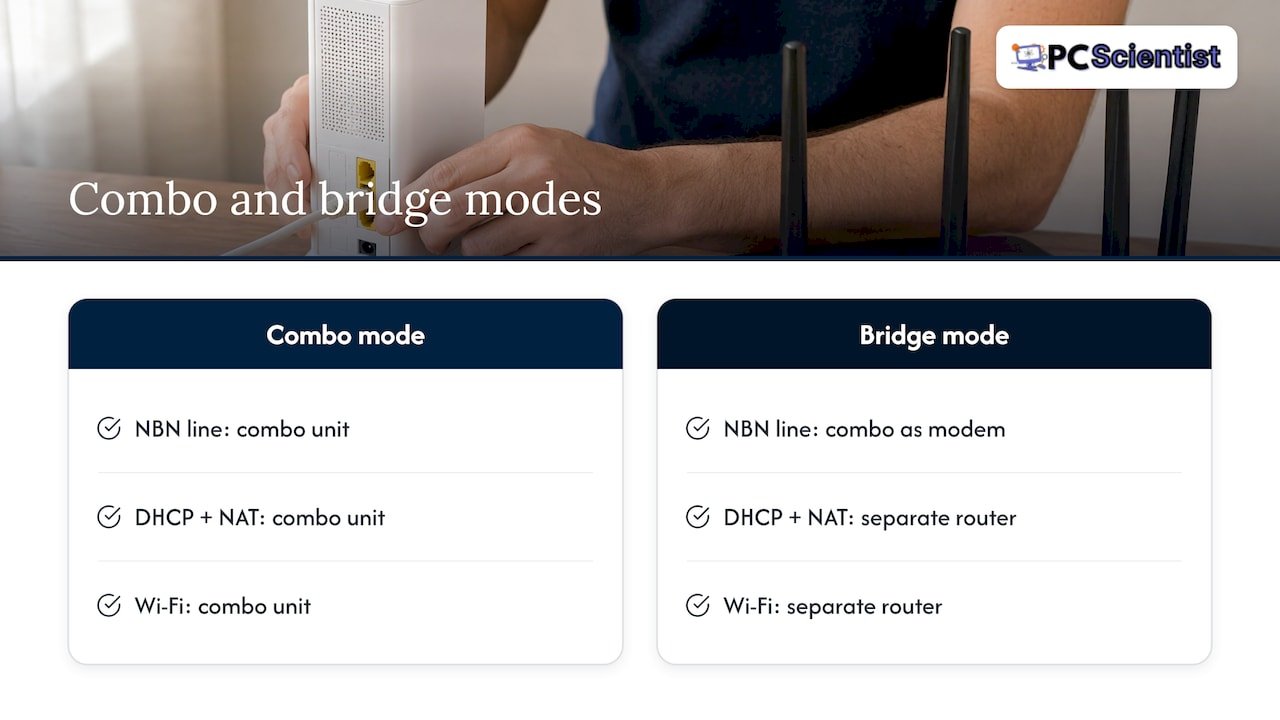
In practice, How-To Geek explains that you pair your own router with the provider's combo unit, which is then used only as a modem. The modem-router's own Wi-Fi and extra features stop being useful. You will usually be left with one or two working Ethernet ports, and you will not be able to use its wireless features.
That is the trade. You lose the convenience of one box, and you gain a network run by a device you chose, with settings you control.
Why people use bridge mode
The most common reason is double NAT. When two devices both act as routers, your traffic gets translated twice. Google's Nest help page says that enabling bridge mode on a modem-router combo turns off its NAT, so your Wi-Fi device becomes the only one doing it. Double NAT can cause trouble with things like VPNs, port forwarding and some gaming or camera setups, as TP-Link notes.
Other good reasons:
- You have a better router or a mesh system and want it in charge. Our guide on mesh Wi-Fi versus access points covers how to choose.
- You want parental controls, guest networks or network rules set in one place.
- You are fixing dead zones and need a single, consistent network name and address range across the house.
In Australia the need is concentrated in FTTN and FTTB homes. Reviews.org points out that these connections have no NBN connection box, so a modem-router is the straightforward way online, and bridge mode is how you free up a separate router or mesh system. If you are not sure which technology you have or which device you need, our guide to buying the right NBN device is a good first read, and the modem-router combo versus separate guide explains the trade-offs in more detail.
Bridge mode, access point mode and repeater mode
These get mixed up constantly, and picking the wrong one is a classic reason a setup fails.
| Mode | What it does | Where it goes |
|---|---|---|
| Bridge mode (modem) | The ISP modem-router stops routing and passes the connection to your own router | On the modem-router connected to the NBN line |
| Access point mode | A router stops routing and simply adds Wi-Fi from a wired connection | On a second router or Wi-Fi unit, cabled back to your main router |
| Repeater mode | Re-broadcasts an existing Wi-Fi signal wirelessly, which cuts available bandwidth | Halfway between the router and the dead zone |
The distinction between access point and repeater modes comes down to cable: an access point needs Ethernet back to the network, a repeater does not and pays for it in speed. Bridge mode on your NBN modem-router is a different job again. It is about who runs the network, not about coverage. If your actual problem is a weak signal upstairs, our mesh versus extender test is a better starting point.
Check these before you change anything
A few minutes of checking saves the worst outcome: a modem-router you can no longer log in to and no internet.
- Is the device locked? Aussie Broadband's BYO guide says to try logging in to the settings. If you cannot log in, or cannot change the internet connection settings, the device may be locked to another provider.
- Was it used with another provider? The same guide advises a factory reset if the device came from another provider, holding the reset pinhole for 10 to 15 seconds.
- Does it support VDSL2? For FTTN and FTTB, Capti's nbn BYO guide states you need a VDSL2-compatible router, and older VDSL1 or ADSL routers won't work.
- Do you use a phone service through it? If your home phone plugs into the modem-router, bridging may affect it. Confirm with your provider first.
- Do you have your provider login details? Some connections need them, and you want them written down before you start.
- Is your new router ready? Have it unboxed, updated if you can, and with its own Wi-Fi name and password decided.
Also know that bridge mode takes away features. As eero explains, when its devices are bridged, DHCP and NAT are off and some advanced app features are not available. Whichever brand you use, expect to manage the network from your main router, not the modem.
Bridge mode setup, step by step
Menus differ between brands, so treat this as the order of operations and the places it goes wrong. Your modem-router's manual or your provider's page gives the exact wording.
1. Note your current settings
Log in to the modem-router (often at 192.168.1.1 or 192.168.0.1, printed on the label) and screenshot the internet settings page. If anything goes wrong, you can restore it. Where it goes wrong: people skip this, then factory reset the device and cannot remember the provider details.
2. Connect a computer by cable
Use Ethernet, not Wi-Fi. Wi-Fi will drop the moment the mode changes, and you will not be able to see what happened. The Aussie guide from URL Networks for the TP-Link Archer VR300 has the same starting point: phone line in the DSL port, computer in LAN1, then log in.
3. Switch the connection type to bridge
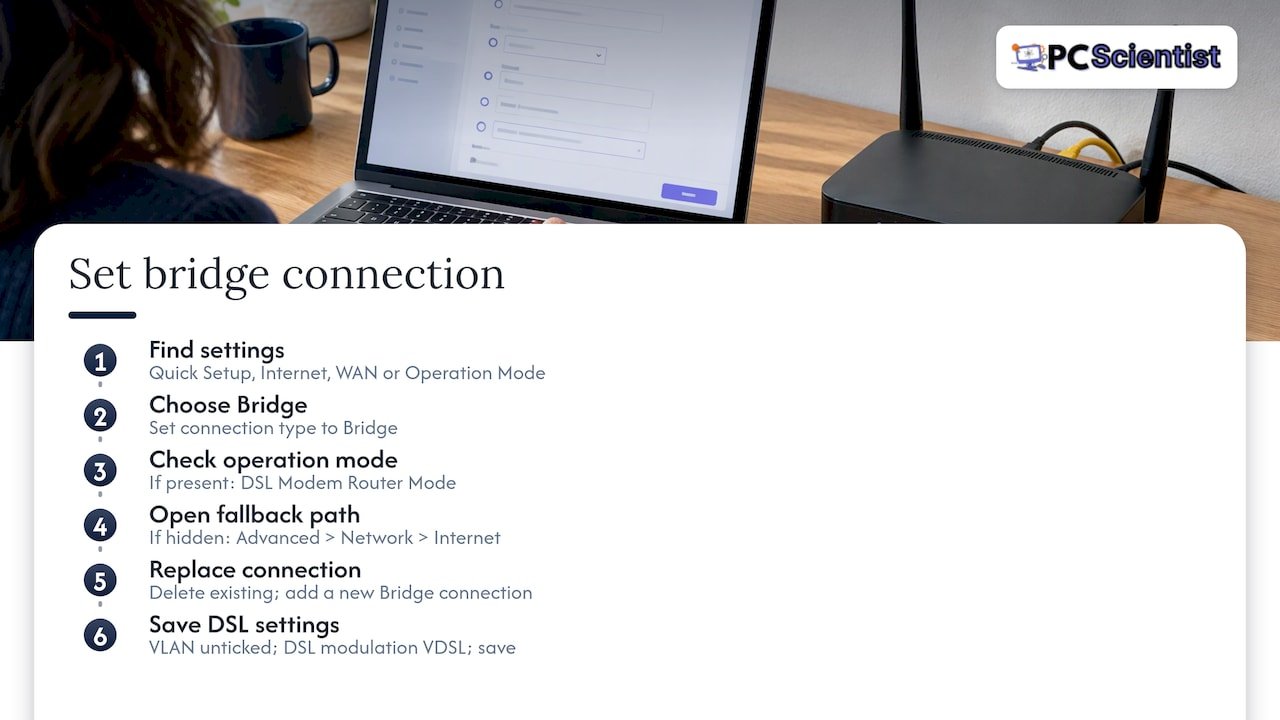
Look for Quick Setup, Internet, WAN or Operation Mode. Choose the Bridge connection type. If your device has an Operation Mode page, Aussie Broadband says to make sure it is set to DSL Modem Router Mode, which it notes is common on TP-Link devices.
Some devices hide bridge mode in the quick setup. In the same URL Networks guide, if Bridge is not listed, you go to Advanced, Network, Internet, delete the existing connection and add a new one, set the connection type to Bridge, leave the VLAN ID unticked, set the DSL modulation to VDSL, then save.
4. Match the NBN settings
For FTTN and FTTB, Aussie Broadband lists VDSL or VDSL2+, dynamic IP (IPoE or DHCP), VLAN ID disabled and automatic IP address. Capti's list matches it and adds enabling SRA if your device offers it. Where it goes wrong: leaving a VLAN ID ticked from an old setup is a very common reason for a connection that syncs but never gets online.
5. Save, then power off the modem-router
Let it restart or switch it off. While it is down, unplug the computer. Your own router should not be connected yet.
6. Cable the new router to the modem
Plug an Ethernet cable from a LAN port on the bridged modem-router into the WAN (Internet) port of your own router. Rogers' instructions show the same idea on a Canadian modem: a numbered modem port goes to the router's Internet port, and the devices are power-cycled in order. Use the modem port your guide names, because on some devices only one or two ports pass the bridged connection.
7. Power up in order
Modem first. Wait for the line and internet lights to settle, around two to five minutes on a VDSL connection. Then switch on your router and wait for it to finish starting.
8. Set up the new router and test
Log in to your router, set the Wi-Fi name and password, and check it shows an internet connection. Test on a phone and a laptop. If you want a clear run-through of the Wi-Fi side, the home Wi-Fi setup guide takes you through it in under 30 minutes.
Where it goes wrong at this stage: the router's own default address clashing with the modem's. If both are 192.168.1.1 and you can't reach either, change your router's address to something like 192.168.50.1.
If the internet stops working after bridging
Work from the wall inwards.
- Test the NBN connection directly. Skymesh's FTTN BYO guide suggests plugging the Ethernet cable from the NBN UNI-D port straight into a computer and trying to browse after about a minute. That tells you if the line is active. It applies to connections with a UNI-D port. On FTTN, the line comes through the modem itself, so use the modem's sync light.
- Look at the modem lights. If the DSL light is flashing, the line is not syncing. That points to VDSL settings or the line, not your router.
- Check the cable. It must go from a modem LAN port into the router's WAN port, not a LAN port.
- Check the VLAN setting. On FTTN and FTTB it should be off.
- Power cycle in order. Modem, wait, then router.
- Undo it. If you cannot sort it out, a factory reset of the modem-router returns it to normal operation, and you can try again with your screenshots. Your provider's support can confirm what your service needs.
If your connection has become unreliable and you want a second pair of eyes, our computer support team can look at it onsite or remotely.
When you should not use bridge mode
Three situations are worth knowing about.
- FTTP homes with a separate NBN box. There is already a modem-style box on the wall, so you plug your router straight in. Nothing to bridge. If you are on FTTN and your provider offers a free move to FTTP, our FTTN to FTTP upgrade cost guide explains the eligibility.
- Phone service through the modem-router. Bridging can disrupt it.
- You only need better Wi-Fi coverage. Access point mode or a mesh system, without touching the modem-router, may be all you need.
If you are planning a backup connection later, such as a 4G or 5G failover, your own router becomes even more important. Our dual WAN failover guide shows how it fits together.
Let us take this off your hands
Bridge mode is not hard, but it is easy to get a single setting wrong and lose the internet for the evening. At PC Scientist we offer onsite and remote IT support across NSW, including Wi-Fi and network installation through Network Scientist. We offer clear upfront pricing and no fix, no fee repairs, and we can sort multiple devices in a single visit. You don't need to know the technical terms or decide the exact service before you contact us. Tell us what is happening, and we work out the rest.

If you want it done in one visit, contact us through our website and we will arrange a time that suits you.
Our view on bridge mode
Most of the bridge mode problems people bring us are not about the router. They are about a setting that was left from an old setup, or a cable in the wrong port, or a mode that was meant for a different job. That is why we like to treat the home network as one system, not a pile of boxes.
Our approach is practical. Work out what connection you have, decide who should run the network, and set it up so the household doesn't need to think about it afterwards. For many homes that means a good router or mesh system in charge and the provider's modem-router doing one job only.
We also think you should never have to learn the jargon to get this right. If you are a family with a few laptops and a smart TV, or a small business with a till and a printer, you want the internet to work. That is what our network work is designed to deliver, with clear pricing and honest advice.
PC Scientist
Sources
- eero: What is bridge mode?
- How-To Geek: What Is Bridge Mode on a Router
- Google Nest Help: Fix double NAT
- TP-Link: What Is Bridge Mode on a Router
- Reviews.org: Best NBN modems, routers and mesh WiFi
- LINK-PP: AP mode, bridge mode and repeater mode
- Aussie Broadband: BYO Router Settings nbn Guide
- Capti: BYO Router Settings for nbn services
- URL Networks: Configure TP-Link Archer VR300 in Bridge Mode for FTTN NBN
- Rogers: Set up bridge mode and a third-party Wi-Fi router
- Skymesh: BYO Modem Router Set up (FTTN)
Recommended
- Modem Router Combo or Separate: NBN Rules for Australian Gamers
- Stop Buying the Wrong NBN Device in Australia: Most Homes Need a Router
- Dual WAN Failover in Australia: NBN Backup on Routers and pfSense
- Fix slow home internet in Australia: 5 minute wired test first
Frequently Asked Questions
Straight answers about Bridge Mode Setup: Put Your NBN Modem-Router in Bridge Mode - without jargon or pressure. Call 0493 563 381 for advice, or get help below.
Want the quickest answer? 0493 563 381 for free advice.
In a normal setup the modem-router does everything: connects to the NBN, assigns addresses and runs Wi-Fi. In bridge mode it only passes the connection through, and your own router takes over those jobs. This avoids double NAT.
It is mostly for FTTN and FTTB, where a modem-router is the only device. With FTTP you usually have a separate NBN box and plug your router into it. Check your connection type with your provider before changing settings.
Usually not. Bridge mode switches off the wireless features and typically leaves only one or two Ethernet ports in use, so your own router or mesh system provides Wi-Fi. Switch off or ignore the old network name to avoid confusion.
The usual causes are a VLAN ID left switched on, the cable in the wrong router port, or the devices powered on in the wrong order. Restart the modem first, wait for it to sync, then the router. If it still fails, you can undo bridge mode with a factory reset.
Yes. We offer Wi-Fi and network setup onsite or remotely across NSW, and you can start through our Network Scientist page.
Wi-Fi help across NSW
Still stuck setting up bridge mode?
If the steps above did not get Wi-Fi behaving, that is okay. Get help in your area and we will take it from here.
Start here
Get Wi-Fi help
Optional Need a Sydney city or region?
Choose a side of Sydney
These are Sydney cities and regions, such as the Northern Beaches or Inner West. First tap a side of Sydney. Then open the city or region that covers you.
C Sydney City / Inner 3 areas
N Northern Sydney 5 areas
NW North-West / Central Sydney 3 areas
W Western Sydney 1 area
SW South-West Sydney 3 areas
S Southern Sydney 2 areas
Optional Find your suburb
Type a suburb from our listed coverage. This opens the matching city or region page for this topic. Listed suburb pages are general technology services, not this specialist page.
If your suburb is not listed, use the city or region list above, or call 0493 563 381.
Disclaimer
The information in this article is provided for general educational and informational purposes only. While PC Scientist strives to keep all content accurate and up to date, technology issues can vary depending on your device, software, network configuration, and individual circumstances. Always back up important data before attempting repairs or system changes. If you are unsure or the issue cannot be resolved safely, contact PC Scientist today for professional onsite or remote IT support. PC Scientist is not liable for any loss of data, damage, or other issues resulting from the use of the information provided in this article.