

VPN for Remote Work: What You Need and What You Don't
If you work from home in Australia, you probably need a VPN only in specific situations: when your employer requires one to reach company systems, or when you have to work on a network you don't trust, like café or hotel Wi-Fi. A VPN protects the connection. It doesn't protect the laptop, your inbox or your passwords. Most of the confusion (and most of the money wasted on subscriptions) comes from mixing those two things up.
This guide is for home workers, sole traders and small teams in NSW. It explains what a VPN does, which kind you actually need, and what to check before you trust one.
TL;DR
- A VPN protects your connection on untrusted networks. Australian Government guidance says it is not a substitute for malware protection, phishing awareness or software updates.
- If your employer gives you a VPN, use that one. A consumer VPN is a separate tool for a separate job.
- For a small business, the safe setup is a VPN with individual accounts, multifactor authentication and only the access each person needs.
- A VPN won't fix a weak home router. Secure the Wi-Fi first.
- Not sure what you need? Describe the problem to us. You don't have to know the technical terms first.
Table of Contents
- What a VPN actually does for remote work
- Do you need a VPN at home?
- What a VPN doesn't protect you from
- Fix the home network first
- Setting up a VPN for a small business
- Choosing a consumer VPN, if you do need one
- Can my employer see what I do on a VPN?
- Beyond the VPN: the household habits that matter
- A practical remote-work security checklist
- Our perspective: a VPN is one tool, not a strategy
- Getting help with remote work IT in NSW
- FAQ
- Sources
What a VPN actually does for remote work
A virtual private network wraps the traffic between your device and another point in an encrypted tunnel. That point might be your office, or it might be a provider's server. Which one matters a great deal, because there are two quite different jobs here.
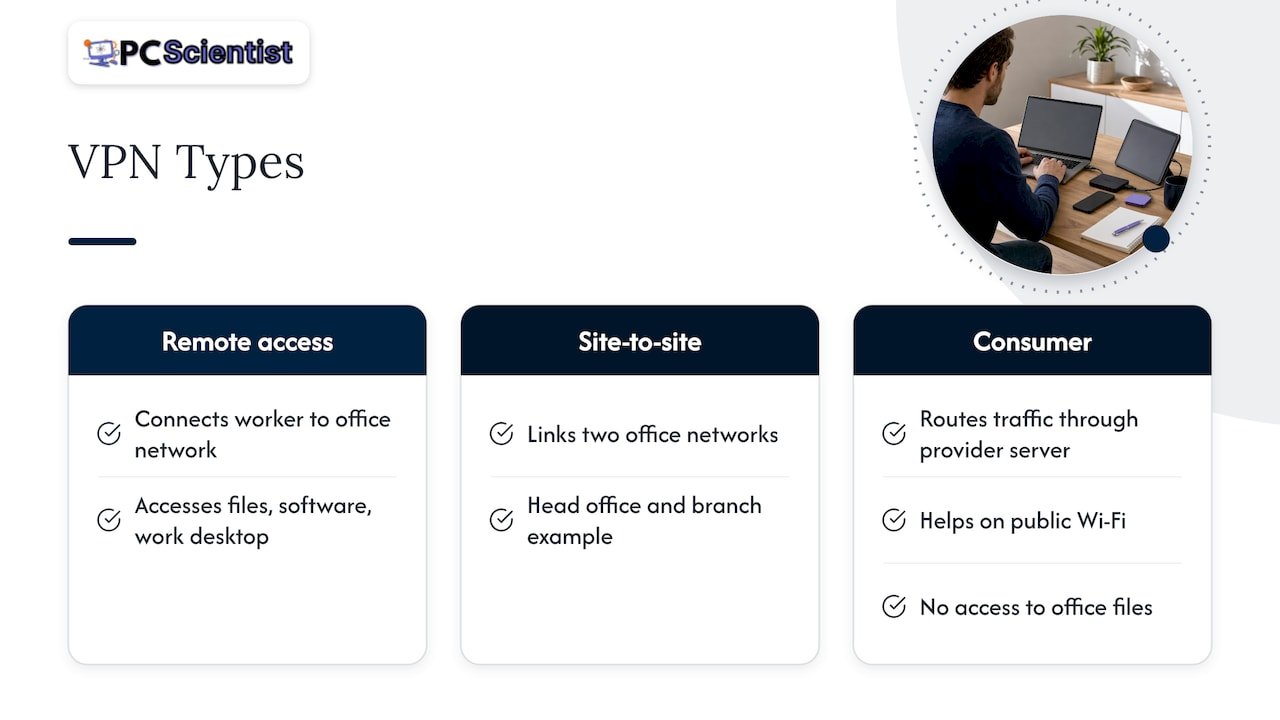
Remote-access VPN to your workplace. This connects you, off-site, into the office network so you can reach file servers, internal software or a work desktop. The Australian Cyber Security Centre (ACSC) separates this from a site-to-site VPN, which links two networks together, for example a head office and a branch.
Consumer VPN service. This is the subscription you see advertised everywhere. It sends your traffic through the provider's servers. It can help on public Wi-Fi, because other people on that network can't easily see what you're doing. It does nothing to give you access to your office files.
The top search results for this topic are mostly written by consumer VPN sellers, and they tend to treat a subscription as the answer to everything. It isn't. The ACSC's practical message is that a VPN protects a connection in a limited situation, not the whole device.
Do you need a VPN at home?
Usually less than you've been told. Here is how it breaks down.
| Your situation | Do you need a VPN? | What to do |
|---|---|---|
| Employer or IT provider requires one | Yes | Use theirs, every time you access company systems |
| Working from a café, airport, hotel or library | Often helpful | Use a hotspot from your phone where possible, or a reputable VPN if you must use public Wi-Fi |
| Working on your own secured home Wi-Fi, with cloud tools only | Usually not essential | Secure the router, update devices, use multifactor authentication |
| You run a small business with a server or file share in the office | Yes, a business VPN | Set it up properly with individual accounts and MFA (see below) |
| You want to stream overseas content or change location | Not a security matter | Check your employer's policy before using it on a work device |
The Cyber.gov.au guidance recommends trusted home Wi-Fi or a personal hotspot over public Wi-Fi where possible, and says to check your workplace requirements and choose a reputable provider because not all VPNs offer the same security.
What a VPN doesn't protect you from
This is the part we most want you to remember. A VPN will not stop:
- Phishing emails. If you click a fake invoice link while connected, the tunnel carries you straight to the scam page.
- Malware. An infected download is still infected inside an encrypted tunnel.
- Unpatched software. Out-of-date operating systems and apps stay vulnerable.
- Weak or reused passwords. The VPN doesn't know your password is "Summer2024".
Australian Government guidance says it plainly: a VPN does not replace malware protection, phishing awareness or software updates. If you have been paying for a VPN and nothing else, you have a locked door and an open window.
If you've already had a scare, such as a suspicious login, a strange pop-up or an email you wish you hadn't clicked, that's a different job from choosing a VPN, and we can help with it through Cybersecurity Scientist.
Fix the home network first
A VPN sits on top of your home network. If the router is weak, the VPN is built on a soft foundation. The Cyber.gov.au advice on securing a home router is straightforward, and most of it takes under an hour:
- Change the router's default admin login.
- Use the strongest Wi-Fi encryption your router supports.
- Install router firmware updates.
- Turn off remote management and UPnP where appropriate.
- Put visitors and smart-home gadgets on a guest network, away from your work laptop.
That last one matters more than people expect. A smart TV, a doorbell and a work laptop on the same network are all one weak device away from each other. If your Wi-Fi drops out during video calls, or you have dead zones in the study or the back room, the fix is usually a better network layout rather than another subscription. Our Network Scientist service looks at exactly that, onsite.
The government's remote working guidance notes that home networks, public Wi-Fi and personal devices often lack office-level controls like encryption, antivirus and regular updates. It lists patched devices, strong passwords, multifactor authentication, encryption and a tested method of remote access as the relevant controls. A VPN is only one item on that list.
Setting up a VPN for a small business
This is where a VPN becomes genuinely important. If your team connects to a file server, practice management software or a work desktop in the office, a properly configured remote-access VPN is a sensible, well-established way to do it. Badly configured, it can be the front door for an attacker. The ACSC warns that VPN connections can be abused by malicious actors to get into a network without using malware.
The ACSC's thinking is that a connection coming through a VPN should not be trusted automatically, even after login. In practice, that means:
- Separate accounts for each person. No shared "office" login that three people and an ex-employee know.
- Least privilege. The bookkeeper reaches the accounts folder, not the whole server.
- Multifactor authentication. A password alone shouldn't be enough to get in.
- Device checks where practical. Authenticate the laptop as well as the person.
- Logging. Keep a record of who connected and when, so you can tell if something is wrong.
- Inspection of traffic. Check what comes through the VPN before it reaches internal systems.
The OAIC also advises that VPNs, firewalls, operating systems and antivirus receive current security patches and that multifactor authentication is used for remote access and cloud services. An unpatched VPN appliance is one of the easiest things for an attacker to find, so put the updates in the calendar.
If you handle client data, such as accountants, lawyers, medical and allied health practices, or real estate offices, this matters even more. Our page on tech for professional offices covers how we approach secure networks and Microsoft 365 for those teams, and our business cybersecurity help is for businesses tightening things up after a scam or scare.
Split tunnelling: a setting worth deciding on purpose
Split tunnelling lets a laptop send work traffic through the VPN while everything else goes straight to the internet. It's convenient and can feel faster, but it has a security cost. As of March 2026, the Australian Government's ISM guidance says that devices connected by VPN should reach the internet through the organisation's gateway, and that split tunnelling should be disabled while accessing the organisation's network. The reason given is that it can create an indirect path from the internet into the business network.
The trade-off is real. Sending everything through the office allows more filtering and inspection, while direct access can help speed, particularly if your office internet connection is slow. So decide it based on your business's security needs and your connection, and don't leave it as whatever the default happened to be. If your office connection is the bottleneck, a network assessment is a better first step than turning the safety feature off.
Choosing a consumer VPN, if you do need one
Sometimes you really are working from a hotel in Melbourne or a café in Newcastle with no hotspot option. A consumer VPN can be reasonable there. Keep your expectations modest and check these things:
- Does your employer allow it? Some workplaces forbid third-party VPNs on work devices, and some block them. Ask first.
- Is the provider reputable? Cyber.gov.au is clear that not every VPN offers the same level of security. Be wary of free VPNs with no visible business model.
- Does it have a clear privacy policy? You are handing your browsing traffic to the provider instead of the café, so you need to trust them more than the café.
- Is it easy to leave on? A VPN you forget to switch on does nothing. Look for an option that connects automatically on unknown networks.
- Does it behave on video calls? Test it with a real call before your important meeting, not during it.
We don't recommend a particular brand here because the right pick depends on your workplace rules and devices. If you want a second opinion before you pay for anything, we're happy to give one.
Can my employer see what I do on a VPN?
This comes up often. The honest answer depends on whose VPN it is and whose laptop it is. If you connect to your employer's VPN, they run that network and can generally log connections and traffic passing through it. Good practice recommended by the ACSC includes logging VPN activity. If it's a work-issued laptop, your employer may also have monitoring software on the device itself. A consumer VPN doesn't hide a work laptop from software your employer installed.
The simple rule: treat a work device as a work device. Keep personal banking, shopping and social media on your own devices where you can.
Beyond the VPN: the household habits that matter
Some of the biggest remote-work risks have nothing to do with networks. The OAIC's remote-working guidance points out that confidential information can leak through unlocked screens, overheard calls, shared devices or personal email, even when the VPN is set up correctly. It suggests considering screen privacy, keeping household members off work devices, and avoiding personal email for work information that contains personal data.
A few habits that cost nothing:
- Lock your screen whenever you stand up, even at home.
- Don't let the kids use the work laptop for homework or games.
- Take sensitive calls where others can't hear.
- Store work devices securely when you're not using them.
- Keep work files in the approved system, not in a personal email draft folder.
It's also worth seeing how software businesses describe their own approach to protecting project information and privacy, because the questions they answer (who can see what, where it's stored, how it's traced) are the same ones a small business should ask about its own files. For businesses that hold customer records, data security and data sovereignty is another useful lens: know where your data lives and who has access to it.
A practical remote-work security checklist
Work through this in order. It covers the things that actually reduce risk, and the VPN is only one line.
- Update everything. Laptop operating system, apps, router, and the VPN software itself.
- Turn on multifactor authentication for email, Microsoft 365, cloud storage and the VPN.
- Use a password manager so every account has a different, strong password.
- Secure the router using the steps above, and separate guests and smart devices.
- Back up your work. A VPN won't help if a laptop dies or ransomware locks it. Test that you can restore a file.
- Know your workplace rules on VPNs, personal devices and where work data can be stored.
- Use a VPN or hotspot on public Wi-Fi. Prefer your phone's hotspot where you can.
- Have a plan for when something looks wrong. Know who to call before you need to.
If you run a small team, our guide to three ACSC steps for small businesses is a good next read.
Our perspective: a VPN is one tool, not a strategy
We spend our days in NSW homes and small offices, and the same pattern keeps showing up. People buy a VPN because it feels like a decisive step. Meanwhile the laptop hasn't been updated in months, the router still has its original password, and the whole family uses the same email login.
So our advice is to start with the boring things. Get the devices patched, turn on multifactor authentication, secure the Wi-Fi and have a working backup. Then add a VPN where there's a clear reason: a company system to reach, or a network you can't trust.
We also think you shouldn't have to know the right technical term to ask for help. "My laptop is slow when I connect to work" or "I can't reach the office files from home" is enough for us to start. We can look at the laptop, the router and the connection in one visit, and explain what we find in plain words. And if you don't need a VPN, we'll say so.
- PC Scientist
Getting help with remote work IT in NSW
If you'd rather not work all this out alone, we can help with the practical side: checking your home network, setting up secure access to your work systems, securing email and Microsoft 365, and tidying up devices so they are ready for working from home. Our Computer Support Scientist service covers everyday home and business support, onsite across NSW, with remote help where it suits. For a team, our Business IT Support on the Central Coast page shows how we work with small teams without full-time IT staff. You can also start from our main site.
Sources
- Cyber.gov.au: home page and VPN guidance
- Cyber.gov.au: Remote working and secure mobility
- ACSC: Using Virtual Private Networks (October 2021)
- ISM: Guidelines for enterprise mobility
- OAIC: Assessing privacy risks in changed working environments
Recommended
- Guest Wi-Fi network setup: secure and simple
- Home Wi-Fi setup: get online in under 30 minutes
- Business Network & Wi-Fi Assessment NSW
Frequently Asked Questions
Straight answers about VPN for Remote Work: What You Need and What You Don't - without jargon or pressure. Call 0493 563 381 for advice, or get help below.
Want the quickest answer? 0493 563 381 for free advice.
Not always. If you're on secured home Wi-Fi and using cloud tools with strong passwords and multifactor authentication, a VPN isn't essential. You do need one if your employer requires it for company systems, and it's worth using on public or untrusted Wi-Fi.
No. Australian Government guidance is clear that a VPN doesn't replace malware protection, phishing awareness or software updates. It protects the connection only. Keep your devices updated and be careful with links and attachments.
If you use your employer's VPN or a work-issued laptop, assume they can see work activity and may log connections. A personal VPN doesn't hide a work device from monitoring software installed on it. Check your workplace policy if you're unsure.
We'd be cautious. Cyber.gov.au says not all VPNs offer the same security, and you're trusting the provider with your traffic. For anything involving client or business data, use your employer's VPN or a reputable paid provider, and check that your workplace allows it.
Cybersecurity across NSW
Still stuck choosing a VPN for remote work?
If the device still does not feel safe, that is okay. Get help in your area and we will take it from here.
Start here
Get cybersecurity help
Optional Need a Sydney city or region?
Choose a side of Sydney
These are Sydney cities and regions, such as the Northern Beaches or Inner West. First tap a side of Sydney. Then open the city or region that covers you.
C Sydney City / Inner 3 areas
N Northern Sydney 4 areas
NW North-West / Central Sydney 3 areas
W Western Sydney 1 area
SW South-West Sydney 3 areas
S Southern Sydney 2 areas
Optional Find your suburb
Type a suburb from our listed coverage. This opens the matching city or region page for this topic. Listed suburb pages are general technology services, not this specialist page.
If your suburb is not listed, use the city or region list above, or call 0493 563 381.
Disclaimer
The information in this article is provided for general educational and informational purposes only. While PC Scientist strives to keep all content accurate and up to date, technology issues can vary depending on your device, software, network configuration, and individual circumstances. Always back up important data before attempting repairs or system changes. If you are unsure or the issue cannot be resolved safely, contact PC Scientist today for professional onsite or remote IT support. PC Scientist is not liable for any loss of data, damage, or other issues resulting from the use of the information provided in this article.
