Authenticator Apps and Backups: Two Factor Authentication in Australia
Turn on two factor authentication now. Use an authenticator app or security key rather than SMS wherever an account offers it, and save your backup codes the moment you finish setup. This one change blocks most account takeover attempts, and the process takes less than ten minutes per account once you know the steps.
Key takeaways
- Using an authenticator app or security key offers stronger protection than SMS and should be prioritized for your primary email, banking, and government accounts.
- Set up transfer or export options before changing devices, test backup codes, and store them securely to prevent lockouts during device failure or loss.
- For accounts that lack support for passkeys or security keys, an authenticator app provides a practical and secure default over SMS or email codes.
- Always save backup codes immediately after setup and verify their functionality to ensure effective recovery options.
- Seek professional support for complex setups such as transferring multiple authenticator accounts or registering physical security keys.
Table of Contents
- What you need before you start
- Step-by-step: set up an authenticator app (recommended approach)
- Setting up SMS codes and knowing their limits
- If you lose your phone or replace it: transfer and recovery checklist
- Which method to choose: security trade-offs and recommended priorities
- PC Scientist: when to get professional help and what we do
- What actually matters when you set this up
- Book PC Scientist for hands-on setup or recovery
- Official guides and resources to follow next
- Sources
- FAQ
What you need before you start
A smooth two factor authentication setup depends on a few things being ready before you touch a single settings menu. Getting these sorted first means you won't be halfway through and stuck.
- Your account password and access to the email linked to that account
- A smartphone with a camera, since most authenticator apps register accounts by scanning a QR code
- A safe place to store backup codes, whether that's a printed sheet in a drawer or a password manager
- A decision on your primary second factor (an app, ideally) and at least one backup method
If it's a work account, check with your IT team first. Business Microsoft 365 or Google Workspace accounts are often managed centrally, and an admin may need to enable or approve mfa setup office 365 policies before you can register your own device.
Pro Tip: Do this setup on wi-fi at home, not on public wi-fi, and keep your phone nearby for the whole process, since most accounts want a code within a minute or two of generating it.
Step-by-step: set up an authenticator app (recommended approach)
An authenticator app is the method ACSC guidance points to as significantly more secure than SMS, and it works even when your phone has no signal. Here's the process for enabling mfa on most accounts, whether that's email, banking or Microsoft 365:
- Install a reputable authenticator app on your phone, such as Microsoft Authenticator or Authy.
- Open the account's security settings and look for "two-step verification" or "two factor authentication."
- Choose "authenticator app" as your method when prompted.
- Scan the QR code on screen with your app, or type in the secret key manually if scanning isn't an option.
- Enter the six-digit code your app generates to confirm the link and finish setup.
- Save the backup codes offered at this stage and add a second recovery method straight away.
A phishing-resistant alternative is emerging fast. Passkeys can replace passwords and one-time codes entirely on accounts that support them, and the ACSC recommends using passkeys or security keys where available.
This same flow applies whether you're doing a microsoft authenticator setup for a personal Outlook account or working through mfa setup office 365 for a work login. Microsoft's own guide walks through adding accounts to the app, and Google's 2-Step Verification page covers the same steps for a Gmail or Google Workspace login. Once you've done it for one account, the two factor login process for every other account follows the same pattern.
Setting up SMS codes and knowing their limits
SMS is better than nothing, but it's the weakest common option. Here's how to enable it and where it still makes sense.
- Go to security settings, choose "phone number" or "text message" as your method, and confirm the mobile number you enter with the code sent to it.
- Know the risk: SIM swap attacks and message interception mean SMS codes can be redirected to someone else's device.
- Use SMS mainly as a fallback for accounts that don't support an app or a key, or pair it with a stronger primary method rather than relying on it alone.
- Add a backup email address or secondary phone number so you're never locked out with only one recovery path.
If an account gives you the choice, an authenticator app should be your default and SMS your safety net, not the other way around.
If you lose your phone or replace it: transfer and recovery checklist
Losing a phone doesn't have to mean losing access to your accounts, but only if you plan ahead. ACSC guidance recommends transferring authenticator data before wiping an old device, rather than discovering the problem after the fact.
- Before switching phones, open your authenticator app and use its transfer or export feature to move accounts to the new device.
- If transfer isn't possible, log in using your saved backup codes, a registered backup phone, or a second security key if you've set one up.
- If you're still locked out, contact the account's support team with your registered email, phone number and any previous backup codes on hand, since these details speed up verification.
- Before disposing of the old phone, remove all authenticator accounts, sign out of everything, and factory reset the device.
Pro Tip: Test one backup code before you actually need it. Log out, use the code to log back in, then generate a fresh set, so you know the recovery path works when it matters.
Which method to choose: security trade-offs and recommended priorities
Not every account needs the same level of protection, but knowing the hierarchy helps you decide where to put the effort first.
- Security keys and passkeys sit at the top: ACSC guidance describes them as phishing-resistant, meaning even a convincing fake login page can't capture your credentials.
- Authenticator apps come next, generating codes locally on your device without relying on mobile networks.
- SMS and email codes sit at the bottom, useful as a fallback but the easiest for an attacker to intercept or redirect.
Prioritise your primary email account first, since it's usually the recovery path for everything else, followed by online banking and any government services you use. ACSC specifically calls out these three categories for the strongest available methods. Check each account's security settings to see if it supports passkeys or a physical key, and add one where it does. For everything else, an authenticator app is a sound, practical default.
PC Scientist: when to get professional help and what we do
Some of this is fiddly, especially transferring dozens of authenticator entries to a new phone or setting up a physical security key for the first time. Professional IT support services often include device setup and cybersecurity as part of their offerings.
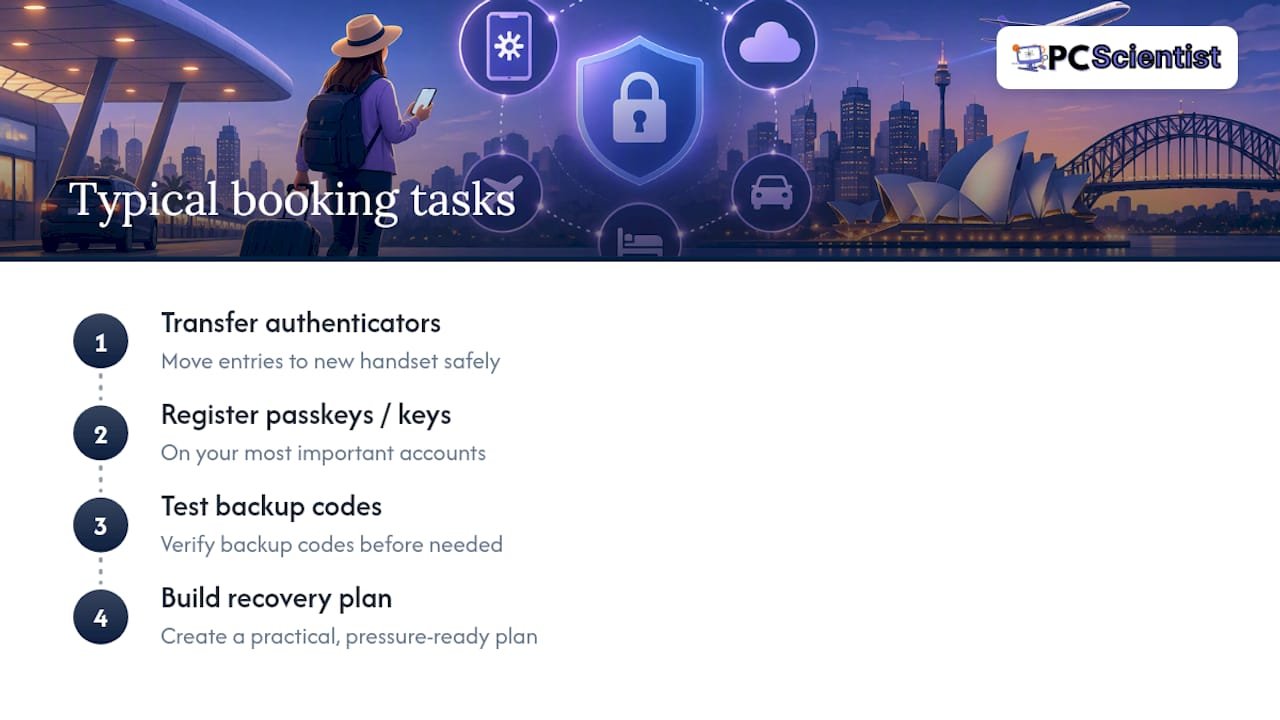
A typical booking might involve safely transferring your authenticator app to a new handset, registering passkeys or security keys on your most important accounts, testing your backup codes before you need them, and building a recovery plan you can actually follow under pressure. Visits typically include clear upfront pricing and careful handling of privacy, so you know what you are paying and what is being touched on your devices.
What actually matters when you set this up
Most advice on two factor authentication focuses on getting it turned on, and stops there. That's the easy part. The part that actually prevents a bad day is the recovery plan: backup codes saved somewhere sensible, a second method registered, and a transfer process you understand before your phone is lost or broken, not after.
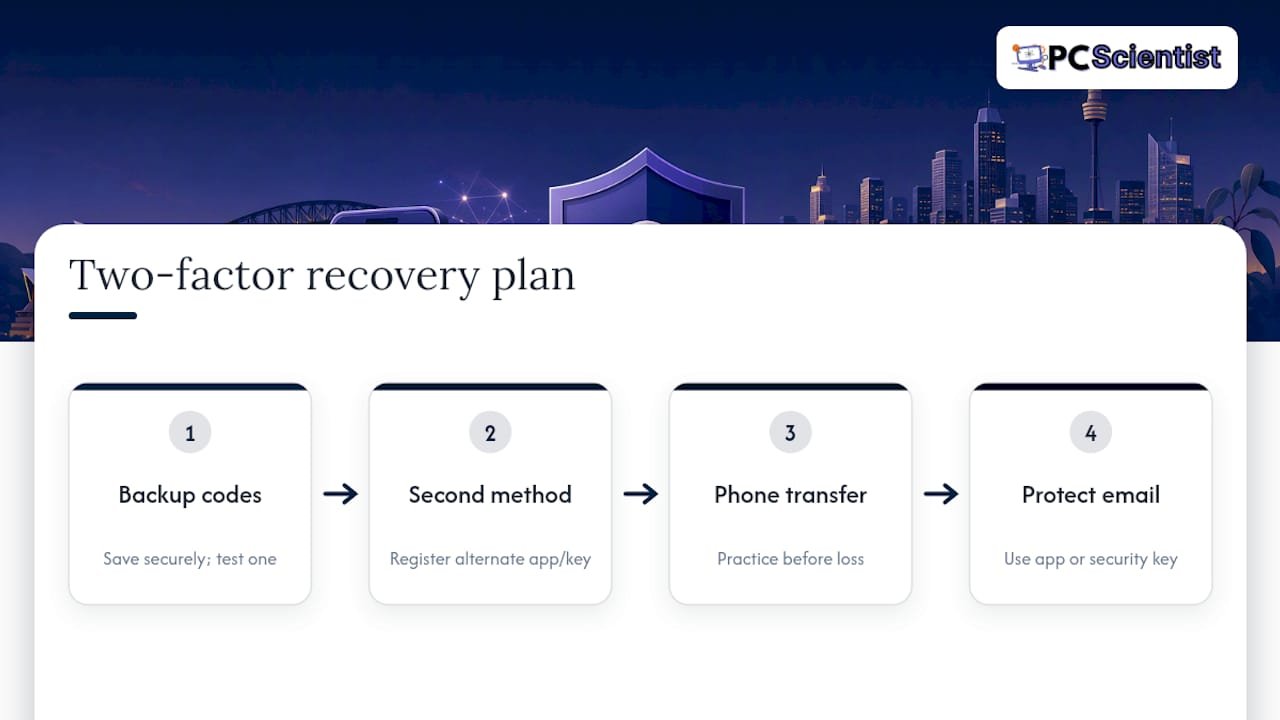
The conventional wisdom oversells SMS as "good enough" and undersells how often people skip the backup codes step entirely because the setup already feels finished. It isn't finished until you've saved those codes and tested at least one of them.
If you take one thing from this guide, prioritise your email account above everything else. It's the master key to almost every other account you own, and it deserves an authenticator app or a security key, not a text message.
- PC Scientist
Book PC Scientist for hands-on setup or recovery
If you'd rather have someone else handle the fiddly parts, that's exactly what we're here for. A visit from PC Scientist, onsite or remote, means you don't have to worry about getting a step wrong or locking yourself out halfway through.

- Device Setup Scientist: full setup of your phone, authenticator app and security keys, done properly the first time.
- Cybersecurity Scientist: account security reviews and MFA rollout for households and small businesses alike.
- Email Systems Scientist: securing your primary email account, the one that recovers everything else.
Book a visit through Device Setup Scientist or check out Cybersecurity Scientist to get your accounts properly protected before something goes wrong, not after.
Official guides and resources to follow next
For vendor-specific steps or formal advice beyond this guide, these pages are worth bookmarking.
- ACSC's multi-factor authentication guide for general MFA principles and setup advice
- ACSC's passkeys guide for phishing-resistant login options
- Microsoft's Authenticator setup guide for adding Microsoft accounts
- Google's 2-Step Verification page for Google account setup and backup codes
Sources
- Cyber
- Cyber
- Turn on 2-Step Verification - Computer - Google Account Help
- How to add your accounts to Microsoft Authenticator
Recommended
Frequently Asked Questions
Straight answers about Authenticator Apps and Backups: Two Factor Authentication in Australia - without jargon or pressure. Call 0493 563 381 for advice, or get help below.
Want the quickest answer? 0493 563 381 for free advice.
Open the account's security settings, choose "two-step verification" or "two factor authentication," and select an authenticator app as your method. Scan the QR code with the app, enter the six-digit code it generates to confirm, then save your backup codes immediately.
Open your authenticator app and find the account listed there. It displays a six-digit code that regularly refreshes, and you type that code into the login screen when prompted.
Look in the "security" or "sign-in and security" section of your account settings, usually reachable from your profile menu. Most services label the option "two-step verification," "two factor authentication" or "MFA" in that same menu.
Yes. ACSC guidance recommends it as one of the most effective ways to stop someone logging into your accounts even if they have your password, particularly for email, banking and government services.
Cybersecurity across NSW
Still stuck setting up two-factor authentication?
If the device still does not feel safe, that is okay. Get help in your area and we will take it from here.
Start here
Get cybersecurity help
Optional Need a Sydney city or region?
Choose a side of Sydney
These are Sydney cities and regions, such as the Northern Beaches or Inner West. First tap a side of Sydney. Then open the city or region that covers you.
C Sydney City / Inner 3 areas
N Northern Sydney 6 areas
NW North-West / Central Sydney 3 areas
W Western Sydney 1 area
SW South-West Sydney 3 areas
S Southern Sydney 2 areas
Optional Find your suburb
Type a suburb from our listed coverage. This opens the matching city or region page for this topic. Listed suburb pages are general technology services, not this specialist page.
If your suburb is not listed, use the city or region list above, or call 0493 563 381.
Disclaimer
The information in this article is provided for general educational and informational purposes only. While PC Scientist strives to keep all content accurate and up to date, technology issues can vary depending on your device, software, network configuration, and individual circumstances. Always back up important data before attempting repairs or system changes. If you are unsure or the issue cannot be resolved safely, contact PC Scientist today for professional onsite or remote IT support. PC Scientist is not liable for any loss of data, damage, or other issues resulting from the use of the information provided in this article.