

Safe DNS for Kids: Start at the Router, Close Bypass Gaps
Yes, setting a family-safe DNS at your router gives your home Wi-Fi an immediate, network-wide layer of blocking for adult, malicious and many inappropriate sites. The first step is simple: change your router's DNS settings to a family filter, or turn on a child profile with your provider. It's a genuinely useful first layer, but supervision and device-level controls still matter just as much.
Key takeaways
- Set both router DNS fields to a family filter, reboot, secure the admin password, and test a blocked site from a guest device.
- Mobile data, VPN apps, browser encrypted DNS, and Apple Private Relay can bypass router filtering, so test coverage beyond your home network.
- Use Screen Time or Family Link to limit changes to network settings, restrict app installs, and pair device supervision with router filtering.
- Review passwords and supervision settings monthly, add Safe Search on Google and YouTube, and keep household conversations about online content ongoing.
Table of Contents
- What a family-safe DNS filter is and how it works
- How to set a family-safe DNS on your home network and common devices
- Common ways DNS filters are bypassed and durable countermeasures
- How DNS filtering fits into a broader family safety plan
- How we help families set durable DNS protections
- Balanced closing thoughts for busy parents
- FAQ
- Sources
What a family-safe DNS filter is and how it works
Every time a device visits a website, it asks a DNS server to translate a name like "example.com" into the address computers actually used to find it. A family-safe or protective DNS resolver sits in that process and checks each request against lists of known categories before it lets the connection through.
When a site falls into a blocked category, adult content, gambling, known malware domains, the resolver refuses to resolve it. Instead of loading the page, the device gets what's called an NXDOMAIN response, essentially a "this address doesn't exist" message, or it gets redirected to a safe landing page. Some providers call this sinkholing: the dangerous or restricted domain gets rerouted somewhere harmless rather than left to load.
Family DNS services typically group blocking into a handful of categories:
- Adult and explicit content, including pornography and some dating sites.
- Malware, phishing and known scam domains.
- Gambling and betting platforms.
- Violence, self-harm content and other high-risk categories, depending on the provider.
DNSSEC is worth knowing about too. It's a layer of cryptographic signing that confirms a DNS answer actually came from the legitimate source and wasn't tampered with in transit. ASD guidance on DNS security explains DNSSEC in terms of protecting the integrity of DNS answers, which matters for trust in the system but doesn't itself control content categories.
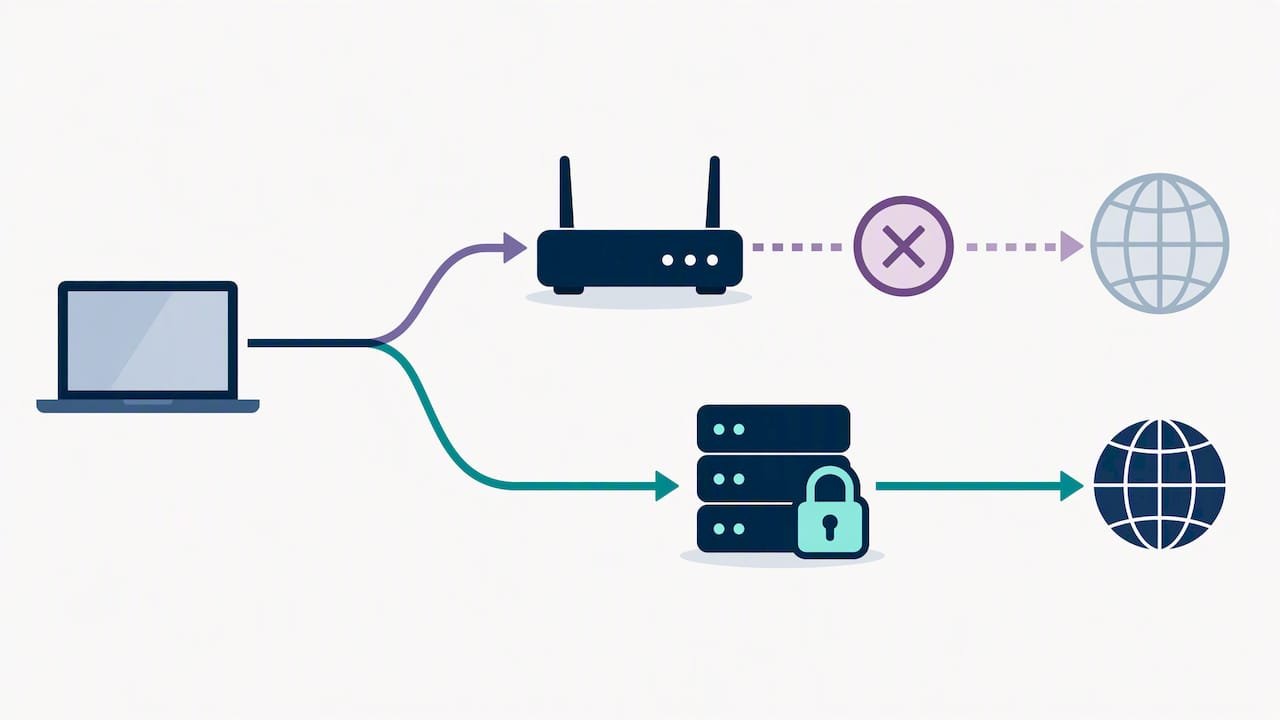
Here's the complication: encrypted DNS protocols, DNS over HTTPS (DoH) and DNS over TLS (DoT), wrap DNS requests so they can't be easily inspected or redirected by anything sitting on the network, including your router's filter. The same ASD guidance notes that encrypted DNS and unauthorised external resolvers can interfere with network-level filtering, which is exactly why a browser quietly switching to its own encrypted DNS provider can slip straight past a filter you've set at the router.
How to set a family-safe DNS on your home network and common devices
Router-level filtering is the most efficient starting point because it protects every device on the network at once, smart TVs, game consoles, guest phones, without touching each one individually.
- Log into your router's admin panel, usually by typing its IP address (often 192.168.0.1 or 192.168.1.1) into a browser.
- Find the DNS settings, usually under "Internet", "WAN" or "Network Settings".
- Replace the primary and secondary DNS fields with a family-safe provider's addresses.
- Save the changes and reboot the router so every connected device picks up the new settings.
- Lock the router's admin account with a strong, unique password so nobody can quietly switch the DNS back.
A few free family DNS addresses are commonly used as examples of this kind of service, including CleanBrowsing's family filter and OpenDNS FamilyShield. These are mentioned as practical examples of how the category works, not as a ranked endorsement.
Device-level settings are a useful backup when a device leaves your home network or when you want finer control. On iPhones and iPads, Screen Time lets you restrict content and you can also set DNS manually under Wi-Fi settings. On Android, Family Link offers content restrictions alongside the option to set DNS manually in network settings. Windows and Mac both let you change DNS under network adapter settings, useful for a shared family computer that needs the filter even if someone adjusts the router later.
Once it's set, test it. Open a browser on a connected device and try to load a site you know should be blocked; a refusal to load or a redirect to a safe page confirms it's working.
Pro Tip: Test from a device you don't normally use, like a guest phone on the Wi-Fi, so you're checking what the network actually enforces rather than what a device's own settings are already doing.
A short rollout checklist helps keep this from becoming a one-off job: change the router DNS, lock the admin password, turn on device-level supervision where it's available, test on a guest device, and put a reminder in your calendar to review it every few months. For a full walkthrough with screenshots, our router setup guide for parental controls covers each step in more detail.
Common ways DNS filters are bypassed and durable countermeasures
No filter is airtight, and it helps to know where the gaps usually show up before a determined teenager finds them first.
- Mobile data bypasses any router-level filter entirely, since the phone isn't using your home network's DNS at all.
- VPN apps reroute all traffic through a different network, skipping your DNS filter completely.
- Browsers with DoH enabled by default, like recent versions of Chrome and Firefox, can quietly switch to their own encrypted DNS provider.
- Apple Private Relay, when turned on, encrypts and reroutes browsing traffic in a way that can bypass network-level DNS filtering.
- A tech-savvy child who has the router admin password can simply change the DNS settings back.
None of these make DNS filtering pointless, they just mean it works best as one layer among several. Practical countermeasures include turning on device supervision through Screen Time or Family Link so DNS and VPN settings can't be changed without a parent's approval, restricting which apps can be installed, and disabling DoH in browsers where you control the device or network. For a locked-down setup where DNS can't be switched off at the device level, a managed network configuration closes most of these gaps, and it's the kind of setup our Network Scientist service is built around.
Pro Tip: Check your filter's real-world coverage by testing a blocked site over mobile data and through a VPN app, that's usually where the gaps actually are, not at the router.
How DNS filtering fits into a broader family safety plan
eSafety's guidance on parental controls is clear that tools like DNS filtering work best as part of a broader strategy, not as a replacement for supervision and ongoing conversations about what your kids are seeing online.
A simple family rules template helps turn a one-off setup into an ongoing habit, pairing it with kid-friendly safe science experiments to balance screen time activities:
- Agree on which rooms and times are screen-free, and stick to it as a household, not just for the kids.
- Set a monthly or school-term reminder to check that filters, passwords and device supervision settings are still active.
- Pair DNS filtering with safe-search settings on Google and YouTube and in-device parental controls for an extra layer where DNS alone can't reach.
eSafety's industry codes guidance also notes that platforms themselves are expected to take reasonable steps to reduce children's accidental exposure to adult content, which works alongside, not instead of, what you control at home.
How we help families set durable DNS protections
We support homes right across our service areas with practical, no-jargon technology setups, and family DNS filtering is one of the quicker jobs we handle well. Through our Cybersecurity Scientist and Network What we can help with, we configure router-level DNS filtering, lock down admin access so settings can't be quietly reversed, and set up device supervision across phones, tablets and laptops in the one visit.
A typical visit covers router configuration, a locked admin account, supervision settings on the kids' devices, and a quick test to confirm the filter actually blocks what it should. Where a household wants extra peace of mind, additional site checks and follow-ups can help make sure everything's still working as the kids get older and more tech-savvy. If you'd like a quote or want to book a visit, our Computer Support Scientist team can talk you through what's involved before anyone sets foot in your home.
Balanced closing thoughts for busy parents
Start with the router. Changing your DNS settings to a family filter takes a few minutes and protects every device on your home Wi-Fi straight away, smart TVs and guest phones included. From there, layer in device supervision and keep talking with your kids about what they're seeing online, because no filter replaces that conversation.
If you'd rather have someone else lock it all down properly, including the settings most parents never think to check, we're happy to help. Our router setup guide is a good place to start if you want to try it yourself first.
- PC Scientist
Sources
Recommended
Frequently Asked Questions
Straight answers about Safe DNS for Kids: Start at the Router, Close Bypass Gaps - without jargon or pressure. Call 0493 563 381 for advice, or get help below.
Want the quickest answer? 0493 563 381 for free advice.
A secure DNS server is one that supports DNSSEC validation and, for families, also filters known malicious and inappropriate domains. Providers built specifically for families or protective use, rather than general-purpose resolvers, typically combine both of these features.
In the eero app, open the network settings, go to "DNS" under advanced settings, and switch from automatic to manual to enter your chosen family DNS addresses. Save the change and the whole eero network will apply the new filtering to every connected device.
Quad9 is a DNS resolver that blocks known malicious domains for security purposes. It isn't primarily designed as a family content filter, so parents wanting to block adult content specifically usually choose a dedicated family DNS service instead.
Cloudflare provides a general-purpose DNS resolver known for speed and privacy rather than family content filtering. It also offers a separate family-focused version with content blocking, which is the more relevant option if blocking inappropriate sites is the goal.
No single tool stops everything. Router-level DNS filtering blocks a lot of adult and malicious content across every device on your home network, but mobile data, VPN apps and encrypted browser DNS can bypass it, which is why eSafety recommends pairing it with supervision and conversation.
Cybersecurity across NSW
Want help setting safe DNS for kids?
If the device still does not feel safe, that is okay. Get help in your area and we will take it from here.
Start here
Get cybersecurity help
Optional Need a Sydney city or region?
Choose a side of Sydney
These are Sydney cities and regions, such as the Northern Beaches or Inner West. First tap a side of Sydney. Then open the city or region that covers you.
C Sydney City / Inner 3 areas
N Northern Sydney 6 areas
NW North-West / Central Sydney 3 areas
W Western Sydney 1 area
SW South-West Sydney 3 areas
S Southern Sydney 2 areas
Optional Find your suburb
Type a suburb from our listed coverage. This opens the matching city or region page for this topic. Listed suburb pages are general technology services, not this specialist page.
If your suburb is not listed, use the city or region list above, or call 0493 563 381.
Disclaimer
The information in this article is provided for general educational and informational purposes only. While PC Scientist strives to keep all content accurate and up to date, technology issues can vary depending on your device, software, network configuration, and individual circumstances. Always back up important data before attempting repairs or system changes. If you are unsure or the issue cannot be resolved safely, contact PC Scientist today for professional onsite or remote IT support. PC Scientist is not liable for any loss of data, damage, or other issues resulting from the use of the information provided in this article.
