5 Steps to Improve Internet Safety for Older Australians
Do five things first: turn on automatic updates, switch on multi-factor authentication, build a long passphrase for every important account, refuse remote access to any unexpected caller, and report anything suspicious to Scamwatch straight away. This advice follows guidance from the Australian Cyber Security Centre and the National Anti-Scam Centre, and it works because it closes the exact doors scammers rely on. None of it requires technical skill. All of it takes less than an hour to set up.
Key takeaways
- Turning on automatic updates and enabling multi-factor authentication are critical for closing security vulnerabilities on all devices and accounts.
- Using long passphrases and regularly backing up important files help prevent loss from scams or malware attacks.
- Recognizing red flags like unexpected remote access requests and verifying identities through independent contact are vital to avoiding remote access scams.
- Acting immediately by disconnecting from scammers, changing passwords, and reporting incidents limits damage after a breach.
- Consulting local professionals for complex issues ensures thorough device recovery and cybersecurity measures beyond basic knowledge.
Table of Contents
- Five steps that make the biggest difference to internet safety for seniors
- Scams that target older Australians, and the red flags to watch for
- What to do if you've been targeted or lost money
- Where to find free, trusted training and support
- When it's time to call a local technician
- Safe browsing: spotting a dangerous link before you click it
- Locking down your privacy on social media and apps
- Using Wi-Fi safely at home and when you're out
- Keeping antivirus and anti-malware software working for you
- Understanding identity theft and other privacy threats
- Shopping and banking online with confidence
- Author perspective: a short reassuring note for seniors and carers
- Optional paid help: when you'd rather have someone do it for you
- Sources
- FAQ
Five steps that make the biggest difference to internet safety for seniors
Most scams succeed because of one weak link, not a dozen. Fix these five and you remove almost every common entry point a scammer uses.
- Turn on automatic updates. On an iPhone or iPad, go to Settings, then General, then Software Update, and switch on Automatic Updates. On Android, open the Play Store, tap your profile icon, then Settings, then "Network preferences" to enable auto-update. Windows computers update through Settings > Windows Update, and Macs through System Settings > General > Software Update. These updates patch the security holes criminals exploit, so leaving them off is like leaving a window unlatched.
- Enable multi-factor authentication (MFA) on email and banking. MFA means you need your password AND a second proof, usually a code sent to your phone or generated by an app. The ACSC recommends MFA for every financial and email account, because even if a scammer steals your password, they still can't get in. If text message codes are fiddly, ask your bank about an authenticator app or a physical security key instead.
- Use passphrases, not passwords. A passphrase strings together four unrelated words, something like "lantern coffee bicycle harbour", giving you 15 or more characters that are hard to crack but easy to remember. The ACSC's own seniors guide backs this exact approach. If keeping track of several passphrases feels like too much, a password manager stores them securely so you only need to remember one master phrase.
- Back up your photos and documents. Copy your important files to an external hard drive monthly, or set up automatic backup through a cloud service like Google Photos or iCloud. If a scammer or a virus ever locks you out of your computer, a recent backup means you lose nothing irreplaceable.
- Apply the Stop, Check, Reject rule. Scamwatch's Stop, Check, Reject approach means you pause before acting, verify the caller's identity through a number you look up yourself, and refuse any request for remote access or one-time codes. No legitimate bank, telco, or government department will ever ask you to install remote-access software or read out a code that just landed in a text message.
Pro Tip: Write your passphrases and backup schedule on a card kept near the computer, not saved in a file called "passwords". A scammer who gets remote access can search your files in seconds.
Scams that target older Australians, and the red flags to watch for
Older Australians are hit harder by certain scam types than any other age group, according to the National Anti-Scam Centre's Targeting Scams report, which tracks losses across investment, romance, payment redirection, phishing, and remote access categories.
Remote access scams deserve special attention. A caller claims to be from your bank, the tax office, or a well-known tech company, tells you there's a problem with your computer or account, and asks you to install a program such as a remote-desktop tool so they can "fix it". Once installed, that software lets them see and control everything on your screen, including online banking. The ACCC reports remote access scams caused $69.9 million in reported losses in 2025, even though the number of reports fell. Losses stayed high because the amounts taken per victim keep climbing.
Watch for these red flags:
- An unexpected call or pop-up claiming your computer is infected or your account is locked.
- Any request to download remote-access software you didn't ask for.
- Emails or texts with links that don't quite match the real company's website address.
- Pressure to act "right now" or keep the conversation secret from family.
- A new online contact who quickly asks for money, gift cards, or your banking details.
Investment and romance scams often move slower, building trust over weeks before asking for money. Government impersonation scams rely on fear, threatening arrest or fines if you don't pay immediately. Remember one line: no remote access, don't rush, verify independently.
What to do if you've been targeted or lost money
Acting fast limits the damage. Follow these steps in order the moment you suspect something is wrong.
- Hang up or stop replying immediately. Don't explain yourself or ask questions, just end the contact.
- Uninstall any remote-access software the caller asked you to install, then restart your device.
- Change your passwords, starting with email and banking, from a different, uncompromised device if possible.
- Contact your bank straight away. Banks can sometimes freeze or reverse a payment if you report it quickly.
- Report the scam to Scamwatch through the National Anti-Scam Centre, and to ReportCyber via the ACSC's 24/7 hotline on 1300 CYBER1 if an account has been compromised.
- Call IDCARE if your identity documents or personal details were shared. IDCARE offers free support for identity recovery and can talk you through locking down accounts.
- Keep evidence. Screenshot messages, save transaction records, and note down dates and times. This helps your bank and Scamwatch investigate.
Pro Tip: After any account compromise, check your recovery email and phone number, not just your password. Scammers often quietly change these details first so they can lock you out again later.
There's no shame in asking a family member or a trusted local technician to help with this list. Just make sure whoever helps doesn't ask for remote access themselves unless you called them and know exactly who they are.
Where to find free, trusted training and support
You don't have to figure this out alone. Several free, Australian programs exist specifically to build digital confidence at your own pace.
- Be Connected offers free short courses, printable tip sheets, and in-person help through community organisations, run by the eSafety Commissioner and Good Things Foundation.
- The ACSC publishes plain-language guides on passphrases, MFA, and scam recognition specifically written for older readers.
- Scamwatch (run by the ACCC's National Anti-Scam Centre) is where you report scams and check current alerts about new scam types doing the rounds.
- Services Australia explains what myGov and Centrelink will and won't ask you to do, and recommends passkeys for stronger myGov sign-in.
- Local libraries and COTA centres often run free, in-person digital literacy sessions, a good option if you'd rather learn face to face.
Be wary of anyone offering "free help" who asks for payment upfront or wants remote access to your device before they've even diagnosed a problem. Genuine community programs never work that way.
When it's time to call a local technician
Some problems go beyond what a guide can fix, especially if a scammer has already had remote access to your computer, or your home network needs a proper security check. This is where a local IT professional earns their keep.
A good technician handles the practical, hands-on side of internet safety for seniors: removing malware after an intrusion, setting up secure Wi-Fi with a strong router password, configuring MFA correctly across your accounts, helping recover a locked or compromised account, and setting up automatic backups so you're covered if it happens again. Onsite visits make sense for full device recovery after a takeover or for setting up a home network properly. Remote support suits smaller jobs, like walking through an MFA setup over a screen share you initiate yourself.
Good service looks like clear, upfront pricing, a plain-language explanation of what was done, and no request for ongoing access once the job is finished. PC Scientist's case studies outline the kind of practical recovery work involved, and its Cybersecurity Scientist service page covers device hardening in more detail.
Safe browsing: spotting a dangerous link before you click it
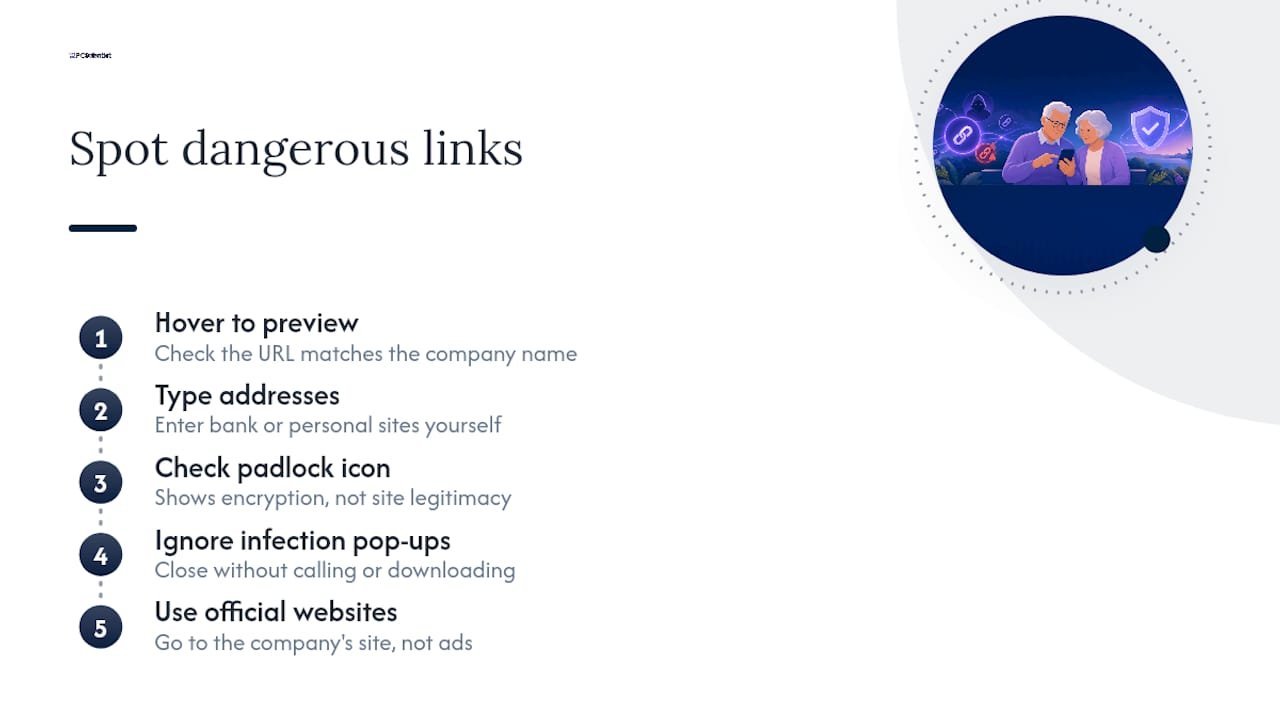
Hover your mouse over a link before clicking, and check the web address shown at the bottom of your screen or browser. If it doesn't match the company name exactly, or it's a jumble of random letters, don't click it. Scammers often register addresses that look almost right, like a bank's name with an extra letter or a different ending.
Stick to typing addresses directly into your browser for anything involving money or personal details, rather than clicking a link from an email or text. Look for the small padlock icon next to the address bar, which shows the connection is encrypted, though it doesn't guarantee the site itself is legitimate. Be especially cautious of pop-up windows warning your computer is infected and urging you to call a number or download software immediately; genuine antivirus software never works this way. If a website asks for far more information than the task requires, such as your full birthdate and mother's maiden name just to browse a catalogue, that's a signal to leave.
Search engines can also lead you astray through sponsored ads that mimic real company websites. When looking up a business's phone number, especially a bank or government department, go to the official site directly rather than trusting the top search result.
Locking down your privacy on social media and apps
Every social media account you use has privacy settings buried in a menu, usually under "Settings" or "Privacy", and it's worth spending ten minutes getting them right. On Facebook, set your posts and friends list to "Friends only" rather than public, and review who can send you friend requests. On Instagram, switching to a private account means only approved followers see your posts.
Scammers often build fake profiles using photos and details lifted from public accounts, then use that information to impersonate someone you trust or to target you directly with a romance or investment approach. Limiting what's visible to the public makes this much harder to do.
Turn off location sharing on posts unless you specifically need it, and be cautious about quizzes or games that ask for personal details like your first pet's name or your birth town, since these often double as answers to security questions. Review which apps have access to your social media accounts periodically, and remove any you no longer use. If a message from a "friend" suddenly asks for money or gift cards, call them on a number you already have to confirm it's really them before responding.
Using Wi-Fi safely at home and when you're out
Your home Wi-Fi network should be protected with a strong, unique password, not the default one printed on the router. If you've never changed it, contact your internet provider or a technician to update it, since default passwords are often published online and easy for anyone nearby to find.
Public Wi-Fi, the kind offered free at cafés, libraries, or airports, carries real risk because anyone else on that same network can potentially see your traffic if the connection isn't properly encrypted. Avoid logging into banking or entering passwords while connected to public Wi-Fi. If you need to check something important while out, using your phone's mobile data is safer than a shared network you don't control.
At home, check that your router uses WPA2 or WPA3 encryption, options usually found in the router's settings app or web page. Most modern routers have this switched on by default, but it's worth confirming, particularly on older equipment. If your home network handles banking, medical, or other sensitive tasks daily, a Network Scientist assessment can confirm everything is configured properly rather than guessing.
Keeping antivirus and anti-malware software working for you
Antivirus software acts as a filter, catching known malicious programs before they can install themselves or steal information. Windows comes with Microsoft Defender built in and switched on by default, which covers most everyday needs without any extra purchase. Macs include similar built-in protections through Gatekeeper and XProtect.
Whatever software you use, the protection only works if it's kept current. Set it to update automatically, the same way you did with your operating system, since new threats appear constantly and outdated virus definitions miss them. Run a full system scan monthly rather than relying solely on background protection, and pay attention if the software flags something. Never install antivirus software recommended by a pop-up warning or an unsolicited caller. That's a common trick to get malicious software onto your device disguised as protection against it.
If you're ever unsure whether a security alert on your screen is genuine, close the browser entirely using your computer's task manager rather than clicking anything in the pop-up itself, then run a scan with your existing antivirus software to check.
Understanding identity theft and other privacy threats
Identity theft happens when someone gets enough of your personal details, your full name, date of birth, address, and often a driver's licence or Medicare number, to open accounts, apply for credit, or access services pretending to be you. This information doesn't always come from a dramatic hack. It's often pieced together from social media posts, old bills left in the mail, or a phishing email you responded to months earlier.
Shred documents with personal details before throwing them out, and be cautious about how much identifying information you share online, even in seemingly harmless places like genealogy sites or public forums. Check your bank and superannuation statements regularly for transactions you don't recognise, since early detection makes recovery far easier.
If you suspect your identity has been misused, IDCARE provides free, confidential support to guide you through the recovery process, including which organisations to contact and in what order. Consider also checking whether you can place an alert on your credit file with a credit reporting body, which flags new applications made in your name for extra scrutiny.
Shopping and banking online with confidence
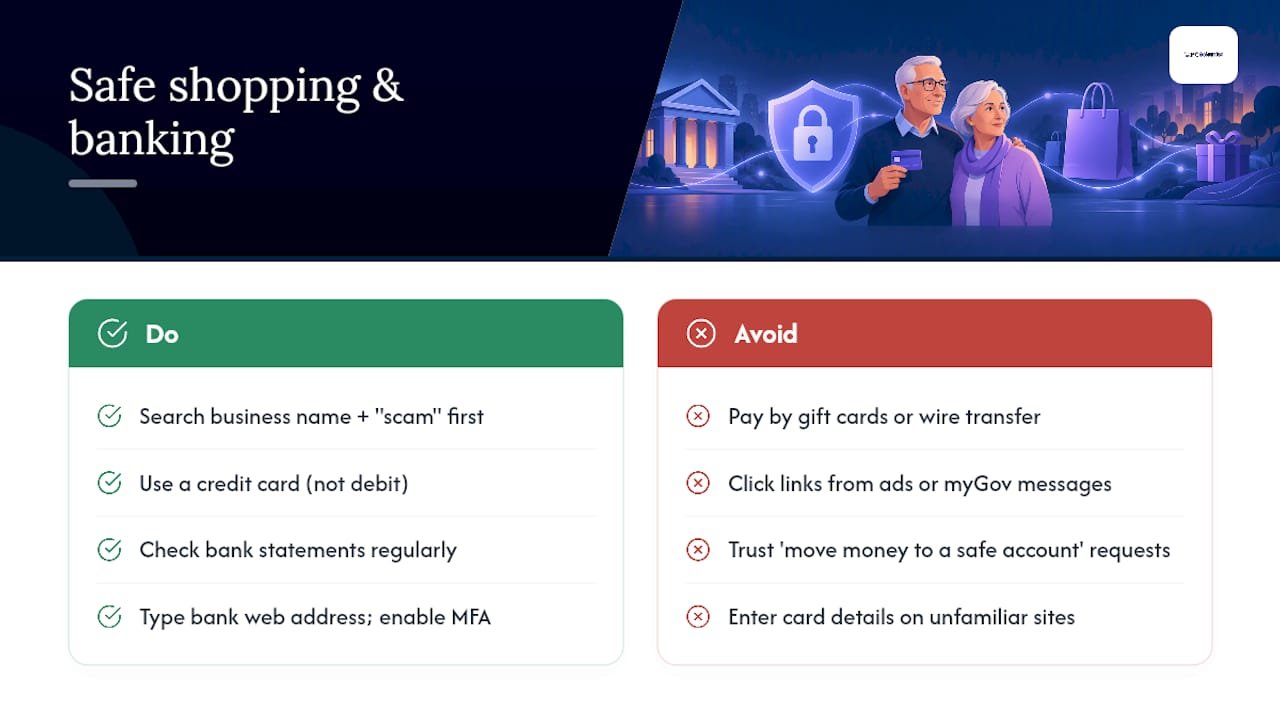
Genuine online stores and banks share a few consistent habits: a secure checkout with a padlock icon, clear contact details, and no pressure to pay by unusual methods like gift cards or wire transfers. If a "too good to be true" deal appears on an unfamiliar website, particularly through a social media ad, search the business name plus the word "scam" before entering any card details.
Use a credit card rather than a debit card for online purchases where possible, since credit cards generally offer stronger fraud protection and dispute options if something goes wrong. Check your bank statement regularly rather than waiting for a monthly summary, so you catch unauthorised charges quickly.
For online banking specifically, always type your bank's web address directly rather than clicking a link, and make sure MFA is switched on. Services Australia advises against clicking links claiming to be from myGov, and recommends using passkeys or other strong sign-in options where available. If a "bank" contacts you asking you to move money to a "safe account" because of suspected fraud, hang up and call your bank directly on the number printed on your card. That request is itself one of the most common scam tactics currently in use.
Author perspective: a short reassuring note for seniors and carers
Nobody expects you to become a cybersecurity expert overnight, and you don't need to. The five steps at the start of this guide close most of the doors scammers rely on, and every resource here, from Be Connected to your bank's fraud line, exists precisely because you're not meant to handle this alone. If something does go wrong, tell a family member or call for help immediately rather than sitting with it quietly. Shame helps nobody, and speed helps everyone.
- PC Scientist
Optional paid help: when you'd rather have someone do it for you
Some of what's covered here, like configuring MFA correctly, setting up a proper backup routine, or rebuilding a network after a scare, is easier with a second pair of hands. A local technician offers onsite visits for device recovery across various New South Wales areas, plus remote support for quicker tasks you'd rather have guided step by step.

If a scammer has already had access to your computer, our Cybersecurity Scientist service covers malware removal, account recovery, and locking down recovery details so it can't happen twice. Setting up a new phone or tablet safely from the start, including MFA and passphrases, falls under Device Setup Scientist. Home network and Wi-Fi security concerns are handled through Network Scientist. Every visit comes with upfront pricing and a plain-language summary of what was done. Get in touch through PC Scientist to book a visit or ask a question first.
Sources
- Continued action critical to combat fraud as annual scam losses exceed $2 billion - ACCC media release
- How to use the internet securely: a guide for seniors - Australian Cyber Security Centre
- Scam alert: Hang up on remote access scammers - Scamwatch (ACCC)
- Be Connected - eSafety Commissioner / Good Things Foundation
- How to protect against scams and identity theft - Services Australia
Recommended
Frequently Asked Questions
Straight answers about 5 Steps to Improve Internet Safety for Older Australians - without jargon or pressure. Call 0493 563 381 for advice, or get help below.
Want the quickest answer? 0493 563 381 for free advice.
Keep your devices updated, turn on multi-factor authentication, use long passphrases, never grant remote access to unexpected callers, and report anything suspicious to Scamwatch. These five actions close the most common ways scammers gain access, following ACSC guidance for seniors.
Yes. Be Connected offers free courses, printable guides, and in-person sessions through community organisations across the country. Libraries and COTA centres often run similar free digital literacy sessions if you prefer face-to-face learning.
Exact current figures vary by survey and region, so it's best to check the latest release from a national statistics body rather than rely on a single figure here. What's consistent across research is that older Australians remain a significant and growing share of internet users, which is exactly why scam prevention guidance is written specifically for this age group.
Beyond the core five, add two more: back up your important files regularly so you can recover from any incident, and apply the Stop, Check, Reject approach before acting on any urgent request, whether it's a call, email, or text. Scamwatch's Stop, Check, Reject method covers verifying identity independently and refusing remote access or payment requests.
Call a professional if a scammer has already had remote access to your device, if you're locked out of an account after a compromise, or if your home network needs a proper security check. PC Scientist's Cybersecurity Scientist service handles malware removal and account recovery with clear, upfront pricing available on request.
Cybersecurity across NSW
Still stuck on internet safety for seniors?
If the device still does not feel safe, that is okay. Get help in your area and we will take it from here.
Start here
Get cybersecurity help
Optional Need a Sydney city or region?
Choose a side of Sydney
These are Sydney cities and regions, such as the Northern Beaches or Inner West. First tap a side of Sydney. Then open the city or region that covers you.
C Sydney City / Inner 3 areas
N Northern Sydney 6 areas
NW North-West / Central Sydney 3 areas
W Western Sydney 1 area
SW South-West Sydney 3 areas
S Southern Sydney 2 areas
Optional Find your suburb
Type a suburb from our listed coverage. This opens the matching city or region page for this topic. Listed suburb pages are general technology services, not this specialist page.
If your suburb is not listed, use the city or region list above, or call 0493 563 381.
Disclaimer
The information in this article is provided for general educational and informational purposes only. While PC Scientist strives to keep all content accurate and up to date, technology issues can vary depending on your device, software, network configuration, and individual circumstances. Always back up important data before attempting repairs or system changes. If you are unsure or the issue cannot be resolved safely, contact PC Scientist today for professional onsite or remote IT support. PC Scientist is not liable for any loss of data, damage, or other issues resulting from the use of the information provided in this article.