

SSD upgrades: what changes on a home or small-business PC
Replacing a mechanical hard drive with an SSD is the single most effective upgrade to make a slow laptop or desktop feel new again. The switch delivers faster boot and app load times, far greater durability since there are no moving parts to fail, and noticeably better battery life on laptops. Below, we walk through the types, sizing and a short checklist to help you plan the swap with confidence.
Key takeaways
- Students who browse and write can save money with SATA, while video editors may benefit from NVMe; confirm the interface and size before ordering.
- Choose 512GB for home use and 1TB or more for gaming or media; 256GB can feel cramped within a year or two.
- Back up first, choose cloning to preserve your setup or a fresh install to clear clutter, and retain the old drive for a few weeks.
- For several terabytes, pair a smaller internal SSD with external or networked storage instead of paying more for a huge internal drive.
- Confirm the drive interface, physical size, and upgradeability first; some ultra thin laptops have storage soldered to the motherboard and cannot accept a replacement.
Table of Contents
- What you will actually notice after an SSD upgrade
- Which SSD type suits your device: SATA, NVMe or external
- Choosing the right capacity for how you actually use your computer
- A short checklist before you start the upgrade
- How we handle SSD upgrades at PC Scientist
- What we think most upgrade advice gets wrong
- Book an SSD upgrade with PC Scientist
- FAQ
- Sources
What you will actually notice after an SSD upgrade
Most people notice the difference within the first minute of using an upgraded machine. A computer that used to take over a minute to reach your desktop can get there in a fraction of that time, because an SSD reads data almost instantly instead of waiting for a spinning platter to find it.
That same speed shows up everywhere else, too:
- Boot and wake speed: your machine starts up and resumes from sleep far quicker, so you are not staring at a loading screen before your first coffee.
- App launches and multitasking: programs open faster and switching between several open windows feels smoother, because the drive responds to small, frequent requests with much lower delay.
- File transfers: moving large folders of photos or video, or running a backup, finishes in a fraction of the time it used to take.
- Durability: with no spinning disk or moving read head, an SSD tolerates knocks, vibration and travel far better than a traditional hard drive.
- Power, heat and noise: SSDs draw less power and run cooler and silently, which on a laptop translates directly into longer runtime between charges.
CHOICE's guidance on upgrading an old notebook confirms this pattern: replacing an HDD with an SSD tends to boost performance, reduce power draw and extend the useful life of an older machine, rather than just making it marginally faster.
An SSD upgrade is widely considered one of the most effective ways to extend an older laptop's useful life, according to CHOICE's notebook upgrade guidance, because it addresses the slowest component in most ageing systems without the cost of a full replacement.
None of this removes the need for backups. An SSD has no mechanical parts to wear out in the traditional sense, but flash memory still has a finite number of write cycles, and drives can still fail unexpectedly. Treat the upgrade as a performance and comfort win, not a replacement for good backup habits.
Which SSD type suits your device: SATA, NVMe or external
Not all SSDs perform the same, and picking the wrong type for your device means paying for speed you will never see.
- SATA (2.5-inch) SSDs fit the same bay as an old hard drive and are a straightforward upgrade for most laptops and older desktops. They are far faster than a hard drive but capped by the SATA interface's ceiling.
- NVMe SSDs connect over PCIe and remove that ceiling entirely. Research on SSD behaviour shows NVMe drives handle parallel and random workloads with much lower latency than SATA SSDs, which matters most if you juggle many small files or apps at once.
- M.2 form factor is the physical shape, most commonly the "2280" size (22mm wide, 80mm long). An M.2 slot can carry either a SATA or an NVMe drive, so check which your motherboard or laptop actually supports before buying.
- External SSDs over USB-C or USB 3.x are a flexible option when you cannot open the case. Verbatim's guidance notes they are pocketable and usually the fastest portable storage choice, though they will not match an internal NVMe drive for raw speed.
Check your device's service manual or BIOS/UEFI screen to confirm which slot, interface and physical size you have before ordering anything.
Choosing the right capacity for how you actually use your computer
Capacity matters as much as speed, and buying the wrong size is the most common upgrade mistake we see.
- Everyday use (browsing, email, documents): 256GB is a workable minimum, though most people find it tight within a year or two.
- Home office and general productivity: 512GB gives comfortable breathing room for software, documents and a modest photo library.
- Creative work (photo or video editing): 1TB or more, since media files consume space quickly.
- Gaming: 1TB or higher, as modern game libraries fill a drive fast.
CHOICE's notebook upgrade advice lands on a similar baseline, suggesting 256GB as a starting point but recommending 256 to 512GB for most users who want some room to grow.
If your storage needs are closer to several terabytes, it is often cheaper and more practical to pair a smaller, fast internal SSD with external or networked storage rather than paying a premium for a huge internal drive. Large video projects in particular benefit from a dedicated storage workflow, and tools built for managing project storage can help you plan that split sensibly.
A short checklist before you start the upgrade
A well-planned SSD upgrade usually takes under two hours of active work, most of it waiting for a clone or backup to finish.
- Back up everything first, to an external drive or cloud storage, before you touch any hardware.
- Decide between cloning and a fresh install: cloning keeps your current setup intact but carries over old clutter; a fresh install is cleaner but means reinstalling programs.
- Check compatibility: confirm the physical fit, the interface (SATA or NVMe), and whether a BIOS or firmware update is needed first.
- Check your operating system's activation, since some licences are tied to hardware and may need reactivating after a drive swap.
- Test thoroughly afterwards: confirm boot times, run a quick file transfer, and check that all your programs and files made the move intact.
Pro Tip: Keep your old hard drive aside for a few weeks after the upgrade rather than wiping it straight away, as a quiet backup in case anything was missed during the transfer. If you are also moving to an entirely new machine rather than just a new drive, our guide on transferring files to a new PC covers the same backup principles in more detail.
How we handle SSD upgrades at PC Scientist
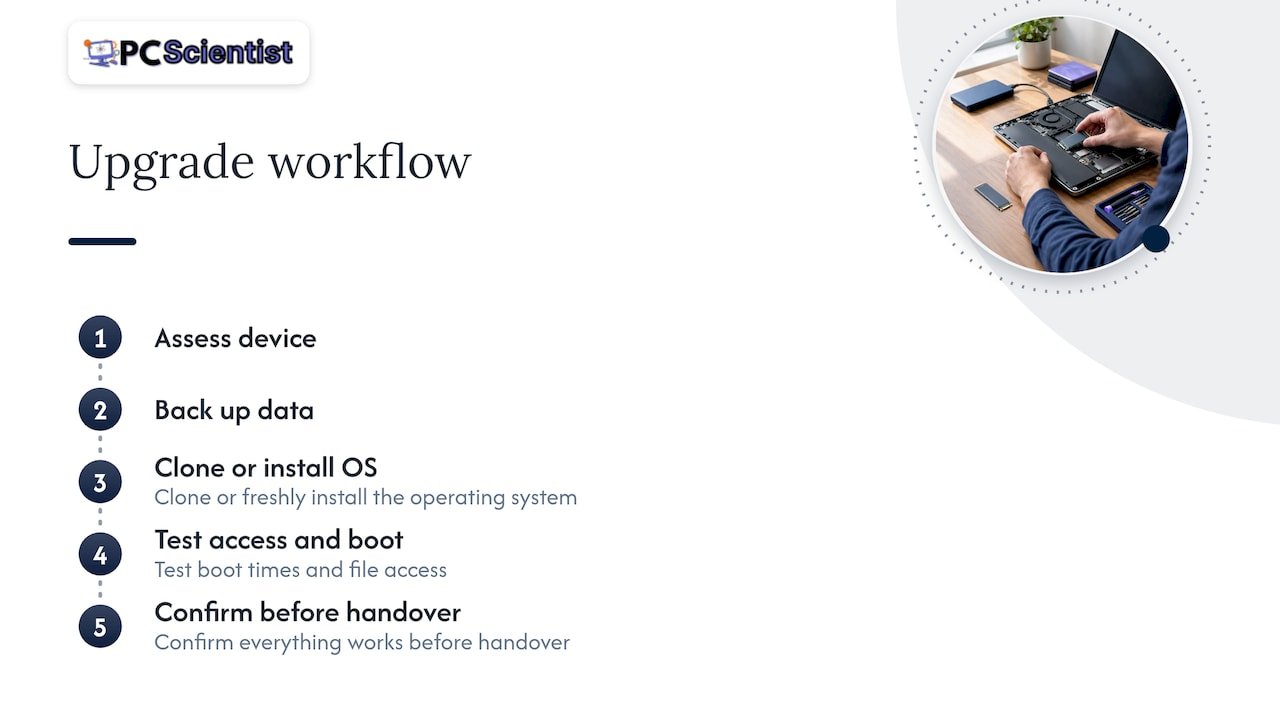
We assess your device, back up your data, clone or freshly install your operating system, then test boot times and file access before handover. We keep pricing clear from the start, handle your data with care throughout, and never leave a machine with you until we have confirmed everything works as it should.
What we think most upgrade advice gets wrong
Most advice on SSD upgrades fixates on benchmark numbers that mean little in daily life. A drive that is theoretically twice as fast in a synthetic test rarely feels twice as fast when you are checking email or editing a document, because the bottleneck in most households is not raw throughput but how long you wait for things to respond.
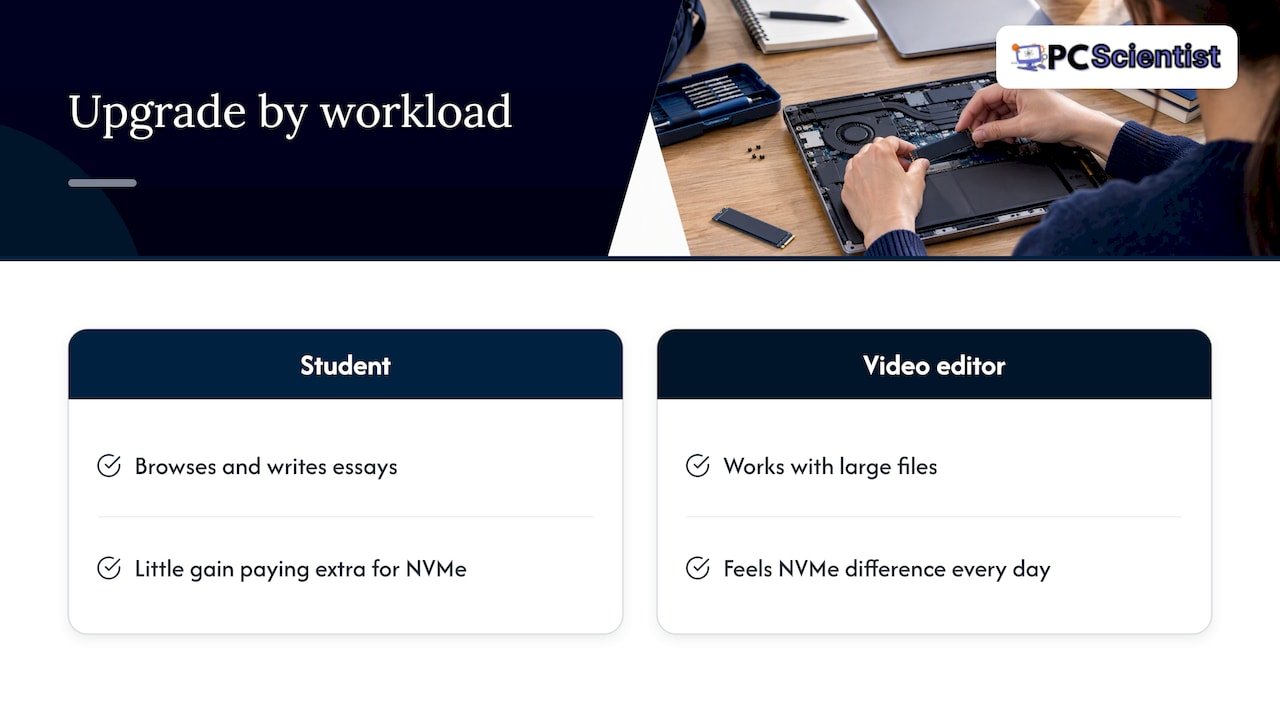
What actually matters is matching the upgrade to how you use the machine. A student who mostly browses and writes essays gains little from paying extra for NVMe over SATA, while a video editor working with large files will feel that difference every single day. We think the capacity decision deserves more attention than it usually gets, because running out of space six months after an upgrade is a far more common disappointment than any speed shortfall.
If you take one thing from this guide, prioritise getting the capacity right for your actual files before chasing the fastest interface on the shelf. Speed you cannot use is wasted money, but space you run out of is a problem you will face again and again.
- PC Scientist
Book an SSD upgrade with us
If you would rather hand the whole job to someone who does this daily, we can help. We handle the backup, cloning or fresh install, and testing in one visit, whether that is onsite or arranged remotely where appropriate. Related hardware work can also be arranged if you are considering a full rebuild instead.

- Computer Repair Scientist: SSD installation, cloning and post-upgrade testing for laptops and desktops.
- Device Setup Scientist: moving your files and settings cleanly onto new or upgraded hardware.
- Custom PC Build Scientist: an option worth considering if your current machine cannot support a meaningful upgrade.
Get in touch through our Computer Repair Scientist page to request an assessment and see what an upgrade would involve for your specific device.
Sources
Recommended
- Technician Tested: The 50% Rule for RAM Upgrade Vs New PC
- Computer running slow? Here's what to try first
- Your new PC setup checklist: eight things to do first
- PC keeps freezing? Try this 20-minute Safe Mode test
Frequently Asked Questions
Straight answers about SSD Upgrades: Home and Small Business PCs Feel Faster in a Minute - without jargon or pressure. Call 0493 563 381 for advice, or get help below.
Want the quickest answer? 0493 563 381 for free advice.
Yes. The drive is usually the biggest bottleneck in an older computer, more than the processor or RAM, so upgrading it tends to produce the most noticeable everyday speed improvement of any single hardware change.
512GB suits most everyday and home-office use comfortably, while 1TB is worth the extra cost if you work with large photo or video libraries or maintain a sizeable game collection. CHOICE's upgrade guidance suggests 256 to 512GB as a sensible range for general users.
In most desktops and many laptops, yes, provided there is a spare drive bay or M.2 slot and you clone or reinstall your system onto the new drive. Some ultra-thin laptops have storage soldered to the motherboard, so checking your device's specifications first avoids a wasted purchase.
A solid state drive has no moving parts, so it reads and writes data faster, handles knocks and travel better, and runs cooler and silently. Portable SSD testing from CHOICE found SSDs can be two to five times faster than portable hard drives, though hard drives remain cheaper per gigabyte.
Computer help across NSW
Need a hand deciding on an SSD upgrade?
If the steps above did not get your computer feeling right, that is okay. Get help in your area and we will take it from here.
Start here
Get computer help
Optional Need a Sydney city or region?
Choose a side of Sydney
These are Sydney cities and regions, such as the Northern Beaches or Inner West. First tap a side of Sydney. Then open the city or region that covers you.
C Sydney City / Inner 3 areas
N Northern Sydney 6 areas
NW North-West / Central Sydney 3 areas
W Western Sydney 1 area
SW South-West Sydney 3 areas
S Southern Sydney 2 areas
Optional Find your suburb
Type a suburb from our listed coverage. This opens the matching city or region page for this topic. Listed suburb pages are general technology services, not this specialist page.
If your suburb is not listed, use the city or region list above, or call 0493 563 381.
Disclaimer
The information in this article is provided for general educational and informational purposes only. While PC Scientist strives to keep all content accurate and up to date, technology issues can vary depending on your device, software, network configuration, and individual circumstances. Always back up important data before attempting repairs or system changes. If you are unsure or the issue cannot be resolved safely, contact PC Scientist today for professional onsite or remote IT support. PC Scientist is not liable for any loss of data, damage, or other issues resulting from the use of the information provided in this article.
