Recover Deleted Files on Windows in Australia, Act Within Minutes
Most deleted files on Windows 10 or 11 can be recovered, but only if you act before the drive writes over that space. Stop using the affected drive right now. Check whether Ctrl+Z or the Recycle Bin has it, then move to backups (File History, OneDrive, Previous Versions), then Windows File Recovery or a recovery scan. If a drive sounds unwell or DIY attempts have failed, call a professional before you make things worse.
Key takeaways
- Recovering deleted files quickly is crucial, especially on SSDs where TRIM can erase sectors within minutes, leaving no recoverable trace.
- Checking backups with File History, OneDrive, or Previous Versions offers the highest success rate before trying software recovery tools.
- Windows File Recovery's extensive mode can recover older or formatted files but requires different source and destination drives and can be slow.
- Third-party recovery software should never be installed on or recover files back onto the same drive, and SSD recovery windows are much shorter than HDDs.
- For hardware failures, encrypted drives, or repeated unsuccessful attempts, stopping DIY recovery and calling professionals minimizes the risk of permanent data loss.
Table of Contents
- How do you recover deleted files on Windows immediately?
- Can you restore files from backups you already have?
- How do you use Windows File Recovery to undelete files?
- Is third-party recovery software worth trying?
- When should you call a professional data recovery service?
- Can chkdsk or attrib help recover a deleted file?
- Does System Restore bring back deleted files?
- PC Scientist's take on backups and quick action
- How PC Scientist can help when DIY recovery isn't enough
- Sources
- FAQ
How do you recover deleted files on Windows immediately?
The clock starts the moment you hit delete. Every new file saved, every browser cache update, every background sync writes to your drive, and any of those writes can land on the exact sectors your deleted file used to occupy. On an SSD, it's worse: TRIM can clear those sectors within minutes, not days. Stop using the drive before anything else.
Here's the order that actually works:
- Stop using the drive. Don't save, install, or download anything to it. If it's an external drive, unplug it.
- Try Ctrl+Z in the folder you deleted from, straight away. This only works if the deletion was the last action in that Windows session, so it's worth trying within seconds, not hours.
- Open the Recycle Bin. Search by file name, sort by date deleted, and restore single files or select several at once with Ctrl+click.
- Check for exceptions. Files removed with Shift+Delete, very large files that skip the bin, and anything deleted from a USB drive or network share won't be sitting in there. Move to backups next.
Pro Tip: If you're not sure which drive the file lived on, check Properties before you touch anything else. Recovery tools need to write their results somewhere else entirely, and guessing wrong wastes your recovery window.
Can you restore files from backups you already have?
Before touching any recovery software, check what you're already backing up to. This is the highest success rate path, and it costs nothing.
- File History: search "Restore your files" in the Start menu, browse to the folder, and use the arrows to step through saved versions. This only works if File History was switched on before the file disappeared, and restoring will replace the current version on your PC, a step you can't undo.
- OneDrive: log in at onedrive.com and open the recycle bin in the sidebar. Deleted items sit there for a set retention window depending on your account settings, so this is often faster than any scan if the file was synced to the cloud.
- Previous Versions (Shadow Copies): right-click the folder (not the file, since it's gone) and choose "Restore previous versions." This taps into Volume Shadow Copies, a separate mechanism from File History that Windows sometimes keeps automatically.
If you find the file in more than one place, restore to a new location first rather than overwriting the current folder. It's a small extra step that stops you accidentally losing a newer version you actually wanted to keep.
How do you use Windows File Recovery to undelete files?
Windows File Recovery is Microsoft's free command-line tool, and it's genuinely useful once you know its rules. It only works on local drives, so it won't touch cloud storage or network shares, and the source and destination drives must be different drives. You can't recover files back onto the same drive you're scanning.
There are two modes worth knowing:
| Mode | Best for | Trade-off |
|---|---|---|
| Regular | Recent deletes on NTFS drives, still-healthy file system | Faster, but won't find older or corrupted data |
| Extensive | Older deletes, formatted disks, non-NTFS drives (FAT, exFAT) | Slower, but digs deeper into raw disk signatures |
Install it from the Microsoft Store, then run it from an elevated command prompt using this pattern:
- Basic recovery:
winfr C: E: /regularscans drive C and saves recovered files to drive E. - Extensive scan for older files:
winfr C: E: /extensive - Narrow the search with a filename filter to save time:
winfr C: E: /regular /n *.docx
Microsoft's tool automatically creates a "Recovery_" folder on the destination drive to keep recovered files separate from anything else there. If Regular mode comes up empty, retry with Extensive before giving up. Using filename or path filters with the /n switch also cuts scan time dramatically on large drives.
Is third-party recovery software worth trying?
Recovery apps work by scanning for file "signatures", leftover traces of a file's structure that survive even after the file system forgets where it lives. A scan result marked "fully recoverable" means the file's data is intact; "partially recoverable" means some of it has already been overwritten, and the file may open with errors or missing sections.
A few rules matter more than which app you pick:
- Never install the recovery tool onto the drive you're trying to recover from. Download it to a USB stick or a different drive entirely.
- Recover files to a separate drive, never back onto the source. This is the same rule Windows File Recovery enforces, and it exists for good reason.
- SSDs give you less time than HDDs. Because of TRIM, an SSD's recovery window can close within minutes of deletion, while a traditional hard drive often holds recoverable traces for much longer.
Pro Tip: If a scan takes hours and comes back with thousands of unnamed fragments instead of your actual file names, that's usually a sign the file system metadata is gone. At that point, a professional imaging service has better odds than another software pass.
When should you call a professional data recovery service?
Some situations are outside DIY territory, and pushing further with software risks losing the file permanently.
- Clicking, grinding, or repeated failed boots point to a hardware fault. Power the drive down and stop immediately. Mechanical failures need clean room handling and dedicated imaging equipment, not another scan attempt.
- Repeated failed recovery attempts after trying File Recovery or a scanning tool are a sign the drive itself needs professional imaging.
- Encrypted drives (BitLocker or similar) need the recovery key on hand. Without it, moving the drive to another machine usually won't produce readable data.
Before you call, have the device model, drive serial number, and a note of what you've already tried ready to go. A professional service like Data Recovery Scientist will typically start with a diagnostic, quote you before doing anything invasive, and handle your drive with the privacy the data deserves.
Can chkdsk or attrib help recover a deleted file?
These two commands get mentioned constantly in recovery forums, and they're worth understanding properly, because using them wrong can make things worse.
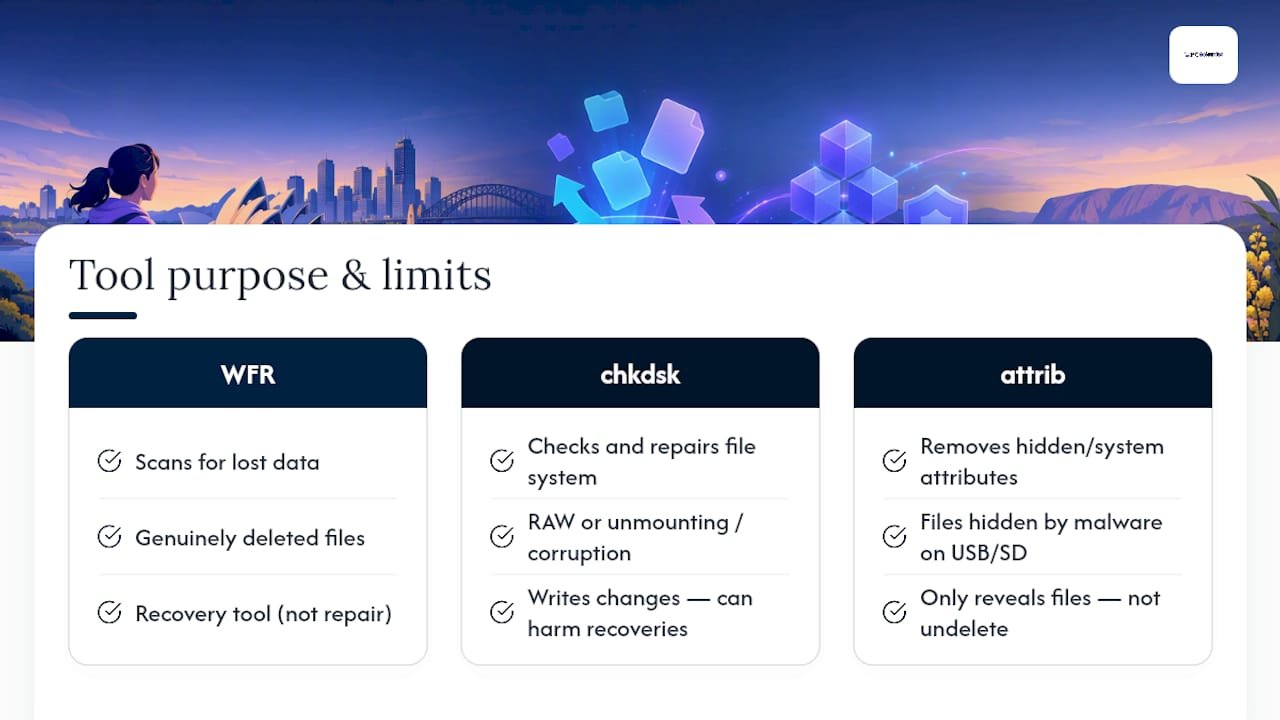
chkdsk checks a drive for file system errors and can repair some kinds of corruption, but it doesn't undelete files. If your drive shows as RAW, won't mount properly, or Windows reports it needs repair, chkdsk /f can fix the file system so files become visible again, but running it on a drive with genuinely deleted files (not corrupted ones) writes changes to the disk. That's exactly the kind of write you're trying to avoid during a recovery attempt. Only run chkdsk if the drive has a structural problem, not simply because a file went missing.
attrib is different, and it's actually useful in one specific, common scenario: USB drives and SD cards infected with certain malware that hides files by flagging them as system or hidden files rather than deleting them outright. Running attrib -h -r -s /s /d G:\*.* (replacing G: with your drive letter) strips those hidden and system attributes, and suddenly files that looked deleted reappear because they were never actually gone.
Neither of these tools scans for lost data the way Windows File Recovery does. Think of chkdsk as a mechanic checking the engine, and attrib as flicking a light switch back on, useful, but not a substitute for an actual recovery tool when files are genuinely deleted rather than hidden or the file system is corrupted.
Does System Restore bring back deleted files?
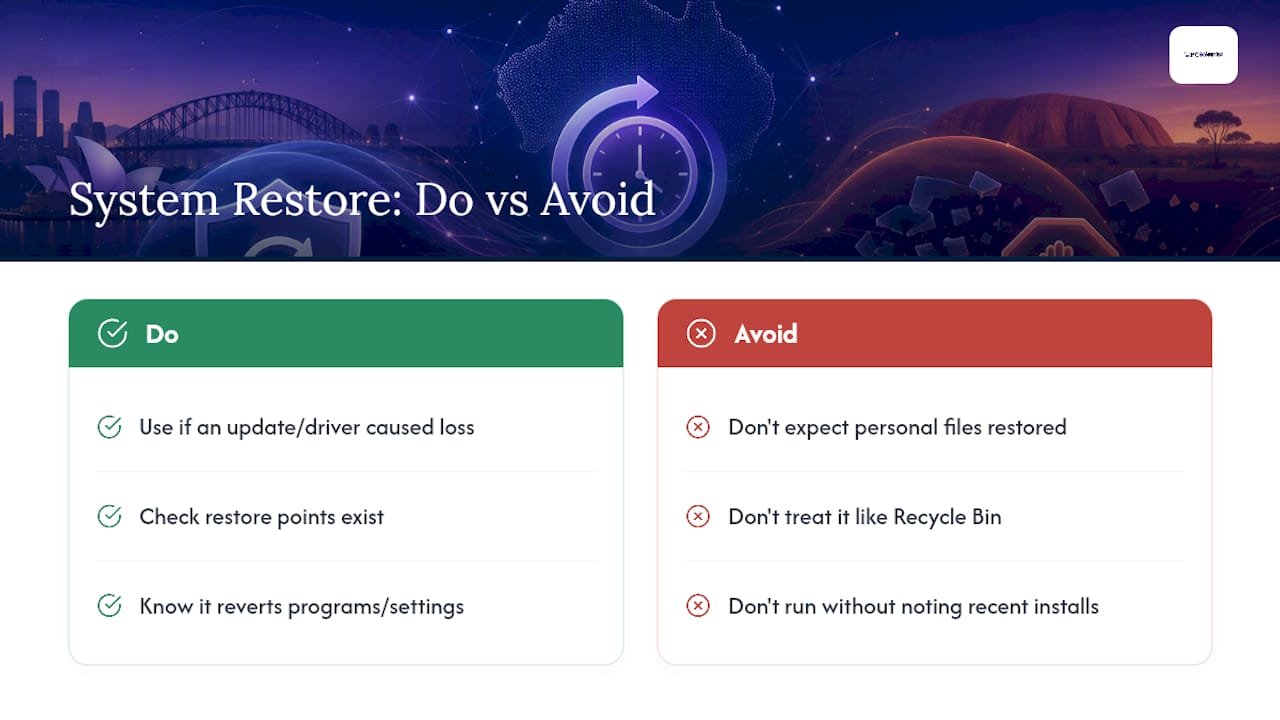
Short answer: not directly, and this trips a lot of people up. System Restore rolls back system files, installed programs, drivers, and registry settings to an earlier restore point. It does not restore personal files like documents, photos, or spreadsheets sitting in your user folders, because Windows deliberately excludes those from restore points to keep them from ballooning in size.
Where System Restore genuinely helps is a specific edge case: if a botched update, driver install, or malicious program caused files to go missing as a side effect of a broader system problem, rolling back to before that event can undo whatever process deleted or corrupted them. It's a system-level undo, not a file recovery tool.
Two things to know before you try it. First, System Restore only works if restore points were being created, which isn't guaranteed on every Windows 11 setup since it's not always switched on by default. Second, running a restore changes installed software and settings back to that point in time too, so you may lose recently installed programs or updates along with whatever else the rollback affects. It's a reasonable step to try if a system change caused your file loss, but don't expect it to behave like a Recycle Bin for documents you deleted on purpose.
PC Scientist's take on backups and quick action
Layer your protection: local backup, cloud copy, one offline or immutable copy, tested regularly. That's the practical shape of the 3-2-1-1-0 approach. Quick, calm action recovers most files. When you're unsure, stop and call someone who does this daily.
- PC Scientist
How PC Scientist can help when DIY recovery isn't enough
PC Scientist is the alternative to guesswork when a recovery scan comes back empty or a drive starts making noises you don't like. Where software scans and search forums leave you second guessing whether you're about to make things worse, we give you a clear diagnostic, an upfront quote before any work starts, and a clear diagnostic and an upfront quote before any work starts, with repairs subject to your approval.

Our Data Recovery Scientist service handles the situations this article flagged as beyond DIY: mechanical drive faults, repeated failed recovery attempts, and encrypted drives that need careful handling rather than another software pass. We offer both onsite visits and remote support depending on what's practical for your setup, and every job starts with an assessment of the drive before we touch anything, so you know what you're dealing with before committing to a repair.
If your device won't boot at all alongside the missing files, our computer repair service covers the hardware diagnosis that often needs to happen first. Get in touch through Pcscientist to book a diagnostic and find out exactly what your drive needs.
Sources
- Windows File Recovery
- Backup and restore with File History
- Back up sensitive business information - CISA
- How to recover deleted files on Windows 11 - Every method explained
Recommended
- NAS data recovery: practical steps and when to call a pro
- Windows won't boot? Try this fix order first
Frequently Asked Questions
Straight answers about Recover Deleted Files on Windows in Australia, Act Within Minutes - without jargon or pressure. Call 0493 563 381 for advice, or get help below.
Want the quickest answer? 0493 563 381 for free advice.
Check File History, OneDrive's online recycle bin, and Previous Versions first, since these have the highest success rate for files removed with Shift+Delete or emptied from the Recycle Bin. If none of those have it, Windows File Recovery's Extensive mode can search for file traces even after the Recycle Bin no longer shows them.
Press Ctrl+Z immediately in the same folder if the deletion was your last action, since this undoes it instantly. If that doesn't work, open the Recycle Bin, search by file name, and restore it from there.
Stop using the drive straight away, then work through Recycle Bin, backups (File History or OneDrive), and finally Windows File Recovery or a recovery scan in that order. If the drive shows signs of hardware failure, contact a professional data recovery service rather than continuing DIY attempts.
Files skip the Recycle Bin when deleted with Shift+Delete, when they're too large, or when removed from a USB drive or network location. Your best options are Previous Versions (right click the parent folder), File History if it was enabled, or a scan with Windows File Recovery's Extensive mode for older or non-NTFS drives.
Data recovery across NSW
Still stuck recovering deleted files on Windows?
If files have gone missing, that is okay. Get data recovery help in your area and we will take it from here.
Start here
Get data recovery help
Optional Need a Sydney city or region?
Choose a side of Sydney
These are Sydney cities and regions, such as the Northern Beaches or Inner West. First tap a side of Sydney. Then open the city or region that covers you.
C Sydney City / Inner 3 areas
N Northern Sydney 6 areas
NW North-West / Central Sydney 3 areas
W Western Sydney 1 area
SW South-West Sydney 3 areas
S Southern Sydney 2 areas
Optional Find your suburb
Type a suburb from our listed coverage. This opens the matching city or region page for this topic. Listed suburb pages are general technology services, not this specialist page.
If your suburb is not listed, use the city or region list above, or call 0493 563 381.
Disclaimer
The information in this article is provided for general educational and informational purposes only. While PC Scientist strives to keep all content accurate and up to date, technology issues can vary depending on your device, software, network configuration, and individual circumstances. Always back up important data before attempting repairs or system changes. If you are unsure or the issue cannot be resolved safely, contact PC Scientist today for professional onsite or remote IT support. PC Scientist is not liable for any loss of data, damage, or other issues resulting from the use of the information provided in this article.