

RAM upgrade or a new PC: the 50% rule
In most cases, upgrade the RAM if memory is the actual bottleneck. Buy a new PC if the platform needs multiple major upgrades at once. The diagnostic rule is simple: check Task Manager under your worst real workload; if memory sits pinned above a high percentage, RAM will help; if CPU or the drive is maxed out instead, or total upgrade cost creeps past roughly half the price of a new PC, replacement wins.
Key takeaways
- Upgrading RAM makes sense mainly when memory is saturated during real workloads, not during brief, idle spikes.
- If your system cannot support faster modules or additional capacity, investing in new hardware may be more cost-effective.
- Spending over 50% of a new PC's price on upgrades suggests replacement is the better long-term solution.
- Precise diagnosis of performance issues should include checking CPU, storage, and memory together, rather than focusing solely on RAM.
- Professional assessments help avoid costly mistakes by confirming component compatibility and identifying the true bottleneck.
Table of Contents
- How to diagnose what's actually limiting your PC
- When upgrading RAM makes sense
- When buying a new PC is the better choice
- Cost, timing and the practical decision checklist
- Practical upgrade checklist (what to buy and how to avoid common mistakes)
- How a professional assessment decides: real-world examples
- Common mistakes and honest advice from technicians
- How PC Scientist can help with your upgrade decision
- Sources
- FAQ
How to diagnose what's actually limiting your PC
Before spending a cent, find out what's actually choking your computer. Guessing is how people end up with 32GB of unused RAM and a machine that still crawls.
Open Task Manager and run your heaviest normal session, browser tabs, editing software, a game in the background, whatever pushes your PC hardest day to day.
- Go to Performance → Memory and watch usage while you work, not while idle.
- If memory sits above a high percentage for sustained periods, RAM is a genuine candidate.
- Check the Disk tab. If a mechanical hard drive sits at 100% while memory looks fine, you need an SSD, not RAM.
- If CPU hits 100% during ordinary tasks like browsing or typing, the processor or the whole platform is the limiter.
- Check compatibility: is your system on DDR4 or DDR5, how many DIMM slots are free, and is the RAM soldered to the board (common on ultrabooks and some laptops)?
PCWorld's testing backs this approach directly: RAM only helps when memory itself is pinned under real load, not when the numbers look strained for a few seconds during launch.
Pro Tip: Don't trust a quick glance at idle memory use. Run the diagnostic while doing the exact task that frustrates you, then read the graph.
When upgrading RAM makes sense
Adding memory earns its keep in specific, recognisable situations. If you're constantly juggling dozens of browser tabs, streaming while gaming, running several background apps, or working inside virtual machines and large media files, extra RAM tends to pay off fast.
Here's what typically improves after a genuine RAM upgrade:
- Fewer stutters and freezes during multitasking
- Smoother app switching, especially with heavy software like editing suites or IDEs open simultaneously
- Less paging to disk, which matters even more if you're still on a mechanical drive
- More consistent frame pacing in games, even when your average FPS barely moves
That last point surprises a lot of people. TechSpot's 2026 testing found that moving from 16GB to 32GB often improves frame-time smoothness and multitasking consistency, even when the headline FPS number stays roughly the same. It's the difference between a game that runs at "60fps" but occasionally hitches, and one that just feels smooth.
There are limits, though. RAM speed and generation only matter if your platform can actually use faster modules, and capacity alone won't fix a CPU or storage bottleneck. Jumping from 16GB to 32GB helps heavy multitaskers and modern gamers; going beyond that without a specific workload driving it usually just adds cost without adding anything you'll notice.
When buying a new PC is the better choice
Sometimes the smartest move is walking away from the old machine entirely, especially when the platform itself is the problem rather than any single component.
Watch for these signs that replacement beats upgrading:
- The motherboard has no further CPU upgrade path, or you're on a socket that's been discontinued
- Your system can't meet requirements for newer software or operating systems, including Windows 11's hardware baseline
- You're facing several upgrades at once, CPU, motherboard, RAM, and possibly the power supply, rather than one clean fix
- You'd genuinely benefit from newer I/O standards, better efficiency, or a manufacturer warranty you no longer have
The real trap is what Geeks in Sneaks calls the ladder of small upgrades: you fix RAM, then storage, then find the CPU still bottlenecks everything, spending piecemeal until you've paid new PC money for an old PC's performance. If your upgrade list is genuinely long, price it all out before committing to any single piece. Readers weighing this exact fork, custom build versus prebuilt versus repair, will find more detail in our comparison of custom PCs and prebuilt systems.
Cost, timing and the practical decision checklist
Run the numbers before you run to the checkout. A 32GB DDR4 kit plus fitting typically costs a fraction of an entry-level new PC, but that math flips fast once you add other parts to the cart.
- Add up every component you'd realistically need to replace, not just RAM.
- Compare that total against the price of a new entry-level PC that meets your needs.
- If your upgrade total approaches or exceeds roughly 50% of that new PC price, replacement is the better long-term buy.
- Factor in timing: is your warranty about to lapse, are upcoming apps or games likely to demand more memory, and has DRAM pricing been volatile enough to justify waiting a few weeks?
- Weigh convenience too. Migrating data, backing up files, and setting up a new machine all cost time, and a working PC still has environmental value; sitting in a landfill doesn't.
None of this needs to be complicated. It's a spreadsheet moment, not a leap of faith.
Practical upgrade checklist (what to buy and how to avoid common mistakes)
Getting the RAM upgrade right comes down to a handful of checks most people skip in their rush to buy.
- Confirm your DDR generation (DDR4 or DDR5) and your motherboard's maximum supported capacity per slot
- Buy matched pairs, not mismatched single sticks, to keep dual-channel performance intact
- Count your free DIMM slots before ordering anything
- Check your BIOS is current enough to recognise the new modules
- Prioritise capacity over speed unless your specific platform is known to benefit from faster RAM
PC Gamer's testing makes a point worth repeating: a single mismatched stick or a speed mismatch can quietly erase the gains you paid for.
Pro Tip: If your laptop has soldered RAM, or you're not certain your board will accept the modules you're eyeing, get it checked before you buy. A wrong guess here is an expensive mistake to unwind.
How a professional assessment decides: real-world examples
A proper assessment follows the same logic as the diagnostic checklist above, just with more tools behind it. We check memory use under load, storage health, CPU behaviour, and BIOS limits together, because looking at RAM in isolation misses the bigger picture.
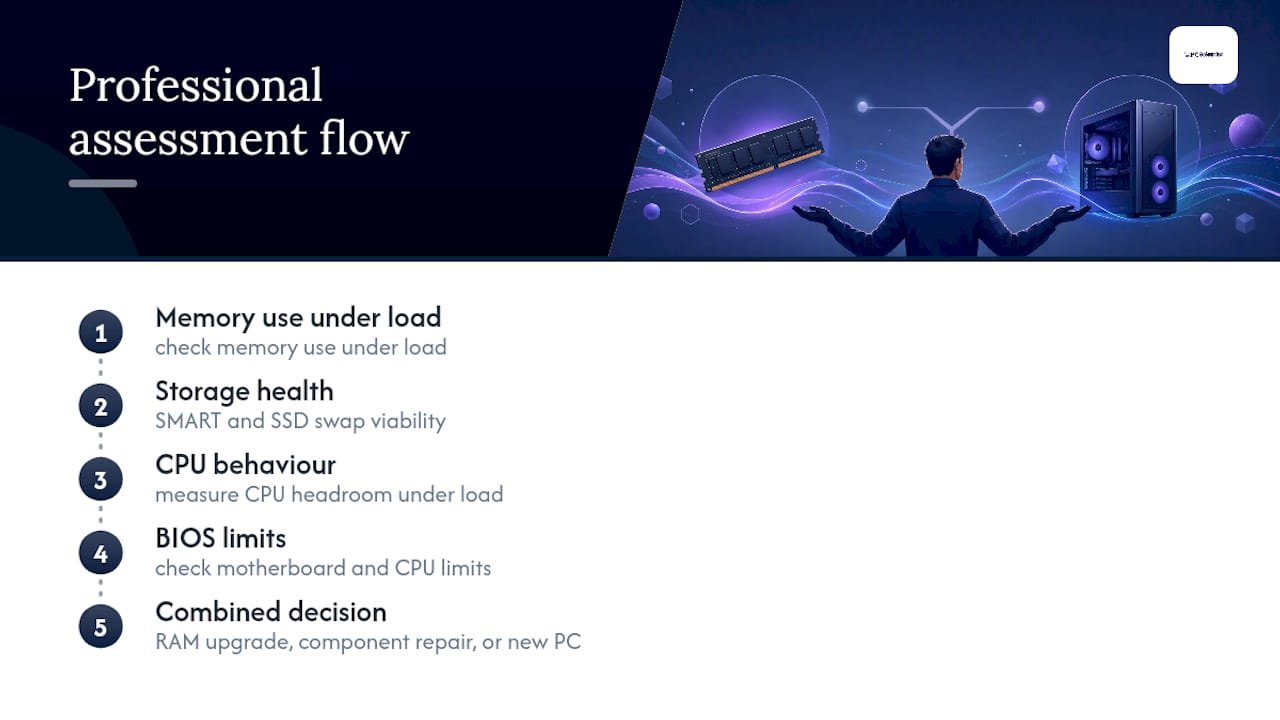
We've had customers convinced they needed a new PC when the real fix was a 16GB stick and an SSD swap. We've also had customers ready to spend on RAM when their motherboard had no further CPU headroom, and a new PC was genuinely the cheaper long-term option.
A service visit typically includes compatibility testing, a transparent quote before any work starts, professional fitting, and a warranty on the work itself.
Common mistakes and honest advice from technicians
The most common call-out we get is someone who's already bought RAM before diagnosing anything, only to find their hard drive or CPU was the real problem all along. Diagnose first. Favour the cheapest fix that actually solves the measured issue, not the one that feels like the "proper" upgrade.
- PC Scientist
How we can help with your upgrade decision
Professional assessments provide a real answer instead of a guess, onsite or remote diagnostics that check memory, storage, and CPU together, so you're not paying for RAM when your hard drive was the problem. Compatibility is confirmed before ordering anything, a transparent quote is provided, parts are fitted properly, and the work is backed with a warranty, unlike a on your own purchase from a retailer.

If your PC feels sluggish and you're not sure whether RAM, storage, or the whole platform is to blame, our Computer Repair Scientist team can run the full diagnostic and tell you honestly what will fix it, and what won't. For remote troubleshooting sessions where we need to walk through your system's performance together in real time, we sometimes use tools like kinodesk to share your screen without any lag getting in the way. Book an assessment and get a straight answer before you spend on parts you might not need.
Sources
This guide draws on testing and guidance from PCWorld on diagnosing memory bottlenecks, TechSpot on real-world RAM benchmarking, PCMag on capacity guidance, and PC Gamer on compatibility pitfalls. For troubleshooting steps beyond RAM, see our guide on a computer running slow.
- Why your fast PC feels slow: blame your RAM | PCWorld
- How much RAM do you need? (2026) | TechSpot
- Is it worth upgrading RAM vs buying a new PC? | Geeks in Sneaks
Recommended
- Custom PC vs Prebuilt in NSW: What's Better for Gaming, Work or School?
- Your new PC setup checklist: eight things to do first
- PC keeps freezing? Try this 20-minute Safe Mode test
- Computer running slow? Here's what to try first
Frequently Asked Questions
Straight answers about Technician Tested: The 50% Rule for RAM Upgrade Vs New PC - without jargon or pressure. Call 0493 563 381 for advice, or get help below.
Want the quickest answer? 0493 563 381 for free advice.
Yes, particularly for multitasking and gaming frame-time smoothness. TechSpot's testing found the upgrade improves consistency even when average FPS barely changes.
Not for heavy multitaskers or modern gamers. PCMag's guidance places 16GB as the current baseline and 32GB as the sensible step up for gaming and creative work.
Only if RAM was the actual bottleneck. Check Task Manager under real load first; if memory isn't pinned, the slowdown is likely coming from your CPU or storage instead, and RAM won't fix it.
For most people, yes. 64GB is aimed at virtual machines, serious content creation, or local AI workloads, not typical gaming or everyday office use.
Run the diagnostic checklist first. If memory is pinned and your platform can take more RAM, upgrade. If your upgrade costs approach half the price of a new PC, or your motherboard has no further CPU path, replacement is the smarter buy. A PC Scientist assessment can confirm which situation you're in before you spend anything.
Computer help across NSW
Want help deciding between a RAM upgrade and a new PC?
If the steps above did not get your computer feeling right, that is okay. Get help in your area and we will take it from here.
Start here
Get computer help
Optional Need a Sydney city or region?
Choose a side of Sydney
These are Sydney cities and regions, such as the Northern Beaches or Inner West. First tap a side of Sydney. Then open the city or region that covers you.
C Sydney City / Inner 3 areas
N Northern Sydney 6 areas
NW North-West / Central Sydney 3 areas
W Western Sydney 1 area
SW South-West Sydney 3 areas
S Southern Sydney 2 areas
Optional Find your suburb
Type a suburb from our listed coverage. This opens the matching city or region page for this topic. Listed suburb pages are general technology services, not this specialist page.
If your suburb is not listed, use the city or region list above, or call 0493 563 381.
Disclaimer
The information in this article is provided for general educational and informational purposes only. While PC Scientist strives to keep all content accurate and up to date, technology issues can vary depending on your device, software, network configuration, and individual circumstances. Always back up important data before attempting repairs or system changes. If you are unsure or the issue cannot be resolved safely, contact PC Scientist today for professional onsite or remote IT support. PC Scientist is not liable for any loss of data, damage, or other issues resulting from the use of the information provided in this article.
