Under 4TB? Choose NAS or Cloud Storage in Australia

For most households with under 4TB of files and no dedicated tech person, cloud storage wins on simplicity. For creative professionals and small offices juggling large files, a NAS earns its cost back through speed and control. For everyone who wants to sleep easy, a hybrid setup - NAS for daily work plus scheduled cloud backup - is the safest bet. The right call hinges on three things: how much data you have, how fast your upload speed really is, and whether you want to manage hardware at all.
Key takeaways
- For users with large files or remote collaboration needs, a NAS offers faster local access and greater control, justifying its higher upfront cost over several years.
- Upload speeds heavily influence cloud backup efficiency; slow upload connections make offsite backups time-consuming and often require strategic scheduling.
- A hybrid approach combining NAS for active work and scheduled cloud backups provides the most resilient and cost-effective solution for small businesses.
- Cloud storage carries ongoing subscription costs and potential egress charges, which can outweigh the initial savings of buying hardware for users with large or growing data volumes.
- Securing either option involves enabling multi-factor authentication, data encryption, and regular restore testing to prevent ransomware and data loss risks.
Table of Contents
- NAS vs cloud storage: the core trade-offs
- What does each option actually cost over time?
- How does your internet speed change the equation?
- Is cloud storage secure enough for sensitive files?
- What does a practical hybrid setup look like?
- Which setup fits your situation?
- When is it worth calling in a professional?
- Why layered backups beat picking a side
- How PC Scientist can set this up properly for you
- Sources
- FAQ
NAS vs cloud storage: the core trade-offs
The real question isn't which technology is "better". It's which set of compromises you'd rather live with.
A Network Attached Storage device sits in your home or office and puts you in charge of everything: the hardware, the data, the security settings, the electricity bill. Cloud storage hands that responsibility to someone else's data centre, and you pay a subscription for the privilege of not thinking about it. Neither is inherently safer or faster. They just fail differently, and they suit different kinds of people.
Ownership and control. A NAS gives you a device sitting in a cupboard, one you can touch, unplug, or throw in the boot of your car during a house fire. That autonomy comes with responsibility, though: firmware updates, drive health checks, and the accountability of being your own IT department. Cloud storage flips that. You're renting reliability from a provider whose data centres almost certainly outperform anything you could build at home, but you're also trusting a third party with access, uptime, and pricing decisions you don't control.
Speed on your own network versus speed over the internet. Copying a 40GB video file across your home network to a NAS takes minutes over Gigabit Ethernet. Uploading that same file to the cloud is bottlenecked by your internet connection's upload speed, not your local network. This is where a lot of people get caught out: they assume cloud storage is fast because downloads feel snappy, then discover uploads crawl by comparison.
Remote access and collaboration. Cloud storage is built for people working from different locations, syncing files across laptops, phones, and shared folders without anyone touching a router. NAS remote access is possible, but it typically needs proper configuration, secure remote access setup, and a bit of technical know-how to do safely. If your team is scattered across suburbs or states, cloud tools tend to be the smoother option out of the box.
Maintenance load. A NAS needs someone to update firmware, monitor drive health, and replace failing disks before they cascade into data loss. Cloud storage handles all of that behind the scenes; you just pay the bill.
How each one fails. This is the point most comparisons skip. A NAS fails through hardware. Drives die, power supplies fail, RAID arrays can (rarely) suffer multiple simultaneous failures. Cloud storage fails through the provider: outages, account lockouts, billing disputes, or a company changing its terms overnight. As TechTarget notes, cloud tends to suit small businesses with remote staff, while NAS suits single-site teams working with large files, and a hybrid design is often the more resilient answer for either.
Weigh those trade-offs against your own situation:
- If you rarely work away from your main location, NAS gives you speed and control without a monthly bill.
- If your team is remote or mobile, cloud storage removes the friction of setting up secure access yourself.
- If you're not confident maintaining hardware, cloud storage's managed nature is worth the ongoing cost.
- If your files are large (video, CAD, RAW photography), local NAS performance will save you real time every single day.
What does each option actually cost over time?
Sticker price is the least useful number in this whole decision. A $400 NAS enclosure looks cheap next to a cloud subscription, until you add drives, electricity, and the inevitable disk replacement a few years down the track.
Here's what actually factors into total cost of ownership:
- Hardware: the NAS enclosure itself, typically $300 to $1,200 depending on bays and processing power.
- Drives: NAS-rated hard drives, bought in pairs or more for redundancy, often the single biggest line item.
- Electricity: a NAS running 24/7 draws modest but constant power, adding up over years.
- Replacement cycles: drives fail; budget for swapping one every few years.
- Support and setup: professional configuration if you want it done properly the first time.
- Cloud subscriptions: recurring monthly or annual fees that scale with storage used.
- Egress and retrieval fees: some providers charge to pull large volumes of data back out, a cost many people forget until they need a big restore.
TechTarget's comparison points out that NAS typically carries a higher upfront cost but can be more economical over several years at larger capacities, while cloud starts with almost no hardware outlay but keeps billing you indefinitely, and may add retrieval charges on top. There's no universal break-even point. It depends on your capacity, drive choice, cloud tier, retention needs, and how much bandwidth and support you require.
Here's a rough illustration of how the numbers can play out at two common data sizes:
| Scenario | NAS (hardware + drives, indicative) | Cloud storage (ongoing subscription, indicative) |
|---|---|---|
| ~2TB, home user | One-off cost for entry NAS + 2x drives, then near-zero ongoing spend | Small monthly fee, growing over years, plus any egress if you switch providers |
| small business/creative | Higher one-off cost for multi-bay NAS + drives, plus occasional replacements | Larger recurring monthly fee, compounding, with possible retrieval charges on a big restore |
These figures aren't fixed prices. Drive costs shift, cloud tiers vary, and NeedToKnowIt's Australian comparison notes that cloud NAS services (the hybrid, provider-hosted kind) run on a pay-as-you-go model with no upfront hardware, but their costs become less predictable as storage and egress climb, whereas on-site NAS is a one-off hardware cost with ongoing maintenance instead of a bill. The honest way to work out your own break-even is simple: add up three to five years of cloud subscription fees at your expected storage size, then compare that total against a NAS purchase plus drive replacement over the same period. Whichever number is lower, for your specific data volume and time horizon, is your answer.
How does your internet speed change the equation?
Your upload speed, not your download speed, is the number that decides whether cloud storage feels effortless or agonising. Most people check their internet plan's download figure and assume backups will be just as fast. They won't be.
Typical NBN plans offer upload speeds far below their download speeds, and that gap becomes very real the first time you try to back up a few terabytes. At 20 Mbps upload, you're looking at roughly 216GB uploaded per day if the connection ran at full capacity around the clock. At 50 Mbps, that rises to around 540GB per day, according to NeedToKnowIt's analysis of hybrid setups for NBN users. Seeding a multi-terabyte library to the cloud at 20 Mbps upload can take several days to weeks, depending on network usage and contention.
A NAS sidesteps this problem entirely for local work. Copying files across a Gigabit LAN happens at speeds no residential internet connection can touch, which is exactly why video editors, photographers, and small studios lean toward local storage for active projects.
That said, cloud still has its place even under these constraints, provided you manage the upload carefully:
- Stage your seeding. Upload your initial backup in batches over several nights rather than trying to push everything at once.
- Use selective sync. Only keep actively-needed files syncing live; archive the rest for occasional, scheduled uploads.
- Schedule off-peak. Run large transfers overnight when nobody's streaming video or gaming.
- Throttle bandwidth. Cap backup software to a percentage of your total upload, so daily use isn't strangled.
- Enable deduplication. Avoid re-uploading data that hasn't changed, which cuts both time and cost.
This limits contention with other traffic and gets you closer to a realistic daily transfer ceiling rather than the number on your plan's marketing page.*
Is cloud storage secure enough for sensitive files?
Neither NAS nor cloud storage is automatically secure just because of where the data physically sits. Security comes from how you configure and manage either option, not from the technology category itself.
The Australian Cyber Security Centre is blunt about this: a NAS, or an ordinary cloud sync, is not a complete recovery plan on its own. Ransomware can encrypt files on a NAS just as easily as it can propagate into a synced cloud folder if the folder mirrors changes automatically. The ACSC recommends keeping at least one backup copy offline or otherwise isolated from your main network, and testing that you can actually restore from it. A backup you've never tried to restore is a hope, not a plan.
For cloud storage specifically, there's a regulatory layer worth understanding if you're a business handling client or customer data. The Office of the Australian Information Commissioner confirms Australian organisations can use overseas cloud providers, but they still need to meet the Australian Privacy Principles. That means checking where your data is physically stored, who at the provider can access it, and what happens to it on deletion or contract termination.
NAS carries its own risk profile: devices left exposed to the internet with default passwords or outdated firmware are a common ransomware entry point. Cloud carries different risks, mainly around multi-tenant access and jurisdiction over your data.
A practical mitigation checklist covers both:
- Enable multi-factor authentication on every cloud account and NAS admin login.
- Encrypt data at rest and in transit, especially for anything leaving the building.
- Separate admin accounts from day-to-day user accounts.
- Use immutable backups or Object Lock style protection where your provider offers it, so ransomware can't simply overwrite your safety net.
- Test restores regularly, not just backups.
If you're unsure whether your NAS is exposed to the open internet right now, that's a question worth answering before it becomes a problem, and Cybersecurity Scientist can help you find out.
What does a practical hybrid setup look like?
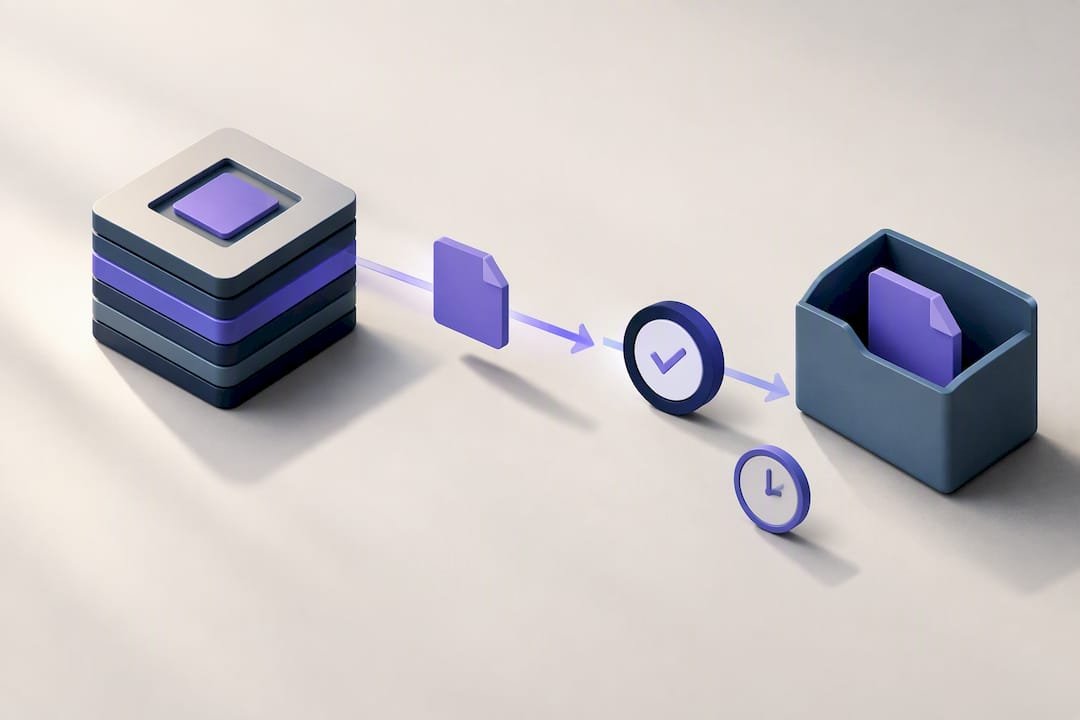
The most resilient pattern for most households and small businesses isn't NAS or cloud. It's both, arranged in layers so each one covers the other's weak point.
- Layer one: NAS as primary storage. Set up your NAS with a RAID configuration appropriate to your drive count, giving you fast local access and protection against a single drive failure.
- Layer two: scheduled, incremental cloud backup. Rather than syncing everything continuously, run scheduled backups that only send changed data (incremental, ideally block-level) to reduce daily upload volume.
- Layer three: versioning and retention. Keep multiple historical versions of files in the cloud copy, so a ransomware encryption event or an accidental deletion doesn't simply overwrite your only backup with the damaged version.
Bandwidth is the practical constraint that makes or breaks this.
Choosing where that cloud backup lands matters too. NeedToKnowIt highlights providers like Wasabi, which operates a Sydney endpoint that can reduce latency for Australian users, and Backblaze B2, often cheaper on raw storage but without local data centres. Your choice comes down to whether data residency or lower cost matters more for your situation.
A sensible retention policy keeps daily backups for a couple of weeks, weekly backups for a couple of months, and monthly backups for a year or more, adjusted to your risk tolerance and storage budget.
Pro Tip: Every quarter, deliberately restore a real file, not a test file, to a different location than where it lives normally. Time how long it takes and note every step. If it takes longer than you expected, that's the moment to fix your process, not during an actual emergency.
Which setup fits your situation?
Run through these questions honestly, and the right answer usually becomes obvious fast:
- How much data do you actually have? Under 2TB with slow growth leans cloud. Multiple terabytes with large media files leans NAS or hybrid.
- Do you collaborate with people outside your building? Remote collaborators favour cloud's built-in sharing tools.
- What's your realistic upload speed? Slow upload makes pure cloud backup painfully slow for large libraries, pushing you toward NAS-plus-scheduled-cloud instead.
- What's your budget horizon? A tight upfront budget suits cloud's pay-as-you-go model; a longer-term view often favours NAS ownership.
- Do you have regulatory or client-data obligations? If so, factor in OAIC-relevant questions about where cloud data sits and who can access it.
Rough profiles that tend to emerge from these answers: a home user with photos and documents usually does fine on cloud alone, provided they've actually checked their provider offers version history. A creative professional editing video or large image files almost always benefits from NAS for active work, with cloud as an offsite safety net. A small office with several staff and some regulatory sensitivity tends to land on hybrid, precisely because it covers both performance and compliance concerns at once.
Red flags worth acting on immediately, regardless of which camp you're in: backups you've never tested restoring, a NAS with remote access exposed to the internet without proper hardening, and cloud egress costs you haven't actually calculated before you needed a large restore.
When is it worth calling in a professional?
Some of this is genuinely fine to handle yourself. Setting up basic cloud sync on a laptop, for instance, rarely needs help. But a few tasks carry enough risk, or enough complexity, that getting it wrong costs more than getting it checked.
Secure NAS remote access setup is one. Done poorly, it's a direct path for ransomware. Ransomware recovery is another, since the wrong first move can make files permanently unrecoverable. Network segmentation, separating your NAS from guest devices and IoT gadgets, closes off entire categories of attack. And restore testing, done properly rather than assumed, catches problems while they're still fixable.
A typical engagement looks like an assessment of your current setup, configuration of the NAS or cloud backup policy, and documentation so you're not locked into needing a technician every time something changes. If your NAS has already failed, our NAS data recovery guide covers what's recoverable and what isn't, and Data Recovery Scientist handles the recovery work itself.
Why layered backups beat picking a side
The NAS versus cloud debate assumes you have to choose a winner. You don't, and treating it as a binary is where most backup strategies quietly fail. The households and small businesses in the best position aren't the ones with the fanciest NAS or the priciest cloud tier. They're the ones who've actually tried restoring a file and timed how long it took.
Our honest read: for most people, hybrid isn't a compromise, it's just the sensible design. NAS gives you speed for daily work; cloud gives you a copy that survives a fire, a theft, or a ransomware attack that reaches your local network. Test that restore path before you need it, not after.
One last thing worth remembering: a backup strategy is only as good as its worst untested assumption.
- PC Scientist
How PC Scientist can set this up properly for you
There are plenty of ways to cobble together a NAS and cloud backup yourself, and plenty of guides online telling you how. But if you'd rather have it configured correctly the first time, without the trial and error of testing your own restore process during an actual emergency, that's exactly where PC Scientist fits in.

We help households and small businesses across NSW set up NAS devices, configure secure remote access, and layer in scheduled cloud backup that actually gets tested. Network Scientist handles the NAS and network side, from hardware selection to secure configuration. Cybersecurity Scientist covers hardening against ransomware and exposed services, and Data Recovery Scientist is there if a drive has already failed and you need files back. If you're weighing up a cloud-hosted alternative for day-to-day access, Cloud OS is worth a look for cloud workstation style convenience alongside your backup strategy. We offer a transparent pricing approach and aim to provide repairs without unexpected fees, handling multiple devices in a single visit if needed. Book an assessment through PC Scientist and we'll tell you plainly whether NAS, cloud, or hybrid suits your situation, no jargon required.
Sources
- NAS vs cloud storage - Which is better for your business? - TechTarget
- Cyber
- Sending personal information overseas - OAIC
Recommended
Frequently Asked Questions
Straight answers about Under 4TB? Choose NAS or Cloud Storage in Australia - without jargon or pressure. Call 0493 563 381 for advice, or get help below.
Want the quickest answer? 0493 563 381 for free advice.
A NAS gives you full control over your data and much faster local transfer speeds, since files move across your home or office network rather than over the internet. It also avoids ongoing subscription fees once you've paid for the hardware, though you take on responsibility for maintenance and drive replacement yourself.
For most home users with everyday photos and documents, cloud storage is simpler and requires no hardware maintenance. If you have large media files or want full control without a monthly bill, a NAS, or a hybrid of both, tends to serve you better.
Yes, a NAS can replace much of what iCloud does, including photo storage and file sync across devices, though it requires more setup work and doesn't include the offsite protection cloud storage provides by default. Many people run a NAS alongside a cloud backup rather than dropping cloud entirely, since ACSC guidance recommends keeping at least one isolated, offsite copy.
A NAS requires you to manage firmware updates, monitor drive health, and replace failing disks before they cause data loss. It also lacks built-in offsite protection unless you pair it with a separate cloud or offline backup, and remote access needs to be configured securely to avoid becoming a ransomware entry point.
Data recovery across NSW
Still stuck choosing NAS or cloud storage?
If files have gone missing, that is okay. Get data recovery help in your area and we will take it from here.
Start here
Get data recovery help
Optional Need a Sydney city or region?
Choose a side of Sydney
These are Sydney cities and regions, such as the Northern Beaches or Inner West. First tap a side of Sydney. Then open the city or region that covers you.
C Sydney City / Inner 3 areas
N Northern Sydney 6 areas
NW North-West / Central Sydney 3 areas
W Western Sydney 1 area
SW South-West Sydney 3 areas
S Southern Sydney 2 areas
Optional Find your suburb
Type a suburb from our listed coverage. This opens the matching city or region page for this topic. Listed suburb pages are general technology services, not this specialist page.
If your suburb is not listed, use the city or region list above, or call 0493 563 381.
Disclaimer
The information in this article is provided for general educational and informational purposes only. While PC Scientist strives to keep all content accurate and up to date, technology issues can vary depending on your device, software, network configuration, and individual circumstances. Always back up important data before attempting repairs or system changes. If you are unsure or the issue cannot be resolved safely, contact PC Scientist today for professional onsite or remote IT support. PC Scientist is not liable for any loss of data, damage, or other issues resulting from the use of the information provided in this article.