
Clicking Hard Drive? 3 Triage Paths to Save Your Data
If your drive still mounts and files open normally, back it up this minute. If the click is a steady, rhythmic clack every few seconds, or the drive won't show up at all, power it off now and stop trying to force it to work. Anything mechanical gets worse the longer a failing drive keeps spinning, and DIY tricks like freezing or opening the case almost always make professional recovery harder, not easier.
Key takeaways
- Rhythmic clicking and drive failure signs require immediate power-off to prevent further damage and reduce recovery difficulty.
- External drives are more prone to clicking due to insufficient power, often fixable by trying different cables or USB ports before replacing hardware.
- Regularly SMART attribute increases signal imminent failure, making backup essential before data becomes unrecoverable.
- Professional cleanroom repair is the only viable option for drives clicking because of internal mechanical damage, not DIY fixes.
- Diagnosing the issue should start with power and connection checks, not software tools, to identify whether the problem lies below the operating system.
Table of Contents
- What does hard drive clicking actually mean?
- What should you do right now to protect your data?
- How do you safely diagnose a clicking drive?
- What are your realistic recovery options?
- When should you stop and call a professional?
- A calm word from experts
- Need a hand with a clicking drive?
- Sources
- FAQ
What does hard drive clicking actually mean?
Not every click is bad news. A soft, occasional tick every so often is often just the read/write head parking itself, and Seagate notes that healthy drives can produce mild clicking or whirring during normal operation. The trouble starts when that sound turns rhythmic and relentless.
Ask yourself three quick questions before doing anything else:
- Does the drive still mount and let you open files? If yes, you're in a far safer position than you think.
- Is the click occasional, or a steady click every two to five seconds? Occasional ticks are usually benign; a tight, repeating rhythm on every power-up is the pattern known as the click of death, caused by the actuator arm repeatedly resetting because it can't find its reference point.
- Is it internal or an external USB drive? External drives click far more often simply from inadequate power delivery, which is a much easier fix than a mechanical fault inside a laptop or desktop.
If the drive is undetected, clicking rhythmically, and holds files you can't lose, treat it as urgent. Any one of those alone is a warning. All three together mean stop touching it and get help.
What should you do right now to protect your data?
The next few minutes matter more than anything else in this whole process. Here's the order to work through:
- If the drive is still readable, copy your most important files off it immediately. Don't reorganise, don't tidy up, just grab documents, photos, and anything irreplaceable first.
- If it's an external drive, try a different cable, a different USB port, or a powered USB hub before assuming the worst. Western Digital's own troubleshooting guidance points to power and connection issues as a common, easily fixed cause of clicking.
- If the click is rhythmic or the drive won't detect at all, power it off and leave it off. Repeated power cycling on a mechanically failing drive tends to grind down whatever life the heads or platters have left.
Don't run CHKDSK, a full virus scan, or a defrag on a clicking drive. Those operations force the drive to read intensively across the whole disk surface, which is exactly the wrong workload for a drive that's already struggling. And don't freeze it or open the casing at home. Recovery specialists consistently report that these forum-famous "fixes" tend to introduce moisture damage or contaminate the platters with dust, turning a recoverable case into an expensive, sometimes unrecoverable one.
Pro Tip: Keep a spare external drive or USB stick in a drawer for exactly this moment. Those who have already copied the important files when faced with a clicking drive are always in a better spot than those who panicked and kept restarting the machine.
How do you safely diagnose a clicking drive?
Start with power, not diagnostics software. Try a known-good SATA cable and a different port directly on the motherboard rather than a front-panel header, since those can supply less reliable power. For external drives, test the original power adapter if there is one, or try a Y-cable that draws power from two USB ports at once. This single check resolves a surprising number of cases, because external drives frequently click purely from an underpowered connection rather than a mechanical fault.
Next, check whether your computer even sees the drive:
- BIOS/UEFI: if the drive doesn't appear here, the problem sits below the operating system, likely power, cabling, or a dead controller board.
- Disk Management (Windows) or Disk Utility (Mac): if the drive shows up but won't mount, that points toward file system damage rather than a mechanical fault, which is a very different and often easier problem.
If the drive is detected and holding steady, run a SMART health check using a tool like CrystalDiskInfo or the command line utility smartctl. Focus on three attributes in particular: reallocated sector count, current pending sector count, and uncorrectable sector count. Rising values in any of these mean the drive is actively losing usable storage, and backing up immediately takes priority over everything else on your to-do list.
If the drive detects but is flaky, imaging with a tool like ddrescue is the safer route to copying data, because it works around bad sectors with a timeout strategy instead of forcing the drive to keep retrying indefinitely, which naive copy tools tend to do.
What are your realistic recovery options?
Three paths exist here, and which one applies depends entirely on what you learned in the diagnostic step above.
- Path A, immediate backup: if the drive is stable and readable, this is the cheapest and safest option by a wide margin. Copy everything critical now, while you still can.
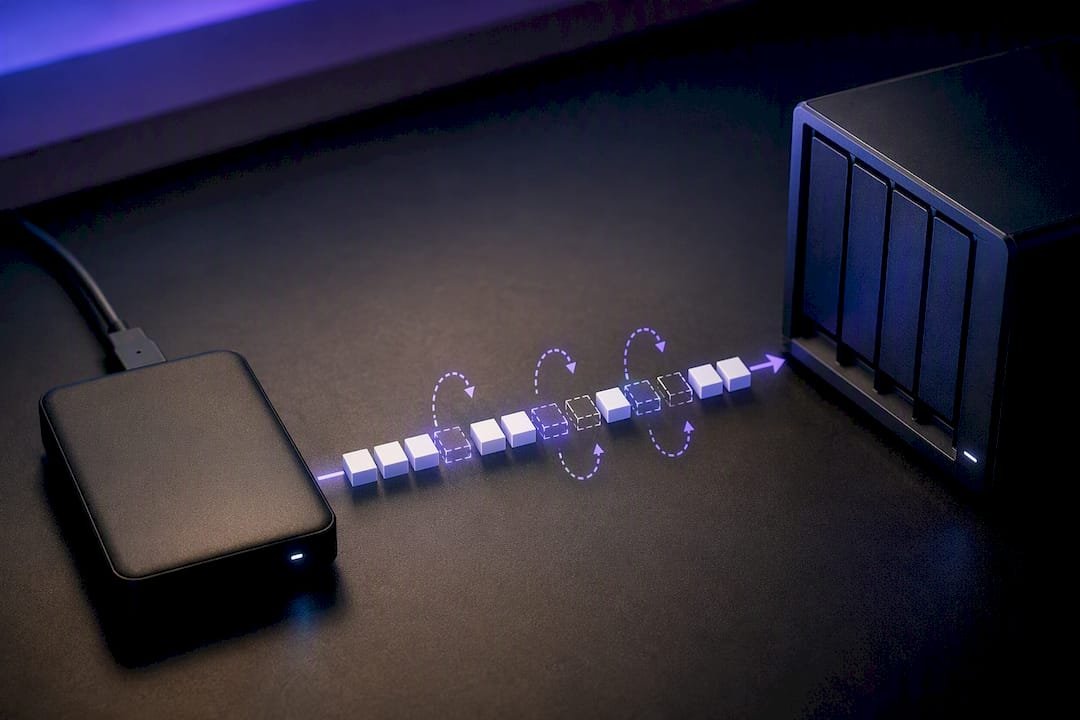
- Path B, controlled imaging: for a drive that's detectable but unreliable, imaging with ddrescue captures as much readable data as possible before things get worse. This takes patience and sometimes deliberate pauses to avoid pushing a struggling drive too hard.
- Path C, professional cleanroom recovery: for genuine mechanical failure, a lab opens the drive in a dust-controlled cleanroom and performs a head swap using an exact-match donor drive, or repairs the firmware directly, decisions a lab makes using specialised diagnostic hardware like PC-3000. This is the only real fix for a drive that's actually clicking because of damaged internal components.
Every consumer attempt at Path C at home, whether that's opening the case, freezing the drive, or repeatedly power-cycling it hoping it'll "shake loose," tends to reduce your odds with a real lab afterwards. Labs treat previously opened or frozen drives as harder, riskier cases, which usually means a higher cost and a lower success rate.
When should you stop and call a professional?
Some signs mean act today, not next week. A steady, rhythmic click of death, a drive that won't detect at all, repeated read errors during copying, or data you genuinely can't lose are all urgent triggers, full stop.
Other signs are worth booking in without panicking:
- SMART reallocated or pending sector counts that keep climbing.
- Intermittent clicking on a drive you haven't been able to back up yet.
- A drive that works today but you're not confident it'll work tomorrow.
Before you call anyone, jot down a few details. It saves time and often saves money too:
- The drive's make, model, and serial number.
- A description or short recording of the click's rhythm.
- Screenshots of your SMART results if you managed to run them.
- What you've already tried, including cables, ports, and any software checks.
A calm word from experts
A clicking drive feels like a crisis, and sometimes it is, but plenty of clicks are entirely salvageable once you stop guessing and start triaging properly. Our Data Recovery Scientist and Computer Repair Scientist teams see this exact scenario often, and the readers who back up early and avoid risky DIY fixes almost always end up with more options on the table.
- PC Scientist
Need a hand with a clicking drive?
PC Scientist gives you clear, upfront pricing and no fix, no fee repairs, so you're never left guessing what a diagnosis will cost before you've even said yes to it. If your drive is clicking, showing SMART warnings, or has already stopped detecting, our Data Recovery Scientist service handles everything from safe imaging through to coordinating professional cleanroom work for mechanical failures, with onsite visits across our NSW service areas and remote diagnosis available where it makes sense.

Before you book, have the drive's make and model, a short description of the click pattern, and any SMART screenshots ready. It speeds up the diagnosis and gets you a straight answer faster. If the fault turns out to be a cable, port, or something our Computer Repair Scientist team can fix onsite, you'll hear that too, honestly, without being pushed toward a lab job you don't need. Get in touch through PC Scientist to book a diagnosis and find out exactly where your drive stands.
Sources
For manufacturer guidance on drive sounds, see Seagate's identification guide and Western Digital's noise troubleshooting page.
- Identifying hard drive sounds and determining what they mean | Seagate
- Reasons for hard drive noise | Western Digital Support
- Hard drive clicking: data recovery and diagnosis | Save My Disk
Recommended
- NAS data recovery: practical steps and when to call a pro
- Windows won't boot? Try this fix order first
Frequently Asked Questions
Straight answers about Clicking Hard Drive? 3 Triage Paths to Save Your Data - without jargon or pressure. Call 0493 563 381 for advice, or get help below.
Want the quickest answer? 0493 563 381 for free advice.
Sometimes, yes. If the click comes from a loose cable or weak power supply, swapping the cable, port, or using a powered USB hub often resolves it completely. A rhythmic click of death caused by a failing actuator arm generally needs professional cleanroom repair rather than a home fix.
A ticking sound usually comes from the read/write head either parking itself during normal use or struggling to find its reference track on a failing drive. Occasional, soft ticking is often harmless, while a steady, repeating tick every few seconds points toward mechanical failure.
Rising SMART attributes such as reallocated sector count, pending sector count, and uncorrectable sector count are the clearest warning signs, alongside slow file access, files that won't open, and unusual clicking or grinding noises. Any combination of these means backing up immediately, not eventually.
External drives click most often because of inadequate power delivery through the USB connection, not necessarily a mechanical fault. Trying a different cable, port, or a powered USB hub is a simple, low-risk first step that resolves many of these cases without needing repair at all.
Data recovery across NSW
Still stuck with a clicking hard drive?
If files have gone missing, that is okay. Get data recovery help in your area and we will take it from here.
Start here
Get data recovery help
Optional Need a Sydney city or region?
Choose a side of Sydney
These are Sydney cities and regions, such as the Northern Beaches or Inner West. First tap a side of Sydney. Then open the city or region that covers you.
C Sydney City / Inner 3 areas
N Northern Sydney 6 areas
NW North-West / Central Sydney 3 areas
W Western Sydney 1 area
SW South-West Sydney 3 areas
S Southern Sydney 2 areas
Optional Find your suburb
Type a suburb from our listed coverage. This opens the matching city or region page for this topic. Listed suburb pages are general technology services, not this specialist page.
If your suburb is not listed, use the city or region list above, or call 0493 563 381.
Disclaimer
The information in this article is provided for general educational and informational purposes only. While PC Scientist strives to keep all content accurate and up to date, technology issues can vary depending on your device, software, network configuration, and individual circumstances. Always back up important data before attempting repairs or system changes. If you are unsure or the issue cannot be resolved safely, contact PC Scientist today for professional onsite or remote IT support. PC Scientist is not liable for any loss of data, damage, or other issues resulting from the use of the information provided in this article.