

Dual Monitor Setup: Connect, Extend and Fix It in Windows
A dual monitor setup is two screens, two cables and about ten minutes in Windows settings. Plug each monitor into a matching port, press Windows key + P, choose Extend, then drag the screens into the same order they sit on your desk. When the second screen doesn't appear, the cause is almost always a cable, a port that can't output video, or a dock that can't drive two displays. This guide covers each of those, in plain words.
If you'd rather have someone do it in your home or office and leave everything working, we do that too. More on that near the end.
Key takeaways
- Match each monitor to a port your computer actually has (HDMI, DisplayPort or USB-C), then connect power and video cables to every screen.
- In Windows, press Windows key + P and pick Extend for two separate workspaces, or Duplicate to show the same picture on both.
- Go to Settings > System > Display and drag the numbered screens to match your desk, so the mouse moves across them naturally.
- If a monitor isn't detected, check the cable and port, run Detect, press Windows key + P again, then unplug docks and adapters.
- A dock only helps if your laptop's USB-C or Thunderbolt port can output video. Check that before you buy one.
Table of Contents
- What you need before you start
- Connecting two monitors, step by step
- Extend or Duplicate: which should you choose?
- Arrange the screens so the mouse behaves
- Setting up the desk so it's comfortable
- Dual monitor not detected: what to check, in order
- When you need a dock for two monitors
- Cost: what does a dual monitor setup really involve?
- A few common questions about dual monitors
- We can set it up for you
- Our view: set it up once, properly
- FAQ
- Sources
What you need before you start
For most people the list is short: two monitors, a computer, and the right cables. Samsung Australia's setup guide says to check your computer's manual or online specifications if you're unsure what it supports.
The part that trips people up is ports. HDMI, DisplayPort and USB-C are the common modern video connections, and VGA and DVI are older ones, according to the same Samsung guide. Look at the back of your desktop or the sides of your laptop and count what's there.
Here's a simple way to work it out:
- Count the video outputs on the computer. Two free HDMI or DisplayPort sockets is the easy case. On a desktop with a separate graphics card, use the sockets on the card, not the ones on the motherboard panel above it.
- Count the inputs on each monitor. Most have HDMI, and many also have DisplayPort.
- Match them. If the computer has HDMI but the monitor has only DisplayPort, you need a cable or adapter that converts between the two, such as a DisplayPort to HDMI adapter cable.
One caution on adapters: the cable above is listed as 4K at 30 Hz. That's fine for text and email, but 30 Hz can feel sluggish when you move the mouse. If you want smooth motion on a 4K screen, check the refresh rate on the cable's listing before you buy.
Do I need two HDMI ports for two monitors?
Not necessarily. You need two video outputs, and they can be different types: one HDMI and one DisplayPort works perfectly. A laptop with one HDMI port and a USB-C port that supports video can also drive two screens. The key word is supports video, which we come back to in the dock section.
Connecting two monitors, step by step
The physical part is simple, but one wrong plug can waste an hour of troubleshooting.
- Place the monitors and plug in their power. Do this first so you can see each screen is alive.
- Connect one video cable from each monitor to the computer. Samsung's guide describes the same routine: connect each display cable to the monitor and the computer, plug in the power, and repeat for every monitor.
- Push every plug in firmly. A cable that's almost seated is the number one reason for a blank screen.
- Switch everything on. Turn on the computer and both monitors. If a monitor has several inputs, use its on-screen menu to select the one you've plugged into.
- Check Windows is up to date. Microsoft's guidance is to verify the cables are connected to your PC or dock and check for Windows updates before you start changing display settings.
If you've just unboxed a new computer as well, our new PC setup checklist covers the other things worth doing first.
Extend or Duplicate: which should you choose?
Once both screens show something, Windows needs to know how you want to use them. Press Windows key + P and a small menu appears. Microsoft explains the choice this way: Extend shows different content on each screen, while Duplicate shows the same image on both.
| Mode | What you see | Best for |
|---|---|---|
| Extend | One big desktop spread across two screens. Drag windows between them. | Work, study, email on one side and a document on the other, a spreadsheet next to a video call |
| Duplicate | The same picture on both | Presenting to a room, or a TV mirroring a laptop |
| Second screen only | Only the external monitor is on | Laptop closed or lid down, big screen only |
| PC screen only | Only the main screen is on | Switching back to one display |
For day-to-day use, Extend is the one almost everyone wants. ViewSonic Australia's guide recommends the same: Extend for different content on each screen, Duplicate for the same image.
If you see the same thing on both screens and wonder why you can't drag windows across, Windows is simply in Duplicate mode. Press Windows key + P and choose Extend.
Arrange the screens so the mouse behaves
Extend mode only feels natural if Windows knows which monitor is on the left. Otherwise you push the mouse off the right edge and it appears on the wrong side.
- Right-click the desktop and choose Display settings, or open Settings > System > Display.
- Select Identify. Windows puts a number on each screen so you can tell which is which.
- Drag the numbered rectangles at the top so they match the real positions on your desk, then select Apply.
- Pick your main screen. ViewSonic notes you can choose Make this my main display, which is where the taskbar, the Start menu and most new windows open.
You can also nudge the rectangles up or down if one monitor sits higher than the other, so the mouse crosses at the right height.
Check resolution and scaling
In the same Display settings page, each screen has its own resolution and scale. If text looks tiny or blurry on one monitor, choose that screen's rectangle and set its resolution to the recommended one. If one screen is a laptop panel and the other a larger monitor, they often need different scaling values to look comparable. Try 100% to 125% on a 24-inch Full HD monitor and a higher percentage on a 4K one, then adjust to taste.
Setting up the desk so it's comfortable
Two screens are easier on you when they're set up as one. A few practical rules:
- Put your main screen directly in front of you and the second beside it, angled slightly inward.
- Keep the top edge of the screens at or just below eye level. University of California safety guidance on dual monitors gives the same advice for monitor height.
- Match heights where you can. Monitor arms or stands make this easy if the two screens differ in size.
- Leave room for the keyboard and mouse. A desk size and layout planner helps you check that two monitors, a keyboard and your elbows fit before you buy a desk or rearrange a room.
If you use one screen far more than the other, make that your main screen and centre yourself on it. Neck strain usually comes from turning your head all day to the same side.
Dual monitor not detected: what to check, in order
This is the most common complaint, and it's nearly always fixable without replacing anything. Work down this list and stop when the screen appears.
- Reseat both ends of the cable. Unplug and firmly re-plug at the monitor and at the computer. Confirm the monitor is on the right input.
- Press Windows key + P and choose Extend. Microsoft's troubleshooting page recommends using Windows + P to make sure Extend is selected when an external monitor doesn't show what you expect.
- Use Detect. Go to Settings > System > Display > Multiple displays and select Detect. Microsoft says this searches manually for a display Windows hasn't found.
- Run Windows Update. Display drivers arrive through updates, and a missing one can leave a screen blank.
- Remove the middlemen. Microsoft advises disconnecting accessories such as docks, dongles and adapters to find out whether one of them is causing the conflict. Plug the monitor straight into the computer with a single cable.
- Try a different cable and a different port. If a cable that works on another device fails here, the port is the problem. If it fails everywhere, the cable is.
- Check the graphics settings app. Kensington's support page for a dual-display dock notes that you may need to unhide the second monitor in your Intel, Nvidia or other graphics settings application.
A monitor that shows a "no signal" message is usually on the wrong input or has a loose cable. We've written a similar walk-through for HDMI no-signal problems on a TV, and the logic is the same for monitors.
If you're on a laptop and the USB-C or HDMI port seems dead, it may be physical damage. Our guide to a broken USB port on a laptop explains what to look at.
When you need a dock for two monitors
Many thin laptops have a single video output. A dock is a box that plugs into one port, usually USB-C or Thunderbolt, and gives you extra sockets: two HDMI or DisplayPort outputs, USB ports, sometimes Ethernet and charging.
The catch is that not every USB-C port carries video, and not every dock can drive two screens in every situation. Before buying anything:
- Confirm your port carries video. ViewSonic advises checking that a USB-C port supports DisplayPort Alt Mode before you use it for a monitor. Alt Mode is the feature that lets the port send a picture. Your laptop's specifications or the small icon next to the port will tell you.
- Know what the connection can handle. Kensington's Australian support page for one of its docks says that USB-C Alt Mode at the HBR3 level supports two monitors up to 1440p at 60 Hz, while HBR2 supports two up to 1080p at 60 Hz. The same page says that Thunderbolt 3 supports single or dual 4K monitors at 60 Hz.
- Read the fine print on the dock. Kensington's page for another dock says it supports only one display when connected to a USB-C Alt Mode device, even though it can drive two 4K screens at 60 Hz in the stated conditions. Two HDMI sockets on a dock don't guarantee two working screens on every laptop.
- Daisy-chaining is a special case. ViewSonic says it needs compatible monitor models and MST switched on in the monitor's on-screen menu. Plan on two separate cables unless you know your monitors support it.
A quick worked example: you have a work laptop with two USB-C ports and two 1080p monitors. If the laptop's USB-C ports are Thunderbolt or Alt Mode, a dock with two video outputs should drive both screens at 1080p and 60 Hz. If the ports are charge-and-data only, no dock will help, and you need a different route, such as one HDMI port plus a USB display adapter, or a different laptop.
Cost: what does a dual monitor setup really involve?
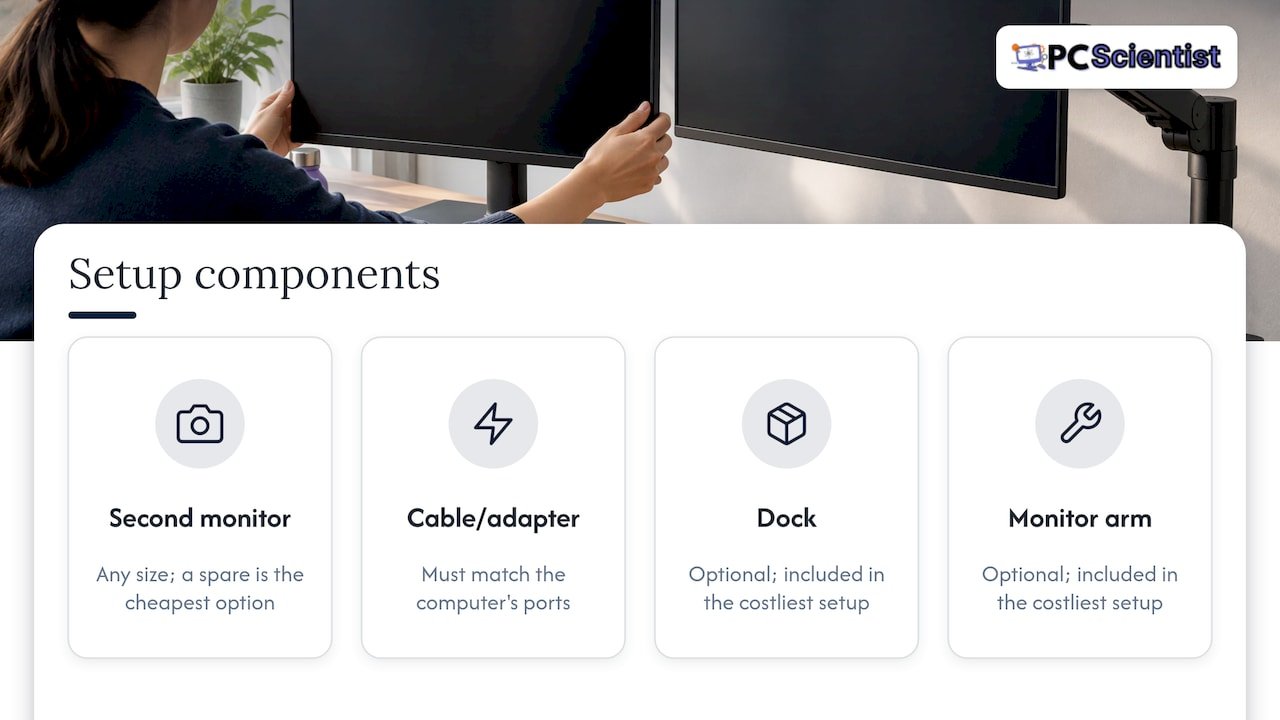
There's no single price. It depends on what you already own: a second monitor of any size, the cable or adapter that matches your ports, and possibly a dock or a monitor arm. The cheapest scenario is a spare monitor and a cable you already have. The costliest is a dock, two new monitors and arms. List what each item must connect to first, and you'll avoid buying a cable that doesn't fit.
If the setup involves older equipment, it's worth knowing whether the computer can run two screens smoothly at all. Our Computer Repair Scientist team can look at an older PC and tell you honestly whether an upgrade or replacement makes more sense.
A few common questions about dual monitors
What are the disadvantages of dual monitors?
They take more desk space, use more power, and can cause neck strain if the main screen isn't centred. They also need a computer with enough video outputs. Setting the main screen straight ahead and matching heights solves most comfort problems.
Can I use a different size or brand for the second monitor?
Yes. Windows handles each screen separately. Different resolutions or sizes are fine, but you may need to adjust scaling so text looks similar on both.
Will two monitors slow my computer down?
A modern computer handles two screens for office work, browsing and video calls with no trouble. Heavier tasks such as games, video editing or 4K on both screens ask more of the graphics hardware.
We can set it up for you
If you'd rather not spend an evening with cables, adapters and display menus, we handle the whole job on site across NSW. We can check your ports, connect the monitors, arrange them in Windows and set up your dock, and we can move your files and apps over if you're changing computers at the same time. Our repairs are no fix, no fee, and our pricing is clear upfront. We can also look at several devices in one visit, so the printer, the laptop and the second screen all get sorted together.
See our Device Setup Scientist service, or ask Computer Support Scientist for help if a screen has stopped working.

Building a gaming or creator PC with several screens? Our custom PC builds and other technology services can plan the graphics outputs around the monitors you want.
Our view: set it up once, properly
Most dual monitor problems aren't really monitor problems. They're a mismatch between what a port can do and what someone has been sold, usually a dock or adapter that fits the plug but can't carry two pictures.
That's why we start with the computer, not the shopping list. We look at which ports carry video, how the monitors connect, and what the person actually does all day, then arrange the screens so the mouse, the windows and the desk all feel natural.
Our approach is to keep it simple and jargon-free. You shouldn't need to know what Alt Mode is to have two working screens. We'd rather explain it once, show you how to switch between Extend and Duplicate, and leave you confident. If something doesn't work, we say so plainly, and our repairs are no fix, no fee.
PC Scientist
Sources
- How to use multiple monitors in Windows, Microsoft Support
- Troubleshoot external monitor connections in Windows, Microsoft Support
- How to Setup Dual Monitors, Samsung Australia
- How to setup and configure dual monitors, ViewSonic Australia
- SD5600T Customer Support, Kensington Australia
- SD5765T Support Page, Kensington
- Dual Monitors ergonomics, University of California
- Gaming Desk Size Guide and Layout Planner
- DisplayPort to HDMI adapter cable
Recommended
- Cannot Access a Shared Folder? Fixes That Work on Windows
- Your new PC setup checklist: eight things to do first
- Ethernet Port Not Working? How to Find the Fault and Fix It
- Broken USB Port on Your Laptop? What to Check and Fix
Frequently Asked Questions
Straight answers about Dual Monitor Setup: Connect, Extend and Fix It in Windows - without jargon or pressure. Call 0493 563 381 for advice, or get help below.
Cracked screens Batteries Laptops Desktops Slow computers Whole NSW
Want the quickest answer? 0493 563 381 for free advice.
Usually it's a loose cable, the wrong input on the monitor, or Windows in a different display mode. Press Windows key + P and choose Extend, then use Detect under Settings > System > Display. If that fails, plug the monitor straight into the computer without a dock or adapter.
Extend turns two screens into one larger desktop, so each shows different windows. Duplicate shows the same picture on both. Extend suits everyday work, and Duplicate suits presenting or mirroring to a TV.
Only if your laptop doesn't have enough video outputs. If it has HDMI plus a USB-C port that carries video, you may not need one. If it has a single USB-C port, a dock that supports two displays on your laptop's connection type is the usual answer.
Often yes. Many desktop graphics cards have two or more outputs. Check the back of your PC for free sockets on the graphics card, and match them to your monitors' inputs.
Computer help across NSW
Still stuck with a dual monitor setup?
If the steps above did not get the computer feeling right, that is okay. Get help in your area and we will take it from here.
Start here
Get computer help
Optional Need a Sydney city or region?
Choose a side of Sydney
These are Sydney cities and regions, such as the Northern Beaches or Inner West. First tap a side of Sydney. Then open the city or region that covers you.
C Sydney City / Inner 3 areas
N Northern Sydney 5 areas
NW North-West / Central Sydney 3 areas
W Western Sydney 1 area
SW South-West Sydney 3 areas
S Southern Sydney 2 areas
Optional Find your suburb
Type a suburb from our listed coverage. This opens the matching city or region page for this topic. Listed suburb pages are general technology services, not this specialist page.
If your suburb is not listed, use the city or region list above, or call 0493 563 381.
Disclaimer
The information in this article is provided for general educational and informational purposes only. While PC Scientist strives to keep all content accurate and up to date, technology issues can vary depending on your device, software, network configuration, and individual circumstances. Always back up important data before attempting repairs or system changes. If you are unsure or the issue cannot be resolved safely, contact PC Scientist today for professional onsite or remote IT support. PC Scientist is not liable for any loss of data, damage, or other issues resulting from the use of the information provided in this article.