Computer running slow? What to check before you replace it

You can open Task Manager (press Ctrl+Shift+Esc), sort by CPU and memory, and close whatever is hogging resources. Then restart. That single sequence fixes a surprising number of slowdowns because a reboot clears out memory leaks and a bloated page file that build up over days of uptime.
You can give it five to ten minutes. If the PC feels normal again, you were dealing with a temporary resource hog. If it is still sluggish, something more persistent is going on: startup bloat, a nearly full drive, malware, or hardware that has simply hit its ceiling.
- Likely low-cost causes: too many startup apps, a full hard drive, outdated drivers, an overdue malware scan
- Likely hardware causes: an ageing hard disk drive, insufficient RAM, a CPU under constant thermal stress
- Quick fix cost: $0, just time
- Upgrade cost: a moderate cost for an SSD or RAM upgrade, more for a full rebuild or technician visit
Quick take: most slow PCs are fixed with free software changes in under an hour. The ones that aren't usually point to a failing drive or a machine that has outgrown its RAM, and that is when an upgrade or a technician visit starts making financial sense.
Key Takeaways
A slow computer is almost always fixed by diagnosing the actual bottleneck with Task Manager before making any changes, then escalating from free software fixes to hardware upgrades only when the data supports it.
| Point | Details |
|---|---|
| Start with Task Manager | Check CPU, memory and disk usage before changing any settings or spending money. |
| Restart before anything else | A proper reboot clears RAM and resolves a surprising share of slowdowns in minutes. |
| Rule out malware early | Run a Windows Security scan followed by a Malwarebytes second opinion if symptoms persist. |
| SSD upgrade beats CPU upgrade | Swapping a hard disk drive for an SSD often delivers significant performance improvements for many old PCs. |
| Call a technician for hardware failure | PC Scientist runs full diagnostics, driver rollbacks and SSD upgrades onsite and remotely across NSW when DIY fixes run out. |
Authoritative resources and diagnostic tools worth bookmarking
- Microsoft's PC performance guide: official Windows Update, Storage Sense and driver steps
- Intel's troubleshooting tips: Task Manager first approach for pinpointing bottlenecks
- HP's slow PC guide: SSD vs HDD upgrade advice and RAM benchmarks
- PCWorld's Windows 11 checklist: startup, bloatware and Autoruns guidance
Table of Contents
- Fast fixes for a computer running slow (10 to 30 minutes)
- How to check what's slowing your PC down
- Could malware be why your PC is running slow?
- Trim startup programs and background apps
- Free up storage without breaking anything
- Update Windows and drivers before you blame the hardware
- When hardware is the real problem, not the software
- Tools that show exactly what changed on your PC
- Signs it's time to call a technician
- Prefer to skip the troubleshooting and get it sorted?
- Sources
- FAQ
Fast fixes for a computer running slow (10 to 30 minutes)
Work through these in order. Each one takes a few minutes and costs nothing.
- Restart properly (2 minutes). Not sleep, not hibernate, an actual restart. This clears RAM and resets background processes that have quietly eaten resources since you last rebooted.
- Close unused apps and browser tabs (2 minutes). A browser with 40 tabs open can consume more memory than half a dozen desktop applications combined. Check each tab's memory use in Chrome's own Task Manager (Shift+Esc) or Firefox's about:performance page.
- Clear your browser cache and disable unused extensions (5 minutes). Old cached files and rogue extensions are common, overlooked drains on both memory and disk. Firefox's own support guide walks through clearing cache in a couple of clicks, and the same principle applies in Chrome and Edge.
- Check for one obvious resource hog (3 minutes). Open Task Manager and look for a single process sitting above 50% CPU or disk. Often it is a browser tab playing video, a sync client indexing files, or an update running in the background.
- Run a second restart if the first didn't help (2 minutes). Sounds odd, but Windows sometimes needs two reboots to fully apply a pending update or clear a stuck service. If that still doesn't shift things, boot into Safe Mode (hold Shift while clicking Restart, then Troubleshoot > Advanced options > Startup Settings) to see if the slowness disappears, which points to a software conflict rather than hardware.
Intel's own troubleshooting advice backs this exact order: check Task Manager first, restart, then dig deeper only if the problem persists.
Pro Tip: If your machine is slow only when you first log in, the culprit is almost always startup programs, not a failing component. Keep that in mind before you start blaming your hardware.

How to check what's slowing your PC down
Task Manager (Ctrl+Shift+Esc) is your first stop, and the Performance tab tells you almost everything you need to know at a glance.
- Check the CPU graph. A number sitting near 100% with no obvious cause on the Processes tab often means a runaway process or malware. Sort by CPU and see what's actually using it.
- Check Memory. If usage sits above 80% at idle, you likely don't have enough RAM for what you're running, or something is leaking memory over time.
- Check Disk. This is the one people miss. A drive pinned at 100% while CPU and RAM look normal usually means Windows Update, an antivirus scan, or a search indexer chewing through a slow hard drive.
- Check Network if programs feel unresponsive but resource use looks fine. Background syncing or a misbehaving app can flood your connection.
For a deeper look, open Resource Monitor (search for "resmon") to see exactly which file or process is hammering your disk, and check Reliability Monitor (search for "reliability") for a timeline of crashes, failed updates and driver issues that correlate with when the slowdown started.
- Persistent 80 to 100% CPU with no clear app running: check for malware or a stuck background task
- Disk pinned at 100%: check Windows Update, run an antivirus scan, or test the drive's health
- Memory consistently above 80%: you likely need more RAM or fewer apps open at once
- Slowness disappears in Safe Mode: a startup program or driver is the cause, not the hardware itself
HP's troubleshooting guide recommends this exact diagnose-first approach before touching any settings, and it saves you from guessing.
Could malware be why your PC is running slow?
Malware and cryptomining scripts are notorious for quietly maxing out CPU or disk in the background while showing no obvious symptoms beyond a machine that has suddenly turned sluggish. If your computer is slow, fans are running constantly, and you didn't open anything demanding, this is worth ruling out early.
- Run a Windows Security quick scan first (search "Windows Security" in the Start menu). Takes a few minutes.
- Follow with a full scan if the quick scan finds anything or the slowness remains unexplained. This can take 30 to 60 minutes depending on how much storage you have.
- Run a second-opinion scan with Malwarebytes. It catches adware and potentially unwanted programs that Windows Security sometimes misses, and it's free for a one-off scan.
- Never run two real-time antivirus programs simultaneously; they conflict and slow the PC further. If you install a third-party tool, disable or uninstall the other one properly first.
Microsoft's own performance guide lists malware scanning as a core step precisely because infections are one of the most common, and most fixable, causes of a sudden slowdown.
Trim startup programs and background apps
A machine that takes forever to boot but runs fine once it's up is almost always drowning in startup programs. Fixing this takes minutes and costs nothing.
- Open Task Manager > Startup apps and disable anything you don't need running the moment you log in. Leave your antivirus and touchpad or graphics driver alone.
- Check Settings > Apps > Startup as well; some apps register there instead of Task Manager.
- Review Settings > Apps > Installed apps for background permissions. Plenty of apps keep running quietly even when closed, and toggling their background access off frees up resources you didn't know were spoken for.
- If you want to go further, Sysinternals Autoruns from Microsoft reveals autostart entries hidden from Task Manager entirely, things like scheduled tasks and services that load silently at boot.
Disabling excessive startup items is one of the fastest, highest-value fixes a technician tries during a first visit, and it often resolves complaints about a computer running slow at boot on its own.
Pro Tip: Don't disable anything you don't recognise without checking it first. A quick search of the process name tells you whether it's safe to turn off or something your security software needs.
Free up storage without breaking anything
A drive running near capacity forces Windows to work harder just to find space for temporary files, and that alone can make a fast computer feel sluggish overnight.
- Aim for at least 10 to 15% free space on a hard disk drive, and closer to 25 to 30% free on an SSD, since solid-state drives slow down noticeably as they fill up.
- Use Storage Sense (Settings > System > Storage) to automatically clear temporary files and empty the recycle bin on a schedule.
- Run Disk Cleanup manually for a one-off sweep, and check for large, forgotten folders in Downloads or old installer files.
- Defragment only if you have a traditional hard disk drive. If you have an SSD, never defrag it. Use Optimise Drives instead (search for it in the Start menu), which runs the correct maintenance for SSDs (TRIM) rather than the fragmentation fix meant for spinning disks.
Pro Tip: Pause OneDrive or other cloud sync tools while you're diagnosing a slowdown. Syncing can quietly consume disk and network bandwidth at the exact moment you're trying to work out what's wrong.
Update Windows and drivers before you blame the hardware
A slowdown that appeared suddenly, out of nowhere, is very often tied to a recent Windows update or an outdated driver rather than a failing component.
- Check Settings > Windows Update and install anything pending, including optional driver updates listed separately.
- Open Device Manager and look for devices flagged with a warning icon, particularly graphics and storage drivers.
- Create a restore point before updating major drivers. If a new driver makes things worse, right click the device in Device Manager, choose Properties, then Driver, then Roll Back Driver.
- Microsoft's performance tips page covers both update paths and is worth bookmarking for future reference.
When hardware is the real problem, not the software
Sometimes you do everything right and the computer is still slow. That's your signal the hardware has hit a genuine limit rather than a software habit needing a fix.
- RAM sitting above 80% during normal use, not just when you have twenty tabs open, means you don't have enough memory for how you actually use the machine.
- A hard disk drive pinned at 100% even after cleanup and malware checks usually means the drive itself is the bottleneck, or is starting to fail.
- A CPU that's several years old struggling with everyday tasks like video calls or spreadsheets has simply been outpaced by modern software demands.
The order of impact matters here. HP's own advice is blunt on this point: swapping a hard disk drive for an SSD is the single most impactful upgrade you can make, often transforming boot times and app loading more than any other change, including a CPU upgrade. RAM comes next, particularly if you regularly juggle multiple browser tabs and applications. A CPU upgrade rarely makes sense on its own since it usually means replacing the motherboard too.
- SSD upgrade: roughly $80 to $200, around one to two hours including data transfer
- RAM upgrade: roughly $60 to $150 depending on capacity, generally under an hour if your machine has spare slots
- Full rebuild or replacement: $600 and up, worth considering once a machine is five-plus years old and multiple components are struggling
HP also points to 16GB of RAM as a sensible baseline for smooth everyday use in 2026, up from the 8GB that was standard not long ago. If your laptop can't be upgraded (soldered RAM is common on ultrabooks), that's a genuine sign it's time to weigh a custom or prebuilt replacement rather than keep patching an ageing machine.
Tools that show exactly what changed on your PC
Task Manager tells you what's using resources right now, but it won't tell you what changed to cause the problem in the first place. That's a different kind of diagnostic, and it matters when a computer that ran fine last week suddenly doesn't.
- LatencyMon measures DPC and ISR latency, the kind of driver-level delay that causes stutters and audio glitches even when CPU and memory usage look perfectly normal. It's particularly good at surfacing problem drivers that Task Manager simply doesn't report.
- Chrontiq works from a different angle: it looks at recent updates, installs, driver changes and scheduled tasks to flag what changed right before performance dropped, saving you from combing through Event Viewer logs by hand.
- PSSystemDiagnostics, a PowerShell-based toolkit, suits anyone comfortable with scripting and wants an automated report covering processes, services and startup items in one pass.
Run any of these for five to ten minutes while actually reproducing the slowdown, browsing, streaming, gaming, whatever triggers it, rather than at idle. A monitoring pass at idle tells you almost nothing useful.
Pro Tip: If the problem only shows up during specific tasks like video calls or gaming, run your diagnostic tool during that exact task. Idle readings hide the issue almost every time.
Signs it's time to call a technician
on your own fixes cover most cases, but a handful of symptoms mean it's time to stop tinkering and get a second set of eyes on the machine.
- A drive failing its S.M.A.R.T. health check, or CHKDSK reporting bad sectors
- Thermal throttling, where the CPU runs well below its rated speed because of heat, often from years of dust buildup inside the case
- Unknown processes reappearing after removal, a sign of a persistent infection
- Crashes or freezes with no consistent trigger, which usually points to failing hardware rather than software
A technician's first visit typically runs hardware diagnostics, checks Event Viewer for crash patterns, confirms drive health with S.M.A.R.T. tools, and rolls back or reinstalls problematic drivers. If nothing short of a clean install will fix it, they'll walk you through a full Windows reset or reinstall as the last resort, with your data backed up first. Before your visit, back up anything important, note when the slowness happens, and jot down any recent changes, new software, an update, a dropped laptop. It saves diagnostic time and often the cost of the visit.
Expect a remote diagnostic to run 30 to 60 minutes, while an onsite hardware fix (an SSD swap, a dust clean, a driver rollback) usually wraps up within a couple of hours.
A technician's perspective on what actually fixes slow PCs
Most call-outs for a computer running slow end the same way: a startup clean-up, an SSD swap, or a dust-out fixes it. Startup bloat is the most common culprit by far, dozens of quietly launching apps nobody remembers installing. An SSD swap on an old hard-disk machine is the single most dramatic fix we see, often turning a five-minute boot into fifteen seconds.
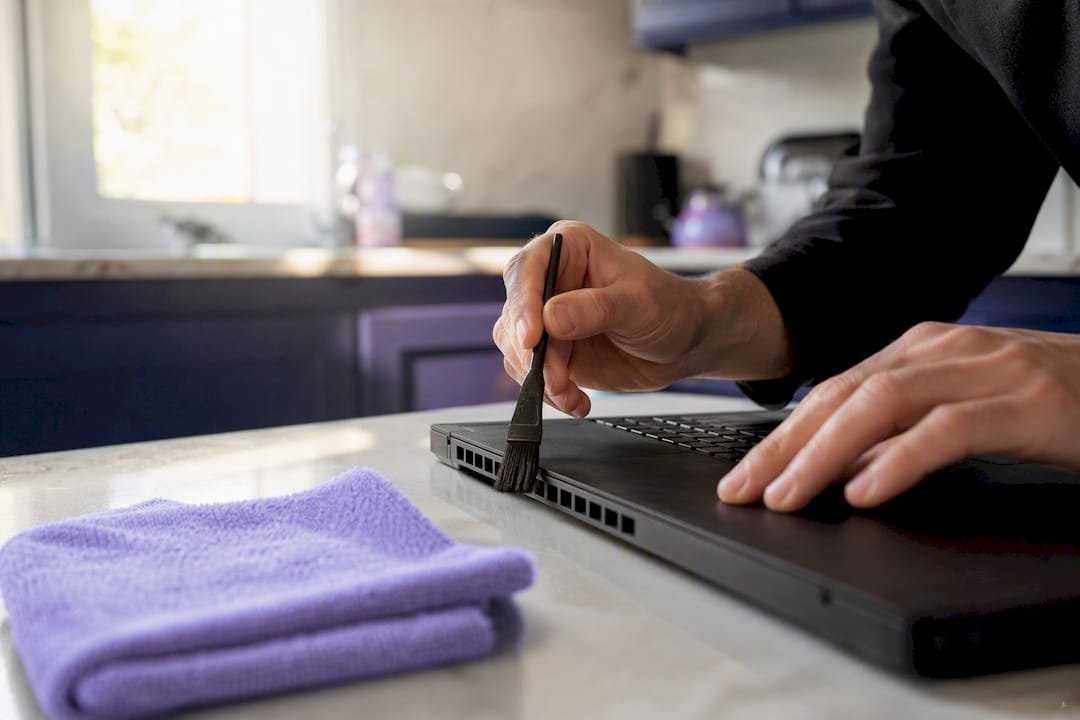
Hardware replacement is rarer than people expect but real: a laptop with soldered 4GB RAM simply cannot be fixed with software. Our case studies reflect this pattern consistently across household and small business machines.
Want us to take it from here?
Working through Task Manager, driver rollbacks and startup lists takes patience, and not everyone has a spare afternoon to spend on it. PC Scientist handles exactly this kind of diagnostic work onsite and remotely across homes and businesses in NSW, covering everything from malware removal and driver conflicts to SSD upgrades, RAM installs and full data recovery if a drive is on its way out.

Book a visit and we'll run a proper diagnostic first, resource checks, drive health, driver status, so you get a transparent quote before any work starts rather than a guess. Most remote sessions wrap up within the hour, and onsite hardware jobs like an SSD swap or dust clean are usually done same day. If you'd rather start with everyday PC troubleshooting, our Computer Repair Scientist team covers exactly the hardware issues this guide walks through, and businesses juggling multiple slow machines can look at our business IT support options. Ready to stop guessing? Get in touch and we'll take it from there.
Sources
- Tips to improve PC performance in Windows
- Computer running slow? Intel tech tips
- How to Speed Up a Slow PC
- This free tool tells you exactly what's slowing down your PC
- Your Windows 11 PC is slower than it should be. Here's what to check
Recommended
- Custom PC vs Prebuilt in NSW: What's Better for Gaming, Work or School?
- Custom PC vs Prebuilt in NSW: What's Better for Gaming, Work or School?
- Case Studies | Real IT Support, Website and Network Outcomes | PC Scientist
- Contact PC Scientist | Call for Computer, Wi-Fi, Email & Device Help in NSW
Frequently Asked Questions
Straight answers about Computer running slow? Try this before you spend a cent - without jargon or pressure. Call 0493 563 381 for advice, or get help below.
Want the quickest answer? 0493 563 381 for free advice.
Start with Task Manager to identify whether CPU, memory or disk is maxed out, then restart, run a malware scan, and disable unnecessary startup programs. If those don't help, check drive health and consider an SSD upgrade.
Use Storage Sense and Disk Cleanup to clear temporary files, disable startup apps you don't need, and run Optimise Drives (never manual defrag on an SSD). Follow with a Windows Update check and a malware scan.
Resource Monitor gives more detail on exactly which process or file is responsible.
A sudden slowdown is usually caused by a recent Windows update, a new driver, a background scan, or malware that started running without your knowledge. Check Reliability Monitor for a timeline of what installed or changed right before the issue began.
If your machine is running an SSD, has 16GB of RAM, and passes drive health checks, an upgrade is usually cheaper and effective. If it's several years old with soldered RAM or a failing drive, replacement or professional advice from a service like PC Scientist often makes more sense.
Computer help across NSW
Need a hand with a computer running slow?
If the steps above did not get your computer feeling right, that is okay. Get help in your area and we will take it from here.
Start here
Get computer help
Optional Need a Sydney city or region?
Choose a side of Sydney
These are Sydney cities and regions, such as the Northern Beaches or Inner West. First tap a side of Sydney. Then open the city or region that covers you.
C Sydney City / Inner 3 areas
N Northern Sydney 6 areas
NW North-West / Central Sydney 3 areas
W Western Sydney 1 area
SW South-West Sydney 3 areas
S Southern Sydney 2 areas
Optional Find your suburb
Type a suburb from our listed coverage. This opens the matching city or region page for this topic. Listed suburb pages are general technology services, not this specialist page.
If your suburb is not listed, use the city or region list above, or call 0493 563 381.
Disclaimer
The information in this article is provided for general educational and informational purposes only. While PC Scientist strives to keep all content accurate and up to date, technology issues can vary depending on your device, software, network configuration, and individual circumstances. Always back up important data before attempting repairs or system changes. If you are unsure or the issue cannot be resolved safely, contact PC Scientist today for professional onsite or remote IT support. PC Scientist is not liable for any loss of data, damage, or other issues resulting from the use of the information provided in this article.