

Cannot Access a Shared Folder? Fixes That Work on Windows
When Windows refuses to open a shared folder, the cause is almost always one of four things: the network is set to Public, sharing is switched off on one computer, Windows is blocking guest access, or the share and folder permissions disagree. Work through them in that order and you will usually find it in under half an hour. This guide covers each one in plain steps, for home networks and small offices.
The error messages look different ("Windows cannot access", "Access is denied", "The network path was not found"), but they point to a handful of fixable causes.
Key takeaways
- Check the basics on both computers first: same router, network set to Private, Network discovery and File and printer sharing switched on.
- "Network path not found" usually means Windows cannot reach the other PC by name. Try its IP address instead.
- "Access denied" usually means the share permissions and the folder's Security permissions do not match, or you are connecting as a guest.
- Sign in with a real user account on the sharing PC rather than relying on guest access.
- If you are still stuck after the steps below, we can sort it onsite or remotely across NSW.
Table of Contents
- Start with what the error is telling you
- Step 1: Check both computers are on the same network
- Step 2: Turn on network discovery and file sharing
- Step 3: Deal with blocked guest access
- Step 4: Connect by path or IP address instead of browsing
- Step 5: Check the share is set up properly on the sharing PC
- Step 6: Fix "access denied" by matching the two permission layers
- A note on older guides that mention HomeGroup
- Quick checklist
- Our perspective: why these problems keep coming back
- Want it sorted without the guesswork?
- FAQ
- Sources
Start with what the error is telling you
Before changing anything, read the message. It narrows the problem down fast.
| What you see | Most likely cause | Go to |
|---|---|---|
| The network path was not found | Name cannot be resolved, discovery off, or the other PC is asleep or on another network | Steps 1, 2 and 4 |
| Access is denied / you do not have permission | Permissions mismatch or wrong account | Steps 5 and 6 |
| You can't access this shared folder because your organisation's security policies block unauthenticated guest access | Windows is blocking guest logons | Step 3 |
| The PC appears in Network but the folder does not | Sharing not enabled on that folder, or discovery services stopped | Steps 2 and 4 |
| Worked yesterday, fails today | Network switched to Public, a Windows update, or a changed password | Steps 1 and 3 |
Microsoft's own SMB troubleshooting page lists "network path not found" and "access denied" among the common symptoms, and ties them mostly to blocked guest access or permission mismatches. That matches what we see on home and small business networks.
Step 1: Check both computers are on the same network
It sounds too simple, but it catches a surprising number of cases. A laptop on a guest Wi-Fi, a mesh node set up as a separate network, or a PC connected through a different router will never see a shared folder on your main network.
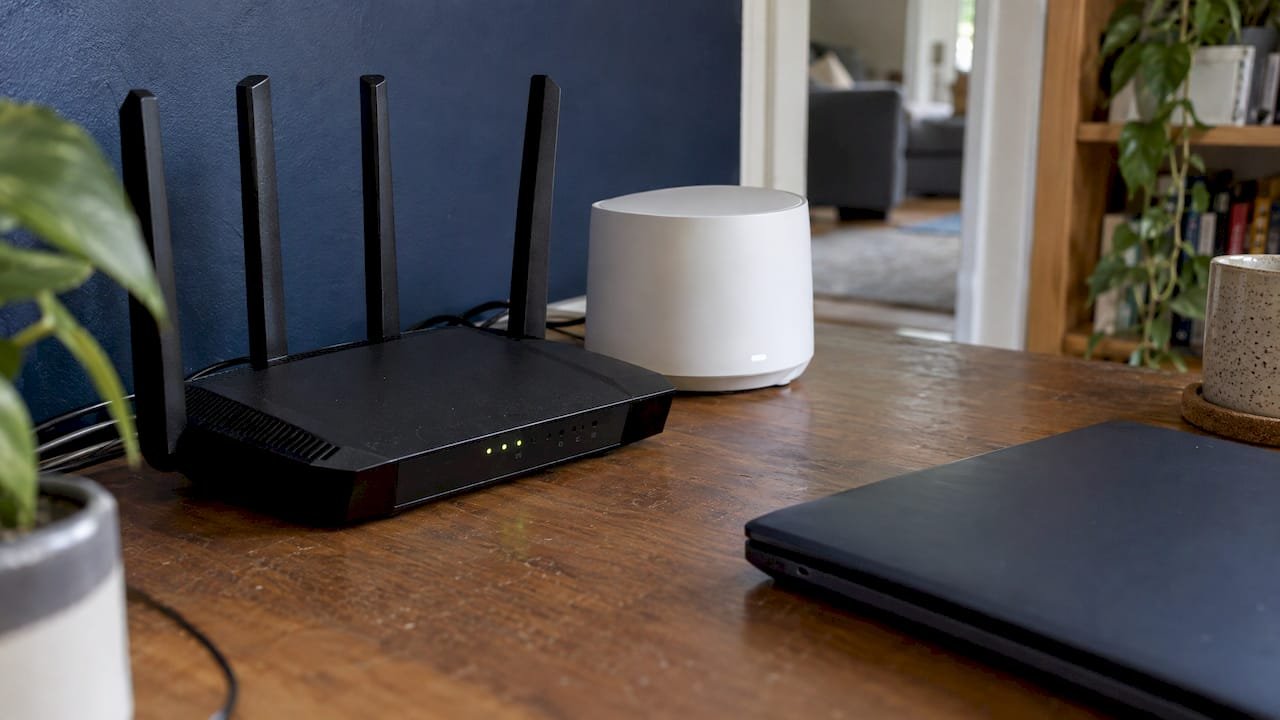
Microsoft's guidance is to troubleshoot from every computer involved: update Windows, make sure both PCs are on the same network (the same home router), and set the Wi-Fi to Private.
What to do:
- On each computer, open Settings, then Network & internet, and check which Wi-Fi network or Ethernet connection is active. Both should be the same network name.
- Open the properties of that connection and set the network profile to Private.
- Make sure the sharing computer is awake. A PC that has gone to sleep will vanish from the network, which is a common reason a folder worked in the morning and fails in the afternoon.
If devices keep dropping off the network entirely, that is a Wi-Fi problem rather than a sharing problem. Our guide on what actually fixes Wi-Fi that keeps dropping is the better place to start.
Step 2: Turn on network discovery and file sharing
Windows keeps these switched off on Public networks, and sometimes switches them off after an update.
Microsoft's steps for turning them on for a Private network are: Control Panel, Network and Sharing Center, Advanced sharing settings, then turn on network discovery and file and printer sharing, and save changes.
Do this on both computers, not just the one holding the folder.
In the same Advanced sharing settings screen, Microsoft also suggests turning off password protected sharing when you are troubleshooting. That setting is a trade-off: it makes access easier but also means anyone on your network can open what you share. On a home network with a trusted router that may be fine. In an office, or anywhere with visitors on the same Wi-Fi, we would rather leave it on and use a proper user account (see Step 5).
If the PC still does not appear in Network
Network discovery depends on a few background services. Microsoft's troubleshooting notes that discovery fails when dependency services are not running or the firewall is blocking it, and the fix involves starting DNS Client, Function Discovery Resource Publication, SSDP Discovery and UPnP Device Host, and allowing Network discovery through Windows Firewall.
To check them:
- Press the Windows key, type services, and open Services.
- Find each of the four services above.
- Double-click each one. If the startup type is Disabled, change it to Automatic, then click Start.
- Restart the computer and look in File Explorer, then Network, again.
A third-party antivirus suite with its own firewall can also block discovery even when Windows settings are correct. If you use one, check its network protection settings for a Private or Home network option.
Step 3: Deal with blocked guest access
This is the cause behind many "it used to work" cases. Newer versions of Windows no longer allow unauthenticated guest access to shared folders. If the sharing computer is set up so that anyone can connect without a username and password, a newer PC may refuse to connect at all.
Microsoft describes this as a common issue on modern clients and says the proper resolution is to connect with valid credentials rather than relying on guest access. Re-enabling insecure guest logons is only a temporary workaround that carries risk, so we would not make it your permanent setup.
In practice:
- When Windows asks for a username and password, enter the account details of a user on the sharing computer, not the one you are sitting at.
- Use the format
PCNAME\usernameif Windows keeps rejecting the name. - If the account has no password, Windows may still refuse the connection over the network. Give it a password.
This is also why older network-attached storage boxes, old printers with scan-to-folder, and ageing Windows 7 machines can suddenly stop connecting to a newer PC. The new PC is not broken. It is simply refusing the old, weaker way of signing in.
Step 4: Connect by path or IP address instead of browsing
Browsing through Network relies on discovery. Going straight to the address does not, so it is the quickest way to tell whether the problem is discovery or something deeper.
Open File Explorer, click the address bar and type the path:
\\PCNAME\ShareNameto open a specific share. This is the standard format for connecting to a shared folder by path.\\192.168.1.20(using the real IP address of the sharing computer) to list everything it shares. Browsing to the computer name or IP address in the address bar still works when discovery is unreliable.
To find the IP address of the sharing PC, open Command Prompt on it and type ipconfig. Look for the IPv4 Address line.
If the IP address works but the name does not, you have a name resolution issue. Use the IP address, or set a fixed (reserved) address for that computer in your router so the address does not change.
If neither works, check that the sharing PC is reachable at all. From the other computer, open Command Prompt and type ping followed by the IP address. No reply usually means the computers are on different networks, a firewall is blocking the connection, or the PC is off.
If you want the folder to appear as a drive letter every time, you can map it. Right-click This PC, choose Map network drive, enter the path, and tick Reconnect at sign-in. A university IT guide describes the same approach: enter the network folder's server path and select Reconnect at sign-in so it connects each time Windows starts.
Step 5: Check the share is set up properly on the sharing PC
If you can reach the computer but not the folder, the problem is on the hosting side.
To share a folder, Microsoft's instructions are to right-click the folder, choose Show more options, then Give access to, and pick Specific people. Choose the person or group, set Read or Read/Write, and click Share.
If you are only sharing between your own computers, a simple approach that Microsoft's community answers have suggested is to create a small dedicated local user on the main computer for file sharing and grant that account both Sharing and Security permissions. You then sign in with that account from the other PC. It avoids sharing with Everyone and avoids using your personal Microsoft account password across devices.
To create one: Settings, Accounts, Other users, Add account, then choose the option to add a user without a Microsoft account. Give it a name such as fileshare and a strong password.
Step 6: Fix "access denied" by matching the two permission layers
This is the step that trips up most people, including people who work with computers every day.
A Windows shared folder has two sets of permissions:
- Share permissions, set under the Sharing tab, Advanced Sharing, Permissions.
- Security (NTFS) permissions, set under the Security tab of the same folder.
Both apply, and the most restrictive one wins. Microsoft's guidance is to verify that both the share and NTFS permissions grant the required rights to the user or group. A Microsoft Q&A thread on a folder that worked locally but failed remotely traced it to the same thing: a mismatch between NTFS and share permissions.
Here is how to check:
- On the sharing PC, right-click the folder and choose Properties.
- Open the Sharing tab, click Advanced Sharing, then Permissions. Confirm the account you sign in with (or a group it belongs to) is listed with Allow ticked for Change or Read as needed.
- Click OK, then open the Security tab. Click Edit and confirm the same account has matching rights, such as Modify or Read & execute.
- Apply the changes and try again from the other computer.
In Microsoft's example, the share permissions are set to allow Full Control for Everyone and access is then controlled through the Security tab. That is a common pattern, because it leaves one layer doing the real work. Just keep in mind that on a shared office network, "Everyone" is broader than most people intend, so the Security tab must be tight.
Microsoft also advises checking access-based enumeration if folders are hidden from some users. If someone can open a share but cannot see certain subfolders, that setting may be hiding what they have no rights to.
A note on older guides that mention HomeGroup
If you are following an older tutorial that tells you to use HomeGroup, stop. Microsoft says HomeGroup was removed from Windows 10 version 1803, and sharing now uses the built-in file sharing features. Folders that were already shared can still be reached by path, such as \\homePC\SharedFolderName.
If you have shared a folder inside your own user profile, Microsoft notes you can type \localhost in File Explorer to see what is being shared from the computer you are on. It is a handy way to confirm the share exists before you blame the network.
Quick checklist
Work down this list in order and stop when it works:
- Both computers on the same router, network set to Private, sharing computer awake.
- Network discovery and File and printer sharing on, on both PCs.
- Try
\\IPADDRESSin File Explorer. - Sign in with a real user account from the sharing PC, not as a guest.
- Share permissions and Security permissions match for that account.
- Restart both computers and the router, then test again.
If printers or scan-to-folder devices are part of the problem, our guide on a printer that keeps going offline covers the connection side of that.
Our perspective: why these problems keep coming back
In our experience, a shared folder rarely fails for a mysterious reason. It fails because three or four small settings, spread across two computers and a router, stopped agreeing with each other. A Windows update changes a default, a network flips to Public, someone changes a password, and the folder that has worked for years goes quiet.
That is why we do not just fix the one error on screen. When we visit a home or small office in NSW, we look at the whole path: the Wi-Fi or cabling, the router, both computers, the accounts, and the permissions. Fixing only the symptom usually means a call a few weeks later.
For small businesses, we also think about who should be able to see what. A shared folder holding invoices, client files or staff records should not be open to everyone on the network. Our approach is to set up named accounts and sensible permissions, and make sure the data is backed up, so the share is both easy for staff to use and properly protected.
You should not need to learn the technical terms to get this sorted. Tell us what you are trying to open and what you see on screen, and we will work out the rest.
PC Scientist
Want it sorted without the guesswork?
If you have been through the steps and the folder still will not open, or you would rather not change permissions on a business network yourself, we can help. Our Network Scientist service looks after home and business networks, including file sharing, Wi-Fi coverage and device connections. For everyday computer problems across several devices in one visit, our Computer Support Scientist service is the place to start.

We work onsite across New South Wales, with remote help available where it suits. Our approach is clear upfront pricing and step-by-step explanations in plain English, and we offer no fix, no fee repairs. If your office network is unreliable more broadly, a business network and Wi-Fi assessment is a good way to find out why. You can also get in touch through pcscientist.com.
Sources
- File sharing over a network in Windows, Microsoft Support
- Can't access shared folders from File Explorer, Microsoft Learn
- Access Denied when you access SMB file share, Microsoft Learn
- Can't turn on Network Discovery, Microsoft Learn
- Permission problems with Windows folder share, Microsoft Q&A
- Problem sharing a folder on two Windows 11 computers, Microsoft Q&A
- HomeGroup removed from Windows 10 (Version 1803), Microsoft Support
- Connect to a Shared Drive or Network Folder, IT@UMN
- Setting up Network Shares in Windows, FrontFace FAQ
- How to View All Network Shares on a Windows PC, NinjaOne
Recommended
Frequently Asked Questions
Straight answers about Cannot Access a Shared Folder? Fixes That Work on Windows - without jargon or pressure. Call 0493 563 381 for advice, or get help below.
Want the quickest answer? 0493 563 381 for free advice.
Usually network discovery is off, the network is set to Public, or the background services that support discovery have stopped. Turn on network discovery and file and printer sharing on both computers, set the network to Private, and check the discovery services in Step 2. If the folder still does not appear, type the computer's name or IP address into the File Explorer address bar to reach it directly.
Windows could not reach the other computer at the address you gave it. The PC may be asleep or off, on a different network, or Windows may not be able to turn its name into an address. Try the IP address, confirm both devices are on the same router, and check that sharing is switched on at the other end.
Usually either the account you are signing in with lacks rights, or the share permissions and Security permissions on the folder do not match. Because the most restrictive set applies, one layer can quietly cancel out the other. Sign in with a real user account from the sharing PC and make the two sets of permissions agree for that account.
Commonly a Windows update, a network that switched from Private to Public, a changed password, or a newer PC refusing the old guest-style sign-in. Check the network profile first, then re-enter your credentials for the sharing computer. Older devices such as network storage boxes may need their sign-in method updated.
On a small, trusted home network it is a common shortcut, but it gives every device on the network access. For anything private, or on a business or shared Wi-Fi network, share with specific people or a dedicated account and keep the Security tab tight.
Computer help across NSW
Still stuck with a shared folder you cannot access?
If the steps above did not get the computer feeling right, that is okay. Get help in your area and we will take it from here.
Start here
Get computer help
Optional Need a Sydney city or region?
Choose a side of Sydney
These are Sydney cities and regions, such as the Northern Beaches or Inner West. First tap a side of Sydney. Then open the city or region that covers you.
C Sydney City / Inner 3 areas
N Northern Sydney 5 areas
NW North-West / Central Sydney 3 areas
W Western Sydney 1 area
SW South-West Sydney 3 areas
S Southern Sydney 2 areas
Optional Find your suburb
Type a suburb from our listed coverage. This opens the matching city or region page for this topic. Listed suburb pages are general technology services, not this specialist page.
If your suburb is not listed, use the city or region list above, or call 0493 563 381.
Disclaimer
The information in this article is provided for general educational and informational purposes only. While PC Scientist strives to keep all content accurate and up to date, technology issues can vary depending on your device, software, network configuration, and individual circumstances. Always back up important data before attempting repairs or system changes. If you are unsure or the issue cannot be resolved safely, contact PC Scientist today for professional onsite or remote IT support. PC Scientist is not liable for any loss of data, damage, or other issues resulting from the use of the information provided in this article.