

Laptop Overheating: Causes, Quick Fixes and When to Get Help
A laptop that runs hot is usually short of airflow, buried in dust, or being asked to do too much at once. Most of those causes you can ease in about ten minutes: move it onto a hard surface, clear the vents, close what you aren't using and adjust one power setting. If it still shuts down, or the fan never settles, it's time to have it looked at before the heat damages something expensive.
This guide walks you through that order, in plain words, so you know what is normal, what to try, and where to stop.
Key takeaways
- Warm is normal. Hot enough to be uncomfortable, loud fan all day, slowdowns or sudden shutdowns are not.
- Start with the free fixes: hard flat surface, clear vents, fewer open programs, balanced power mode.
- Dust is the most common culprit. Short bursts of compressed air at the vents help, but don't open the case unless you know your model.
- Sustained CPU temperatures around 80 to 85°C and above are a sign to stop and act.
- If it keeps shutting down, smells hot or the fan sounds wrong, book a repair rather than pushing on.
Table of Contents
- Is a hot laptop normal?
- Why laptops overheat
- Ten-minute fixes to try first
- Cleaning the vents safely
- Why is my laptop fan so loud?
- Do cooling pads and desk fans help?
- What about a desktop PC that runs hot?
- When to stop and get it checked
- Our view on laptop overheating
- Get your laptop checked onsite or remotely
- FAQ
- Sources
Is a hot laptop normal?
Some heat is part of how laptops work. Dell's support team says a computer can become warm during normal use and that warmth alone doesn't mean it's faulty. Continued excess heat is the problem, because it can damage internal parts and reduce performance.
Here is how to tell the difference in everyday terms:
| What you notice | Likely meaning | What to do |
|---|---|---|
| Warm base while streaming or on a video call | Normal load | Nothing, just keep vents clear |
| Hot to touch while doing light tasks | Dust, blocked vents or a runaway program | Work through the quick fixes below |
| Fan loud and constant | Airflow restricted or heavy background work | Check vents, then Task Manager |
| Sudden slowdowns during games or editing | Thermal throttling | Improve cooling, adjust power settings |
| Random shutdowns or restarts | Safety cut-out from heat | Stop heavy use and get it checked |
What temperature is too hot?
Norton's security blog puts 80 to 85°C as the range where a CPU is considered too hot, and says that above it you could damage the machine and should stop using it. Dell's Australian guidance adds that most processors slow themselves down automatically to cope with heat. That slowdown is called thermal throttling, and it is why a hot laptop feels sluggish before it actually shuts down.
To see your temperature, you don't need anything fancy. Many laptops show it in the manufacturer's own support app or in the BIOS. A free monitoring tool from a reputable developer also works. If you'd rather not install anything, the symptoms in the table above tell you most of the story.
Why laptops overheat
There are really only a few causes. ASUS lists abnormal program resource use, dust inside the device, poor environmental conditions and a fan that has slowed with wear as the typical ones. Norton adds too many open applications or browser tabs, outdated software, viruses or malware, overclocking and direct sunlight.
In practice, we see it fall into three groups:
- Airflow problems. Soft surfaces, blocked vents, or dust that has built up over a couple of years.
- Workload problems. A browser with forty tabs, a program stuck in a loop, or malware quietly using your processor.
- Hardware ageing. A tired fan, or thermal paste that has dried out and no longer carries heat away from the processor properly.
The first two are fixable at home. The third usually needs a technician.
Ten-minute fixes to try first
Work through these in order. Each one is safe and costs nothing.
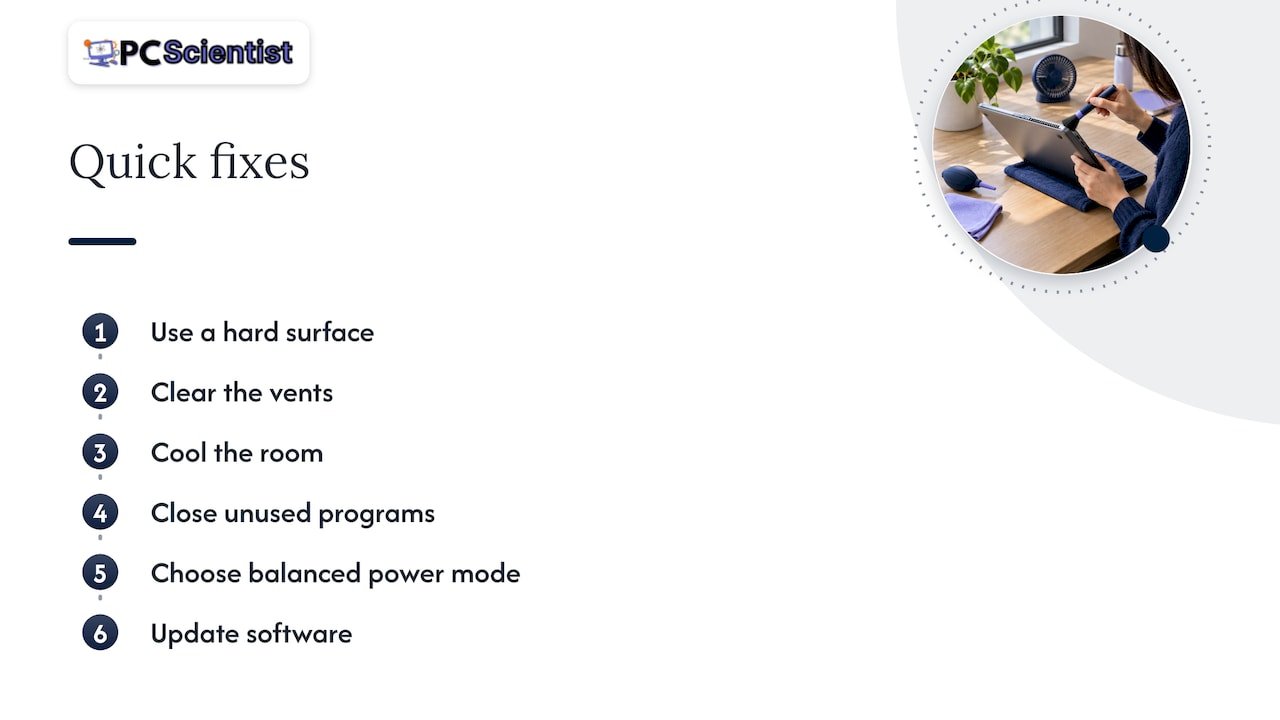
1. Get it off the bed, couch and lap
This is the number one cause we see in homes. Dell warns that on a mattress or other soft surface the air vents may be blocked by the fabric, and that leaving the laptop there for long leads to overheating quickly. Apple says much the same, advising a stable work surface that allows good ventilation and never using a laptop on a pillow or under bedding.
A tray, a hard book or a proper laptop stand works fine. A stand that lifts the back by an inch or more helps air reach the intake.
2. Give the vents room
PCWorld suggests leaving at least six inches between the vents and any wall or furniture. Check where your vents actually are: some are underneath, some on the back edge, some on the sides. Don't put anything over the keyboard or into the openings either.
3. Check the room, not just the laptop
Australian summers are hard on electronics. HP's Australian guide notes that climate from Queensland humidity to outback heat makes keeping a laptop cool a real challenge, and that overheating can slow, shut down or restart the machine without warning.
Manufacturers give working ranges. Apple recommends using a Mac laptop where the room is between 10°C and 35°C, and warns against leaving one in a parked car. ASUS gives 5°C to 35°C for its devices. On a 38-degree day in a western Sydney lounge room with the sun on the desk, you are outside those ranges. Move the laptop into the shade, or into the coolest room with the air conditioning on.
4. Close what you aren't using
Open Task Manager (Ctrl + Shift + Esc on Windows) and sort by CPU. If one program is sitting high while you're doing nothing, close it. A browser tab running a video, a cloud backup scanning thousands of files, or an update stuck halfway are all common. On a Mac, Apple suggests checking Activity Monitor if the laptop gets warm without intensive tasks.
If a program you don't recognise is using lots of processor power all the time, or you've had pop-ups and odd behaviour, it may be malware. Our Cybersecurity Scientist service handles that cleanup.
5. Switch to balanced power mode
Balanced or power-saving modes reduce how hard the processor works. Dell recommends adjusting power settings to balanced or power-saving mode and keeping system software updated. PCWorld goes a step further and recommends capping the maximum processor state at 75 percent in Windows Power Options. You will barely notice the difference for email, browsing and documents, and the laptop runs noticeably cooler.
6. Update Windows, drivers and BIOS
Manufacturers release updates that include fan-control and power-management fixes. Run Windows Update, then check your laptop maker's support page for BIOS and driver updates for your exact model. If you're not comfortable with a BIOS update, leave that one to a technician, because an interrupted update can leave a laptop unable to start.
Cleaning the vents safely
Dust is the quiet villain. Lint and dust collect on the cooling fins, and Dell explains that this stops air flowing around them and makes the fan work harder.
A careful clean from the outside goes like this:
- Shut the laptop down and unplug it.
- Work in a well-ventilated room or outdoors.
- Hold the can of compressed air upright and use short bursts at the vents, as PCWorld describes, then wipe around the openings with a soft brush or cotton swab.
- Don't use a household vacuum. Australian Computer Traders points out that a vacuum can create static electricity that damages electronic components.
- Don't use a powerful air compressor. ASUS warns that excessive air pressure has damaged fan blades in reported cases.
If the fan spins up violently when you blow into it, hold the blades still with a toothpick or cotton bud so they don't over-spin. And if heat is still building after a good external clean, dust is probably packed deeper, between the fan and heatsink. That needs the case opened. Lenovo's advice is to use the model's service guidance rather than attempting internal changes without model-specific instructions, and we agree: laptop screws, clips and ribbon cables are easy to break.
Why is my laptop fan so loud?
A loud fan is the laptop telling you it's working hard to move heat. It's usually one of three things:
- Blocked intake or exhaust. Check the vents and the surface, as above.
- Heavy background work. Check Task Manager for a program stuck at high use.
- A worn fan. If the noise is a grinding, rattling or high whine rather than a steady rush of air, the bearings may be failing.
Dell explains that lint and dust on the cooling fins force the fan to work harder, so cleaning often brings the noise down. If a clean doesn't, a replacement fan is a standard repair on most models.
Do cooling pads and desk fans help?
They can. ASUS advises using a cooling pad or stand to elevate the laptop, and Dell suggests positioning a cooling pad flush against the underside and using a stand that raises the laptop at least an inch. A small desk fan blowing across the base also moves air along.
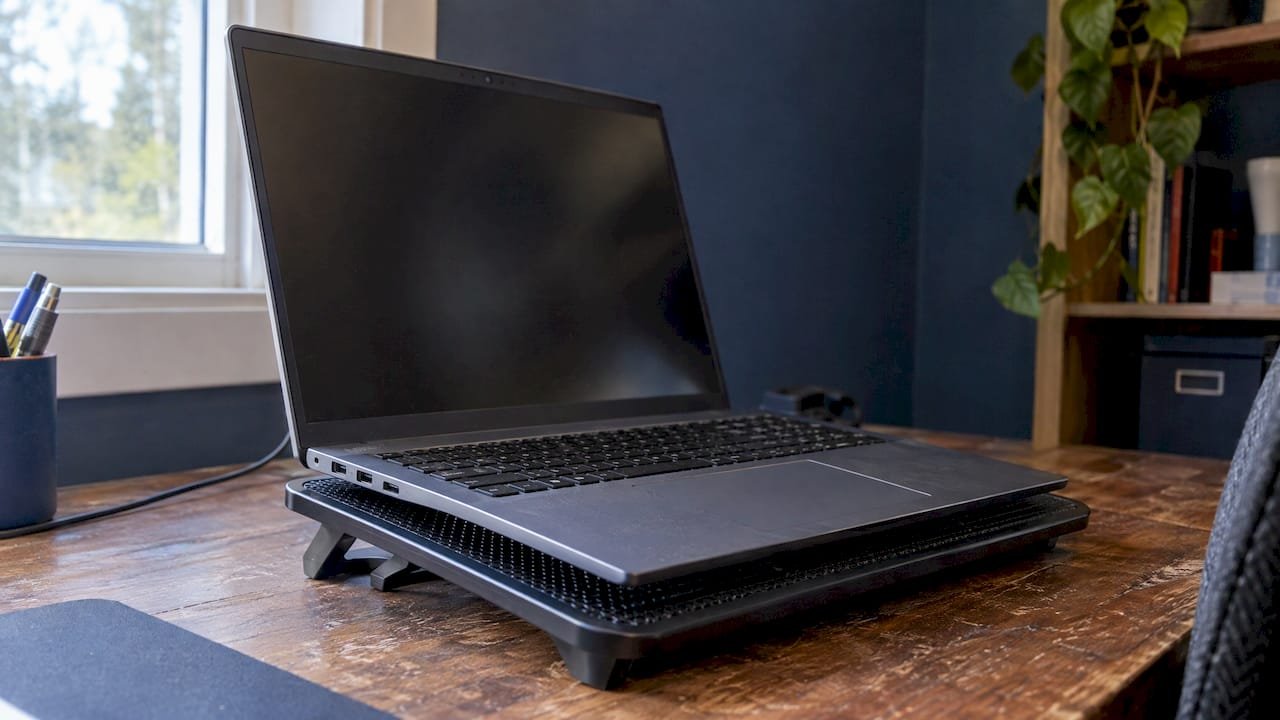
Think of a pad as support for good habits, not a cure. If the fins are clogged with dust, a pad has little to push air through. Clean first, then add the pad if you work long hours or game.
What about a desktop PC that runs hot?
The same logic applies, with more room to work. Keep the tower in a well ventilated spot. Australian Computer Traders suggests allowing 10 to 15 cm of space for exhaust if it sits against a wall or inside a cabinet, which is a classic problem with computers tucked into a desk cupboard. Dust the intakes and filters, make sure every case fan is spinning, and check that the CPU cooler is still firmly seated. A CPU temperature that stays high at idle usually points to a cooler that has loosened, dried thermal paste, or a stopped fan. If you want better cooling for gaming or creative work, that's where a properly designed build helps; our team can look at that under our technology services.
When to stop and get it checked
Home fixes have a limit, and it's better to stop at it than to push through. Book a technician if:
- The laptop shuts down or restarts on its own, even after cleaning the vents.
- Temperatures sit in the range Norton calls too hot (80 to 85°C and above) during ordinary use.
- The fan is grinding, rattling, or doesn't spin at all.
- The base, charger or battery area is too hot to touch, or the battery looks swollen.
- You've cleaned the outside vents and nothing has improved.
ASUS recommends contacting service when heat comes from accumulated dust rather than opening the machine yourself. A swollen battery is the one case where you should stop using and charging the laptop straight away and have it handled by a professional.
The usual repair is a proper internal clean, fresh thermal paste, and a fan replacement if needed. It's often modest in cost compared with a failed motherboard or a dead processor. If your laptop is older, it's also worth asking whether the repair makes sense. Our guide to repairing or replacing your laptop gives you a quick way to decide. And if heat is making it freeze or crawl, these guides on a PC that keeps freezing and a computer running slow cover the next steps. If it has already shut down and won't restart, start with what to check when a laptop won't turn on.
If the laptop holds files you can't lose, back them up before any repair. If it's too late for that, our Data Recovery Scientist service is there for exactly that situation.
Our view on laptop overheating
Most overheating calls we hear start the same way: "It's been getting slower and louder for months, and now it just switched off." People often put up with the early signs because the laptop still works.
Our advice is to treat heat as a warning, not a quirk. The free fixes in this guide are worth doing today. They cost nothing and often solve the problem. But when a laptop keeps overheating after a tidy-up, the cause is almost always inside: dust packed around the heatsink, dried thermal paste or a tired fan. That's a job for someone who has the right tools and knows the model.
We designed our repair process so you don't need to know the technical terms. You tell us what the laptop is doing, and we work out the rest. We also aim for clear upfront pricing and no fix, no fee repairs, so you know where you stand before we start. If a repair doesn't make sense for an older machine, we'll say so plainly and help you work out the next step.
PC Scientist
Get your laptop checked onsite or remotely
If the quick fixes haven't settled things, our team can look at the laptop at your home or workplace across New South Wales, including the Central Coast, Sydney, Newcastle, Wollongong and the Southern Highlands. We can also run initial checks remotely where that suits. Our Computer Repair Scientist service covers laptops and desktops, including overheating, noisy fans and unexpected shutdowns, and you can do several devices in one visit.

You don't need to know what's wrong or which service to ask for. Describe what's happening and we'll take it from there. Prefer a local page? We cover areas such as the Central Coast, the Northern Beaches and the Hornsby area. Start at pcscientist.com to get in touch.
Sources
- HP Australia: How to fix overheating issues in HP laptops
- PCWorld: Laptop overheating? 6 proven tips to cool it down
- Dell: How to troubleshoot an overheating, shutdown or thermal issue
- Dell: How to stop laptop fan noise
- Apple Support Australia: Keep your Mac laptop within acceptable operating temperatures
- ASUS: Troubleshooting overheating and fan problems
- ASUS USA: Overheating and fan troubleshooting
- Norton: Why is my computer overheating?
- Australian Computer Traders: Product guide and care
Recommended
- Laptop won't turn on? Here's what to check first
- Decide in 10 minutes: Repair or replace your laptop in Australia
- Laptop Hinge Repair: Fix, Replace or Walk Away
- Computer running slow? Here's what to try first
Frequently Asked Questions
Straight answers about Laptop Overheating: Causes, Quick Fixes and When to Get Help - without jargon or pressure. Call 0493 563 381 for advice, or get help below.
Want the quickest answer? 0493 563 381 for free advice.
Not if it's just warm while you're working. Dell notes that a computer can be warm in normal use without being faulty. Worry when it's hot during light tasks, the fan is constantly loud, it slows down or it shuts itself off. Those are signs that heat is building up and needs attention.
For a short time while you save your work, yes. Over the longer term, continued excess heat can damage internal components and reduce performance, according to Dell. Close heavy programs, move it to a hard surface and get it checked if the problem comes back.
Shut down heavy programs, move the laptop onto a hard, flat surface, make sure the vents are clear and get it out of direct sun. Switching to balanced power mode also helps straight away. A stand or cooling pad adds a little more airflow.
It can, if it continues. Sustained heat can shorten the life of components and trigger shutdowns, and the processor slows itself down to protect itself. Catching it early, usually with a clean and fresh thermal paste, avoids most of the expensive outcomes.
Computer repair across NSW
Still stuck with a laptop that keeps overheating?
If the steps above did not get the repair sorted, that is okay. Get help in your area and we will take it from here.
Start here
Get computer repair
Optional Need a Sydney city or region?
Choose a side of Sydney
These are Sydney cities and regions, such as the Northern Beaches or Inner West. First tap a side of Sydney. Then open the city or region that covers you.
C Sydney City / Inner 3 areas
N Northern Sydney 5 areas
NW North-West / Central Sydney 3 areas
W Western Sydney 1 area
SW South-West Sydney 3 areas
S Southern Sydney 2 areas
Optional Find your suburb
Type a suburb from our listed coverage. This opens the matching city or region page for this topic. Listed suburb pages are general technology services, not this specialist page.
If your suburb is not listed, use the city or region list above, or call 0493 563 381.
Disclaimer
The information in this article is provided for general educational and informational purposes only. While PC Scientist strives to keep all content accurate and up to date, technology issues can vary depending on your device, software, network configuration, and individual circumstances. Always back up important data before attempting repairs or system changes. If you are unsure or the issue cannot be resolved safely, contact PC Scientist today for professional onsite or remote IT support. PC Scientist is not liable for any loss of data, damage, or other issues resulting from the use of the information provided in this article.