

Laptop Keyboard Not Working? Fixes to Try Before a Repair

Most laptop keyboards that suddenly stop typing are not broken. A switched-on accessibility setting, a driver that did not load, or a bit of debris under one key causes most of these faults, and you can sort them out in about twenty minutes. If a plugged-in USB keyboard works but the built-in one does not, the fault is in the laptop's own keyboard, and that is a job for a technician. We do it onsite across NSW, so you do not have to carry the laptop anywhere.
This guide takes you from the quickest checks to the point where you should stop poking around. It is written for people who just want to type again, so there is no jargon and every step says what it is for.
Key takeaways
- Restart first, then check whether Filter Keys is on: holding the right Shift key for eight seconds can make the keyboard look dead.
- Plug in a USB keyboard. If it works, the problem is in the laptop's built-in keyboard or its connection. If it also fails, the problem is in Windows.
- If only some keys fail, clean around them gently. If a whole row or cluster fails, that usually points to damaged internal circuitry.
- After a spill, shut down and unplug straight away, and do not keep switching it on.
- If nothing here helps, book a repair. Our Computer Repair Scientist service handles laptop keyboards onsite.
Table of Contents
- Work out what kind of failure you have
- Step 1: Restart the laptop
- Step 2: Check Filter Keys and other accessibility shortcuts
- Step 3: Type with the on-screen keyboard while you troubleshoot
- Step 4: Plug in a USB keyboard
- Step 5: Reinstall the keyboard driver
- Step 6: Check the layout if the wrong characters appear
- Step 7: Clean the keys, carefully
- Spilled a drink? Stop here
- Software fault or hardware damage?
- When a repair beats another hour of fiddling
- We can fix it at your place
- Our view on laptop keyboards
- FAQ
- Sources
Work out what kind of failure you have
Before you change anything, spend two minutes working out the pattern. It tells you where to look.
| What you see | What it usually means |
|---|---|
| No keys respond at all | A software, driver or connection problem. Start with the checks below. |
| One key never works | A dirty or worn switch or keycap mechanism |
| A group, column or row of keys is dead | Those keys share an electrical line, so the keyboard circuitry or its cable is the likely cause |
| Keys type the wrong characters | Usually the wrong keyboard layout |
| Keys click but nothing appears | Filter Keys is probably switched on |
The column and row pattern comes from iFixit's keyboard troubleshooting guide. Dell's support article lists the other common symptoms: unresponsive keys, lag, wrong characters, dead function keys and stuck keys.
To test properly, press each key slowly in a text document, or use an online keyboard tester, and note which ones do nothing.
Step 1: Restart the laptop
It sounds too simple, but a restart clears a driver that failed to load and many temporary glitches. Use the touchpad to open the Start menu and choose Restart. A full shutdown and start-up works too.
If the keyboard stopped right after a Windows update, remember that. It is a useful clue, and we come back to it in the driver section.
Step 2: Check Filter Keys and other accessibility shortcuts
This is the most common "dead keyboard" fix, and it costs nothing. Windows has accessibility features that switch on if you press certain keys by accident:
- Filter Keys: holding the right Shift key for eight seconds. Windows then ignores short or repeated key presses, so quick taps seem to vanish.
- Sticky Keys: pressing Shift five times. Shift, Ctrl and Alt stay latched, usually with beeps.
- Toggle Keys: holding Num Lock for five seconds, which makes tones play when you press Caps, Num or Scroll Lock.
That list comes from TechInfoHome's table of accessibility shortcuts. Dell's Australian support page confirms that a keyboard which clicks but does not type is caused by Filter Keys being enabled.
To switch it off, using the touchpad if you need to:
- Open Start, then Settings, then Accessibility, then Keyboard. On Windows 10 it is Ease of Access instead of Accessibility.
- Turn Filter Keys off. Do the same for Sticky Keys and Toggle Keys.
- Untick the option that lets the shortcut turn Filter Keys back on, so a resting finger on Shift does not repeat the problem.
If your keyboard works but Fn-row keys do the wrong thing, such as changing volume when you want F5, you may only need to toggle the Fn lock. It is usually a key with a padlock symbol on the Esc key.
Step 3: Type with the on-screen keyboard while you troubleshoot
If you need to sign in or enter a PIN and the keyboard will not respond, you are not stuck. On the sign-in screen, click the Accessibility icon in the lower-right corner and turn on the On-Screen Keyboard. You can then click the keys with the mouse or touchpad. Once you are in Windows, press Windows key + Ctrl + O to open it.
If Windows asked for a new PIN after an update and the keyboard seemed locked, Microsoft's community answer says the keyboard driver may not have loaded in time. You can use the on-screen keyboard to enter the code, or choose Sign-in options and use your account password instead.
Step 4: Plug in a USB keyboard
This one test tells you more than any other. Plug in any USB keyboard, or pair a Bluetooth one.
- The external keyboard works: Dell explains that this confirms the problem is limited to the laptop's built-in keyboard. You can keep working on the external one while you sort it out.
- The external keyboard fails too: the problem is in Windows, a driver or a setting, not the hardware.
- The external keyboard works but only now and then: a Microsoft support answer says the issue may be driver or system related.
If you do not own a spare keyboard, this is one of the things we can do during a visit.
Step 5: Reinstall the keyboard driver
A driver is the small piece of software that lets Windows talk to a piece of hardware. Reinstalling it is safe, because Windows puts it back on its own.
- Right-click Start and open Device Manager.
- Expand Keyboards.
- Right-click each entry and choose Uninstall device. HP's Australian guide also suggests turning on Show hidden devices first.
- Restart. Windows reinstalls the driver on start-up.
ASUS's support FAQ also recommends updating Windows, drivers and the BIOS first, then running the Windows keyboard troubleshooter under Settings, Troubleshoot, Other troubleshooters. The BIOS is the basic start-up software built into your laptop. Updating it is something to do carefully, because a failed update can stop the laptop from starting.
If the problem began after an update: open the Keyboards entry in Device Manager, go to Properties, then Driver, and choose Roll Back Driver if it is available. Rolling back needs administrator permission. You can also remove a recent update under Settings, Windows Update, Update history, Uninstall updates.
If only the function keys fail: HP says those keys may need the manufacturer's hotkey or wireless button driver, downloaded for your exact model and Windows version from the maker's support site.
Step 6: Check the layout if the wrong characters appear
If pressing @ gives you a quotation mark or a full stop, the layout is probably set wrongly. Press the Windows key, type Language Settings, and make sure the language and keyboard are set to English (Australia). An Australian retailer's help guide gives the same fix.
Step 7: Clean the keys, carefully
If one key or a few keys stick or do not register, dirt is a likely cause.
- Turn the laptop off and unplug it.
- Tilt it and tap the keyboard gently, then use compressed air in short bursts, as Dell recommends, with a lint-free cloth for the surface.
- Do not use a vacuum cleaner. An Australian help guide warns that vacuums create static electricity, which can harm electronic parts. A soft brush or compressed air is safer.
Do not pop keys off if the laptop is under warranty. HP's Australian guidance says to contact the manufacturer first, as damage may void the warranty. Out of warranty, HP says to lift a key only about 1/8 inch with a flat plastic tool and clean the key and slot with a cotton swab. Laptop keys use delicate clips, and a snapped clip means a new keyboard.
Spilled a drink? Stop here
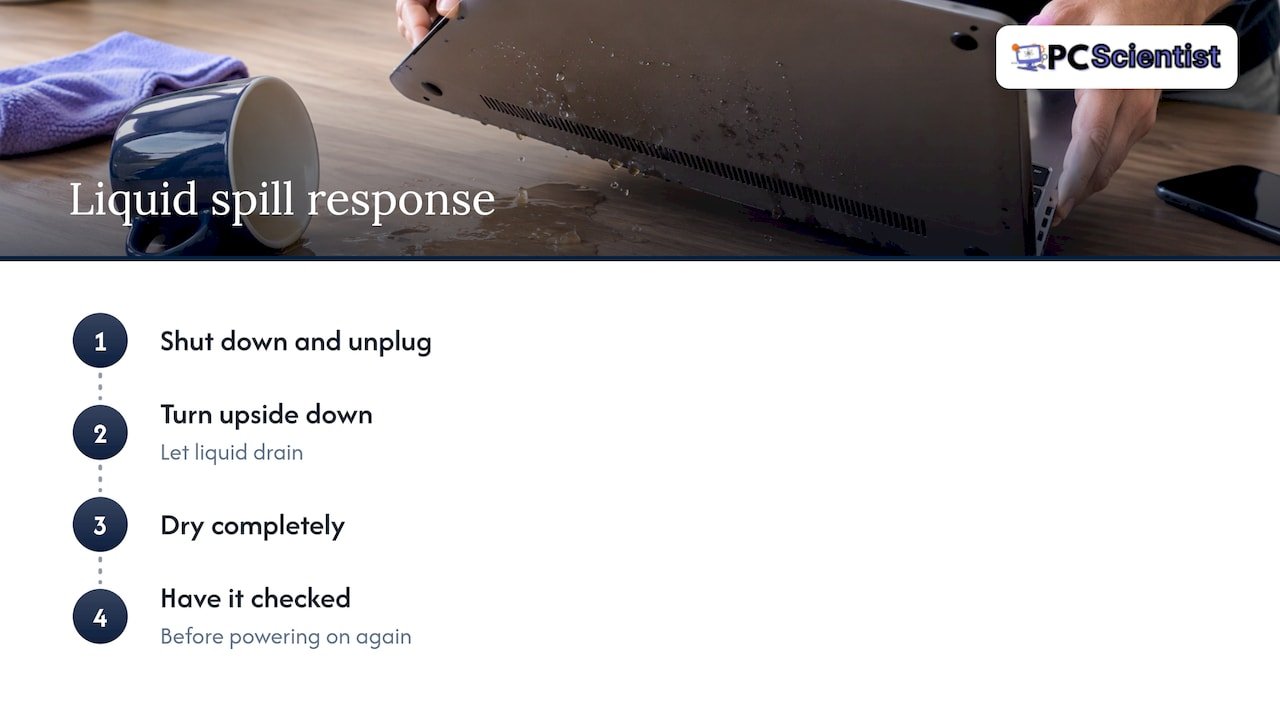
Shut the laptop down, unplug it, and turn it upside down to drain. TestDock's advice is to let it dry completely and have it checked rather than switching it on again and again if liquid may have reached the inside. Repeated power-ups can turn a keyboard problem into a motherboard problem. If you have important files on it, tell us before anything else, because our Data Recovery Scientist service can help protect them.
Software fault or hardware damage?
Here is how to read your results:
- The keyboard works in the BIOS or start-up menu but not in Windows: the fault is in Windows. On HP laptops you can test this by pressing power and then tapping Esc repeatedly. If the Startup Menu does not open, HP says the integrated keyboard hardware needs servicing or replacement.
- The keyboard fails there too: Microsoft's answer says the keyboard assembly or its connector may be defective. The first hardware step is reseating the ribbon cable before replacing anything.
- Device Manager shows error code 19 or 39 under Keyboards: this points to a corrupted driver. Uninstall the device and restart, as in Step 5.
Reseating a ribbon cable means opening the laptop. On most modern models that is fiddly, can void a warranty and is easy to get wrong. This is the point to stop and book a repair.
When a repair beats another hour of fiddling
Book help if:
- An external keyboard works and the built-in one does not.
- A whole row, column or cluster of keys is dead.
- Liquid got in.
- The keyboard fails before Windows even starts.
- You have tried the driver steps and nothing changed.
A keyboard replacement on an older laptop also raises the question of whether the machine is worth fixing. Our guide on repairing or replacing your laptop helps you decide in about ten minutes. If the laptop also has other faults, these guides may help: a laptop that will not turn on and a broken USB port, which matters because you may be leaning on a USB keyboard in the meantime.
We can fix it at your place
Our Computer Repair Scientist service covers computer and laptop repairs onsite across NSW, including the Central Coast, Sydney, Newcastle, Wollongong and the Southern Highlands. We offer clear upfront pricing and no fix, no fee repairs, and you do not need to know the technical terms or which service to ask for. Describe what is happening and we work out the rest, and if other devices in the house are misbehaving, we can look at them in the same visit.

If you would rather talk it through first, start from our Computer Support Scientist page, or reach us through the PC Scientist home page.
Our view on laptop keyboards
Most people who contact us about a dead keyboard have already spent an evening on it. They have restarted, wiggled keys and searched online, and they are worried about their files, their work or a child's homework.
Our approach is to find out quickly which side of the line the problem sits on: Windows or hardware. A USB keyboard test and a look at the symptoms usually tell us. We prefer to explain what we find in plain words, so you know what is happening and what it will take to fix.
We would rather you came to us at the first sign of hardware trouble than after a spill has been powered on five times. Our repairs are no fix, no fee, and we can look after other devices in the same visit.
PC Scientist
Sources
- Laptop Keyboard Isn't Working | Dell
- Keyboard Does Not Respond, Clicking Heard when Trying to Type | Dell Australia
- HP Notebook PCs: Keyboard troubleshooting (Windows) | HP Australia
- Notebook Troubleshooting: Built-in Keyboard Issues | ASUS
- Samsung Laptop Keyboard Not Working | iFixit
- Need to reset PIN, but can't enter the security code | Microsoft Q&A
- My laptop keyboard is not working | Microsoft Q&A
- How to Unlock a Keyboard on an HP Laptop in Windows 11 | TechInfoHome
- Keyboard Keys Not Working? Find the Cause Step by Step | TestDock
- Keyboard Troubleshooting Guide | Australian Computer Traders
Recommended
- Laptop won't turn on? Here's what to check first
- Laptop Hinge Repair: Fix, Replace or Walk Away
- Broken USB Port on Your Laptop? What to Check and Fix
- Laptop Overheating: Causes, Quick Fixes and When to Get Help
Frequently Asked Questions
Straight answers about Laptop Keyboard Not Working? Fixes to Try Before a Repair - without jargon or pressure. Call 0493 563 381 for advice, or get help below.
Cracked screens Batteries Laptops Desktops Slow computers Whole NSW
Want the quickest answer? 0493 563 381 for free advice.
Usually it is not locked. Filter Keys, switched on by holding the right Shift key for eight seconds, is the most common cause. Go to Settings, Accessibility, Keyboard and turn it off. Check Sticky Keys and Toggle Keys while you are there.
Updates can install a keyboard driver that conflicts with the one your laptop's maker supplied. Try rolling back the driver in Device Manager, or uninstall the keyboard entry and restart so Windows reinstalls it. Remove the update only if that fails.
Yes. On the sign-in screen, click the Accessibility icon and turn on the On-Screen Keyboard, then click the numbers with your mouse or touchpad. You can also choose Sign-in options and use your password.
A single key usually means dirt or a worn switch. A whole row or cluster usually means damaged circuitry or a loose ribbon cable inside. The first can often be cleaned. The second normally needs a technician.
On most laptops a new keyboard costs far less than a new machine, but it depends on the laptop's age and condition. Our repair or replace guide walks you through the decision, and we can give you a clear price before any work starts.
Computer repair across NSW
Still stuck with a laptop keyboard?
If the steps above did not get the repair sorted, that is okay. Get help in your area and we will take it from here.
Start here
Get computer repair
Optional Need a Sydney city or region?
Choose a side of Sydney
These are Sydney cities and regions, such as the Northern Beaches or Inner West. First tap a side of Sydney. Then open the city or region that covers you.
C Sydney City / Inner 3 areas
N Northern Sydney 5 areas
NW North-West / Central Sydney 3 areas
W Western Sydney 1 area
SW South-West Sydney 3 areas
S Southern Sydney 2 areas
Optional Find your suburb
Type a suburb from our listed coverage. This opens the matching city or region page for this topic. Listed suburb pages are general technology services, not this specialist page.
If your suburb is not listed, use the city or region list above, or call 0493 563 381.
Disclaimer
The information in this article is provided for general educational and informational purposes only. While PC Scientist strives to keep all content accurate and up to date, technology issues can vary depending on your device, software, network configuration, and individual circumstances. Always back up important data before attempting repairs or system changes. If you are unsure or the issue cannot be resolved safely, contact PC Scientist today for professional onsite or remote IT support. PC Scientist is not liable for any loss of data, damage, or other issues resulting from the use of the information provided in this article.