

Laptop Battery Replacement: When, How and What It Involves
If your laptop dies well before it used to, shuts off at 30%, or only runs while plugged in, the battery is the most likely cause, and replacing it is usually far cheaper than replacing the laptop. Most batteries wear out after two to four years. The trick is confirming it really is the battery (and not the charger or a setting), then choosing a replacement that is safe and fits your exact model. This guide walks you through each step, including what to do if the battery is swollen.
Key takeaways
- Most laptop batteries last about 2 to 4 years, or roughly 300 to 1,000 charge cycles. Below about 80% of original capacity, it's considered worn.
- Check health first: Windows has a built-in battery report, and Macs show "Normal" or "Service Recommended" in System Settings.
- If the laptop won't charge, test the charger, the port and the power settings before you buy a battery.
- A swollen battery is a safety issue. Stop using it, don't charge it and don't press on it.
- Old batteries never go in the household bin. Tape the terminals and drop them at a battery recycling point.
Table of Contents
- How long a laptop battery really lasts
- Signs it's time to replace the battery
- How to check your battery health
- Laptop won't charge? Rule out the cheap causes first
- Should you calibrate the battery?
- A swollen laptop battery: stop and read this
- What a battery replacement involves
- Is a laptop battery replacement worth it?
- Disposing of the old battery safely
- Getting more life from the new battery
- Our view: fix the battery, but only after finding the real problem
- Need a hand with your laptop battery?
- FAQ
- Sources
How long a laptop battery really lasts
A laptop battery is a consumable part, like tyres. HP puts the typical life at 2 to 4 years, or 300 to 1,000 charge cycles, before capacity drops noticeably. A charge cycle is one full 0 to 100% of use, which can be spread across several top-ups. So a laptop used lightly on a desk might outlast the range, and one that goes to a café every day will sit at the lower end.
The same HP guide says a battery is generally considered worn once it holds less than 80% of its original capacity. That's the number to watch. A battery that has dropped to 70% doesn't fail dramatically. It just gives you 70% of the time you used to get, and that gap keeps widening.
Heat is the quiet killer. A laptop that runs hot on a bed or a couch, or sits plugged in at 100% in a warm room all day, ages its battery faster. Microsoft's advice is to avoid frequent deep discharges, keep charge between 20% and 80% where practical, and store an unused device at 40 to 60% in a cool, dry place. Many newer laptops have a built-in charge limit setting that does this for you.
Signs it's time to replace the battery
You don't need a test to notice most of these:
- The laptop lasts an hour or less when it used to last four or five.
- The percentage jumps (say, from 40% to 10%) or the laptop shuts down with charge showing.
- It only works when plugged in.
- The laptop gets unusually hot around the battery area.
- The case is lifting, the trackpad is stiff or clicking oddly, or the base won't sit flat. These can be signs of a swollen battery (more on that below).
- Windows or macOS flags the battery for service.
HP's guidance is simple: replace the battery when it no longer lasts long enough for your day, its health falls below about 80%, or it shows physical damage such as swelling.
How to check your battery health
Before spending anything, get a number. It takes about two minutes.
On Windows
Open Command Prompt as administrator and type powercfg /batteryreport. Microsoft explains that this creates an HTML report showing battery usage and capacity details. Open the file it saves (the command tells you where) in your browser and compare two lines:
- Design capacity: what the battery held when new.
- Full charge capacity: what it holds now.
Divide the second by the first. If you get 0.80 or lower, the battery is worn. If it's 0.50, it's well past its best.
Many laptop brands also include their own diagnostic tool (HP Support Assistant, Dell SupportAssist, Lenovo Vantage) that gives a plain verdict.
On a Mac
Go to System Settings, then Battery. Apple's system reports the condition as "Normal" or "Service Recommended". If it says Service Recommended, the battery has reduced capacity and Apple suggests having it serviced. If you're also keeping the rest of your MacBook in good shape, there's useful reading on MacBook screen protector choices too.
Laptop won't charge? Rule out the cheap causes first
"Plugged in, not charging" is one of the most common battery complaints, and it isn't always the battery. Dell's support team notes that charging problems can come from an incompatible or faulty adapter, a port connection issue, or a BIOS charge setting. The same page suggests checking whether the power light comes on and whether Windows recognises the AC adapter. The steps below follow that logic and apply to any brand.
- Check the wall and the cable. Try a different power point. Look along the cable for kinks, fraying or a loose brick.
- Look at the charging port. Lint and dust can stop the plug seating properly. Power the laptop off and unplugged before you look, and don't poke metal into it.
- Try a known-good charger of the right rating. A charger with the wrong wattage may power the laptop but refuse to charge the battery. Use the manufacturer's charger or a quality equivalent for your exact model.
- Restart and update. A full shutdown (not just closing the lid) clears many software glitches. Check for Windows and firmware updates.
- Check the power and charge settings. Some laptops stop charging at 80% by design, or have a battery care mode switched on. That is not a fault.
- Watch for signs of damage. If the laptop feels swollen, hot or smells odd, stop and skip to the safety section.
If a good charger, a clean port and sensible settings still give you no charge, the battery, the charging circuit or the port itself is the culprit. That's the point where a technician with the right tools saves you buying the wrong part. If the laptop won't power on at all, our guide on what to check when a laptop won't turn on covers the next steps.
Should you calibrate the battery?
Calibration doesn't restore a worn battery. It corrects the gauge that estimates how much charge is left, which is why a laptop can say 30% and then die. HP explains that calibration resets the Windows charge gauge. Its manual method drains the battery using HP diagnostics and then recharges to 99 to 100%, and the process can take 12 to 14 hours. HP recommends doing it at least every three months in normal use, or about monthly if you rarely run the battery down fully.
So calibration is worth trying if the percentage looks wrong but runtime is still decent. If the battery is genuinely weak from age, HP says replacing it is what gets you the most working time. Do the calibration on a day you don't need the laptop, and follow your manufacturer's own instructions rather than a generic video.
A swollen laptop battery: stop and read this
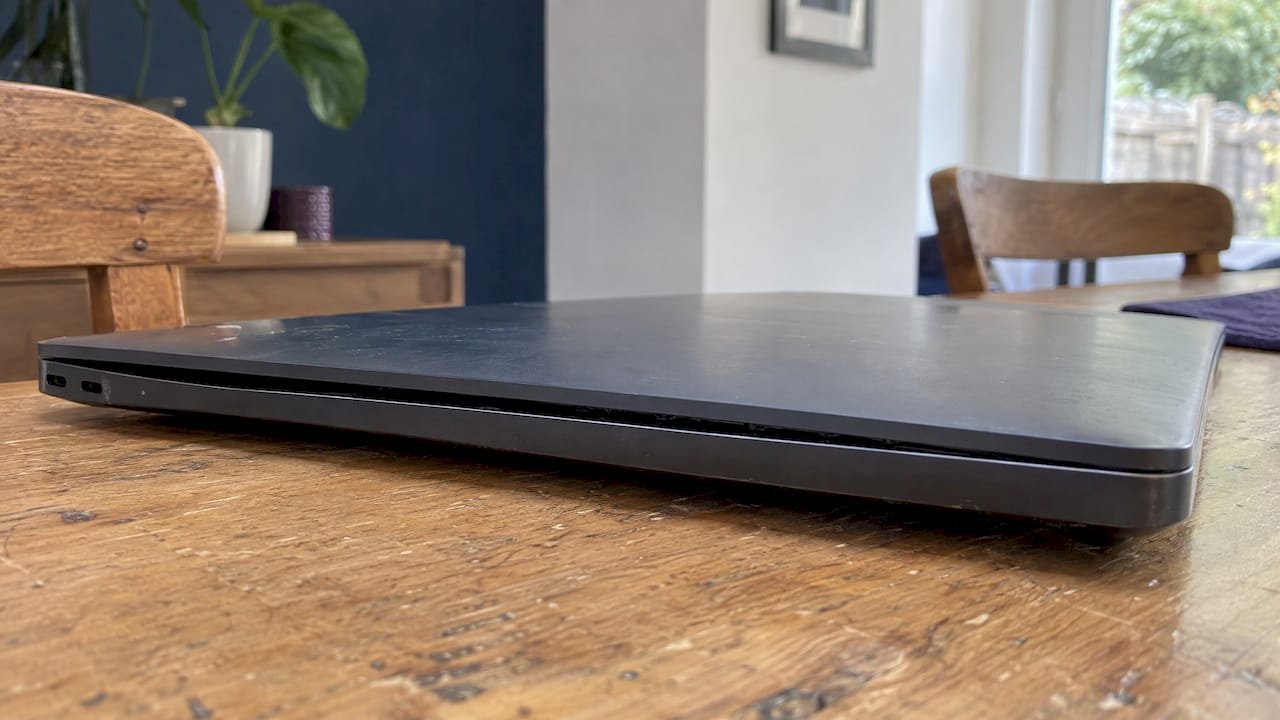
Lithium-ion batteries can swell when they fail. You might see the trackpad lifting, the case bowing, a gap between the keyboard and the base, or a laptop that rocks on a flat surface.
What to do:
- Shut the laptop down and unplug it. Don't charge it again.
- Don't press on it, pierce it or try to flatten it.
- Never touch a swollen or ruptured battery with bare hands. The ACCC's guidance on lithium-ion batteries warns against handling a ruptured battery with bare hands.
- Move it onto a hard, non-flammable surface away from curtains, beds and papers, and keep it out of the car.
- Have a technician remove it. This is not a job for a butter knife.
If you see smoke, a burning smell or hissing, get everyone out and call 000.
A swollen battery is also a reason to get your files copied off promptly, as long as you can do it safely. If you can't turn the laptop on safely, a technician can pull the drive first. Our data recovery service handles exactly that.
What a battery replacement involves
The job is simple in principle and fiddly in practice. Here is how it typically runs.
- Identify the exact battery. The model name alone isn't enough, since one laptop family can use several battery packs. HP advises checking the battery label, the product specifications, or HP Support Assistant and choosing a genuine battery for that exact model. The same approach applies to any brand.
- Choose the part. A genuine or high-quality replacement is the safer path. Cheap unbranded packs can be a false economy, because they may give less capacity and carry more risk.
- Open the laptop. Some laptops have a battery you can unclip. Many modern ones have it glued or screwed inside under the base plate, and sometimes under other components.
- Fit, test and reset. The new battery is checked, the laptop is tested for charging and runtime, and the charge gauge is confirmed to read sensibly.
- Dispose of the old one properly. See below.
A job on a thin, sealed laptop costs more in labour than one with a clip-in battery, and rare models can have longer part lead times. That's why a quote should come after the model is known, not before.
What does it cost in Australia?
There isn't one price. The total is the battery itself plus labour, and both vary with the model, whether the pack is genuine or an equivalent, and how hard the laptop is to open. Gaming laptops and ultrabooks with sealed cases sit at the higher end, while older business laptops with accessible packs are usually simpler. We don't publish a price list, so we give you the figure for your specific laptop before we start, and with our no fix, no fee approach you only pay when the job is done.
When you compare quotes, make sure each one states: the exact battery model, whether it's genuine or aftermarket, whether labour is included, and what warranty comes with the part.
Is a laptop battery replacement worth it?
It depends on three things: the age of the laptop, its condition and what you use it for.
| Situation | Usually worth replacing the battery? |
|---|---|
| Laptop under 5 years old, otherwise quick and reliable | Yes. It's the cheapest way to get years more use. |
| Laptop is slow, has a failing drive or cracked screen too | Weigh it up. Several repairs may add up to more than a new machine. |
| Laptop can't run current Windows or macOS updates | Probably not. Security updates matter more than runtime. |
| You only use it plugged in at a desk | Maybe not urgent, unless the battery is swollen. |
| It's your main work machine and you travel with it | Yes, especially if downtime would cost you work. |
If you're stuck between fixing and buying new, our repair or replace guide gives you a 10-minute way to decide. We'd rather tell you honestly that a laptop isn't worth another dollar than sell you a battery for it.
Disposing of the old battery safely
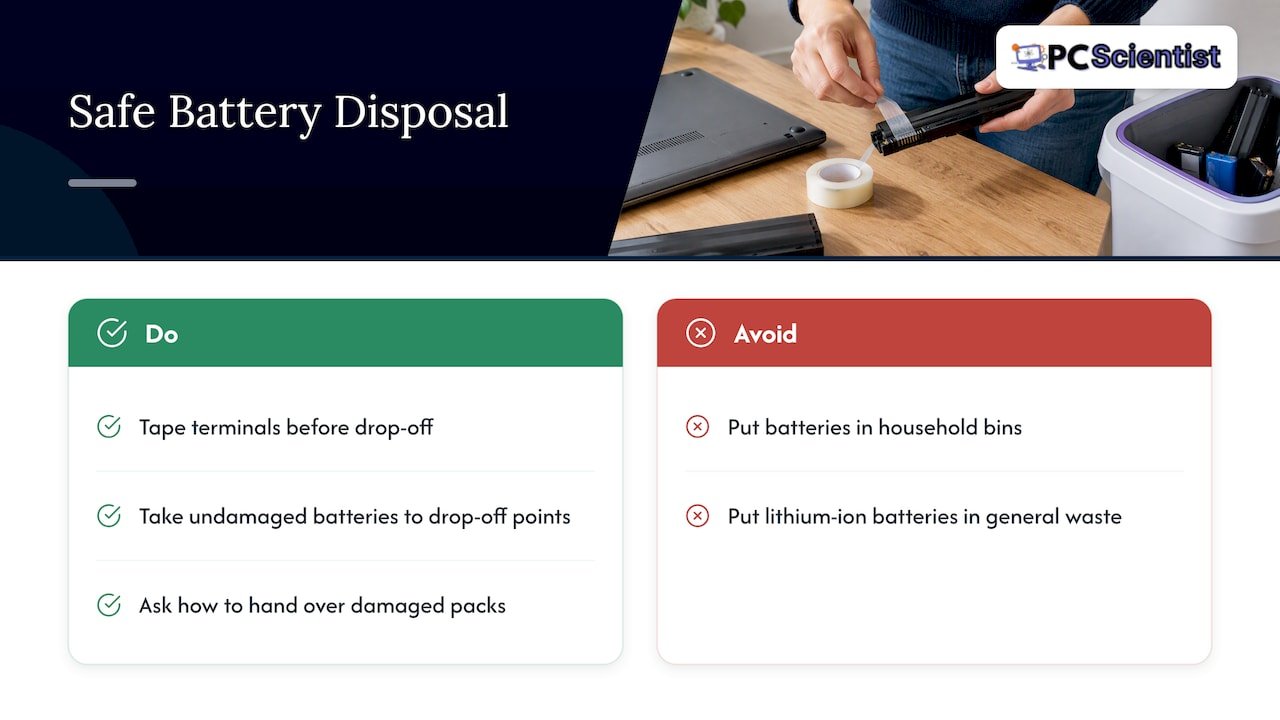
A worn lithium-ion battery must not go in your household bins. The ACCC strongly advises against putting lithium-ion batteries in general waste because of the fire risk in collection trucks and waste facilities. Queensland Fire and Emergency Services' brochure adds that undamaged batteries should go to battery drop-off points, with the terminals taped over first to prevent short-circuiting. Those rules apply anywhere in Australia. Many supermarkets, hardware stores and council recycling centres take batteries, but check your council's website for the nearest one. A damaged or swollen pack is a different case, so ask your council or the technician how to hand it over safely.
Getting more life from the new battery
A fresh battery will age as the old one did unless you change a few habits.
- Avoid leaving the laptop on a bed, couch or in a hot car.
- Use the charge limit or battery care mode if your laptop has one.
- Try not to run it flat regularly.
- If it's mostly a desktop replacement, don't leave it plugged in at 100% in a warm spot for years.
- If you're storing it for months, leave it around 40 to 60% charged.
These are the same habits Microsoft recommends for keeping capacity up over time, and they cost nothing.
Our view: fix the battery, but only after finding the real problem
We see the same pattern often. Someone arrives convinced their laptop is finished because it keeps dying, and half the time the battery is simply tired, and the fix is a part and an hour or two of careful work. Other times the battery is fine and the cause is a worn charger, a damaged port or a power setting, and buying a battery would have wasted money.
That's why we diagnose first. We check the battery's real capacity, test the charger and port, look at the laptop's overall condition, and then tell you plainly whether a battery is the right spend. If the laptop has bigger problems and a replacement makes more sense, we'll say so.
We work onsite across NSW, so you don't have to carry a failing battery on public transport or post it away. We can look after other devices during the same visit, and we protect your files and privacy at every step. You get a clear price upfront, and with our no fix, no fee repairs you pay only when the job is done.
PC Scientist
Need a hand with your laptop battery?
If you'd rather not open the laptop yourself, we'll check the battery, work out the right replacement for your exact model, fit it and test it. We come to you across Sydney, the Central Coast, Newcastle, Wollongong and surrounding NSW areas, and we can look at other devices in the same visit.

See how we handle laptop and computer repairs, or find your local team, such as computer repair in Sydney and on the Central Coast. You can also start from pcscientist.com and tell us what the laptop is doing. You don't need to know the technical terms.
Sources
- HP: Laptop battery guide, life, health and replacement
- Microsoft Support: Caring for your battery in Windows (general)
- Microsoft Support: Caring for your battery in Windows (Australia)
- Apple Support: Battery "Service Recommended" on your Mac laptop
- Dell Support: Troubleshoot Dell laptop battery issues
- HP Support: Testing and calibrating the battery
- ACCC: Fire risks linked to lithium-ion batteries
- Queensland Fire and Emergency Services: Lithium-ion battery safety
Recommended
- Decide in 10 minutes: Repair or replace your laptop in Australia
- Laptop won't turn on? Here's what to check first
- Laptop Hinge Repair: Fix, Replace or Walk Away
Frequently Asked Questions
Straight answers about Laptop Battery Replacement: When, How and What It Involves - without jargon or pressure. Call 0493 563 381 for advice, or get help below.
Want the quickest answer? 0493 563 381 for free advice.
Yes, eventually. Lithium-ion batteries lose capacity with every charge cycle and with heat, and HP puts a typical lifespan at about 2 to 4 years. When the battery holds less than roughly 80% of its original capacity, or the laptop no longer lasts through your day, it's time to plan a replacement.
The cause is often the charger, the cable, a dirty port or a power setting rather than the battery. Try a different power point and a known-good charger of the right rating, then restart. If it still won't charge, have a technician test the battery and the charging circuit.
No. Stop using it, don't charge it, and keep it away from anything flammable. Don't press on it or touch it with bare hands if it has ruptured. Have a technician remove it and arrange safe disposal.
Often yes, if the laptop is otherwise reliable and still receives security updates. If it also has a failing drive, a cracked screen or can't run current software, the combined cost may favour a new machine. A quick assessment will tell you which side you're on.
Computer repair across NSW
Still stuck with a laptop battery that needs replacing?
If the steps above did not get the repair sorted, that is okay. Get help in your area and we will take it from here.
Start here
Get computer repair
Optional Need a Sydney city or region?
Choose a side of Sydney
These are Sydney cities and regions, such as the Northern Beaches or Inner West. First tap a side of Sydney. Then open the city or region that covers you.
C Sydney City / Inner 3 areas
N Northern Sydney 5 areas
NW North-West / Central Sydney 3 areas
W Western Sydney 1 area
SW South-West Sydney 3 areas
S Southern Sydney 2 areas
Optional Find your suburb
Type a suburb from our listed coverage. This opens the matching city or region page for this topic. Listed suburb pages are general technology services, not this specialist page.
If your suburb is not listed, use the city or region list above, or call 0493 563 381.
Disclaimer
The information in this article is provided for general educational and informational purposes only. While PC Scientist strives to keep all content accurate and up to date, technology issues can vary depending on your device, software, network configuration, and individual circumstances. Always back up important data before attempting repairs or system changes. If you are unsure or the issue cannot be resolved safely, contact PC Scientist today for professional onsite or remote IT support. PC Scientist is not liable for any loss of data, damage, or other issues resulting from the use of the information provided in this article.