

Wired vs wireless CCTV: which one actually protects your property?
For most permanent homes and businesses, wired PoE cameras are the safest default. Use wireless only where cabling or running power is genuinely impractical. That single distinction settles most of the "wired vs wireless CCTV" debate before you even get into specs.
A PoE (Power over Ethernet) camera runs on one cable that carries both power and footage straight to a recorder, which is why it can record continuously without dropouts. Wi-Fi cameras still need mains power but skip the data cable, trading some reliability for easier placement. True wire-free cameras run on battery or solar and go almost anywhere, at the cost of charging cycles and weaker footage in a break-in scenario.
- Wired PoE: best for entries, driveways, and anywhere evidence quality matters most.
- Wi‑Fi: fine for rentals or spots where power exists but cabling doesn't.
- Wire‑free (battery/solar/4G): ideal for gates, sheds, and temporary coverage.
Most real properties end up running a mix. PC Scientist installs and surveys all three types across NSW, and a hybrid layout is usually what we recommend once we've walked the site.
Key Takeaways
Wired PoE cameras deliver the most reliable, evidence-grade coverage for permanent installs, while wireless cameras earn their place only where cabling or mains power genuinely isn't possible.
| Point | Details |
|---|---|
| Wired is the default | PoE cameras record continuously with no Wi‑Fi dropouts, making them the safer choice for permanent coverage. |
| Wireless fills specific gaps | Wi‑Fi and wire‑free cameras suit rentals, sheds, and spots where cabling isn't practical. |
| Hybrid layouts work best | Most real properties benefit from wired coverage on entry points and wireless fill-in elsewhere. |
| Budget for lifetime costs | Wired has higher upfront labour costs; wireless often carries ongoing subscription or battery costs. |
| Site surveys prevent mistakes | PC Scientist site surveys catch signal blockers, cable routes, and power gaps before installation day. |
Table of Contents
- PoE vs Wi‑Fi cameras vs wire-free: how they actually compare
- Why installers still default to wired PoE systems
- What Wi‑Fi and wire-free cameras get right (and where they fall short)
- Building a hybrid CCTV layout that actually works
- What does a CCTV installation actually cost, upfront and over time?
- How do you secure a connected CCTV system from hackers?
- A step-by-step checklist for choosing wired, wireless, or hybrid
- Sources
- FAQ
PoE vs Wi‑Fi cameras vs wire-free: how they actually compare
Before picking a system, it helps to see the three approaches side by side rather than treating "wired vs wireless security cameras" as just a single binary choice.
- Reliability: Wired PoE holds a stable, high‑bitrate connection because it avoids Wi‑Fi dropouts entirely. Wi‑Fi cameras are only as reliable as your router and the walls between it and the lens. Wire‑free units add a third variable: battery state.
- Video quality: PoE typically pushes the highest, most consistent bitrate. Wi‑Fi and wire‑free cameras often compress footage harder to cope with limited bandwidth or battery drain.
- Installation effort: Wired demands cable runs, sometimes through walls or ceilings. Wi‑Fi and wire‑free install in minutes, no drilling required.
- Maintenance: PoE systems need almost none day to day. Wireless systems need battery swaps, firmware checks, and periodic signal testing.
- Power outage behaviour: A PoE NVR on a UPS keeps recording through a blackout. Most consumer wireless cameras go dark the moment power or Wi‑Fi drops.
- Best use case: Wired suits permanent structures; wireless suits rentals, sheds, and anywhere cabling is a dealbreaker.
The trade-off is straightforward: durability and evidence quality against speed and flexibility of install.
Why installers still default to wired PoE systems
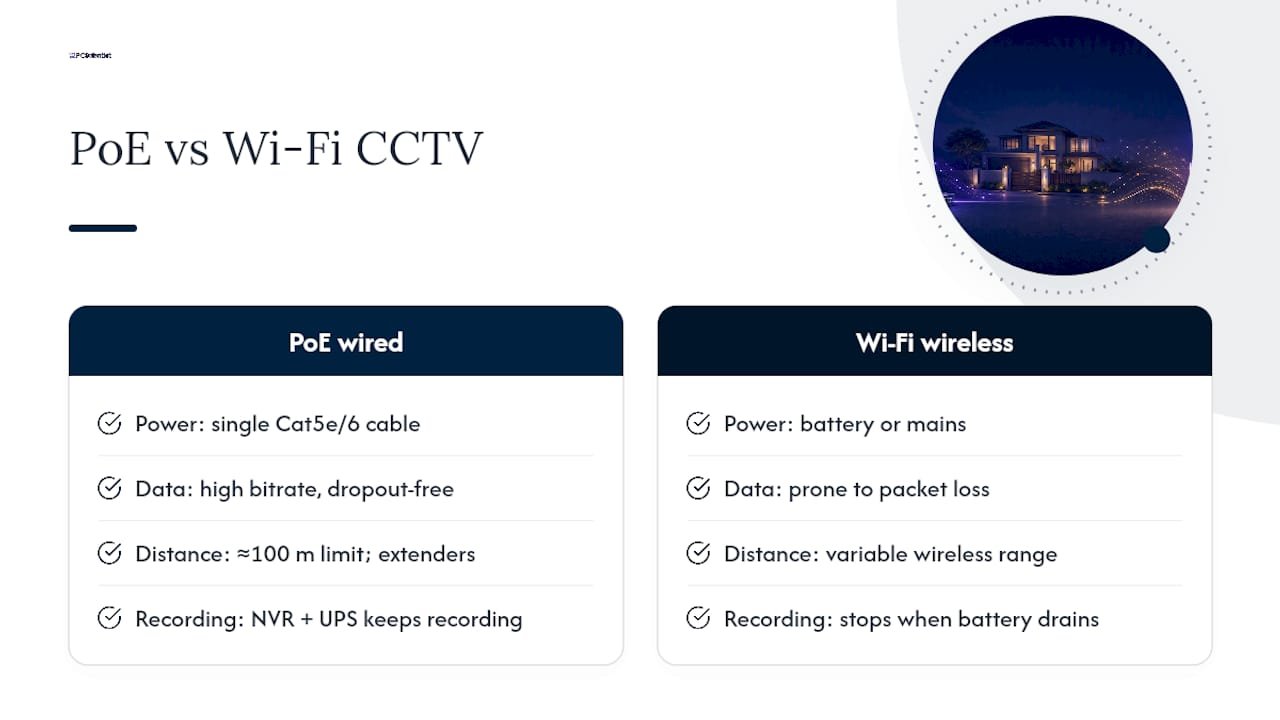
PoE puts power and data on a single Cat5e or Cat6 cable, which is why professional installers lean on it for anything meant to run for years, not months. That one cable eliminates the battery replacement cycle entirely and lets the camera feed a network video recorder (NVR) around the clock.
The reliability gap is real. A wired feed doesn't suffer the packet loss or bandwidth contention that plagues busy home networks, so footage stays high‑bitrate and dropout free, which matters enormously if that footage ever needs to hold up as evidence. Pairing the NVR with a UPS means recording continues through short outages, something battery cameras can't promise once their own charge runs low.
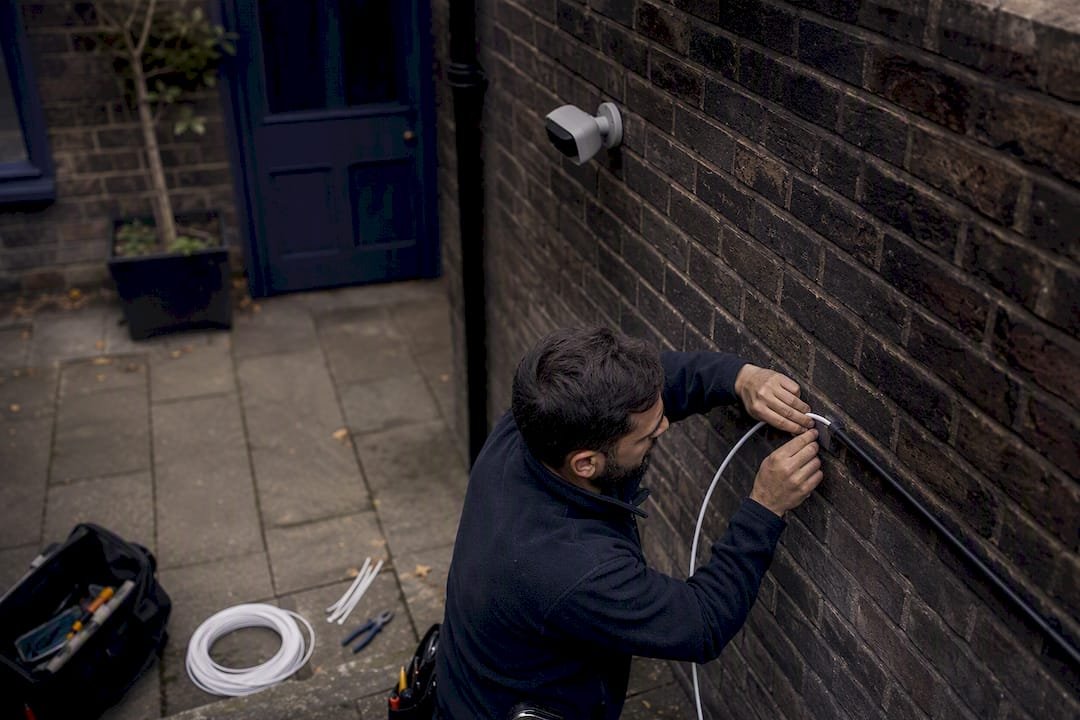
The catch is distance. Standard PoE tops out around 100 metres per run before signal degrades, so longer properties need PoE extenders or a switch closer to the cameras. Routing cable through brick, colorbond, or heritage ceilings is where a professional install earns its cost, particularly if you want the cabling hidden rather than clipped along a skirting board.
Pro Tip: If you're extending PoE runs past 80 metres, ask your installer about a mid‑span extender rather than daisy-chaining switches. It's cheaper and far more reliable long term.
What Wi‑Fi and wire-free cameras get right (and where they fall short)
Wi‑Fi cameras still plug into mains power. They only lose the data cable, which is a subtle but important distinction from true wire‑free units that run on battery, solar, or a 4G connection with no cabling requirement at all.
Both types are genuinely easy to install, and that's the appeal. The trade-offs show up over time:
- Signal strength drops fast through brick walls, metal garage doors, or a badly placed mesh node, and construction materials can significantly degrade the radio link.
- Network congestion during peak evening hours can cause stutter or missed frames on busy home Wi‑Fi.
- Battery cameras need regular charging or panel checks, and performance dips in extended heat, so summer often means shorter battery life than the box promised.
- A camera that looks fine on a shop-floor test can still struggle once it's mounted, exposed to weather, and competing with a real household's Wi‑Fi traffic.
Wireless earns its place on rental properties, temporary building sites, and remote gates or sheds where running mains power simply isn't worth the cost.
Building a hybrid CCTV layout that actually works
The most practical setup for most properties isn't purely wired or purely wireless. It's a wired PoE core covering high‑priority zones, with wire‑free cameras filling in the spots cabling can't reach. Front doors, driveways, and cash registers get the wired treatment; the back fence or a detached shed gets a battery unit.
A proper site survey should check:
- Where cable can realistically be routed, and where it can't.
- Which spots have power but no easy cable path.
- Actual Wi‑Fi signal strength at each proposed camera location, not just near the router.
- Materials likely to block radio signal, like brick veneer or a metal roof.
- Whether a UPS or solar panel is needed to keep coverage running.
Pro Tip: Ask your installer to leave one spare conduit and two spare PoE switch ports during the initial run. Adding a camera later without them usually costs more than doing it upfront.
What does a CCTV installation actually cost, upfront and over time?
Upfront costs cover cable and labour, the PoE switch or NVR, hard drives sized for your retention needs, weatherproof housings, and professional labour if runs are concealed inside walls or ceilings. A modest wired setup generally costs more to install than an equivalent wireless kit, largely because of the cabling labour.
Ongoing costs tell a different story:
- Wireless systems often carry cloud storage subscriptions to keep footage accessible.
- Battery cameras need replacement batteries or solar panel upkeep every year or two.
- Wired NVRs eventually need hard drive replacement, but no recurring subscription.
- Both system types need occasional firmware updates to stay secure.
DIY installation can save money on simple wire-free cameras mounted at ground level. Concealed wiring, roof access, or anything involving mains power is where professional labour prevents an expensive redo.
How do you secure a connected CCTV system from hackers?
Every camera connected to your network is a potential entry point, wired or wireless. Industry guidance consistently points to a short list of fixes that cut most of the risk:
- Change every default username and password before the camera goes live.
- Put cameras on their own VLAN, separate from laptops and phones.
- Turn on automatic firmware updates, or check manually every few months.
- Use strong, unique passwords and two‑factor authentication wherever the app supports it.
- Decide upfront whether footage records locally or to the cloud, since that choice affects both privacy and what happens if your internet drops out.
A quick port scan and a check that remote access actually requires authentication takes ten minutes and closes most of the obvious gaps.
A step-by-step checklist for choosing wired, wireless, or hybrid
Walk your property with this checklist before you buy anything:
- List every spot you want covered: front door, driveway, side gate, shed, back fence.
- Label each spot as cableable, power-only, or no-power-at-all.
- Apply the rule of thumb: cableable spots get wired PoE, power-only-but-hard-to-cable spots get Wi‑Fi, and no-power spots get wire‑free battery or solar units.
- Weigh your appetite for ongoing maintenance. If you don't want to think about batteries, lean wired wherever possible.
- Consider whether footage needs to hold up as evidence. If so, prioritise wired for those specific cameras.
- Book a site survey if the property has more than four cameras or any complicated cable routes.
Common mistakes we see on real installs
Three mistakes come up again and again. Homeowners overestimate their Wi‑Fi's reach and end up with a camera that drops out nightly. Others skip the UPS on their NVR, then lose exactly the footage they needed during a storm-related blackout. And plenty of cameras get mounted at a flattering angle instead of one that actually captures faces or number plates. A proper site survey catches all three before installation day, not after.
- PC Scientist
Get a site survey before you buy a single camera
PC Scientist runs site surveys and hands-on installs for both wired PoE and wireless CCTV across homes and businesses in NSW, so you're not guessing which system suits your property.

A survey typically uncovers things you'd never spot from the footpath: a garage roof that blocks Wi‑Fi to the back shed, a power point too far from where the camera actually needs to sit, or a cable run that's twice the distance you assumed. Catching these before installation day is cheaper than fixing them after. Our team handles everything from PoE camera installs to Wi‑Fi coverage testing and network hardening for the cameras once they're live. If you're planning a new system or want a second opinion on an existing one, book a site survey through our CCTV service page and we'll map out what your property actually needs.
Sources
- Wired vs. Wireless vs. WiFi Security Cameras: Pros, Cons, and Key Differences - Verkada
- Wired vs Wireless Security Cameras: Which Is Better? - ARC IP Networks
- Wired vs wireless CCTV cameras: the honest comparison for Australian homes (2026) - CCTV Importers
- Types of surveillance cameras explained: wired vs. wireless - Ajax Systems
Recommended
- Business & Venue CCTV NSW | PC Scientist
- Security Camera Scientist | CCTV & Site Surveys NSW | PC Scientist
- Business Network & Wi-Fi Assessment NSW | PC Scientist
- Tech for Professional Offices | PC Scientist
Frequently Asked Questions
Straight answers about Wired vs wireless CCTV: which one actually protects your property? - without jargon or pressure. Call 0493 563 381 for advice, or get help below.
Want the quickest answer? 0493 563 381 for free advice.
Wired PoE is generally better for permanent, evidence-grade coverage because it avoids Wi‑Fi dropouts and records continuously. Wireless is better when cabling or power access makes wiring impractical.
Wired systems need cable routed through walls or ceilings, which adds labour cost and complexity, and PoE runs are limited to roughly 100 metres without an extender.
Wireless cameras are vulnerable to signal interference from brick, metal, and network congestion, and battery-powered units need regular charging and lose performance in extended heat.
For fixed installations, yes. PoE cameras hold a more stable connection and higher bitrate than Wi‑Fi cameras, which depend on router range and household network traffic.
Yes, and it's the most common setup PC Scientist recommends: wired PoE on entry points and driveways, with wire‑free cameras covering remote spots like sheds or back fences.
CCTV help across NSW
Want help choosing wired or wireless CCTV?
If you would rather not plan cameras on your own, get help in your area. We will talk it through first.
Start here
Get CCTV help
Optional Need a Sydney city or region?
Choose a side of Sydney
These are Sydney cities and regions, such as the Northern Beaches or Inner West. First tap a side of Sydney. Then open the city or region that covers you.
C Sydney City / Inner 3 areas
N Northern Sydney 6 areas
NW North-West / Central Sydney 3 areas
W Western Sydney 1 area
SW South-West Sydney 3 areas
S Southern Sydney 2 areas
Optional Find your suburb
Type a suburb from our listed coverage. This opens the matching city or region page for this topic. Listed suburb pages are general technology services, not this specialist page.
If your suburb is not listed, use the city or region list above, or call 0493 563 381.
Disclaimer
The information in this article is provided for general educational and informational purposes only. While PC Scientist strives to keep all content accurate and up to date, technology issues can vary depending on your device, software, network configuration, and individual circumstances. Always back up important data before attempting repairs or system changes. If you are unsure or the issue cannot be resolved safely, contact PC Scientist today for professional onsite or remote IT support. PC Scientist is not liable for any loss of data, damage, or other issues resulting from the use of the information provided in this article.
