

CCTV storage for homes and small businesses: start with how long you need to keep footage
A local NVR with surveillance-grade drives is the sound starting point for most home and small-business systems, with cloud added when off-site backup matters and SD cards kept for short-term fallback. Your retention target and how reliable your internet is will decide the rest. Camera count, budget and privacy duties then fine-tune the choice.
Key takeaways
- Choose an NVR with drives made for surveillance, RAID support, expansion bays, and a properly sized UPS for the recorder, PoE switch, and modem.
- Measure one day of recording, multiply the storage used by your retention period, and add 20% headroom; bitrate matters more than resolution.
- Use cloud for off site copies when theft or fire threatens footage, but check upload capacity, subscription costs, export options, and access after cancellation.
- Australian organizations covered by the Privacy Act must limit access and delete footage when it is no longer needed, even when a provider stores it.
Table of Contents
- What are the main CCTV storage options?
- How do NVRs and DVRs fit into a CCTV storage plan?
- When are SD cards and edge storage enough?
- Is a NAS a good option for CCTV footage?
- What should you know about cloud storage for CCTV?
- How do hybrid CCTV storage setups work?
- How do you calculate how much CCTV storage you need?
- What does CCTV storage really cost over time?
- How do you keep CCTV footage safe from power cuts, theft and outages?
- What are your privacy and retention duties for CCTV footage in Australia?
- An installer's view: the planning mistakes we see most
- How can we help with your CCTV storage?
- FAQ
- Sources
What are the main CCTV storage options?
There are several families to choose from, and many people combine them.
- NVR or DVR: a dedicated box that records your cameras to internal drives. You pay once, keep the footage on site, and control who sees it.
- SD or edge storage: a memory card inside the camera itself. It is cheap and simple, but capacity is small and the card goes with the camera if someone steals it.
- NAS: a networked storage box with several drives. It suits larger or growing systems and doubles as an archive.
- Cloud: footage stored off site on a provider's servers. It survives theft and fire, but you pay a subscription for as long as you use it.
Hybrid setups are common: local recording as the backbone, with cloud for motion clips or a second copy.
How do NVRs and DVRs fit into a CCTV storage plan?
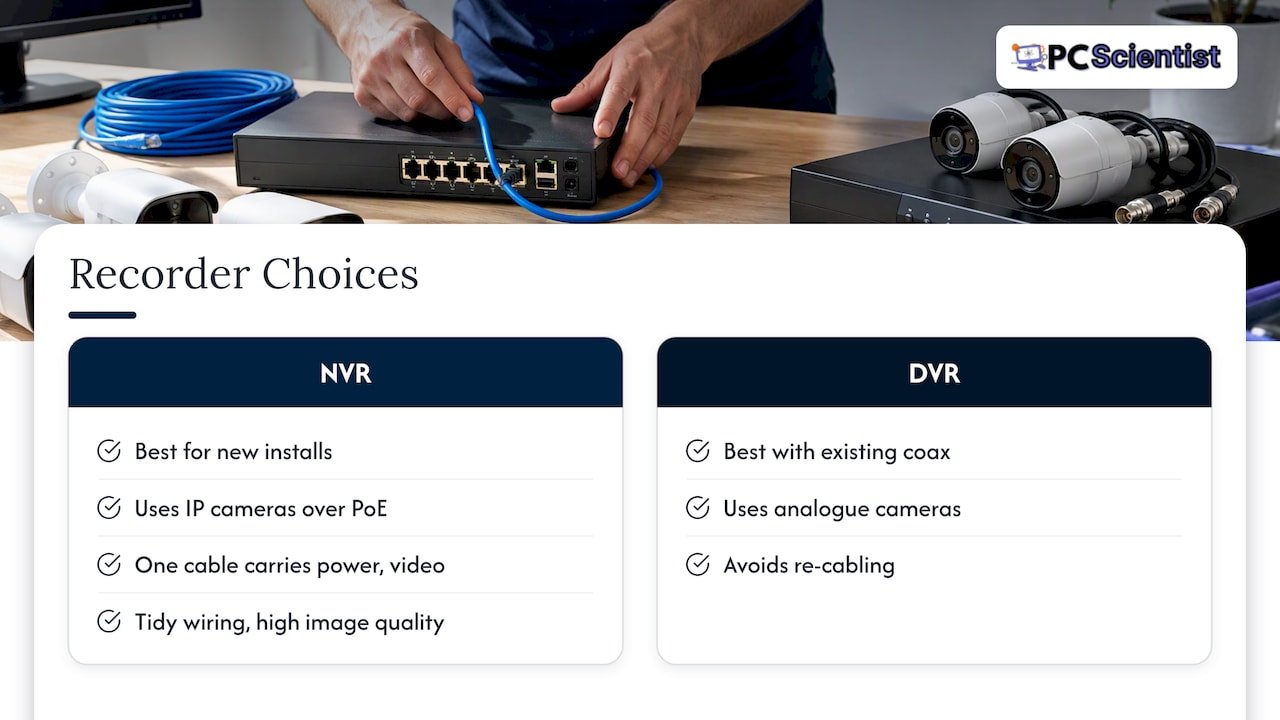
For a new install, we recommend an NVR running IP cameras over PoE. One network cable carries power and video, which keeps wiring tidy and image quality high. A DVR still makes sense when you already have good analogue coax cabling and want to avoid re-cabling. Our NVR vs DVR guide walks through that decision for home installs.
For a system with multiple cameras, choose a recorder with enough drive bays to grow. Fit surveillance-grade drives, which are built for constant writing, rather than ordinary desktop drives. If footage matters to you, pick a model that supports RAID so one failed drive does not wipe your recordings.
Then there is power. A recorder that loses mains power mid-write can corrupt its file system and leave gaps in your recording. Installer guidance from Security Wholesalers calls a correctly sized UPS critical for exactly this reason. Put the recorder, the PoE switch and the modem on it.
When are SD cards and edge storage enough?
An SD card works well for a single camera, a holiday property you check occasionally, or as a failover if your network drops. It is a poor primary store for a multi-camera system. Cards are small, they wear out under constant overwriting, and a thief who takes the camera takes the evidence.
How long a card lasts depends on bitrate, codec and recording mode. The figures below vary with the bitrate, codec and recording mode, which differ by camera and settings. Axis publishes sizing guidance for surveillance cards that links bitrate, codec and retention for specific card sizes.
Choose cards sold for surveillance or industrial use. Consumer cards can fail quietly: they may stop writing, corrupt the last clip, or wear out with constant recording. Check the card monthly, not once a year.
Is a NAS a good option for CCTV footage?
A NAS sits between an NVR and the cloud. It can record straight from your cameras, act as a second copy of what your NVR captures, or hold long-term archives that you would rather not keep on the recorder's drives. Because it takes several drives in a RAID layout, it tolerates a drive failure far better than a single-disk setup.
Surveillance workloads involve frequent writing and less reading, so choose drives suited to the demands of surveillance and leave spare bays for growth. Adding capacity later is usually easier on a NAS than on a small recorder.
A NAS earns its place when you have many cameras, several buildings, or footage you need to keep for a long time. For a smaller system with a short retention period, it can add cost and management work you do not need. Our comparison of NAS and cloud storage covers the smaller-capacity end of that decision.
What should you know about cloud storage for CCTV?
Cloud recording keeps footage off site, so a break-in or fire at your property cannot take the evidence with it. Many providers also add features such as AI person and vehicle detection, though these are often tied to a paid tier.
The trade-off is recurring cost. Subscription prices usually climb with the number of cameras and the days of history you keep, and they never stop. The ACCC has noted in its digital platforms inquiry that consumer cloud subscriptions can obscure long-term costs and make switching providers difficult. For CCTV, that means asking before you buy: can you export your footage in a standard format, and what happens to your clips if you cancel?
Cloud also needs upload bandwidth. A handful of cameras streaming continuously can saturate a typical home connection, which is why many people upload only motion clips.
How do hybrid CCTV storage setups work?
Hybrid means no single failure loses everything. A few simple blueprints cover many homes and small businesses:
- NVR plus cloud clips: the NVR records everything locally, and motion events upload to the cloud so the key moments survive theft.
- NVR plus NAS plus cloud: the NAS holds a second copy and long archives, with cloud as the off-site backup.
- Camera SD card as fallback: the card records during network or recorder outages and fills the gap.
Hybrid becomes essential when the recorder is visible or easy to steal, when your internet is unreliable, or when footage may need to stand as evidence for a business dispute. A second copy in a different place is what protects you in each of those cases.
How do you calculate how much CCTV storage you need?
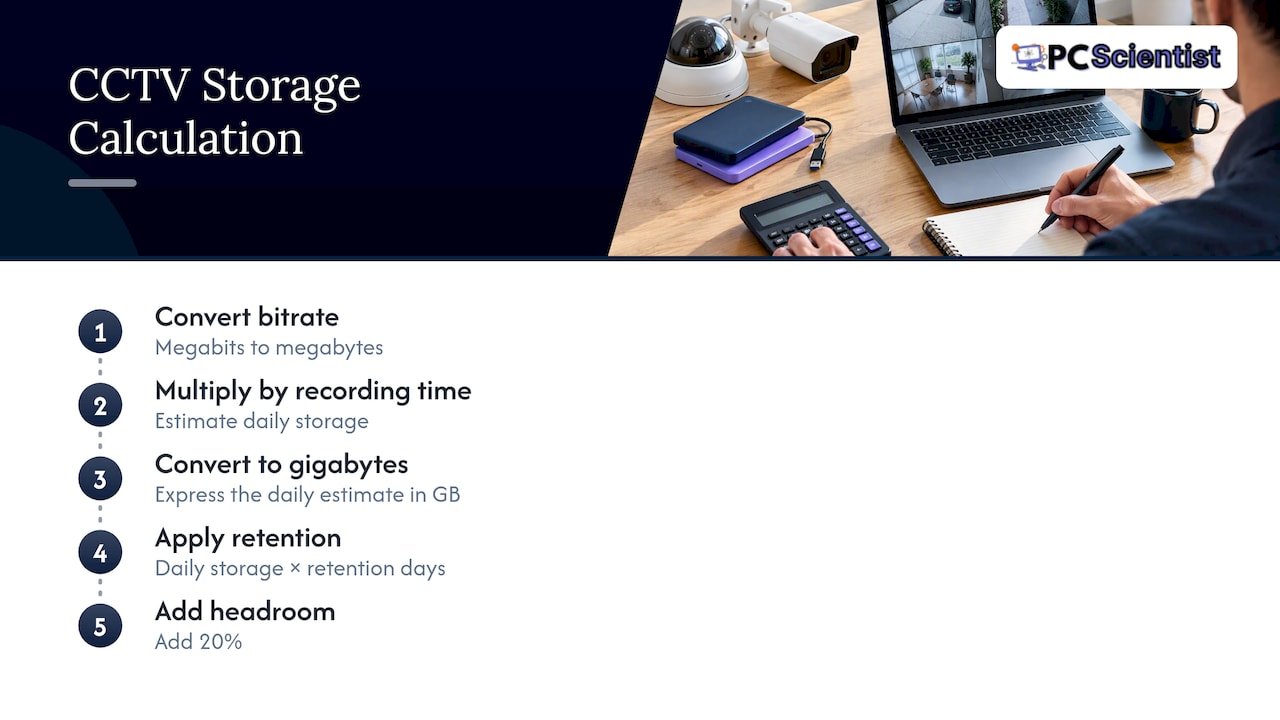
Storage is driven by bitrate, not by resolution. Two 4K cameras can use very different amounts of space depending on codec and settings. The formula is simple:
Storage needs depend on bitrate and recording time, with the result converted into the desired storage unit.
In plain terms: convert megabits to megabytes, multiply by recording time, then convert to gigabytes. The daily storage used by a camera depends on its bitrate and recording settings. Modern codecs help: H.265 typically needs noticeably less bitrate than H.264 for similar quality, and Axis describes how storage-optimised profiles and AV1 support can cut storage while keeping footage useful.
The figures in the table below depend on the bitrate and recording settings for each camera.
Motion-only recording shrinks these numbers, sometimes dramatically, but busy scenes push them back up.
Pro Tip: Record one full day on your real cameras, check how much space it took, then multiply by your retention days and add 20% headroom.
What does CCTV storage really cost over time?
Think in totals, not sticker prices. Upfront you will typically pay for cameras, a recorder or NAS, surveillance drives, a PoE switch, a UPS and installation. Running costs follow: cloud subscriptions if you use them, drive replacement every few years, UPS battery replacement, electricity and extra internet data.
To estimate your own total, list your camera count and retention days, size the drives from the table above, then add the yearly cost of any cloud tier - you might also want to consider ways to cut admin time in weeks to manage your system more efficiently. Over time, a cloud-only plan for several cameras can match or exceed the price of a local system that you own outright. Our team can price both versions side by side so you see the difference before you commit.
How do you keep CCTV footage safe from power cuts, theft and outages?
Start with power. A UPS lets your recorder shut down cleanly or keep recording through a short blackout, which protects the file system. Put your modem on it too, so remote access and cloud uploads survive brief cuts.
Next, protect the hardware. Mount the recorder out of sight, in a locked cabinet or room, and avoid leaving it beside the front door. A recorder a thief can unplug and carry off defeats the whole system.
Finally, plan for the internet dropping. Local recording carries on regardless, so keep it as your primary store and treat cloud alerts as a bonus. A periodic manual export of important clips to a drive kept elsewhere is a simple backup that costs nothing.
What are your privacy and retention duties for CCTV footage in Australia?
Footage of identifiable people is personal information. The OAIC's security camera guidance says that whether you store footage locally or in the cloud, you are responsible for securing it, limiting access to authorised people, and deleting it when it is no longer required. Organisations covered by the Privacy Act must destroy or de-identify footage they no longer need, and state or territory laws can add requirements. The consolidated APP guidelines also make clear that outsourcing storage does not remove that responsibility.
A practical checklist:
- Write down a retention period and stick to it.
- Limit access with individual logins, not a shared password.
- Delete footage securely when the period ends.
- Check your state rules; for NSW, see our CCTV laws guide.
An installer's view: the planning mistakes we see most
Our checklist is short. Decide what evidence you need, choose cameras to match, plan power, PoE and a UPS, size storage by bitrate and retention days, test remote access, and write down your retention policy.
The mistakes are just as consistent. People shop by megapixels and ignore bitrate. They skip the UPS. They assume the cloud removes every local risk, when a weak password or a dead upload link can still cost them the footage. If your system covers a business, several buildings or footage you may need as evidence, a site survey before purchase saves money. Our business CCTV service exists for that.
- PC Scientist
How can we help with your CCTV storage?
We help plan storage around your needs. Our team will survey your site, calculate retention from real bitrates, set up your NVR or NAS, and configure the UPS and network.

- Nothing extra until you agree, with no guesswork about what your system will cost
- Practical, step-by-step guidance in plain language
- Onsite visits or remote support, whichever suits you
Book a site assessment through our Security Camera Scientist service and we will put together a tailored storage plan.
Sources
- Security cameras | OAIC
- CCTV Buying Guide Australia: How to Choose the Right Security Camera System - Security Wholesalers
- Digital platform services inquiry - September 2023 report - Summary of consumer issues discussion
Recommended
- Keep Existing Coax? Installer Rules for NVR vs DVR in Home Installs
- Wired vs wireless CCTV: which one actually protects your property?
- Under 4TB? Choose NAS or Cloud Storage in Australia
Frequently Asked Questions
Straight answers about CCTV Storage Options for Australian Homes and SMEs: Retention First - without jargon or pressure. Call 0493 563 381 for advice, or get help below.
Want the quickest answer? 0493 563 381 for free advice.
For most homes and small businesses, an IP camera system recording to a local NVR over PoE is the best balance of quality, cost and control. Add cloud backup if you want off-site protection. A DVR only makes sense when you are keeping existing coax cabling.
Record to surveillance-grade drives in an NVR or NAS, then keep a second copy off site, either in the cloud or on a drive stored elsewhere. Protect the recorder with a UPS and a locked location. Delete footage once your retention period ends.
How long an SD card records depends on its capacity, bitrate, codec and recording mode. Check your camera's actual bitrate against Axis's card sizing guidance. Higher bitrates reduce recording time, and motion-only recording can extend it. Check your camera's actual bitrate against Axis's card sizing guidance.
Only if it was stored somewhere that long. Home and small-business systems may overwrite footage, so older clips may no longer exist unless you archived them to a NAS, drive or cloud plan. Under the Privacy Act, you should not keep footage longer than you need it.
CCTV help across NSW
Need a hand with CCTV storage options?
If you would rather not plan cameras on your own, get help in your area. We will talk it through first.
Start here
Get CCTV help
Optional Need a Sydney city or region?
Choose a side of Sydney
These are Sydney cities and regions, such as the Northern Beaches or Inner West. First tap a side of Sydney. Then open the city or region that covers you.
C Sydney City / Inner 3 areas
N Northern Sydney 6 areas
NW North-West / Central Sydney 3 areas
W Western Sydney 1 area
SW South-West Sydney 3 areas
S Southern Sydney 2 areas
Optional Find your suburb
Type a suburb from our listed coverage. This opens the matching city or region page for this topic. Listed suburb pages are general technology services, not this specialist page.
If your suburb is not listed, use the city or region list above, or call 0493 563 381.
Disclaimer
The information in this article is provided for general educational and informational purposes only. While PC Scientist strives to keep all content accurate and up to date, technology issues can vary depending on your device, software, network configuration, and individual circumstances. Always back up important data before attempting repairs or system changes. If you are unsure or the issue cannot be resolved safely, contact PC Scientist today for professional onsite or remote IT support. PC Scientist is not liable for any loss of data, damage, or other issues resulting from the use of the information provided in this article.
