

GPU Upgrade Bottleneck: Check Before You Buy a New Card

A new graphics card only helps if it isn't waiting on the rest of your PC. Whether your CPU will hold it back depends on the game, the resolution, your settings and the frame rate you're chasing. There is no single magic percentage. The good news is that you can test your own PC in about 20 minutes, for free, before you spend a cent.
This guide walks you through that test, shows you how to read the results, and cover the other things that quietly cap performance (power supply, RAM, cooling, even your monitor). If you'd rather have someone do it in person, we cover that near the end.
Key takeaways
- A bottleneck is simply the part that limits performance first. It changes with the game and settings, so test the games you actually play.
- If your GPU sits near 100% while the CPU has headroom, a graphics card upgrade will help. If the GPU is underused while a CPU thread is maxed out, upgrade the CPU side first.
- Online bottleneck calculators are a rough guess at best. Real monitoring during gameplay is far more reliable.
- Before buying, check physical fit, power supply, connectors and cooling, then retest the same scene afterwards.
Table of Contents
- What a bottleneck actually is
- Why bottleneck calculators let people down
- How to check for a bottleneck on your own PC
- Three real-world examples
- Before you buy: the compatibility checklist
- Other upgrades that can matter more than the GPU
- Our perspective: upgrade the part that's actually limiting you
- After the upgrade: retest properly
- Need a hand?
- FAQ
- Sources
What a bottleneck actually is
Every PC has a slowest link. When you play a game, the CPU prepares each frame (game logic, physics, instructions for the graphics card) and the GPU draws it. Whichever one finishes last sets your frame rate. The other waits.
Intel frames this as a system-balance question rather than a fault in one component. Nothing is broken. One part is just being asked to do more than the other. That's why "is my CPU bottlenecking my GPU?" has no yes-or-no answer that holds for every game.
A few things shift the balance:
- Resolution. Higher resolutions load the GPU harder. A pairing that feels well matched at 4K can be CPU-limited at 1080p, especially on a high-refresh monitor.
- Graphics settings. Ultra textures, ray tracing and heavy shadows lean on the GPU. Crowd size, simulation and large open worlds lean on the CPU.
- Frame-rate target. Chasing 144 fps asks far more of your CPU than being happy with 60.
- Background tasks. Browsers, launchers, recording software and antivirus scans all take a slice.
That's also why Intel notes there is no universal bottleneck percentage you can apply to any pairing. If a website tells you a particular CPU and GPU combination is "12% bottlenecked", treat it as a conversation starter, not a verdict.
Why bottleneck calculators let people down
Calculators take two model names, compare them and spit out a number. They don't know your monitor, your games, your RAM speed, your cooling or whether Windows is running ten background apps. Two people with identical parts can get very different results.
Use a calculator if you're curious, but don't spend money on the strength of one. The test below uses your real games on your real machine, which is the only thing that matters.
How to check for a bottleneck on your own PC
You need a monitoring overlay and about 20 minutes. Free tools such as MSI Afterburner can show CPU and GPU load while you play, and HP's Australian guide explains the basic setup. Windows' own Task Manager also shows GPU usage on its Performance tab.
Step 1: Write down what you have
Note your CPU, GPU, RAM (amount and whether it's running as two sticks), power supply wattage, monitor resolution and refresh rate. You'll need all of it later.
Step 2: Play the game that bothers you
Pick the game, or the scene within it, where performance disappoints. Play for at least five minutes at your usual settings and watch:
- GPU usage
- Individual CPU core or thread usage (not just the overall percentage)
- Temperatures for both
- RAM use
- Your frame rate
The per-core detail matters. Intel points out the diagnosis has to be made under the real game workload, and overall CPU usage can look moderate while one or two threads are flat out and holding everything back.
If your system draws a lot of power while you test, it's also worth knowing what it pulls at the wall. A guide to measuring watts and kWh at the wall shows how, which helps when you're judging whether your power supply has room for a hungrier card.
Step 3: Read the pattern
| What you see | What it usually means | Best next move |
|---|---|---|
| GPU at 90 to 100%, CPU threads have headroom | GPU-limited | A faster graphics card will help |
| GPU well under load, one or more CPU threads near 100% | CPU-limited | Upgrade CPU (and possibly motherboard and RAM) first |
| Both fairly low, frame rate still poor | Something else is capping it | Check frame caps, V-Sync, thermals, drivers, storage, background apps |
| Frame rate drops after a few minutes, temperatures climbing | Thermal throttling | Fix cooling before spending on parts |
| Stutters or freezes outside games too | Stability problem | Repair first, upgrade later |
This lines up with Intel's advice: upgrade the GPU when it's consistently near full load in the games that matter to you, when cutting graphics load gives a meaningful FPS gain, and when you want higher settings, resolution or frame rates. Upgrade the CPU instead when key threads are saturated and the GPU is underused.
Step 4: Run the resolution test
Here's a quick confirmation. Drop the game's resolution (or render scale) noticeably and replay the same scene. If your frame rate jumps, the graphics card was the limit. If it barely moves, the CPU is the one holding you back, because the GPU now has less to do and your frame rate still isn't improving.
Step 5: Save a benchmark baseline
Before you change anything, record numbers. PassMark's PerformanceTest has free standard tests and paid advanced tests and is designed to measure the effect of hardware upgrades. A synthetic score can't tell you whether a particular game is CPU- or GPU-limited, so pair it with notes from your real game: same scene, same settings, same resolution, average frame rate and the dips.
Three real-world examples
These are illustrative scenarios, not test results, but they match what we commonly see when people ask whether to upgrade.
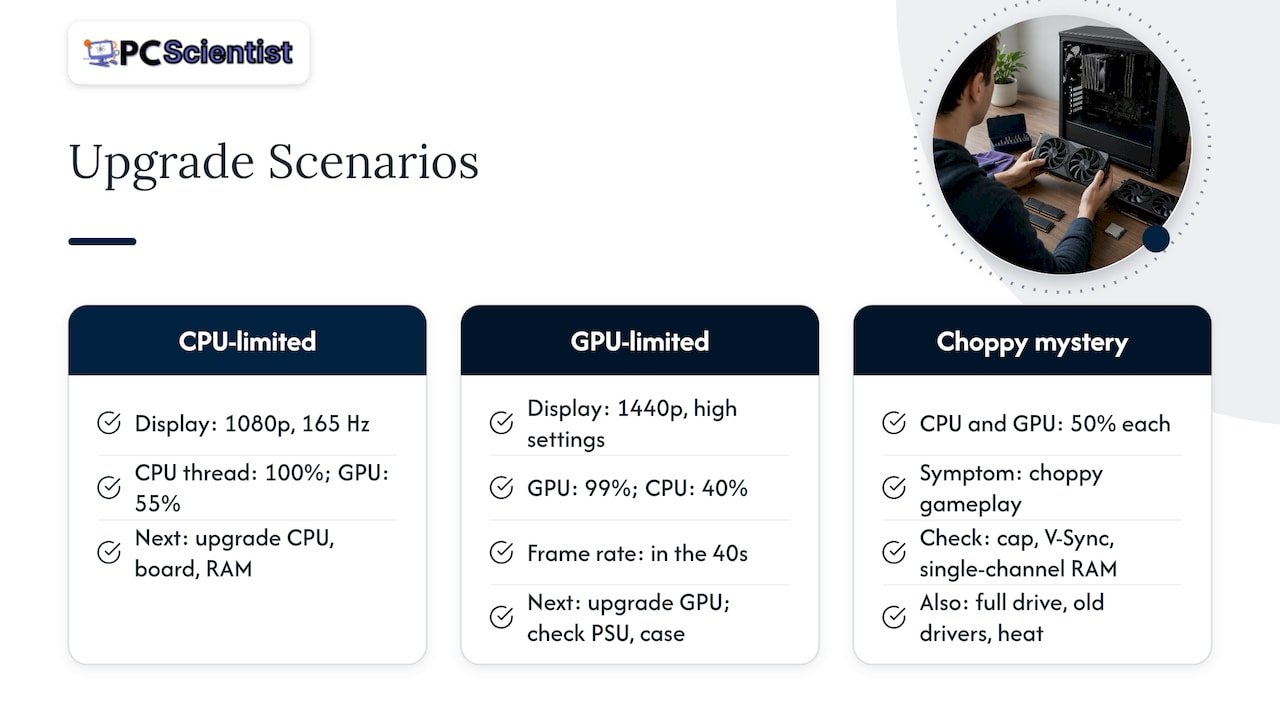
The older CPU with a new card idea. You play competitive shooters at 1080p on a 165 Hz monitor. During play, your GPU idles around 55% while one CPU thread sits at 100%. A new graphics card would barely move the needle. A CPU upgrade (and the motherboard and RAM that come with it) is the better spend.
The 1440p single-player gamer. You play big-budget titles at 1440p on high settings. GPU sits at 99%, CPU at 40%, and frame rate hovers in the 40s. This is a textbook case for a graphics card upgrade. Check your power supply and case size, then buy.
The "nothing is maxed" mystery. CPU and GPU both sit at 50%, but the game feels choppy. Look at the boring stuff first: a frame cap, V-Sync, RAM running in single channel, a nearly full drive, old drivers or a thermal problem. Our guide on what to try when a computer is running slow covers the basics.
Before you buy: the compatibility checklist
Finding the bottleneck is half the job. A new card also has to physically and electrically work in your PC.
- Physical size. Modern cards are long and thick. Measure the space in your case, and check that it won't block other slots or drive bays.
- Power supply. Check the card manufacturer's recommended wattage and the connectors it needs. An older or tired power supply is a common weak point.
- Connectors. Some cards use newer power connectors, others use several 8-pin leads. Make sure your power supply has what's needed, rather than relying on awkward adapters.
- Motherboard and slot. Most cards fit a standard PCIe x16 slot, but check your board, BIOS version and whether the card will be held back by a slower slot.
- Cooling and airflow. A stronger GPU produces more heat. If your case is already warm, performance gains can vanish into throttling.
- Monitor. A powerful card on a 60 Hz 1080p screen won't show what it can do. Make sure your display can use the extra frames.
- VRAM for your resolution. If you play at higher resolutions with detailed textures, the card's memory matters as much as raw speed.
This is the same order Intel-backed testing advice suggests: record your components, monitor the problem game, identify the limiting part, check fit and power, install current drivers and the card, then retest the same workload.
If your PC freezes, overheats or crashes outside games, fix that first. Throwing a new card at an unstable machine just gives you an expensive unstable machine. Our 20-minute Safe Mode test for a freezing PC is a good place to start.
Other upgrades that can matter more than the GPU
Sometimes the cheapest fix is nowhere near the graphics card.
- RAM. Running one stick instead of two (single channel) or having too little memory can cause stutter. Our RAM upgrade versus new PC rule explains when a memory upgrade is enough.
- Storage. Long load times and texture pop-in often come from an old hard drive. An SSD upgrade is one of the most noticeable changes you can make.
- Power supply. An undersized or ageing unit can cause crashes under load, particularly with a more power-hungry card.
- Cooling. Dust in an Australian summer is a real performance killer. A clean-out and better airflow can recover lost frames.
- Background software. Overlays, recorders and launchers can cost frames. A set of simple tests for finding which overlay feature costs FPS helps you rule them out before buying hardware.
Our perspective: upgrade the part that's actually limiting you
Most people who ask us about a new graphics card haven't been told what's actually slowing the PC down. They've seen a video, a forum thread or a calculator, and they're about to spend a few hundred dollars or more on a guess.
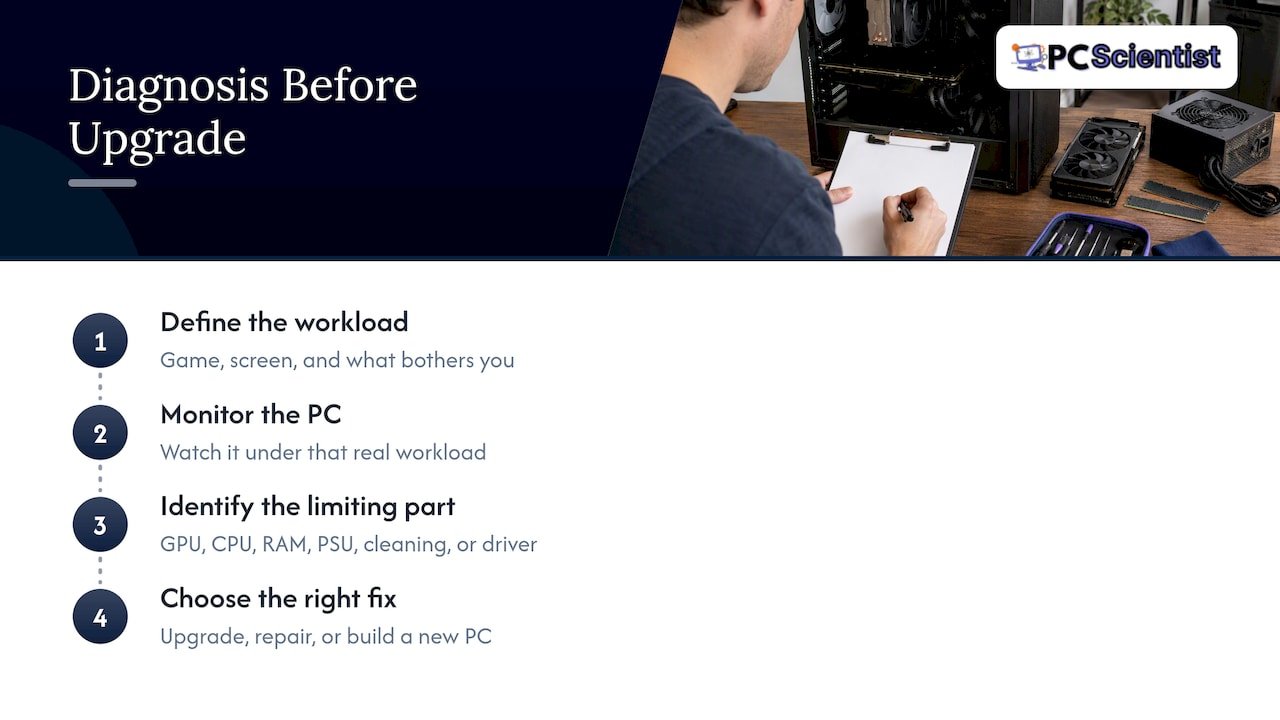
We'd rather you spend once, on the right part. When we look at a gaming PC, we start with what you play, on what screen and what bothers you. Then we watch the machine under that real workload. Sometimes the answer is a new GPU. Sometimes it's a CPU, RAM, a power supply, a cleaning job or a driver fix. And sometimes the honest answer is that the PC is at the point where a new build makes more sense than patching it.
That's why we work on a no fix, no fee basis for repairs, and why we explain things step by step without jargon. You shouldn't need to know the technical terms to get a straight answer. If you do decide on a new system, our team also builds custom gaming and workstation PCs, so the parts are matched properly from the start.
- PC Scientist
After the upgrade: retest properly
Install the latest drivers for your new card, using a clean install if you're switching brands. Then repeat exactly what you did before:
- Same game, same scene, same settings and resolution.
- Same monitoring overlay running.
- Same PassMark test for your before-and-after comparison.
Look beyond average FPS. Check the lowest 1% frames, since those dips are what you feel as stutter. If your GPU is now below 90% and a CPU thread is pinned, you've moved the bottleneck, which is normal. The question is whether the game now feels the way you wanted.
If you're selling your old card to help fund the new one, a guide to checking sold prices for PC parts can help you price it realistically rather than by what sellers are asking.
Need a hand?
If you'd rather not open the case yourself, we can do the testing, advise on the right upgrade and fit it. Our Custom PC Build Scientist service covers gaming and workstation PCs across NSW, and our Computer Repair Scientist team can diagnose a PC that's freezing, overheating or underperforming. You don't need to know what to ask for. Tell us what the PC is doing and we'll work out the rest. If you're on the Central Coast, see our custom PC builds page for the region, or start at pcscientist.com.
Sources
- Intel Australia: What is bottlenecking my PC?
- PassMark PerformanceTest
- HP Australia: Is my CPU bottlenecking my GPU?
Recommended
- Technician Tested: The 50% Rule for RAM Upgrade Vs New PC
- SSD Upgrades: Home and Small Business PCs Feel Faster in a Minute
- Computer running slow? Here's what to try first
- Best Custom PC Builds for Sydney Gamers in 2025 | Essential Specs & Buying Guide
Frequently Asked Questions
Straight answers about GPU Upgrade Bottleneck: Check Before You Buy a New Card - without jargon or pressure. Call 0493 563 381 for advice, or get help below.
Want the quickest answer? 0493 563 381 for free advice.
Yes. If the CPU can't prepare frames fast enough, the graphics card sits partly idle and your frame rate stops rising however powerful the card is. It's most obvious at lower resolutions and high refresh rates. Watch per-core CPU usage while you play to confirm it.
Monitor GPU usage, per-core CPU usage, temperatures and frame rate while playing the game that bothers you. A GPU near 100% points to a graphics limit, while a low GPU load with a maxed CPU thread points to the processor. Lowering the resolution and seeing whether FPS jumps is a handy second check.
Upgrade it if the card is consistently near full load in your games and you want higher settings, resolution or frame rates. If the GPU is underused, you'll likely see little benefit until the CPU, RAM or another limit is addressed. Check your power supply, case size and monitor first.
Sometimes. Artefacts, crashes or black screens can come from overheating, dust, bad drivers, a weak power supply or a failing card, so the cause needs to be tracked down first. A technician can test the card and rest of the system before you decide whether to repair or replace it.
Custom PC builds across NSW
Need a hand deciding on a GPU upgrade?
If you are planning a build, get help in your area or start with Custom PC Build Scientist.
Start here
Get custom PC help
Optional Need a Sydney city or region?
Choose a side of Sydney
These are Sydney cities and regions, such as the Northern Beaches or Inner West. First tap a side of Sydney. Then open the city or region that covers you.
C Sydney City / Inner 3 areas
N Northern Sydney 6 areas
NW North-West / Central Sydney 3 areas
W Western Sydney 1 area
SW South-West Sydney 3 areas
S Southern Sydney 2 areas
Optional Find your suburb
Type a suburb from our listed coverage. This opens the matching city or region page for this topic. Listed suburb pages are general technology services, not this specialist page.
If your suburb is not listed, use the city or region list above, or call 0493 563 381.
Disclaimer
The information in this article is provided for general educational and informational purposes only. While PC Scientist strives to keep all content accurate and up to date, technology issues can vary depending on your device, software, network configuration, and individual circumstances. Always back up important data before attempting repairs or system changes. If you are unsure or the issue cannot be resolved safely, contact PC Scientist today for professional onsite or remote IT support. PC Scientist is not liable for any loss of data, damage, or other issues resulting from the use of the information provided in this article.
